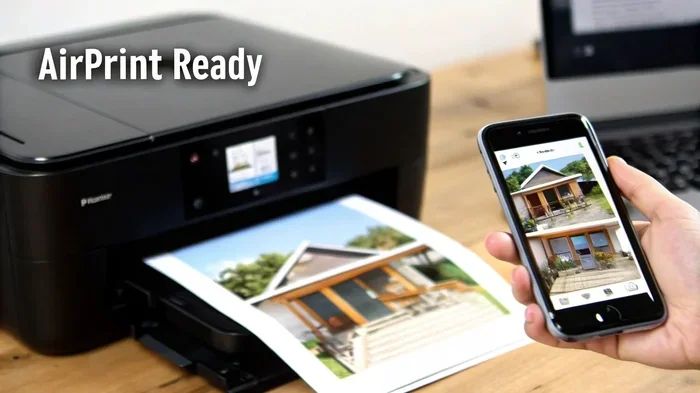
How Do I Print Photos From My Iphone Quickly and Easily
Printing photos from your iPhone is simpler than you think. Whether you use AirPrint, a wireless printer, or a dedicated photo printing app, you can get stunning prints in minutes. This guide covers every method so you can print photos from iPhone without any hassle.
Have you ever scrolled through your iPhone photos and thought, “I wish I could hold this in my hands?” You are not alone. Millions of people take amazing pictures every day but never turn them into real prints. The good news is that printing photos from your iPhone is faster and easier than it has ever been.
Whether you want to print one snapshot or an entire album, you have several options at your fingertips. You can use AirPrint, download a printing app, or even send your photos to an online service. This guide walks you through every method step by step. By the end, you will know exactly how to print photos from iPhone quickly and beautifully.
Let us dive in and get your favorite memories off your screen and onto paper.
Key Takeaways
- AirPrint makes wireless printing easy: You can print directly from your iPhone to any AirPrint-enabled printer without cables or extra software.
- Multiple methods work for every user: Use AirPrint, third-party apps, or online printing services depending on your printer and needs.
- Photo quality depends on settings: Adjusting print quality, paper type, and using the right app makes a big difference in your output.
- Top printers like HP, Canon, and Epson support iPhone printing: These brands offer seamless mobile printing experiences.
- Troubleshooting is simple: Most common printing problems have quick fixes you can do in under five minutes.
- Apps like PrintCentral and Canon PRINT add extra features: They give you more control over your prints and photo editing options.
📑 Table of Contents
- Why You Should Print Photos From Your iPhone
- How AirPrint Works With Your iPhone
- Best Photo Printers for iPhone Users
- Step-by-Step Guide to Printing From Your iPhone
- Printing Apps That Make iPhone Photo Printing Easy
- Tips for Getting the Best Print Quality From Your iPhone
- Common Problems When Printing From iPhone (and How to Fix Them)
- Expert Insights on iPhone Photo Printing
- Conclusion
Why You Should Print Photos From Your iPhone
We live in a digital world. Our photos live on screens. But there is something magical about holding a printed photo. It feels real. You can touch it. You can put it on your fridge, give it as a gift, or frame it on your wall.
Here are some reasons why iPhone photo printing is worth your time:
- Memories last longer: Digital files can get lost or corrupted. A printed photo stays safe for decades when stored properly.
- It makes a great gift: Printed photos in albums or frames are thoughtful and personal. People love receiving them.
- You do not need a computer: Modern methods let you print wirelessly from iPhone without any extra devices.
- It is faster than ever: With the right setup, you can go from phone to print in just a few minutes.
- Creative projects become easier: Want to make a scrapbook, a greeting card, or a wall gallery? Start by printing your favorites.
Printing photos also gives you a break from staring at screens. There is real joy in flipping through a physical photo album with family and friends. It brings people together in a way that scrolling through a gallery on a phone simply cannot.
How AirPrint Works With Your iPhone
AirPrint is Apple’s built-in wireless printing technology. It lets you connect your iPhone directly to a compatible printer without any cables. This is the easiest way to print photos from iPhone if your printer supports it.
What You Need for AirPrint
Before you start, make sure you have the following:
- An iPhone running iOS 4.2 or later (most modern iPhones work perfectly).
- An AirPrint-enabled printer. Many popular brands support this, including HP, Canon, Epson, and Brother.
- Both your iPhone and printer connected to the same Wi-Fi network.
How to Print Using AirPrint
Follow these simple steps to print wirelessly from iPhone using AirPrint:
- Open the Photos app on your iPhone.
- Select the photo you want to print. You can tap the share button (the square with an arrow pointing up).
- Tap the “Print” option from the share menu.
- Select your printer from the list of available printers.
- Choose how many copies you want and tap “Print.”
That is it. Your photo starts printing right away. You can check the print job in the Print Center by swiping up from the bottom of your screen and tapping the print preview.
Is Your Printer AirPrint Compatible?
Not all printers support AirPrint. Here is a quick way to check:
- Go to Apple’s official AirPrint compatible printers list on their website.
- Check your printer’s manual or the manufacturer’s website.
- Look for the AirPrint logo on the printer’s box or in its settings.
If your printer does not support AirPrint, do not worry. We cover alternative methods below.
Best Photo Printers for iPhone Users
Choosing the right photo printer for iPhone makes a huge difference in print quality and convenience. Here are some top options that work beautifully with mobile printing from iPhone.
HP Envy Photo 6255
This is one of the most popular home printers for iPhone users. It supports AirPrint and HP’s own mobile printing app. You get great color accuracy and it handles regular paper and photo paper with ease.
Canon PIXMA TR8620
The Canon PIXMA TR8620 is a versatile all-in-one printer. It supports wireless printing from iPhone through the Canon PRINT app. It delivers sharp, vibrant photo prints and also scans and copies documents.
Epson Expression Photo XP-8600
Epson is known for excellent photo quality. The XP-8600 uses Claria Photo HD ink and produces stunning prints. It connects to your iPhone via Wi-Fi printing and works with the Epson iPrint app.
Portable Options: HP Sprocket and Canon Ivy
If you want something compact, consider a portable photo printer. The HP Sprocket and Canon Ivy are small, Bluetooth-connected printers that let you print 2×3-inch photos directly from your iPhone. They are perfect for travel, events, and quick prints on the go.
| Printer | Connection | Print Size | Price Range |
|---|---|---|---|
| HP Envy Photo 6255 | Wi-Fi, AirPrint | Up to 8.5×11 | $100-$150 |
| Canon PIXMA TR8620 | Wi-Fi, Bluetooth | Up to 8.5×14 | $150-$200 |
| Epson XP-8600 | Wi-Fi, AirPrint | Up to 8.5×11 | $200-$250 |
| HP Sprocket Plus | Bluetooth | 2×3 inches | $80-$120 |
| Canon Ivy Recorders | Bluetooth | 2×3 inches | $50-$100 |
Each of these printers offers a different experience. Think about what matters most to you: print size, quality, portability, or budget.
Step-by-Step Guide to Printing From Your iPhone
Now that you know your options, let us walk through the complete process. Whether you use AirPrint or a third-party app, the basics are similar.
Method 1: Printing With AirPrint (No App Needed)
This is the simplest method. Here is a detailed walkthrough:
- Connect to the same Wi-Fi network. Make sure your iPhone and printer are on the same network. This is the most common reason printing fails.
- Open your photo. Go to the Photos app and find the image you want to print.
- Tap the Share button. It looks like a square with an upward arrow. You will see it at the bottom-left corner of the screen.
- Scroll down and tap “Print.” The print options will appear.
- Select your printer. Tap “Printer” and choose your printer from the list.
- Adjust settings. You can choose the number of copies, paper size, and whether to print in color or black and white.
- Tap “Print” in the top-right corner. Your photo starts printing immediately.
Quick Tip: To check your active print jobs, swipe up from the bottom of your screen and tap the Print Center icon. You can pause, cancel, or resume prints from there.
Method 2: Using a Third-Party Printing App
Some printers do not support AirPrint. In that case, you need to download the manufacturer’s app. Popular options include:
- HP Smart for HP printers
- Canon PRINT for Canon printers
- Epson iPrint for Epson printers
- Brother iPrint&Scan for Brother printers
These apps give you more control over settings like print quality, paper type, and layout. They also let you print documents, web pages, and emails from your iPhone.
Method 3: Using Online Printing Services
Do not have a printer at home? No problem. Online services let you upload photos from your iPhone and have them delivered to your door. Popular options include:
- Shutterfly — Great for photo books and prints.
- Snapfish — Affordable prints with fast delivery.
- Nations Photo Lab — Known for high-quality professional prints.
- Walgreens and CVS apps — Convenient for quick pickup orders.
These services are perfect when you want large batches of prints or special products like canvases, greeting cards, and photo books.
Printing Apps That Make iPhone Photo Printing Easy
While AirPrint handles most basic needs, dedicated photo printing apps unlock more features. They let you edit photos before printing, choose custom sizes, and even create photo books directly from your iPhone.
PrintCentral Pro
PrintCentral Pro is a powerful app that supports multiple printers and file types. You can print photos, PDFs, and documents from your iPhone. It also lets you access files stored on your computer or cloud services like Dropbox and Google Drive.
Google Cloud Print (Legacy) and Alternatives
Google Cloud Print was discontinued, but several alternatives now fill that gap. Apps like Printer Pro by Readdle offer excellent mobile printing for iPhone and support a wide range of printers over Wi-Fi and USB.
Apple Photos App Built-In Features
Do not overlook the Photos app itself. Beyond basic printing, you can also create albums, share photos via AirDrop, and use the editing tools to enhance your photos before printing. Sometimes a quick crop or brightness adjustment makes your print look dramatically better.
Canva and Other Design Apps
Apps like Canva let you design custom prints with templates and text. You can create photo collages, greeting cards, and posters right on your iPhone. Once your design is ready, you can export and print it using any of the methods described above.
Tips for Getting the Best Print Quality From Your iPhone
Want your printed photos to look as good as they do on screen? Follow these practical tips to improve your iPhone photo prints.
Use the Right Paper
Not all paper is created equal. For the best results, use photo-quality paper designed for inkjet or laser printers. Glossy paper makes colors pop, while matte paper gives a more subtle, professional look.
Check Your iPhone Photo Resolution
High-resolution photos produce sharper prints. To check your photo’s resolution:
- Open the photo in the Photos app.
- Swipe up on the photo to see details.
- Look at the dimensions. Photos that are at least 3000×2000 pixels print well at standard sizes.
Quick Tip: If your photo resolution is low, do not try to enlarge it too much. It will look pixelated. Stick to smaller print sizes for low-resolution images.
Adjust Print Settings
When you go to print, take a moment to review the settings. Choose “Best” or “High” quality instead of “Draft” mode. This uses more ink but produces noticeably sharper and more vibrant results.
Edit Before You Print
Use the built-in Photos editor or a third-party app like Snapseed or VSCO to enhance your photos before printing. Adjusting brightness, contrast, and saturation can make a printed photo look much more professional.
Keep Your Printer Maintained
A clean, well-maintained printer produces better prints. Run your printer’s cleaning cycle regularly, replace ink cartridges when they run low, and use good quality paper. These small steps make a big difference over time.
Common Problems When Printing From iPhone (and How to Fix Them)
Even with the best setup, you may run into issues now and then. Here are the most common problems and their solutions.
Printer Not Showing Up in the Print Menu
This usually happens because your iPhone and printer are not on the same Wi-Fi network. Check both devices and make sure they connect to the same network. Also, try restarting your router, printer, and iPhone.
Print Job Stuck or Not Starting
Open the Print Center by swiping up from the bottom of your screen. Tap the print job and select “Cancel.” Then try sending the print job again. Sometimes clearing the queue fixes the issue.
Poor Print Quality
If your prints look faded or blurry, try these fixes:
- Run a printer cleaning cycle from the printer’s settings or app.
- Replace low ink cartridges.
- Make sure you are using the correct paper type in your print settings.
- Check that your iPhone photo has a high enough resolution for the print size you chose.
Wi-Fi Connection Drops During Printing
Move your printer closer to your Wi-Fi router. Walls and other electronics can interfere with the signal. If you use a portable printer with Bluetooth, make sure the devices stay within range.
Printouts Have Lines or Streaks
This is usually a sign that the print heads are clogged. Most printers have a built-in cleaning tool. Run it a few times if needed. For stubborn issues, check your printer’s manual for manual cleaning instructions.
Expert Insights on iPhone Photo Printing
According to tech experts, the biggest mistake people make when printing from their iPhone is not checking the print settings before hitting the print button. Taking an extra 30 seconds to choose the right paper size, print quality, and number of copies saves time, ink, and paper in the long run.
Professional photographers also recommend printing test copies first. Before you print a whole batch, print one photo and check how it looks. This helps you catch any issues with color, brightness, or alignment before wasting materials.
Another expert tip: Keep your iPhone and printer firmware updated. Manufacturers regularly release updates that improve mobile printing compatibility and fix bugs. Connecting your devices to the latest software ensures the smoothest experience.
Conclusion
Printing photos from your iPhone is one of the most satisfying things you can do with your device. Whether you use AirPrint, a manufacturer app, or an online service, the process is straightforward and accessible to everyone. You do not need to be tech-savvy to get great results.
Start with the method that suits your setup best. If you have an AirPrint-enabled printer, the built-in print feature is your fastest option. If you want more creative control, try a dedicated printing app. And if you do not own a printer yet, online services make it easy to get beautiful prints delivered right to your door.
The key is to just start. Pick a favorite photo, hit print, and enjoy seeing your memories come to life on paper. Once you print your first photo, you will wonder why you did not do it sooner. Happy printing!
Frequently Asked Questions
Can I print photos from my iPhone without Wi-Fi?
Yes, you can. Some printers support Bluetooth or USB connections. Portable printers like the HP Sprocket and Canon Ivy connect directly to your iPhone via Bluetooth, so no Wi-Fi is needed. You can also use a USB cable with the right adapter to connect your iPhone directly to a printer.
What is the best free app to print photos from iPhone?
The best free app depends on your printer. For most users, the built-in AirPrint feature requires no app at all. If you need a third-party option, HP Smart, Canon PRINT, and Epson iPrint are all free and work well with their respective printers. Printer Pro by Readdle is another excellent universal option that supports many printer brands.
How do I print high-quality photos from my iPhone?
To get the best quality, start with a high-resolution photo. Use photo-quality paper and select “Best” or “High” print quality in your settings. Edit your photo for brightness and contrast before printing. Also, make sure your printer has fresh ink cartridges and clean print heads for the sharpest results.
Can I print multiple photos on one page from my iPhone?
Yes. When you go to the Print menu, tap “Layout” and choose how many photos you want per page. You can print 2, 4, 6, or 9 photos on a single sheet. This is great for creating contact sheets or saving paper when printing smaller prints.
Why does my iPhone not find my printer when I try to print?
The most common reason is that your iPhone and printer are not on the same Wi-Fi network. Make sure both devices connect to the same network. Also, check that your printer is turned on and not in sleep mode. Restarting your router, printer, and iPhone often fixes connection issues quickly.
Are online photo printing services worth it?
Absolutely. If you do not want to buy a printer, online services are a great option. They offer competitive prices, high-quality prints, and the convenience of having photos delivered to your home. Services like Shutterfly, Snapfish, and Walgreens are reliable and easy to use directly from your iPhone.