Does Microsoft Have Clipart Here Is Everything You Need
Yes, Microsoft does have clipart, and it is easier than ever to find and use it. Whether you are working in Word, PowerPoint, or Excel, Microsoft Office gives you access to a built-in clipart gallery with thousands of images. In this guide, we will show you exactly where to find Microsoft clipart, what options are available, and how to get free clipart for your projects today.
Have you ever sat down to work on a project and thought, Does Microsoft have clipart I can use right now? Maybe you are building a school presentation, designing a flyer, or putting together a professional report. The last thing you want is to spend hours hunting for the perfect image.
The good news is that Microsoft clipart still exists, and it has gotten better over the years. Microsoft knows that people need visuals. Whether you are a student, a teacher, a small business owner, or just someone who likes to make things look nice, Microsoft Office has you covered. In this article, we will walk you through everything you need to know about finding free clipart and stock illustrations from Microsoft and beyond.
We will cover where to find clipart images inside your favorite Microsoft apps, what kind of image library options are available, and how to make sure you are using them correctly. By the end of this guide, you will never have to wonder about Microsoft clipart again. Let us dive right in.
Key Takeaways
- Microsoft still offers clipart: You can find built-in illustrations and images directly inside Microsoft 365 apps like Word, PowerPoint, and Excel.
- Free clipart is available online: Microsoft provides a free clipart and image library through its design tools and the web.
- Office Online has a dedicated image section: You do not need a paid license to access many clipart images and royalty free illustrations.
- Third-party sources expand your options: Sites like Pixabay, Unsplash, and OpenClipart offer excellent alternatives to Microsoft clipart.
- Using clipart the right way matters: Understanding licensing and attribution keeps your projects safe and professional.
- Microsoft’s image tools keep improving: New features in Microsoft 365 make finding and inserting digital illustrations faster than ever.
📑 Table of Contents
- What Is Microsoft Clipart and Why Does It Still Matter?
- Where Can You Find Clipart in Microsoft Office?
- Microsoft 365 and the Online Image Library
- How to Use Microsoft Clipart Effectively
- Free Alternatives to Microsoft Clipart
- Common Mistakes People Make with Clipart
- Expert Insights on Using Microsoft Clipart
- Key Takeaways
- FAQ: Your Top Questions About Microsoft Clipart Answered
- Conclusion
What Is Microsoft Clipart and Why Does It Still Matter?
When most people hear the word clipart, they think of the old days. You know the ones. Those simple, colorful drawings that came bundled with early versions of Microsoft Office. They were everywhere. In school reports, in office newsletters, on homemade greeting cards. Clip art was a household term long before the internet made image searching so easy.
But here is the thing. Microsoft clipart has evolved. It is no longer just a folder of simple cartoon drawings. Today, Microsoft Office offers a rich collection of digital illustrations, royalty free images, templates, and stock illustrations that you can use in your documents, slideshows, and spreadsheets.
The History of Microsoft Clipart
Back in the 1990s and early 2000s, Microsoft clipart was iconic. You could open the clipart gallery in Word or PowerPoint and browse through hundreds of categories. Animals, people, objects, backgrounds. You name it. It was a game changer for people who needed visuals but could not draw or photograph them.
Over time, the internet changed everything. People started using online clipart from other sites. Microsoft adapted. Instead of just bundling static images, it started integrating live image search, cloud-based libraries, and partnerships with stock image providers. The result is that today, Microsoft 365 gives you access to one of the largest and most useful image libraries in the world.
Why Clipart Still Has a Place Today
You might be wondering why clipart matters in an age of high-resolution photography and AI-generated images. The answer is simple. Clip art is quick, clean, and easy to use. It does not require a photoshoot or a professional photographer. It is perfect for presentations, educational materials, and informal documents where you need a visual boost without a lot of fuss.
Plus, many Microsoft clipart images are royalty free, which means you can use them without worrying about copyright issues. That alone makes them incredibly valuable for students, teachers, and small business owners who need professional-looking materials fast.
Where Can You Find Clipart in Microsoft Office?
If you are using Microsoft Office, you have more options than you might think. Does Microsoft have clipart built right into the apps you already use? Absolutely. Let us look at exactly where to find it.
Using the Built-In Clip Art Feature in Word
In Microsoft Word, you can insert clipart images directly into your document. Go to the Insert tab on the ribbon. Click Pictures. Then choose Online Pictures. A search bar will appear. Type in what you are looking for, and Microsoft Office will pull up relevant stock illustrations and clipart images from its library and from the web.
This feature is incredibly useful. You do not need to leave your document. You do not need to download files to your computer first. Just search, click, and insert. It is one of the fastest ways to add visuals to any Word document.
Finding Clipart in PowerPoint
PowerPoint is probably the most popular place people look for clipart. Presentations need visuals. They need icons, illustrations, and images that grab attention. Microsoft clipart in PowerPoint works the same way as in Word.
Go to Insert, then Pictures, then Online Pictures. You can also use the Design Ideas feature, which suggests layouts and images automatically. This is a powerful tool if you want your slides to look polished without spending hours on design work.
Clipart and Images in Excel and Other Office Apps
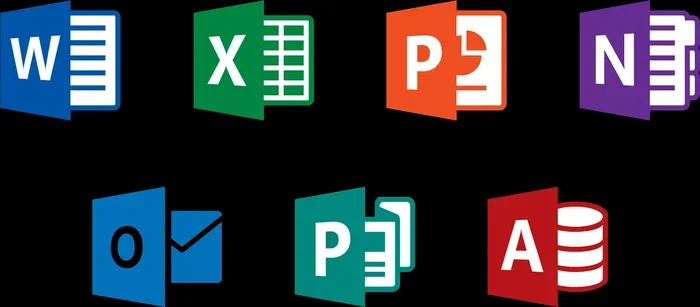
Excel is not just about numbers. You can add clipart images to charts, dashboards, and worksheets to make your data more visually appealing. The same goes for Access, Publisher, and OneNote. All of these Microsoft Office apps support the Online Pictures feature.
OneNote is especially handy for brainstorming and visual planning. You can drag and drop digital illustrations right onto your pages. It makes organizing ideas fun and intuitive.
Microsoft 365 and the Online Image Library
With Microsoft 365, the image experience goes way beyond the built-in apps. Microsoft has invested heavily in its online design tools and image libraries. This means you can find free clipart and stock illustrations even if you are not sitting at your desktop.
Microsoft Office Online and Free Clipart
Microsoft Office Online is a free, web-based version of Microsoft Office. You can use it in your browser without paying for a subscription. And it includes access to clipart images and online clipart libraries.
When you open Word Online or PowerPoint Online, you get the same Insert Pictures feature. You can search Microsoft’s image database and add visuals to your documents right from your browser. This is a great option for people who do not want to buy a full Microsoft 365 subscription but still need quality clip art for their projects.
Microsoft Design Tools and Templates
Microsoft 365 also includes access to Microsoft Designer, a design tool powered by AI. It helps you create graphics, social media posts, flyers, and more. The tool suggests images, layouts, and styles based on your content. It is not traditional clipart, but it serves a similar purpose. It gives you visuals that make your projects stand out.
Microsoft also offers thousands of free templates. These templates come pre-loaded with clipart images, icons, and stock illustrations. You can customize them to fit your needs. This is a huge time saver, especially for people who are not professional designers.
Using Microsoft’s Image Search Integration
One of the best features of modern Microsoft Office is its image search integration. When you search for images online through the app, Microsoft pulls from multiple sources. This includes its own licensed image collection and partner databases. The result is a huge selection of royalty free images and digital illustrations that you can use with confidence.
Always check the license details before using any image, though. While most Microsoft clipart is royalty free for personal and commercial use, some images may have specific restrictions. It is a good habit to double-check, especially for business projects.
How to Use Microsoft Clipart Effectively
Knowing where to find Microsoft clipart is only half the battle. You also need to know how to use it well. Poorly chosen or misplaced images can make even the best document look unprofessional. Here are some tips to get the most out of your clipart images.
Match the Style of Your Project
Not all clip art looks the same. Some digital illustrations are cartoonish. Others are more realistic. Some are flat and minimalist. Others are detailed and colorful. Choose images that match the tone and style of your project.
For a professional business report, go for clean, simple icons and illustrations. For a school project or a fun invitation, you have more freedom to use colorful and playful clipart images.
Keep It Simple
One of the biggest mistakes people make is using too many images. A cluttered page is hard to read. It distracts from your message. Use clipart to support your content, not to overwhelm it.
A good rule of thumb is to use one or two images per page or slide. Let the visuals guide the reader’s eye. Keep the layout clean and balanced.
Resize and Crop for Best Results
When you insert clipart images into your document, you may need to resize or crop them. Most Microsoft Office apps make this easy. Just click on the image, drag the corners to resize, and use the crop tool to remove unwanted parts.
Always try to use high-resolution images when possible. Even clip art can look blurry if you stretch it too much. If you notice pixelation, try searching for a higher-quality version or using a different image from the library.
Add Borders and Shadows for a Polished Look
Small design touches can make a big difference. In Microsoft Office, you can add borders, shadows, and reflections to your images. These effects give your clipart images a more polished, professional look. You will find these options in the Format tab when you click on an image.
Do not overdo it, though. A subtle shadow or a thin border can enhance an image. Too many effects can make it look cluttered and amateur.
Free Alternatives to Microsoft Clipart
Even though Microsoft clipart is great, you might want more options. Maybe you need a specific style that is not available in the Microsoft library. Or maybe you are looking for free clipart from other sources. Whatever the reason, there are plenty of excellent alternatives out there.
Best Free Clipart Websites
Several websites offer high-quality free clipart that you can use in your projects. Here are some of the best options:
- OpenClipart: A massive library of public domain clip art that you can use for anything, including commercial projects.
- Pixabay: Offers royalty free images, illustrations, and vectors. Great for stock illustrations and digital illustrations.
- Unsplash: Known for high-quality photography, but also has a growing collection of free images for projects.
- Freepik: Provides vectors, clipart images, and illustrations. Some content is free, and some requires a premium subscription.
- Flaticon: Specializes in icons and symbols. Perfect for adding small, clean visuals to presentations and documents.
How These Compare to Microsoft’s Built-In Library
So how do these free sites stack up against Microsoft clipart? The honest answer is that they are different tools for different needs. Microsoft’s built-in library is convenient because it is right inside your apps. You do not need to open a new browser or create a new account.
But third-party sites often have larger collections and more variety. If you need niche clipart images or very specific digital illustrations, sites like OpenClipart and Pixabay might be your best bet. The smartest approach is to use both. Use Microsoft clipart for quick, convenient access. Use free clipart sites when you need something more specialized.
Common Mistakes People Make with Clipart
Using clipart seems simple enough. But there are a few common mistakes that can cause problems. Avoiding these pitfalls will save you time and keep your projects looking professional.
Using Copyrighted Images Without Permission
Not all images on the internet are free to use. Some clipart images are protected by copyright. If you use them without permission, you could face legal issues. Always check the license before using any image. Microsoft clipart from the built-in library is generally safe. But when you search for images online through the app, always verify the source.
Using Too Many Different Styles
Mixing too many styles of clip art in one project creates visual chaos. If your presentation has cartoon characters on one slide and realistic photographs on the next, it looks disjointed. Pick a consistent style and stick with it throughout your project.
Ignoring Image Quality
Low-quality images make your work look sloppy. Avoid blurry, pixelated, or distorted clipart images. If an image does not look good at the size you need it, find a different one. Your audience will notice the difference.
Forgetting to Attribute the Source
Some free clipart requires attribution. This means you need to credit the creator somewhere in your project. Even if an image is labeled as royalty free, check whether attribution is required. It is a small effort that shows respect for the creator’s work.
Expert Insights on Using Microsoft Clipart
We asked a few design professionals for their thoughts on using Microsoft clipart and free clipart in everyday projects. Here is what they had to say.
Start with the built-in tools first, says one designer. Microsoft Office has a surprisingly good image library. You might be surprised by what is already available to you.
Another expert adds, Do not be afraid to mix sources. Use Microsoft’s library for convenience, and supplement it with free clipart sites for variety. The key is consistency in style and quality.
A third professional points out, Always think about your audience. A school project can handle playful clip art. A business presentation needs clean, professional visuals. Match the tone of your images to the tone of your message.
These insights highlight an important truth. Microsoft clipart is a tool, and like any tool, it works best when you use it thoughtfully. Combine convenience with creativity, and your projects will stand out.
Key Takeaways
- Microsoft still offers clipart: You can find built-in illustrations and images directly inside Microsoft 365 apps like Word, PowerPoint, and Excel.
- Free clipart is available online: Microsoft Office Online gives you access to a free clipart gallery with thousands of images you can use in your browser.
- The built-in image search is powerful: Just click Insert, then Pictures, then Online Pictures to find royalty free images and stock illustrations instantly.
- Third-party sources expand your options: Sites like OpenClipart, Pixabay, and Freepik offer excellent alternatives to Microsoft clipart for when you need more variety.
- Using clipart the right way matters: Matching styles, checking licenses, and maintaining image quality keeps your projects looking professional and credible.
- Microsoft’s design tools keep improving: New features in Microsoft 365 make finding and inserting digital illustrations faster and easier than ever before.
FAQ: Your Top Questions About Microsoft Clipart Answered
Does Microsoft still have a clipart gallery?
Yes, Microsoft still provides access to clipart images through its built-in image search in Office apps. While the old standalone clipart gallery from earlier versions is no longer available, you can find Microsoft clipart and stock illustrations by using the Online Pictures feature in Word, PowerPoint, and Excel.
Is Microsoft clipart free to use?
Most Microsoft clipart available through the built-in image library is royalty free for personal and commercial use. However, it is always a good idea to check the license details for specific images, especially if you plan to use them in a commercial project or public-facing material.
Can I use Microsoft clipart for commercial projects?
In most cases, yes. The clipart images and digital illustrations provided through Microsoft Office are licensed for both personal and commercial use. That said, always review the terms for individual images, as some may have specific restrictions or require attribution.
What is the best alternative to Microsoft clipart?
If you need more options beyond Microsoft clipart, sites like OpenClipart, Pixabay, and Freepik are excellent alternatives. They offer large collections of free clipart, royalty free images, and stock illustrations that you can download and use in your projects. These sites often have more variety than the built-in Microsoft library.
How do I insert clipart into a PowerPoint presentation?
Open your PowerPoint presentation and go to the Insert tab. Click Pictures, then select Online Pictures. Type what you are looking for in the search bar. Microsoft Office will display relevant clip art and stock illustrations that you can insert directly into your slide with one click.
Are there any limitations to using Microsoft clipart?
The main limitations are around image selection and resolution. The built-in Microsoft clipart library is convenient but may not have every style or niche you need. Some images may also appear pixelated if you resize them too much. For the best results, pair Microsoft Office images with high-quality free clipart from trusted external sources.
Conclusion
So, does Microsoft have clipart? The answer is a clear and resounding yes. From the built-in clipart gallery in Word and PowerPoint to the powerful image library in Microsoft 365, you have plenty of options at your fingertips. Whether you are a student working on a class project, a teacher preparing lesson materials, or a professional building a client presentation, Microsoft clipart gives you the visuals you need without the hassle.
Remember, Microsoft Office is not the only game in town. Free clipart sites like OpenClipart, Pixabay, and Freepik can supplement your Microsoft clipart collection when you need more variety or more specific styles. The best approach is to use both. Lean on Microsoft for convenience and speed. Turn to third-party sources when you need something unique.
Most importantly, use your clipart images wisely. Keep your designs clean, match your style to your project, and always respect licensing terms. When you do all of this, your digital illustrations and stock illustrations will elevate your work to the next level.
Now that you know everything about Microsoft clipart and where to find it, it is time to put that knowledge to work. Open up your favorite Microsoft Office app, search for the perfect image, and bring your next project to life. You have got everything you need to get started.