How Do I Connect My Cell Phone To My TV Screen Wirelessly
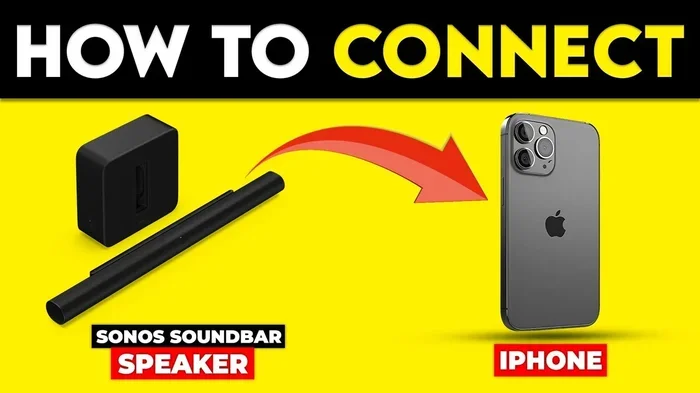
Want to know how to connect your cell phone to your TV? This guide shows you how to mirror your screen wirelessly using Chromecast, AirPlay, and Miracast. You’ll also learn about wired HDMI adapters for a reliable backup connection.
Have you ever wanted to share a photo or watch a video from your phone on a bigger screen? Learning how do I connect my cell phone to my TV is easier than you think. With just a few simple steps, you can stream movies, show off vacation pictures, or even use your TV as a second screen. This guide will walk you through every method, from wireless casting to wired adapters. You’ll be able to decide which option works best for your setup.
Many people assume they need expensive equipment to get their phone content on the TV. That’s not true. Whether you have a Smart TV, a streaming stick, or a basic set-top box, there’s a way to mirror your screen. The key is knowing what your devices support. I’ll break down the options so you can pick the right one in minutes.
Key Takeaways
- Wireless mirroring is easy: Use Chromecast, AirPlay, or built-in Smart TV features to cast your phone screen to the TV without cables.
- Chromecast works best for Android: It lets you cast apps, photos, and the entire screen with minimal setup.
- Apple users love AirPlay: If you have an iPhone and a compatible TV or Apple TV, screen mirroring is instant.
- Wired HDMI adapters offer a backup: When Wi-Fi is spotty, a simple cable connection gives you a stable picture.
- Check your TV’s screen mirroring setting: Many modern Smart TVs support Miracast, so no extra hardware is needed.
- Keep both devices on the same Wi-Fi network: This is the single most important step for a smooth wireless connection.
📑 Table of Contents
- Why You Might Want to Connect Your Phone to Your TV
- How to Connect Your Cell Phone to Your TV Wirelessly
- Wired Options: When You Need a Reliable Connection
- Comparison: Wireless vs. Wired Connections
- Troubleshooting Common Connection Problems
- Tips for the Best Wireless Streaming Experience
- Final Thoughts: How to Connect Your Cell Phone to Your TV
Why You Might Want to Connect Your Phone to Your TV
There are plenty of reasons to share your phone screen on a larger display. Maybe you want to watch a YouTube video during a family gathering. Or you need to present a slideshow from your trip. Some people use their phone as a remote control for streaming apps. Whatever the reason, connecting your mobile device to the TV opens up new possibilities.
Here are the most common use cases:
- Streaming movies and shows from apps like Netflix, Hulu, or Disney+ directly to the TV.
- Displaying photos and videos from your gallery on a big screen for everyone to see.
- Using the TV as a monitor for reading articles, browsing the web, or playing casual games.
- Presenting content at work or school without needing a projector or extra laptop.
- Playing mobile games on the TV with a larger view and better sound.
When you know how to connect your cell phone to your TV, you turn your living room into a personal entertainment hub. The process is simple once you understand the two main paths: wireless and wired.
How to Connect Your Cell Phone to Your TV Wirelessly
Wireless connections are the most popular way to link a phone and a TV. They let you move freely without cables. Most modern phones and TVs support one of several wireless standards. I’ll cover the top options below.
Using Chromecast to Cast Phone to TV
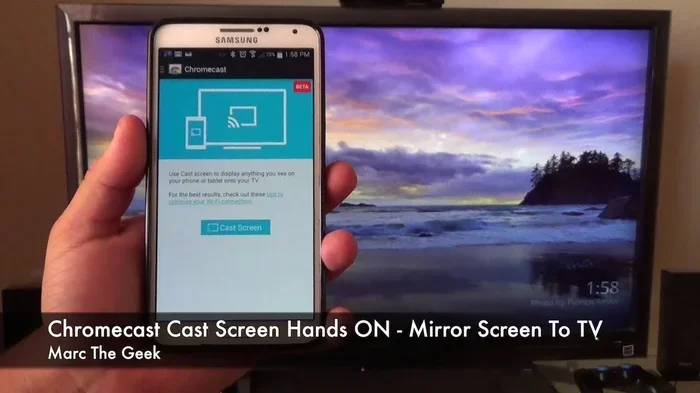
Chromecast is a small device made by Google. You plug it into your TV’s HDMI port and connect it to your Wi-Fi network. Once set up, you can cast content from your phone to the TV. This works great with Android phones and iPhones.
Here’s how to do it in three simple steps:
- Plug the Chromecast into an HDMI port on your TV and connect the power cable.
- Download the Google Home app on your phone and follow the on-screen setup.
- Open a supported app like YouTube or Netflix, tap the Cast icon, and choose your Chromecast device.
One of the best things about Chromecast is that it doesn’t just mirror your whole screen. You can cast individual videos, photos, or web pages. The phone acts as a remote, so you can still use it while the content plays on the TV. This is perfect for wireless screen mirroring without lag.
Quick Tip: Make sure your phone and the Chromecast are on the same Wi-Fi network. If they’re on different bands (2.4 GHz vs. 5 GHz), the connection may drop. Use the same network name for the best results.
Using AirPlay for Apple Devices
If you have an iPhone or iPad, AirPlay is built right into your device. It lets you stream your screen to an Apple TV or a compatible Smart TV. Many modern TVs from Samsung, LG, and Sony now support AirPlay natively.
To use AirPlay, follow these steps:
- Connect your iPhone and the TV to the same Wi-Fi network.
- Swipe down from the top-right corner of your iPhone screen to open Control Center.
- Tap the Screen Mirroring button (two overlapping rectangles).
- Select your TV from the list. If it asks for a code, enter it on the TV screen.
AirPlay gives you a smooth, real-time mirror of your phone. You can share your screen for presentations or just enjoy photos on the big screen. The wireless display quality is excellent when the Wi-Fi signal is strong.
Common Mistake: Some users forget to enable AirPlay on the TV. Go to your TV’s settings, look for AirPlay or Screen Mirroring, and turn it on. Without this, your iPhone won’t find the TV.
Using Smart TV Built-in Screen Mirroring (Miracast)
Many modern Smart TVs come with Miracast support. This is a wireless standard that lets you mirror your Android phone screen directly to the TV without any extra hardware. It’s sometimes called “Wireless Display” or “Smart View” depending on the brand.
Here’s how to use it:
- On your Android phone, pull down the notification shade and tap Smart View, Screen Mirroring, or Cast.
- Your TV should appear in the list. Tap it to connect.
- A code may appear on the TV screen. Enter it on your phone to confirm.
This method is great because it requires no extra device. Just make sure your TV is on the same Wi-Fi network. Expert Insight: Miracast works best when the phone is close to the router. Walls and distance can weaken the signal and cause stuttering.
Using Third-Party Apps for Screen Casting
If your TV doesn’t support Chromecast, AirPlay, or Miracast, you can still connect your phone using a third-party app. Apps like AllConnect, AirScreen, or Screen Mirroring turn your TV into a receiver for your phone’s content. You just install the app on the TV (if it’s a Smart TV) and on your phone.
These apps are handy when you have an older TV that isn’t Smart. They use your home Wi-Fi network to send video and audio from your phone to the TV. The quality depends on your network speed. For the best results, use a 5 GHz Wi-Fi connection or a dual-band router.
Quick Tip: Always test the app before a big event. Connect your phone to the TV a day early to make sure everything works smoothly. This avoids last-minute stress.
Wired Options: When You Need a Reliable Connection
Sometimes wireless isn’t enough. Maybe your Wi-Fi is slow, or you need a perfect, lag-free picture for gaming or presentations. In those cases, a wired connection is the way to go. You can use an adapter cable to link your phone directly to the TV.
Using an HDMI Adapter for Phone to TV Cable Connection
An HDMI adapter plugs into your phone’s charging port and sends a high-definition signal to the TV. This works with both Android and iPhone models, but you need the right adapter for each.
For Android phones with a USB-C port:
- Buy a USB-C to HDMI adapter. Plug it into your phone, then connect an HDMI cable from the adapter to the TV.
- Switch the TV to the correct HDMI input. Your phone screen will appear instantly.
For iPhones with a Lightning port:
- Get a Lightning to HDMI adapter (Apple’s official adapter works best).
- Connect the adapter to your iPhone, plug in an HDMI cable, and switch the TV input.
A wired connection gives you a stable, high-quality picture with no compression or lag. It’s ideal for streaming media that demands perfect sync, like fast-paced games or live sports.
Common Mistake: Using a cheap, non-certified adapter can cause flickering or no signal at all. Stick to adapters from reputable brands or the phone manufacturer’s official store.
MHL and SlimPort: Older Wired Solutions
Some older Android phones used MHL (Mobile High-Definition Link) or SlimPort to connect to TVs. These technologies use a special micro-USB or USB-C cable to send video to the TV. MHL requires the TV to have an MHL-enabled HDMI port, which is rare now. SlimPort works with standard HDMI cables but needs a compatible phone.
Today, USB-C to HDMI adapters have mostly replaced MHL and SlimPort. If you have a newer phone, skip these older options and go with a direct HDMI adapter.
Comparison: Wireless vs. Wired Connections
Choosing between wireless and wired depends on your needs. Here’s a quick side-by-side look at the main factors.
| Feature | Wireless (Chromecast, AirPlay, Miracast) | Wired (HDMI Adapter) |
|---|---|---|
| Setup Time | 5–10 minutes | 1–2 minutes |
| Cable Needed | None (uses Wi-Fi) | HDMI cable + adapter |
| Picture Quality | Good, but can compress slightly | Full HD or 4K, no compression |
| Latency (Delay) | Slight delay (1–3 seconds) | Near zero delay |
| Mobility | High – you can move around | Low – you’re tethered to the TV |
| Best For | Casual streaming, photos, presentations | Gaming, live sports, professional use |
| Cost | Free (if you already have a Smart TV or streaming stick) | $10–$30 for an adapter |
Most people will find wireless enough for everyday use. But if you need a perfect, instant connection, a wired HDMI adapter is unbeatable. Knowing how to connect your cell phone to your TV gives you the flexibility to switch between both methods.
Troubleshooting Common Connection Problems
Even with the best setup, you might run into issues. Here are the most common problems and how to fix them.
Phone and TV Won’t Connect
This usually happens when the devices are on different networks. Make sure both your phone and the TV (or Chromecast) are connected to the same Wi-Fi network. If you have a dual-band router, try forcing both devices to use the 2.4 GHz band, as it has better range through walls.
Screen Mirroring Is Laggy or Stuttering
Lag often comes from a weak Wi-Fi signal. Move your router closer to the TV or use a Wi-Fi extender. Also, close background apps on your phone that might be using bandwidth. If you’re using a third-party app, try lowering the streaming resolution in the app’s settings.
No Sound When Mirroring
Check if the TV’s volume is muted. On some Android phones, you need to select the TV as the audio output in the Cast dialog. For AirPlay, make sure the TV is set as the audio output in Control Center. If you’re using an HDMI adapter, ensure the cable is fully inserted.
TV Doesn’t Show Up in the Device List
Restart both your phone and the TV. Sometimes the TV’s mirroring service needs a refresh. On Samsung TVs, go to Settings > General > External Device Manager > Anynet+ (HDMI-CEC) and make sure it’s on. On LG TVs, check Settings > Connection > Screen Share. This enables the TV to be discovered by your phone.
Expert Insight: I always tell people to restart their router before troubleshooting. A simple reboot clears the cache and refreshes all network connections. It fixes 80% of connection issues.
Tips for the Best Wireless Streaming Experience
To get the smoothest picture and sound when you connect your phone to your TV, follow these practical tips.
- Use a dual-band router. A router that supports both 2.4 GHz and 5 GHz gives you flexibility. The 5 GHz band offers faster speeds for video, while 2.4 GHz reaches farther.
- Keep your phone charged. Screen mirroring uses a lot of battery. Plug your phone into a charger while streaming long videos or presentations.
- Close unused apps. Background apps can slow down your phone and eat up bandwidth. Close everything except the app you’re casting from.
- Update your apps and TV firmware. Manufacturers often release updates that improve screen mirroring performance. Check for updates in your TV’s settings and on your phone’s app store.
- Position your router wisely. Place the router in a central location, away from thick walls and metal objects. This strengthens the Wi-Fi signal to both your phone and TV.
Quick Tip: If you’re using Chromecast, you can use the Google Home app to run a network test. It checks your Wi-Fi speed and suggests improvements. This small step can make a big difference in streaming quality.
Final Thoughts: How to Connect Your Cell Phone to Your TV
Now you know the full picture of how do I connect my cell phone to my TV. Whether you choose a wireless method like Chromecast or AirPlay, or a simple HDMI adapter, the process is straightforward. Wireless gives you freedom and convenience, while wired delivers a rock-solid connection. The best choice depends on your TV, your phone, and what you plan to do.
Start with the wireless options if your devices support them. They’re free, fast to set up, and work well for most everyday tasks. Keep an HDMI adapter in your bag as a backup for situations where Wi-Fi isn’t available or reliable. With the right setup, you can turn any TV into a powerful extension of your phone.
Try one method today and see how easy it is. Once you experience the big screen, you’ll wonder how you ever lived without it. The secret is just to pick the method that fits your gear and give it a try. You’ll be streaming in no time.
Frequently Asked Questions
Can I connect my cell phone to any TV wirelessly?
Most modern Smart TVs support wireless screen mirroring through Chromecast, AirPlay, or Miracast. If your TV is older and not Smart, you can add a streaming stick like Chromecast or Roku to enable wireless connections. Check your TV’s settings for a Screen Mirroring or Cast option.
Do I need an app to mirror my phone to the TV?
For AirPlay and built-in Smart TV mirroring, no extra app is needed. For Chromecast, you need the Google Home app for setup, but not for daily casting. If your TV doesn’t support any of these, a third-party app like AllConnect can fill the gap.
Why is there a delay when I mirror my phone screen?
A small delay is normal with wireless mirroring because the video and audio are compressed and sent over Wi-Fi. Using a 5 GHz network reduces this delay. Wired HDMI connections have almost zero delay, making them ideal for gaming or live events.
Can I connect multiple phones to the same TV at the same time?
Typically, only one device can cast or mirror to the TV at a time. However, some Smart TVs allow multiple users to send content in sequence. You can also use apps that support group casting, but the TV will display one source at a time.
Is it safe to screen mirror in public places?
Screen mirroring over a public Wi-Fi network can be risky because others might see your screen content. Use a private, password-protected network whenever possible. For sensitive content, a wired connection is more secure since it doesn’t travel over the air.
Will mirroring my phone drain its battery quickly?
Yes, screen mirroring uses significant battery power because the phone is constantly encoding and sending video. To conserve battery, plug your phone into a charger while mirroring, and reduce the screen brightness on your phone during the session.