Can An Android Phone Scan A Qr Code Without Any Apps
Yes, your Android phone can scan a QR code without any extra apps. Most modern Android devices come with built-in scanning tools right in the camera app. You can also use Google Lens, which is already installed on nearly every Android phone. Scanning a QR code has never been easier or faster — no downloads, no setup, no hassle. This guide shows you exactly how it works and what to do if it doesn’t.
Have you ever stood in front of a QR code at a store, restaurant, or poster and wondered if your phone could read it? The good news is that an Android phone can scan a QR code without any extra apps. You don’t need to download a separate QR code reader from the Play Store. Your phone already has the tools built right in. Let’s walk through exactly how this works and why it’s so convenient.
The QR code scanning process on Android has gotten much simpler over the years. A few years back, you needed a dedicated QR code reader app to make it work. Today, the Android camera app handles most scanning tasks on its own. This change saves storage space, reduces clutter, and makes the whole experience faster. Whether you’re scanning a code for a menu, a Wi-Fi network, or a payment link, your phone is ready.
In this article, we’ll cover every method you can use to scan a QR code on your Android device. We’ll also look at common problems, safety tips, and the many ways QR codes fit into daily life. By the end, you’ll know exactly how to use your phone’s scanning power without installing a single extra app.
Key Takeaways
- Built-in scanning works: Most Android phones can scan QR codes directly using the default camera app.
- No extra apps needed: Google Lens and native camera features handle scanning without downloads.
- Quick and easy: Point your camera at a QR code and tap the notification to open the link.
- Safety matters: Always check the URL before tapping to avoid malicious websites.
- Works across versions: Android 9 and newer support native QR scanning features.
- Troubleshooting is simple: Common issues like dirty lenses or outdated software are easy to fix.
- Many practical uses: QR codes help with payments, Wi-Fi sharing, product info, and more.
📑 Table of Contents
- How Android Phones Scan QR Codes
- Why You Don’t Need Extra Apps for QR Scanning
- Step-by-Step Guide to Scanning QR Codes on Android
- Common Problems and How to Fix Them
- Safety Tips for Scanning QR Codes
- Practical Uses for QR Code Scanning on Android
- Comparing Built-In Scanning vs. Third-Party Apps
- Key Takeaways
- FAQ Section
- Conclusion
How Android Phones Scan QR Codes
The technology behind QR code scanning on Android is simpler than you might think. Your phone uses the camera and software to read those little square patterns. Let’s break down the two main methods that work without any extra downloads.
The Default Camera App Method
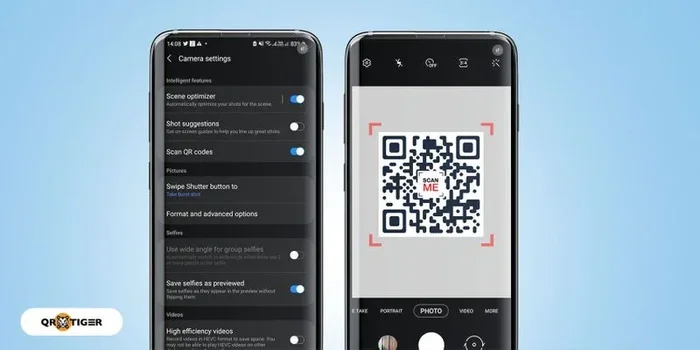
Most Android phones made after 2018 can scan QR codes using the built-in camera app. When you open your camera and point it at a QR code, the phone detects the pattern automatically. A notification or a clickable link appears on your screen. You just tap it, and your phone opens the web page or action tied to that code.
This works because Android operating systems now include native QR detection. Google added this feature to the default camera experience years ago. You don’t need to switch to a special mode or toggle any settings in most cases. Just open the camera, aim at the code, and wait for the pop-up.
Here’s a quick way to test it on your phone:
- Open your default camera app.
- Point it at any QR code from a magazine, sign, or screen.
- Wait for a notification to appear at the top or bottom of the screen.
- Tap the notification to open the linked content.
If you see the notification, congratulations — your phone is already set up for scanning. No downloads required. This native QR code reader capability is one of the best features of modern smartphones. It makes everyday tasks like scanning a restaurant menu or pulling up a boarding pass feel effortless.
Google Lens Integration
Google Lens is another powerful tool already on your Android phone. It’s a smart scanning feature that can identify QR codes, text, objects, and landmarks. When you use Google Lens, your phone analyzes what the camera sees and offers relevant actions.
To use Google Lens for QR code scanning, follow these steps:
- Open the camera app on your Android phone.
- Look for the Google Lens icon, usually at the bottom or in the corner.
- Tap it and point your camera at the QR code.
- The app will recognize the code and show you the link or action.
Google Lens works especially well when the default camera method doesn’t detect the code. It uses advanced image recognition to find and decode QR patterns even in tricky lighting or angles. This makes it a reliable backup option for anyone who struggles with the standard camera method.
Many people don’t realize they already have Google Lens installed. It comes built into most Android phones running version 8 or newer. If you can’t find it in your camera, try opening the Google app and tapping the camera icon there. Point-and-shoot scanning has never been this accessible.
Why You Don’t Need Extra Apps for QR Scanning
There was a time when downloading a QR code scanner app was the only way to read codes on your phone. Those days are long gone. Modern Android devices handle scanning natively, which brings several big advantages.
Benefits of Built-In Scanning
- Saves storage space: You don’t need to install apps that sit unused on your phone.
- Faster scanning: Native tools are optimized for your specific device, so they work quickly.
- Better security: Built-in tools come from trusted sources like Google, reducing malware risks.
- No ads or pop-ups: Third-party QR apps often bombard you with ads. Built-in tools are clean.
- Less clutter: Fewer apps mean a simpler, more organized phone experience.
The Android operating system has evolved to include QR scanning as a standard feature. This means phone manufacturers like Samsung, Google, OnePlus, and Xiaomi all build scanning into their default camera apps. When you use these native tools, you get a seamless experience that feels fast and natural.
Some people still download separate QR code reader apps out of habit. But unless you need very specific features like batch scanning or history tracking, the built-in tools are more than enough for everyday use. Scanning a QR code on your phone should take just a few seconds, and native tools make that possible.
Step-by-Step Guide to Scanning QR Codes on Android
Let’s walk through the exact steps for scanning a QR code on different Android versions and phone brands. While the process is similar across devices, small differences exist.
For Android 13 and Newer
On the latest Android versions, scanning is almost automatic. Open your camera app and point it at the code. A colorful notification banner will appear at the top of your screen. Tap it, and your phone opens the linked content instantly. You might need to grant camera permission the first time you try this.
For Samsung Phones
Samsung devices have their own camera experience, but QR scanning works the same way. Open the camera, aim at the code, and look for the yellow banner or icon that appears. Samsung phones also let you access Google Lens directly from the camera viewfinder. This gives you an extra option if the standard method doesn’t work.
For Older Android Versions (Android 8–12)
On older Android versions, you might need to enable QR scanning in your camera settings first. Open the camera app, look for a settings gear icon, and check for a “QR code scanning” toggle. Turn it on, and your camera will start detecting codes automatically.
If your older phone doesn’t support native scanning, Google Lens offers a great alternative. You can also try opening the Google app and using the camera search feature. Both methods work without installing anything new on your phone.
Quick Tips for Better Scanning
- Hold your phone steady and keep the QR code in focus.
- Make sure there’s enough light on the code.
- Clean your camera lens before scanning — fingerprints can block detection.
- Don’t stand too far away. Hold your phone about 12 to 18 inches from the code.
- If the code is on a screen, adjust your screen brightness for better contrast.
These small adjustments make a big difference. Mobile scanning works best when you take a few seconds to set up the shot properly. A clean lens and good lighting can turn a frustrating experience into a smooth one.
Common Problems and How to Fix Them
Even though scanning is simple, things don’t always work perfectly the first time. Here are the most common issues and their solutions.
When the Camera Won’t Detect QR Codes
If your camera app doesn’t recognize a QR code, don’t panic. Start by checking your camera lens for smudges or dirt. A dirty lens can prevent your phone from reading the code correctly. Wipe it gently with a soft cloth and try again.
Next, make sure your camera app is up to date. Open the Google Play Store, search for your camera app, and check for updates. Sometimes a simple software update adds better QR detection features.
Another common fix is to restart your phone. This clears temporary glitches and refreshes your camera software. If none of these work, try opening Google Lens separately and scanning the code there. Google Lens often picks up codes that the standard camera misses.
Also check that your phone’s display is not cracked or scratched near the camera area. Damage to the screen or lens housing can interfere with scanning. In rare cases, a hardware issue might be the cause, and you’d need professional repair.
When the Link Doesn’t Open
Sometimes your phone detects the QR code but fails to open the link. This usually happens because your browser or default app settings are misconfigured. Go to your phone’s settings, find the “Default Apps” section, and make sure your preferred browser is set as the default.
Clearing your browser cache can also help. Go to Settings > Apps > Your Browser > Storage, and tap “Clear Cache.” This removes temporary data that might be causing the problem.
Safety Tips for Scanning QR Codes
QR codes are incredibly useful, but they can also pose security risks. Since a QR code can hide a web address, you should always be cautious before tapping a link. Here’s how to stay safe while scanning.
Avoiding Malicious QR Codes
Before you tap any link that comes from a QR code, take a moment to preview the URL. Most Android phones show the full web address before you open it. Check that the link starts with “https://” and leads to a trusted website. If the URL looks strange or unfamiliar, don’t tap it.
Avoid scanning QR codes from unknown sources. A code stuck on a random sticker in a public place could redirect you to a fake website designed to steal your information. Stick to codes from trusted businesses, official signs, and reputable printed materials.
Keep your phone’s security software up to date. Android phones come with Google Play Protect, which scans apps and websites for threats. Make sure this feature is turned on in your settings. It adds an extra layer of protection every time you open a link from a QR code.
Another smart habit is to use a browser with built-in security warnings. Google Chrome and Samsung Internet both flag suspicious websites before you visit them. This helps you avoid phishing sites and malicious downloads that might come through a QR code link.
Practical Uses for QR Code Scanning on Android
QR codes are everywhere now, and knowing how to scan them opens up a lot of convenience. Here are some everyday ways you can use this skill on your Android phone.
Quick Information Sharing
Restaurants use QR codes to share digital menus. Instead of asking for a paper menu or waiting for a server, you just scan and browse. The same applies to event tickets, boarding passes, and hotel check-ins. QR code technology has made sharing information contactless and instant.
Wi-Fi Network Access
Many cafes, hotels, and offices display their Wi-Fi password as a QR code. Instead of typing a long, complicated password, you just scan the code and connect automatically. This is one of the most popular uses for QR scanning on mobile devices.
Payments and Shopping
Digital wallets like Google Pay and payment apps use QR codes for transactions. You can scan a merchant’s code to pay or share your payment QR code to receive money. This contactless payment method is fast, secure, and widely accepted.
Product Details and Reviews
Retailers put QR codes on product packaging that link to reviews, tutorials, or warranty information. Scanning these codes gives you instant access to helpful content without searching for the product online. It’s a great example of how digital marketing uses QR codes to connect with customers.
Contact Sharing
You can share your contact details through a personal QR code. When someone scans it, their phone automatically saves your name, phone number, email, and address. This is much faster than typing out all that information manually.
Comparing Built-In Scanning vs. Third-Party Apps
While this article focuses on scanning without apps, it’s worth understanding when a third-party QR scanner might still be useful. Here’s a quick comparison.
| Feature | Built-In Scanner | Third-Party App |
|---|---|---|
| Requires download | No | Yes |
| Ad-free experience | Yes | Often no |
| Speed | Fast | Varies |
| Extra features | Basic | Advanced |
| Security | High (Google trusted) | Depends on developer |
| Storage usage | None | Takes space |
For most people, the built-in scanner covers 95% of daily needs. Third-party apps are better suited for power users who need batch scanning, history logs, or custom QR code generation. But for simple, everyday scanning tasks, your Android phone already has everything you need.
Quick Tips for deciding between the two: Use your built-in scanner for quick, one-time scans. Only download a third-party app if you scan codes frequently and need advanced features. Always check reviews and permissions before installing any scanning app from the Play Store.
Key Takeaways
- Built-in scanning works: Most Android phones can scan QR codes directly using the default camera app.
- No extra apps needed: Google Lens and native camera features handle scanning without downloads.
- Quick and easy: Point your camera at a QR code and tap the notification to open the link.
- Safety matters: Always check the URL before tapping to avoid malicious websites.
- Works across versions: Android 9 and newer support native QR scanning features.
- Troubleshooting is simple: Common issues like dirty lenses or outdated software are easy to fix.
- Many practical uses: QR codes help with payments, Wi-Fi sharing, product info, and more.
FAQ Section
Can any Android phone scan a QR code without an app?
Most Android phones made after 2018 can scan QR codes natively. The default camera app on phones running Android 9 or newer usually supports this feature automatically. If your phone is older, you might need to enable QR scanning in the camera settings or use Google Lens instead.
Is it safe to scan QR codes with my Android phone?
Yes, scanning QR codes is generally safe as long as you’re careful about the links you open. Always preview the URL before tapping it. Avoid scanning codes from unknown or suspicious sources. Your Android phone’s built-in security features like Google Play Protect help keep you protected.
Why won’t my Android camera detect a QR code?
This can happen for several reasons. A dirty camera lens, poor lighting, or an outdated phone software can all interfere with detection. Try cleaning your lens, moving to a better-lit area, and checking for system updates. If the problem continues, use Google Lens as an alternative scanning method.
Do I need to download Google Lens separately?
No, Google Lens comes pre-installed on most Android phones. You can access it directly from your camera app or through the Google app. If it’s missing, you can download it for free from the Google Play Store, but most modern devices already include it.
Can scanning a QR code cost me money?
Scanning a QR code itself is free. However, the link it opens might lead to a paid service or a website that requires a purchase. Always check what a QR code leads to before taking any action that involves spending money or sharing personal information.
What is the difference between a QR code and a barcode?
A barcode stores data in a linear pattern of lines, while a QR code uses a square grid of dots that can hold much more information. QR codes can store web links, contact details, and text, whereas traditional barcodes mainly hold product numbers. Your Android phone can scan both, but QR codes are far more versatile.
Conclusion
The answer to the question can an Android phone scan a QR code without any apps is a clear yes. Your phone is already equipped with the tools you need. The default camera app, Google Lens, and built-in Android features handle QR scanning with ease. No downloads, no extra costs, no unnecessary clutter on your device.
From scanning restaurant menus to connecting to Wi-Fi networks and making contactless payments, QR codes have become a part of everyday life. Knowing how to use your phone’s native scanning tools gives you an instant advantage. You save time, protect your privacy, and keep your phone running smoothly without extra apps.
Remember the safety tips we covered. Always preview links before opening them, and only scan codes from trusted sources. With these habits in place, you can enjoy all the benefits of QR code technology with confidence. The next time you see a QR code, just open your camera and scan. Your Android phone has got you covered.