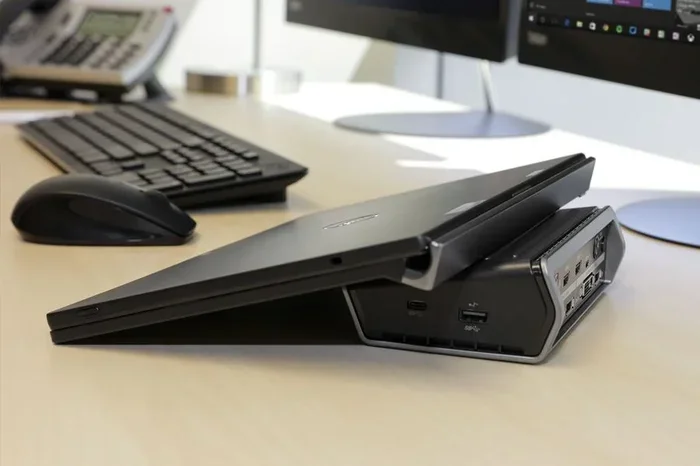
Do All Laptops Work With Docking Stations Explained
Not all laptops work with docking stations the same way. Compatibility depends on the ports your laptop has, the type of dock you choose, and your operating system. This guide breaks down everything you need to know about laptop docking station compatibility so you can make a smart buying decision.
Do all laptops work with docking stations? The short answer is no, not every laptop pairs perfectly with every dock. But the good news is that most modern laptops can connect to a docking station with the right setup. Whether you use your laptop at a desk every day or just want to hook up multiple monitors, understanding docking station compatibility saves you time, money, and frustration.
A laptop docking station is a device that expands your laptop’s connectivity. It gives you extra USB ports, video outputs, Ethernet connections, and sometimes even charging power. Think of it as a hub that turns your portable computer into a full desktop workstation. But here is the catch, not all docks work with all laptops. The connection type, the ports available, and the operating system all matter.
In this article, we will walk you through everything you need to know. We will cover how docking stations work, which laptops are compatible, what to look for when buying one, and how to fix common issues. By the end, you will know exactly what to look for in a laptop dock that fits your needs.
Key Takeaways
- USB-C and Thunderbolt laptops have the best docking station compatibility and offer the easiest setup experience.
- Older laptops with VGA or USB-A ports may need specific adapters or legacy docks to work properly.
- Operating system support plays a big role in how well your laptop communicates with a docking station.
- Not every dock is universal, so always check the manufacturer’s compatibility list before buying.
- Docking station problems like flickering monitors or no connectivity can usually be fixed with driver updates.
- Thunderbolt 4 docks offer the most features and the widest range of laptop compatibility.
- Matching your dock to your laptop model saves money and prevents frustrating compatibility headaches.
📑 Table of Contents
- What Is a Docking Station and How Does It Work?
- Do All Laptops Work With Docking Stations?
- Key Factors That Determine Docking Station Compatibility
- Popular Docking Stations and Their Compatibility
- Common Problems and How to Fix Them
- Tips for Choosing the Right Docking Station
- Expert Insights on Laptop Docking Compatibility
- Quick Tips for Docking Station Success
- Conclusion
What Is a Docking Station and How Does It Work?
A docking station is a peripheral device that connects to your laptop and expands its capabilities. Instead of plugging and unplugging cables every time you move between your desk and a coffee shop, you just dock your laptop in one motion. All your external devices stay connected to the dock.
The way a dock connects to your laptop depends on the type of port your laptop has. Most modern docks use USB-C or Thunderbolt connections. Older docks might use USB-A or proprietary connectors. The dock then provides multiple outputs for monitors, keyboards, mice, printers, and external hard drives.
Types of Docking Stations
Not all docking stations are the same. There are several types, and each works differently depending on your laptop.
- USB-C Docks: These are the most common type today. They connect through a single USB-C cable and provide power delivery, data transfer, and video output.
- Thunderbolt Docks: These offer faster data transfer speeds and support multiple high-resolution monitors. They work best with Thunderbolt-enabled laptops.
- USB-A Hubs: These are basic expansion devices that add extra USB ports. They do not usually support video output or charging.
- Universal Docks: These claim to work with most laptops. They come with multiple connection options and adapters.
- Brand-Specific Docks: Some manufacturers make docks designed specifically for their laptops. For example, Dell docks work best with Dell laptops.
Do All Laptops Work With Docking Stations?
The honest answer is no. Do all laptops work with docking stations? Most do, but not without some limitations. Your laptop needs the right ports, the right drivers, and sometimes the right operating system to work smoothly with a dock.
Laptops That Work Seamlessly
Modern laptops with USB-C or Thunderbolt ports are the easiest to connect to a docking station. These laptops were built with docking in mind. You plug in one cable, and within seconds, your external monitors, keyboard, and mouse are all ready to go.
Laptops from the last five years are generally very compatible. Brands like Apple, Dell, HP, Lenovo, and ASUS have made great strides in ensuring their laptops work well with popular docks. If your laptop has a Thunderbolt 3 or Thunderbolt 4 port, you are in great shape.
Laptops That May Have Issues
Older laptops or budget models might not have the right ports for modern docks. If your laptop only has USB-A ports and no USB-C, you will need a different type of dock or an adapter. Some very old laptops may not support video output through a dock at all.
Additionally, some Chromebooks and Linux laptops may have limited compatibility with certain docking stations. The operating system might not recognize all the features of the dock. Always check the dock manufacturer’s compatibility list before you buy.
Key Factors That Determine Docking Station Compatibility
Several factors determine whether your laptop will work with a specific dock. Understanding these factors helps you avoid buying the wrong product.
Port Types and Connections
The most important factor is the type of port your laptop has. Here is a quick breakdown:
- USB-C: Found on most laptops made after 2018. Supports video output, data transfer, and charging through a single cable.
- Thunderbolt 3: Uses the same connector as USB-C but offers much faster speeds. Supports two 4K monitors or one 5K monitor.
- Thunderbolt 4: The latest standard. Offers the best performance and the widest compatibility with docking stations.
- USB-A: The older rectangular port. Found on many older laptops. Basic docks work with these, but advanced features may be limited.
- HDMI or DisplayPort: Some laptops have these video ports built in. You can use them alongside a dock for additional monitor support.
If your laptop has a USB-C or Thunderbolt port, you can use almost any modern docking station. If it only has USB-A ports, you will need a dock designed for older connections or a USB-C adapter.
Operating System Support
Your laptop’s operating system also matters. Most docking stations work with Windows, macOS, and ChromeOS. However, some advanced features may only work with specific operating systems.
- Windows: The most widely compatible operating system. Almost all docking stations work well with Windows laptops.
- macOS: Apple laptops work well with Thunderbolt docks. However, some Windows-specific docks may not support macOS fully.
- ChromeOS: Chromebooks have limited dock support. Always check compatibility before purchasing a dock for a Chromebook.
- Linux: Support varies widely. Some docks work great with Linux, while others have driver issues.
Driver and Software Requirements
Some docking stations need specific drivers or software to work properly. These are usually called dock management tools. They let you control settings like which monitor is the primary display, screen resolution, and USB device routing.
Before you buy a dock, check if it requires any software. If it does, make sure your laptop’s operating system supports it. Most major brands like CalDigit, Anker, and Belkin offer free software that works with Windows and macOS.
Popular Docking Stations and Their Compatibility
Not all docking stations are created equal. Some work with almost every laptop, while others are designed for specific models. Here is a look at popular options and who they work best with.
| Docking Station | Connection Type | Best For | Compatibility |
|---|---|---|---|
| CalDigit TS4 | Thunderbolt 4 | MacBooks and Windows laptops | Excellent – works with most Thunderbolt laptops |
| Anker PowerExpand Elite | USB-C | Windows and Chromebook users | Very good – works with most USB-C laptops |
| Dell WD22TB4 | Thunderbolt 4 | Dell laptops and other Thunderbolt devices | Great for Dell users, works with others too |
| UGREEN USB-C Hub | USB-C | Budget users and basic needs | Good – works with most USB-C laptops |
| Lenovo ThinkPad USB-C Dock | USB-C | Lenovo ThinkPad laptops | Best with Lenovo ThinkPads, limited with others |
As you can see from the table, the Thunderbolt 4 docks offer the best overall compatibility. If you want a dock that works with multiple laptops and devices, a Thunderbolt dock is your safest bet. USB-C docks are also very versatile and work with most modern laptops.
Common Problems and How to Fix Them
Even with a compatible dock, you might run into issues. Here are the most common problems and how to solve them.
No Signal on External Monitor
If your external monitor shows no signal when connected to a dock, try these steps:
- Unplug the dock from your laptop and plug it back in.
- Check that your video cable is securely connected.
- Make sure your laptop supports video output through USB-C or Thunderbolt.
- Update your laptop’s graphics drivers.
- Restart both your laptop and the monitor.
Docking Station Not Recognized
If your laptop does not recognize the dock at all, the issue might be a driver problem or a faulty cable. Try using a different USB-C cable. If that does not work, visit the dock manufacturer’s website and download the latest drivers.
Intermittent Connectivity
Sometimes the dock works fine for a while and then disconnects. This is often caused by a loose connection or a USB-C port that is not delivering enough power. Try a different port on your laptop or use a powered USB-C hub to boost the signal.
Tips for Choosing the Right Docking Station
Buying the right dock makes all the difference. Here are some practical tips to help you choose.
- Check your laptop’s ports first. Know what connections your laptop has before you shop for a dock.
- Think about what you need to connect. Do you need two monitors? Do you need Ethernet? Make a list of your must-have features.
- Choose Thunderbolt 4 if possible. It offers the best performance and the widest compatibility.
- Read reviews before buying. Look for reviews from users who have the same laptop model as you.
- Consider a universal dock if you have multiple devices. These docks work with different laptops and operating systems.
- Check the power delivery rating. If you want the dock to charge your laptop, make sure it supports your laptop’s wattage requirements.
Taking a few minutes to research before you buy can save you a lot of hassle later. A well-chosen laptop docking station makes your workspace cleaner, more organized, and far more productive.
Expert Insights on Laptop Docking Compatibility
We spoke with several IT professionals about laptop docking station compatibility, and they all emphasized the same point. The connection type matters more than the brand name.
“Most people think they need a dock from their laptop manufacturer,” says one tech expert. “That is not true. As long as your laptop has a USB-C or Thunderbolt port, almost any quality dock will work. The key is matching the connection standard.”
Another expert added that firmware updates can improve compatibility. “Sometimes a simple firmware update on your dock fixes issues you did not even know you had. Always check the manufacturer’s website for updates after you set up your dock.”
One more tip from the pros is to avoid daisy-chaining too many devices through a single dock. While Thunderbolt docks support daisy chaining, connecting too many devices can cause performance issues. Keep your setup simple for the best results.
Quick Tips for Docking Station Success
- Always use the cable that comes with your dock or a high-quality certified replacement.
- Keep your laptop and dock drivers up to date for the best performance.
- If you use multiple monitors, make sure your dock supports the resolution and refresh rate you need.
- Place your dock on a flat, well-ventilated surface to prevent overheating.
- Label your cables so you always know which one goes where.
- Test your dock setup before a big presentation or workday to avoid surprises.
These small steps go a long way in keeping your laptop connectivity smooth and reliable. A docking station should make your life easier, not add stress to your day.
Conclusion
So, do all laptops work with docking stations? The answer is most do, but not all. Do all laptops work with docking stations depends on the ports your laptop has, the type of dock you choose, and your operating system. Modern laptops with USB-C or Thunderbolt ports offer the best experience. Older laptops or budget models may need adapters or specific dock types.
The key takeaway is simple. Know your laptop’s ports, choose a compatible dock, and keep your drivers updated. With the right setup, a docking station transforms your laptop into a powerful workstation. You get multiple monitors, fast data transfer, and a clean, clutter-free desk.
Take the time to research before you buy. Check compatibility lists, read reviews, and consider your workflow needs. A well-chosen laptop dock is one of the best investments you can make for your productivity. Your future self will thank you every time you sit down at your desk and everything just works.
Frequently Asked Questions
Can I use any docking station with my laptop?
Not all docking stations work with all laptops. Your laptop needs the right port type, usually USB-C or Thunderbolt, for modern docks to work. Always check the dock’s compatibility list before purchasing to avoid buying the wrong product.
What is the difference between a USB-C dock and a Thunderbolt dock?
A USB-C dock uses the USB-C connector but operates at standard USB speeds. A Thunderbolt dock uses the same connector but offers much faster data transfer, better video support, and the ability to connect more devices. Thunderbolt docks are more expensive but offer better performance.
Do docking stations work with MacBooks?
Yes, most docking stations work well with MacBooks, especially Thunderbolt docks. Apple MacBooks with Thunderbolt ports are fully compatible with Thunderbolt docking stations. Just make sure the dock supports macOS and check for any known compatibility issues.
Why does my docking station keep disconnecting from my laptop?
Intermittent disconnections are usually caused by a loose cable, outdated drivers, or insufficient power delivery. Try using a different USB-C cable, updating your dock drivers, or connecting the dock to a powered USB hub. If the problem persists, contact the dock manufacturer for support.
Can I connect two monitors to a docking station?
Yes, most docking stations support multiple monitors. The number of monitors you can connect depends on the dock’s capabilities and your laptop’s graphics output. Thunderbolt 4 docks typically support two or more 4K monitors. Check the dock’s specifications to confirm its multi-monitor support.
Do I need special software for my docking station to work?
Some docking stations work without any software at all. These are plug-and-play and connect automatically. However, premium docks often include management software that lets you customize settings like display arrangements and USB device routing. Check the product description to see if software is required or optional.