Do All Flash Drives Work With Mac and Other Devices
Not all flash drives work seamlessly with Mac computers. The answer depends on the file system, USB connector type, and device compatibility. This guide breaks down everything you need to know about Mac flash drive compatibility, from formatting tips to cross-platform solutions that make data transfer effortless across all your devices.
You plug in a brand-new flash drive. You wait. Nothing happens. Your Mac does not recognize it. This is the frustrating reality for many people who assume all USB drives work with every computer. The truth is, do all flash drives work with Mac is a question with a nuanced answer. Some drives work instantly. Others need a little tweaking. And a few simply will not work at all without extra software or reformatting.
In this guide, we will walk through everything you need to know about flash drive compatibility with Mac. We will cover file systems, formatting, connector types, and common problems. By the end, you will know exactly what to look for when buying a flash drive for your Apple computer. We will also explore how these drives work with other devices like PCs, TVs, and gaming consoles.
Key Takeaways
- Not all flash drives are Mac-compatible out of the box: File system format is the biggest factor in whether a drive works with macOS.
- ExFAT and FAT32 are the most compatible file systems: These formats work with both Mac and Windows, making them ideal for cross-platform use.
- macOS can read NTFS drives but cannot write to them: This is a common issue for users who receive Windows-formatted flash drives.
- Formatting a flash drive for Mac is simple: You can use the built-in Disk Utility app to reformat any drive in just a few minutes.
- USB-C and USB-A connectors both work with Mac: However, newer Mac models may require USB-C or Thunderbolt adapters.
- Some flash drives are specifically designed for Mac: These come pre-formatted and offer plug-and-play convenience.
- Troubleshooting common issues is straightforward: Most problems with Mac flash drive compatibility can be solved with reformatting or driver updates.
📑 Table of Contents
- What Is a Flash Drive and Why Does Compatibility Matter?
- Do All Flash Drives Work With Mac?
- File Systems Explained: FAT32, ExFAT, and APfs
- How to Format a Flash Drive for Mac
- Flash Drive Compatibility with Other Devices
- Common Problems and How to Fix Them
- How to Choose the Right Flash Drive for Mac
- Expert Insights and Pro Tips
- Conclusion
What Is a Flash Drive and Why Does Compatibility Matter?
A flash drive is a small, portable storage device that connects to your computer through a USB port. People use them to transfer files, back up important documents, and carry data between different machines. They are also called USB drives, thumb drives, or jump drives. Most flash drives use flash memory to store data without needing a power source.
Compatibility matters because not all flash drives speak the same language as every computer. Your Mac runs on macOS, which expects drives to use specific file systems. A file system is the way data is organized and stored on a drive. If the file system does not match what your Mac supports, the drive will not work properly. This is the core reason the question do all flash drives work with Mac does not have a simple yes or no answer.
How Flash Drives Connect to Mac
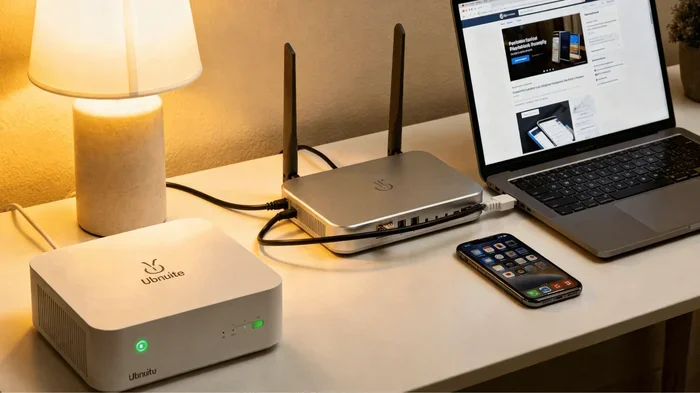
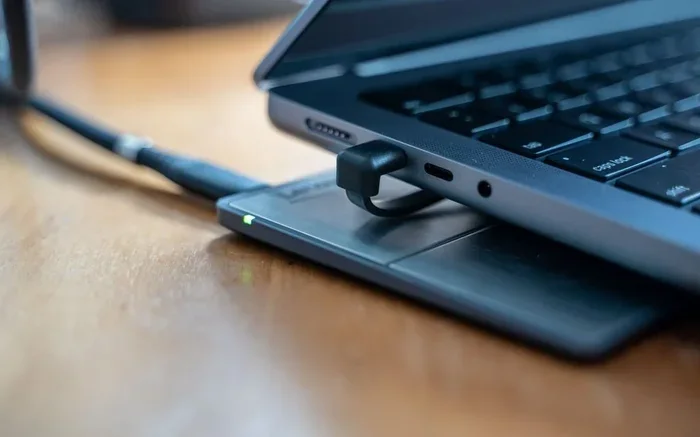
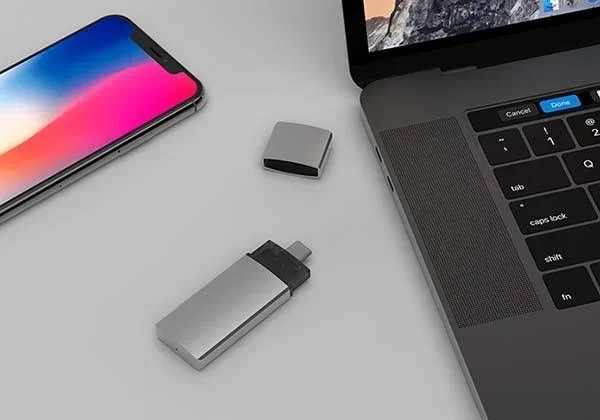
Most flash drives use a standard USB-A connector. These plug directly into the USB ports on older Mac models. Newer Macs, especially the MacBook Air and MacBook Pro from 2016 onward, use USB-C ports or Thunderbolt ports. You can still use USB-A drives with these newer Macs, but you need a small adapter or a USB-C hub.
Some flash drives come with dual connectors, meaning they have both a USB-A plug and a USB-C plug built into one device. These are incredibly convenient and work with almost any computer. When shopping for a drive, always check which connector type your Mac uses.
Do All Flash Drives Work With Mac?
The short answer is no. The longer answer is that most flash drives can work with a Mac, but only if they are formatted correctly. When you ask do all flash drives work with Mac, you need to understand the role of the file system. A drive might work perfectly on a Windows PC but fail completely on a Mac. Or it might read files but refuse to let you save new ones.
Here is what determines whether a flash drive works with your Mac:
- The file system format — Mac needs ExFAT, FAT32, or APFS to work properly.
- The USB connector type — USB-A works with adapters; USB-C works natively on newer Macs.
- The macOS version — Older versions of macOS may not support newer file systems.
- The flash drive hardware — Some low-quality drives have compatibility issues with any computer.
If you buy a flash drive from a store and plug it into your Mac, there is roughly a 50/50 chance it will work right away. This is because most flash drives ship pre-formatted for Windows. They use the NTFS or FAT32 file system. FAT32 usually works on Mac for reading and writing. NTFS does not — your Mac can only read NTFS drives, not write to them.
The NTFS Problem
NTFS is the default file system for Windows. It stands for New Technology File System. Mac computers can read NTFS drives without any extra software. However, they cannot write to them natively. This means you can copy files off the drive but you cannot add new files or edit existing ones. For many users, this is a dealbreaker.
If you frequently use NTFS drives with your Mac, you have two options. You can install third-party software like Paragon NTFS or Tuxera that adds full write support. Or you can reformat the drive to ExFAT, which works seamlessly with both Mac and Windows. We will cover formatting in detail later in this article.
File Systems Explained: FAT32, ExFAT, and APfs
Understanding file systems is the key to answering do all flash drives work with Mac. A file system is the structure your computer uses to organize and access data. Different operating systems prefer different file systems. Here is a breakdown of the three main ones you will encounter with flash drives.
FAT32
FAT32 stands for File Allocation Table 32. It is one of the oldest and most widely supported file systems. It works with Mac, Windows, Linux, gaming consoles, smart TVs, and car stereos. This makes it the most universally compatible option.
However, FAT32 has a major limitation. It cannot handle individual files larger than 4GB. If you try to copy a 5GB video file onto a FAT32 drive, it will fail. For small documents, photos, and music files, FAT32 works great. For large files, you need a different format.
ExFAT
ExFAT stands for Extended File Allocation Table. It was designed by Microsoft specifically for flash drives and external storage. It has no 4GB file size limit, making it ideal for large files like videos and backups. Best of all, it works natively with both Mac and Windows.
ExFAT is the go-to choice for people who use flash drives across multiple devices. If you want a drive that works on your Mac at home and your Windows PC at the office, ExFAT is the answer. It supports read and write on both platforms without any extra software.
APfs
APfs stands for Apple File System. It is the default file system for modern Mac computers. It is optimized for flash storage and solid-state drives. APfs offers fast performance, strong encryption, and space sharing features.
However, APfs is Apple-only. Windows computers cannot read APfs-formatted drives without third-party software. If you only use your flash drive with Mac computers, APfs is an excellent choice. If you need cross-platform compatibility, stick with ExFAT.
Comparison Table: File System Compatibility
| File System | Mac Read | Mac Write | Windows Read | Windows Write | Max File Size |
|---|---|---|---|---|---|
| FAT32 | Yes | Yes | Yes | Yes | 4GB |
| ExFAT | Yes | Yes | Yes | Yes | No limit |
| APfs | Yes | Yes | No | No | No limit |
| NTFS | Yes | No | Yes | Yes | No limit |
How to Format a Flash Drive for Mac
If your flash drive does not work with your Mac, formatting it is usually the fix. Formatting erases all data on the drive, so make sure you back up any important files first. Once you have a backup, follow these simple steps to format your drive for macOS.
Step-by-Step Formatting Guide
- Plug your flash drive into your Mac. Wait a few seconds for it to appear on your desktop or in Finder.
- Open Disk Utility. You can find it by pressing Command + Space, typing “Disk Utility,” and hitting Enter.
- Select your flash drive from the sidebar. Make sure you select the drive itself, not a specific partition inside it.
- Click the Erase button at the top. A dialog box will appear with formatting options.
- Choose a format. For most users, select ExFAT. If you only use Mac, choose APfs.
- Give your drive a name. Something simple like “My Drive” works fine.
- Click Erase. The process takes less than a minute. Once it is done, your drive is ready to use on your Mac.
After formatting, your flash drive will work with your Mac for both reading and writing files. If you want to use it with a Windows PC too, ExFAT is the best choice. If you only use Mac, APfs gives you the best performance.
Quick Tips for Formatting
- Always back up your data before formatting.
- If your drive is larger than 32GB, use ExFAT instead of FAT32.
- If you plan to use the drive with a TV or car stereo, use FAT32.
- Double-check that you selected the correct drive in Disk Utility to avoid erasing the wrong one.
Flash Drive Compatibility with Other Devices
Most people do not just use flash drives with their Mac. They also plug them into PCs, smart TVs, gaming consoles, and car stereos. This is why cross-platform compatibility is so important. When you format a drive for one device, you need to make sure it still works with others.
Using Flash Drives with Windows PCs
Windows PCs can read and write to ExFAT and FAT32 drives without any issues. They also support NTFS natively. If you format a drive as ExFAT, it will work perfectly on both Mac and Windows. This is the easiest way to share files between the two platforms.
Using Flash Drives with Smart TVs
Most smart TVs can read FAT32 and ExFAT drives. Some older TV models only support FAT32. If you want to play videos or view photos from a flash drive on your TV, format the drive as FAT32 or ExFAT. Keep in mind the 4GB file size limit with FAT32 when storing large video files.
Using Flash Drives with Gaming Consoles
PlayStation and Xbox consoles have specific requirements for external storage. PlayStation supports FAT32 and exFAT. Xbox supports NTFS and FAT32. If you want a single drive that works with both your Mac and your gaming console, ExFAT is your best bet.
Common Problems and How to Fix Them
Even with the right format, you might run into issues when using a flash drive with your Mac. Here are the most common problems and their solutions.
Mac Does Not Recognize the Drive
If your Mac does not detect the flash drive, try these steps. First, unplug the drive and plug it into a different USB port. Sometimes the port itself is the problem. Second, try a different cable if your drive uses a removable cable. Third, restart your Mac and try again. If none of these work, the drive might need reformatting.
Drive Shows Up But You Cannot Write Files
This usually means the drive is formatted as NTFS or is set to read-only mode. To fix this, back up your data and reformat the drive to ExFAT. If you cannot reformat, you can use a third-party tool to enable NTFS write support on Mac.
Drive Is Slow When Transferring Files
Slow transfer speeds can be caused by several factors. USB-A connections are slower than USB-C. Older flash drives use slower flash memory. If speed matters, look for drives rated as USB 3.0 or higher. These offer significantly faster read and write speeds.
Drive Keeps Disconnecting
A loose connection can cause your Mac to keep ejecting the flash drive. Try a different USB port. Make sure the connector is clean and free of dust. If the problem persists, the drive itself may be faulty or damaged.
Can I Use a Flash Drive With a Time Machine Backup?
Yes, but the drive needs to be formatted as APfs or Mac OS Extended (Journaled). Time Machine does not work with ExFAT or FAT32 drives for backups. If you want to use a flash drive as a Time Machine backup, reformat it using Disk Utility and select the appropriate format.
How to Choose the Right Flash Drive for Mac
When shopping for a flash drive, look for one that explicitly states Mac compatibility. Many manufacturers now label their products as “Mac and PC compatible.” These drives usually come pre-formatted as ExFAT, so they work right out of the box.
Consider the connector type. If you have a newer Mac with only USB-C ports, buy a USB-C flash drive or one with a dual connector. Also consider the storage capacity. For everyday use, 32GB or 64GB is usually enough. For large video files or backups, go with 128GB or more.
Speed matters too. Look for drives with USB 3.0 or USB 3.1 ratings. These transfer files much faster than older USB 2.0 drives. Reading reviews can also help you identify reliable brands that work well with macOS.
Recommended Flash Drives for Mac Users
Some flash drives are specifically designed to work flawlessly with Mac computers. These include the SanDisk Ultra Fit, Samsung BAR Plus, and Kingston DataTraveler Max. All of these come in USB-C versions and are pre-formatted for cross-platform use. They offer fast speeds, reliable performance, and compact designs that fit easily in your pocket.
Expert Insights and Pro Tips
Always check the format before buying. If you plan to use a flash drive with multiple devices, ExFAT is the safest choice. It works with Mac, Windows, and most other devices that support USB storage.
Keep your macOS updated. Apple regularly improves USB and external storage support in its updates. Running the latest version of macOS ensures the best compatibility with modern flash drives.
Eject your drive properly. Always use the eject button in Finder before unplugging your flash drive. This prevents data corruption and keeps your files safe.
Label your drives. If you use multiple flash drives, label them with their format and intended use. This saves you time and confusion later.
Conclusion
The question do all flash drives work with Mac has a clear answer now. Not all drives work seamlessly right out of the box, but most can be made compatible with the right format. Understanding file systems like ExFAT, FAT32, APfs, and NTFS is the key to unlocking full compatibility. Once you know which format your Mac supports, you can format any flash drive to work perfectly.
Whether you use your flash drive with a Mac, a Windows PC, a smart TV, or a gaming console, ExFAT remains the most versatile option. It supports large files, works across platforms, and requires no extra software. With the tips and steps in this guide, you can confidently buy, format, and use any flash drive with your Mac and beyond. Take control of your external storage today and never worry about compatibility again.
Frequently Asked Questions
Why does my flash drive not show up on my Mac?
Your flash drive may not show up because it is formatted with a file system your Mac does not support, such as NTFS. Try plugging it into a different USB port or restarting your Mac. If it still does not appear, you may need to reformat it using Disk Utility to a Mac-compatible format like ExFAT.
Can I use a Windows-formatted flash drive on a Mac?
Yes, but with limitations. If the drive is formatted as FAT32, it will work for reading and writing on Mac. If it is formatted as NTFS, your Mac can only read files from it, not write to it. To get full read and write access, reformat the drive to ExFAT.
What is the best file system for a flash drive used with Mac and PC?
ExFAT is the best file system for a flash drive shared between Mac and PC. It supports files larger than 4GB, works natively on both operating systems, and does not require any additional software. It is the ideal choice for cross-platform compatibility.
Do I need special software to use a flash drive with Mac?
Usually no. If the drive is formatted as ExFAT, FAT32, or APfs, it works with Mac natively. You only need third-party software if the drive is formatted as NTFS and you want write access. Tools like Paragon NTFS or Tuxera can add full NTFS support to your Mac.
Can I format a flash drive for Mac without losing my data?
No, formatting erases all data on the drive. Before you format, make sure to back up any important files to your Mac or cloud storage. Once the format is complete, you can move your files back onto the freshly formatted drive.
Are USB-C flash drives better than USB-A flash drives for Mac?
USB-C flash drives are better for newer Mac models that only have USB-C or Thunderbolt ports. They offer faster transfer speeds and a more secure connection. However, USB-A drives still work with Mac if you use a USB-C adapter or hub. Choose based on which ports your Mac has.