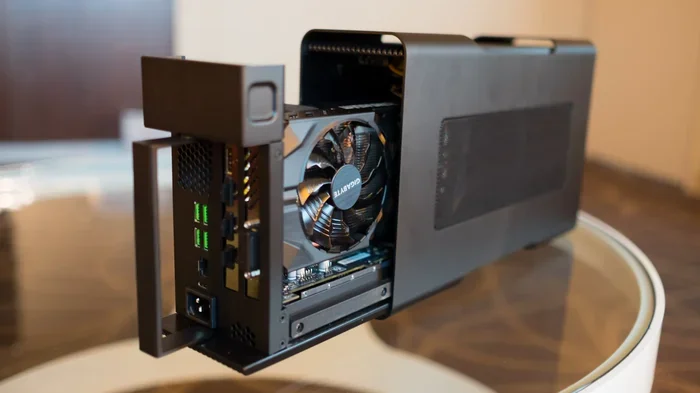
Can You Add An External Graphics Card To Your Laptop
Yes, you can add an external graphics card to your laptop using an eGPU enclosure and a Thunderbolt connection. This setup lets you boost your laptop’s visual performance for gaming, video editing, and creative work without replacing your entire device. An external GPU gives your laptop the power of a desktop graphics card while keeping it portable and lightweight.
If you have ever looked at your laptop and thought it could handle so much more with a better graphics card, you are not alone. Can you add an external graphics card to your laptop? The short answer is yes. The longer answer is that it depends on your laptop model, your needs, and the right equipment. Let us walk through everything you need to know about adding an external GPU to a laptop in a way that is easy to follow.
Many laptop users face the same frustration. Their machine handles everyday tasks just fine, but the moment they try to game, edit video, or run 3D software, things slow down. Laptops are limited by their size, which means the graphics hardware inside them is usually small and less powerful than what you would find in a desktop computer. An external graphics card solves this problem by giving your laptop access to a full-sized GPU without opening up the device.
In this guide, we will cover how external GPU setups work, what equipment you need, which laptops are compatible, and how to avoid common mistakes. Whether you are a casual gamer, a content creator, or someone who just wants better laptop graphics performance, this article has you covered.
Key Takeaways
- External GPUs work with most modern laptops: You just need a Thunderbolt 3 or Thunderbolt 4 port to connect an eGPU enclosure.
- eGPU enclosures house a full desktop graphics card: They connect to your laptop through a single cable and deliver desktop-level GPU power.
- You get a major performance boost: An external graphics card can dramatically improve frame rates, rendering speed, and overall graphics quality.
- Setup is simpler than you think: Most eGPU kits plug in and work with minimal configuration on Windows laptops.
- Not all laptops are compatible: Older models without Thunderbolt ports or with weak CPUs may not benefit from an eGPU.
- Cost matters: eGPU enclosures and graphics cards add up, so plan your budget before buying.
- Hot weather and long sessions can cause thermal issues: Proper ventilation and cooling are important for sustained performance.
📑 Table of Contents
- What Is an External Graphics Card and How Does It Work?
- Why Would You Want to Add an External GPU to Your Laptop?
- How to Connect an External Graphics Card to Your Laptop
- Best External GPU Enclosures for Laptops
- Common Mistakes When Setting Up an eGPU
- Expert Tips to Get the Most From Your External GPU
- Is an External GPU Worth It for Your Laptop?
- Conclusion
What Is an External Graphics Card and How Does It Work?
An external graphics card is exactly what it sounds like. It is a dedicated GPU that sits outside your laptop, usually inside a special enclosure. This enclosure connects to your laptop through a cable, and the laptop treats the external GPU almost like it was built inside the machine.
How an eGPU Setup Works
The magic happens through a technology called Thunderbolt. Thunderbolt 3 and Thunderbolt 4 ports provide the high-speed data connection needed to transfer graphics data between the laptop and the external GPU. Without this connection, the bandwidth would be too slow, and the external card would not work properly.
Here is how a basic eGPU setup looks:
- You plug an eGPU enclosure into your laptop’s Thunderbolt port.
- The enclosure houses a desktop graphics card, a power supply, and cooling fans.
- A single Thunderbolt cable carries data and sometimes even display signals.
- Your laptop recognizes the external GPU and routes all graphics tasks to it.
Think of it like plugging in an external hard drive. You connect it, your computer sees it, and you start using it. The difference is that an external GPU enclosure is doing the heavy lifting of rendering images, video, and 3D graphics in real time.
Thunderbolt 3 vs. Thunderbolt 4 for eGPU Use
Not all Thunderbolt connections are the same. Thunderbolt 3 offers 40 Gbps of bandwidth, which is plenty for most external GPU setups. Thunderbolt 4 also provides 40 Gbps but adds better security features and improved support for multiple displays. Both work great for connecting an external graphics card to a laptop.
If your laptop has a Thunderbolt port, it will usually have a small lightning bolt icon next to it. If you do not see that icon, check your laptop specifications. Some older models use Mini DisplayPort with Thunderbolt branding, so look carefully.
Why Would You Want to Add an External GPU to Your Laptop?
There are many reasons people choose to add an external graphics card to their laptop. Let us look at the most common ones.
Better Gaming Performance
This is the number one reason most people ask about eGPU setups. Laptops with integrated graphics can run some games, but they struggle with modern titles at high settings. An external GPU lets you play demanding games at higher frame rates and with better visual quality. You get the experience of a desktop gaming rig without giving up your portable laptop.
Faster Video Editing and Rendering
If you edit videos or work with motion graphics, you know how long rendering can take. A dedicated graphics card outside your laptop can cut rendering times significantly. Software like Adobe Premiere Pro and DaVinci Resolve takes advantage of external GPUs to speed up exports and previews.
Running AI and Machine Learning Tasks
Some professionals use GPU computing for artificial intelligence and machine learning workloads. An external GPU provides the extra processing power needed for training models and running complex calculations that a laptop’s built-in graphics chip simply cannot handle.
Saving Money on a Full Desktop Setup
Buying a powerful desktop computer can be expensive. An eGPU enclosure with a good graphics card costs less than a full desktop build in many cases. You keep your portable laptop for everyday tasks and plug in the external GPU when you need serious graphics processing power.
How to Connect an External Graphics Card to Your Laptop
Setting up an external GPU is easier than most people expect. Here is a step-by-step guide to get you started.
Step 1: Check Your Laptop Compatibility
Before you buy anything, confirm your laptop has a Thunderbolt 3 or Thunderbolt 4 port. Can you add an external graphics card to a laptop without Thunderbolt? In most cases, no. USB-C ports without Thunderbolt do not provide enough bandwidth for an eGPU to work well.
Also check your laptop’s CPU. A very weak processor can create a GPU bottleneck, meaning your external graphics card will not reach its full potential because the CPU cannot keep up.
Step 2: Choose an eGPU Enclosure
An eGPU enclosure is the box that holds your graphics card. These come in different sizes and styles. Some are compact and portable, while others are larger and offer better cooling. Consider these factors:
- Size: Does it fit your graphics card? Full-size cards need full-size enclosures.
- Cooling: Look for enclosures with good fan designs or even liquid cooling options.
- Power supply: Make sure the enclosure has enough wattage for your chosen graphics card.
- Price: eGPU enclosures range from about $150 to $500 or more.
Step 3: Install the Graphics Card
Open the enclosure, insert your desktop graphics card into the PCIe slot, secure it, and close the enclosure. This is similar to installing a GPU in a desktop PC. Make sure the card is properly seated and the power connectors are attached.
Step 4: Connect and Configure
Plug the Thunderbolt cable from the enclosure into your laptop. Power on the enclosure and wait for your laptop to recognize the new hardware. On Windows, you may need to install the latest graphics drivers from NVIDIA or AMD. Once the drivers are installed, your laptop should automatically route graphics tasks to the external GPU.
Step 5: Test Your Setup
Run a graphics benchmark or launch a game to see the difference. You should notice a significant improvement in frame rates and visual quality compared to using your laptop’s integrated graphics.
Quick Tip: Always keep your laptop plugged in when using an eGPU. Running on battery while rendering graphics drains the battery fast and can cause performance drops.
Best External GPU Enclosures for Laptops
Not all eGPU enclosures are created equal. Here are some popular options that work well with most laptops.
Razer Core X
The Razer Core X is one of the most well-known eGPU enclosures. It supports full-size desktop graphics cards, has a 650-watt power supply, and offers excellent cooling. It connects via Thunderbolt 3 and works with both Windows and macOS laptops.
Sonnet eGPU Breakaway Box
Sonnet makes reliable eGPU enclosures at different price points. Their Breakaway boxes are compact and provide solid performance for the cost. They are a good choice if you want something simple and effective.
AKiTiO Node
AKiTiO Node enclosures are popular among professionals. They offer robust build quality and good thermal management. These are slightly more expensive but tend to last longer under heavy workloads.
Budget Options
There are cheaper eGPU enclosures available from brands like DeLock and Unitek. These work fine for basic setups but may not offer the same cooling or build quality as premium options. They are a good starting point if you are unsure about committing to a long-term eGPU setup.
| Enclosure | Max GPU Size | Power Supply | Thunderbolt Version | Price Range |
|---|---|---|---|---|
| Razer Core X | Full-size (dual slot) | 650W | Thunderbolt 3 | $300-$350 |
| Sonnet Breakaway Puck | Single slot (low profile) | 250W | Thunderbolt 3 | $150-$200 |
| AKiTiO Node | Full-size (dual slot) | 500W-650W | Thunderbolt 3 | $350-$500 |
| Budget Generic | Varies | 300W-500W | Thunderbolt 3 | $100-$200 |
Common Mistakes When Setting Up an eGPU
Even with the right equipment, people make mistakes that hurt their external GPU performance. Here are the most common ones and how to avoid them.
Using a Non-Thunderbolt USB-C Cable
This is the biggest mistake. A regular USB-C cable does not carry enough data for an eGPU. You need a Thunderbolt-certified cable to get the bandwidth required for smooth graphics performance.
Ignoring the CPU Bottleneck
A powerful external graphics card paired with an old or weak laptop CPU will not give you the best results. The CPU processes game logic, physics, and other tasks before the GPU renders the final image. If your CPU is too slow, it holds back the GPU no matter how powerful it is.
Skipping Driver Updates
Graphics drivers need to stay up to date for both the laptop and the external GPU. Skipping updates can cause crashes, poor performance, and compatibility issues with new games or software.
Overlooking Thermal Management
eGPU enclosures generate a lot of heat, especially under heavy load. Placing the enclosure in a closed cabinet or on a soft surface like a bed can block airflow and cause thermal throttling. Keep your enclosure on a hard, flat surface with space around it for air to circulate.
Expecting Laptop Battery to Power the eGPU
An external graphics card needs its own power supply, and your laptop needs to stay plugged in too. Trying to run an eGPU on battery will drain your laptop quickly and may cause the system to throttle performance to protect the battery.
Expert Insight: According to hardware reviewers, the biggest factor in eGPU success is the Thunderbolt connection. A stable Thunderbolt 3 or 4 link ensures consistent data transfer and prevents frame drops during gaming or rendering sessions.
Expert Tips to Get the Most From Your External GPU
Once your eGPU setup is running, you can take steps to maximize its performance and get the best return on your investment.
Keep Your Laptop and eGPU Firmware Updated
Both your laptop’s BIOS and the Thunderbolt controller firmware can receive updates that improve eGPU compatibility. Check for updates regularly, especially after major Windows updates.
Use the Right Display Connections
For the best results, connect your monitor directly to the eGPU enclosure rather than to your laptop. This ensures all graphics data goes through the external GPU and not through the laptop’s integrated graphics first.
Optimize Windows Graphics Settings
In Windows settings, you can choose which apps use the external GPU. Go to Settings > System > Display > Graphics and set your games and creative apps to use the high-performance GPU (your eGPU) instead of the power-saving integrated graphics.
Monitor Temperatures During Long Sessions
Use free tools like HWiNFO or GPU-Z to keep an eye on your eGPU temperatures. If the enclosure gets too hot, consider adding extra fans or moving it to a cooler location. Sustained high temperatures can reduce the lifespan of your graphics card.
Consider a Docking Station
A USB-C docking station with Thunderbolt support can simplify your setup. It lets you connect your eGPU, external monitors, and other peripherals through a single connection to your laptop. This reduces cable clutter and makes it easy to switch between eGPU and non-eGPU modes.
Know When to Disconnect
One great thing about an external GPU is portability. When you do not need the extra graphics power, simply unplug the Thunderbolt cable. Your laptop falls back to its integrated graphics, saving battery and keeping the machine light for travel.
Is an External GPU Worth It for Your Laptop?
The answer depends on what you need. If you are a student who wants to play the latest games on the go, an eGPU setup can be a game-changer. If you are a professional who needs faster rendering times, an external graphics card can save you hours every week.
However, if you only use your laptop for browsing, office work, and light tasks, an eGPU is probably not worth the investment. The cost of the enclosure and graphics card adds up quickly, and you would not see much benefit for everyday use.
Can you add an external graphics card to your laptop and expect instant results? Yes and no. The hardware works right away in most cases, but you need the right laptop, the right enclosure, and the right expectations to get the most out of it.
Think of an external GPU as a performance upgrade rather than a replacement for a desktop computer. It fills a gap that laptops leave open, giving you desktop-class graphics in a portable package. For many users, that is exactly what they need.
Before you buy anything, do your research. Check your laptop specifications, read reviews of eGPU enclosures, and compare the cost against what a new laptop with a dedicated GPU would cost. In many cases, an eGPU setup is the smarter and more flexible choice.
Conclusion
Can you add an external graphics card to your laptop? Absolutely. With the right Thunderbolt connection, a compatible enclosure, and a desktop graphics card, you can transform your portable laptop into a powerful graphics machine. External GPU setups offer real benefits for gaming, content creation, and professional workloads.
The key is to understand your needs, choose compatible equipment, and avoid the common mistakes that hold people back. Start with a Thunderbolt-compatible laptop, pick a solid eGPU enclosure, and install a graphics card that fits your budget and performance goals.
Once your eGPU setup is running, you will wonder how you ever worked without it. The boost in graphics processing power is real, tangible, and immediately noticeable. Give it a try, and you will see why so many laptop users are making the switch to external graphics cards.
Frequently Asked Questions
Can any laptop use an external graphics card?
No, not every laptop can use an eGPU. Your laptop needs a Thunderbolt 3 or Thunderbolt 4 port to provide the necessary bandwidth. Check your laptop specifications or look for the Thunderbolt lightning bolt icon next to the USB-C port to confirm compatibility.
Does an eGPU slow down my laptop battery?
Yes, running an external GPU drains your laptop battery quickly. It is best to keep your laptop plugged in when using an eGPU for gaming or rendering. The external enclosure has its own power supply, but the laptop still uses significant power to communicate with the GPU.
What is the best graphics card for an eGPU enclosure?
The best card depends on your budget and needs. The NVIDIA RTX 4060 and RTX 4070 are popular mid-range choices for gaming. The RTX 4080 and RTX 4090 offer top-tier performance for professionals and hardcore gamers. Make sure the card fits physically inside your chosen enclosure.
Can I use an eGPU with a Mac laptop?
Yes, some Mac laptops with Thunderbolt 3 or Thunderbolt 4 ports support eGPU enclosures. Apple has had eGPU support in macOS for several years, though compatibility depends on your specific Mac model and macOS version. Check Apple’s official support page for the latest compatible models.
Do I need special drivers for an external graphics card?
Yes, you need to install the latest drivers for your external GPU from NVIDIA or AMD. Windows usually detects the new hardware automatically, but you should manually download and install the correct drivers to ensure optimal performance and stability.
Can I use an eGPU and my laptop’s built-in graphics at the same time?
Yes, in most cases you can. Your laptop can use its integrated graphics for everyday tasks and switch to the external GPU when you launch a game or rendering application. You can manage this switching in Windows graphics settings under the Display > Graphics menu.