How Do I Turn My Mobile Samsung Phone Off Right Now
Turning off your Samsung phone is simple once you know the right steps. Whether your device is working normally or frozen, there is a method that works for you. This guide covers every way to turn off Samsung phones safely, from the standard power button method to forced restarts for unresponsive devices. You will learn quick tips, common mistakes to avoid, and expert advice for keeping your Samsung Galaxy running smoothly.
Key Takeaways
- Standard Power Off: Press and hold the power button, then tap Power Off to shut down your Samsung phone safely.
- Force Restart Works for Frozen Devices: Hold the Power and Volume Down buttons together for 10 seconds to reboot a stuck Samsung phone.
- Know the Difference: A force restart is not the same as a power off. It reboots your phone, while a power off fully shuts it down.
- Broken Screen Workaround: Use voice commands or connect a mouse to turn off a Samsung phone with a damaged screen.
- Regular Shutdowns Help: Powering off your Samsung device weekly can improve performance and reduce battery drain.
- Safe Mode Helps Troubleshoot: Booting into safe mode can help you identify problematic apps causing issues.
📑 Table of Contents
- Why You Might Need to Turn Off Your Samsung Phone
- The Standard Way to Power Off Your Samsung Phone
- What to Do When Your Samsung Phone Won’t Turn Off
- Force Restart vs. Power Off: Know the Difference
- How to Turn Off Samsung Phones With Broken Screens
- Tips to Keep Your Samsung Phone Running Smoothly
- Common Mistakes People Make When Turning Off Samsung Phones
- Expert Insights on Samsung Phone Shutdowns
- Conclusion
Why You Might Need to Turn Off Your Samsung Phone
There are many reasons you might need to turn off your Samsung phone. Sometimes the screen freezes and nothing responds. Other times, you simply want to save battery or give your device a fresh start. Whatever the reason, knowing how to power down your Samsung Galaxy is a basic skill every user should have.
Samsung phones are powerful devices. They run dozens of apps in the background, manage notifications, and handle calls, texts, and internet browsing all day long. Over time, this constant activity can slow things down. A simple shutdown clears temporary files and resets the system. Think of it like closing your eyes for a few minutes to recharge.
Another common reason is troubleshooting. If your Samsung phone is not responding, turning it off and back on often fixes the problem. Software glitches, app crashes, and connectivity issues usually resolve after a restart. Before you call customer support or visit a repair shop, try powering off your device first. It costs nothing and takes less than a minute.
Some people also turn off their phones at night to reduce battery drain and electromagnetic exposure. Others do it to avoid distractions during meetings or family time. No matter your reason, this guide will walk you through every method available.
The Standard Way to Power Off Your Samsung Phone
The most common method works on every Samsung Galaxy model. Whether you have the latest Samsung Galaxy S24 or an older Samsung Galaxy A series phone, these steps are the same. Here is exactly what to do.
Step-by-Step Power Off Guide
- Find the Power Button. On most Samsung phones, the power button sits on the right side. It is usually the slimmer button, located between the volume keys.
- Press and Hold the Power Button. Keep your finger on the button for about two to three seconds. Do not let go too quickly.
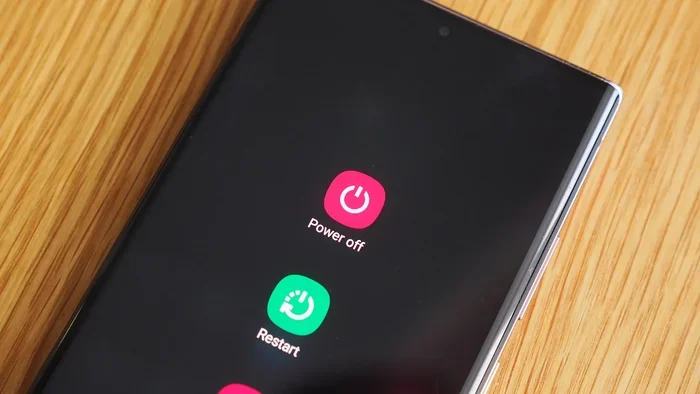
- Tap Power Off. A menu will appear on your screen. You will see options like Power Off, Restart, and Emergency Mode. Tap Power Off.
- Confirm the Action. Your phone may ask you to confirm. Tap OK or Power Off again to finalize the shutdown.
- Wait for the Screen to Go Dark. Within a few seconds, your Samsung phone will fully power down. The screen will go black, and you will feel a slight vibration.
That is it! Your Samsung device is now turned off. To turn it back on, press and hold the power button again until the Samsung logo appears. This whole process takes less than ten seconds once you practice it a few times.
What If the Power Menu Does Not Appear?
Sometimes, pressing the power button does not bring up the menu. This can happen if your Samsung phone is frozen or the screen is unresponsive. In that case, do not panic. Try holding the power button for a longer time, around five to seven seconds. If that still does not work, move on to the next section where we cover force restarts and other solutions.
What to Do When Your Samsung Phone Won’t Turn Off
A frozen Samsung phone can be frustrating. You press the power button, but nothing happens. The screen stays stuck on one app or goes completely blank. This situation is more common than you might think, and it usually has a simple fix.
Why Phones Freeze Up
Phones freeze for several reasons. A runaway app might be using too much processing power. Low storage space can also cause system slowdowns. Sometimes a software update goes wrong, leaving your Samsung Galaxy in an unresponsive state. Overheating is another frequent culprit, especially during hot weather or heavy gaming sessions.
The Force Restart Method
A force restart is your best friend when your phone will not respond. This method cuts power to the device and then immediately turns it back on. It does not delete any of your data. Here is how to do it on most Samsung phones.
- Press and Hold Two Buttons Simultaneously. Hold down the Power button and the Volume Down button together.
- Keep Holding for 10 to 15 Seconds. Do not let go, even if the screen goes dark or you feel a vibration.
- Release When the Samsung Logo Appears. The phone will reboot automatically. This may take a minute or two.
- Wait for the Home Screen. Once the reboot is complete, your phone should work normally again.
This method works on most Samsung Galaxy S series and Galaxy Note series devices. If you have a Galaxy S21, S22, S23, or S24, the same steps apply perfectly. For older models, you might need to hold the Power button and the Home button instead, but this is rare on modern Samsung phones.
When Force Restart Does Not Work
If a force restart fails, your phone might have a deeper issue. Try plugging your Samsung into a charger and waiting a few minutes. A completely drained battery can sometimes cause a phone to appear frozen. After charging for a bit, try the force restart again. If the problem persists, you may need to seek professional help or contact Samsung support.
Force Restart vs. Power Off: Know the Difference
Many people confuse a force restart with a regular power off. They are different actions, and understanding the difference helps you choose the right one for the situation.
| Feature | Power Off | Force Restart |
|---|---|---|
| What it does | Fully shuts down the phone | Restarts the phone immediately |
| Data loss risk | None | None |
| When to use it | Normal shutdown, battery saving | Phone is frozen or unresponsive |
| Steps required | Press power button, tap Power Off | Hold Power + Volume Down for 10 seconds |
| Time to complete | 5 to 10 seconds | 30 seconds to 2 minutes |
| Best for | Daily use, troubleshooting | Emergency situations |
The key takeaway is simple. Use a regular power off when your phone is working fine. Use a force restart when your phone is stuck and nothing else works. Both methods are safe and will not harm your Samsung device.
Another related term you might hear is soft reset. A soft reset is essentially the same as a force restart. It reboots the system without erasing any data. A hard reset, on the other hand, wipes all data and restores factory settings. You should only perform a hard reset as a last resort and after backing up your important files.
How to Turn Off Samsung Phones With Broken Screens
A broken Samsung screen makes everything harder. You cannot tap the Power Off button, and the touch display might not respond at all. But do not worry. There are still ways to shut down your device safely.
Method 1: Use Voice Assistant
If your Samsung phone has Bixby or Google Assistant enabled, you can use voice commands. Say “Hey Bixby, turn off my phone” or “Hey Google, power off my device.” The voice assistant should understand the command and initiate the shutdown process. This works best if your phone still has some responsiveness in the background, even if the touch screen is damaged.
Method 2: Connect an External Mouse
You can connect a USB mouse to your Samsung phone using an OTG (On-The-Go) adapter. Once connected, the mouse cursor should appear on screen. Use the cursor to navigate to the Power Off option. This method is especially helpful if the touch screen is cracked but the digitizer still partially works.
Method 3: Let the Battery Drain
This is the last resort. Simply use your phone until the battery dies completely. Then charge it back up and try a normal shutdown. This method works but is obviously not ideal, as you will not have access to your phone while waiting for the battery to drain.
Tips to Keep Your Samsung Phone Running Smoothly
Regular maintenance keeps your Samsung phone healthy and reduces the need for emergency shutdowns. Here are some practical tips every Samsung user should follow.
Restart Your Phone Weekly
Just like a computer, your Samsung phone benefits from regular restarts. A weekly reboot clears out cached data, closes background processes, and refreshes the system. You do not need to fully power off every time. A simple restart from the power menu works great. Set a reminder on your calendar to restart your phone every Sunday evening.
Keep Your Software Updated
Samsung releases software updates regularly. These updates fix bugs, improve performance, and patch security vulnerabilities. An outdated phone is more likely to freeze or experience issues. Go to Settings, then Software Update, and check for the latest version. Keeping your Samsung Galaxy updated is one of the easiest ways to prevent problems.
Manage Your Apps
Too many apps running in the background can slow down your phone and cause freezes. Go through your app list and uninstall anything you no longer use. Also, check which apps have permission to run in the background. Limiting background activity helps your phone stay responsive and reduces unnecessary battery drain.
Avoid Overheating
Overheating can cause your Samsung phone to freeze or shut down unexpectedly. Avoid leaving your phone in direct sunlight for long periods. Do not run heavy games for hours without a break. If your phone feels hot to the touch, turn it off for a few minutes and let it cool down before using it again.
Use Safe Mode for Troubleshooting
If your phone keeps freezing or acting strangely, try booting into Safe Mode. This mode disables all third-party apps and runs only the essential Samsung software. To enter Safe Mode, press and hold the Power button, then tap and hold the Power Off option on the screen. A prompt will appear asking you to confirm Safe Mode. This is a great way to identify whether a downloaded app is causing problems.
Common Mistakes People Make When Turning Off Samsung Phones
Even simple tasks can lead to mistakes. Here are a few common errors and how to avoid them.
- Holding the wrong button. Make sure you are pressing the Power button, not the Volume button by mistake. The Power button is usually on the right side and slightly longer than the volume keys.
- Releasing the button too early. When using the force restart method, you must hold the buttons for a full 10 to 15 seconds. Releasing too early will not work.
- Confusing power off with airplane mode. Airplane mode disables wireless connections but keeps the phone on. It does not turn off your Samsung device.
- Ignoring a frozen phone. If your phone is frozen for more than a few minutes, take action. Do not just keep pressing buttons randomly. Use the force restart method described above.
- Performing a hard reset unnecessarily. A hard reset wipes all your data. Only do this when absolutely necessary and after backing up everything important.
Expert Insights on Samsung Phone Shutdowns
According to Samsung support experts, most shutdown issues are temporary and easily resolved. The company recommends regular restarts and keeping software up to date as the two most effective preventive measures. Samsung also advises users to avoid installing apps from untrusted sources, as these can cause system instability and unexpected shutdowns.
Mobile tech specialists also point out that battery health plays a big role. Over time, lithium-ion batteries in Samsung phones degrade. A worn-out battery may cause the phone to shut down unexpectedly, even when the battery percentage shows there is still charge. If your Samsung phone is more than two years old and you notice frequent shutdowns, consider replacing the battery.
Another expert tip is to clear your cache partition regularly. This hidden partition stores temporary system files that can accumulate over time and slow down your phone. Clearing the cache does not delete your personal data. You can access this option by booting into Recovery Mode, which involves holding specific button combinations while the phone is powered off.
Conclusion
Knowing how to turn off your Samsung phone is an essential skill. Whether you use the standard power button method, a force restart, or a workaround for a broken screen, you now have all the tools you need. Remember to restart your phone weekly, keep your software updated, and manage your apps carefully. These simple habits will keep your Samsung Galaxy running smoothly for years to come.
Do not let a frozen screen or an unresponsive device stress you out. The methods in this guide work for nearly every Samsung phone model. From the newest Galaxy S series to older Galaxy A and J series devices, the steps remain consistent and reliable. Practice them once or twice, and you will never struggle to power down your phone again.
Take a moment today to try the standard power off method on your Samsung device. Make it a habit. A quick shutdown every few days can make a noticeable difference in performance. Your phone will thank you for it.
Frequently Asked Questions
Why won’t my Samsung phone turn off?
A Samsung phone that will not turn off is likely frozen or experiencing a software glitch. Try holding the Power button for 10 to 15 seconds to force a restart. If that does not work, charge your phone for a few minutes and try again. Persistent issues may require a factory reset or professional repair.
Is it safe to turn off my Samsung phone every night?
Yes, turning off your Samsung phone every night is perfectly safe and can even help preserve battery health. It also clears temporary files and refreshes the system. However, modern Samsung phones are designed to stay on, so it is a personal preference. If you do not want to turn it off daily, a weekly restart is sufficient.
How long does it take to turn off a Samsung phone?
A standard power off takes about 5 to 10 seconds. The screen will go dark shortly after you tap Power Off. A force restart takes longer, usually 30 seconds to 2 minutes, because the phone needs to reboot completely.
Will turning off my Samsung phone delete my data?
No, turning off your Samsung phone does not delete any data. A normal shutdown simply powers down the device. Even a force restart preserves all your files, photos, and apps. Only a hard reset or factory reset deletes data, and you should only do that as a last resort.
Can I turn off my Samsung phone without using the power button?
Yes, you can use voice commands with Bixby or Google Assistant to power off your Samsung phone. You can also connect an external mouse via an OTG adapter to navigate the screen and tap Power Off. On some Samsung models, you can also schedule automatic power on and off through the device care settings.
What is the difference between restarting and powering off a Samsung phone?
Restarting turns your Samsung phone off and then back on automatically. Powering off fully shuts down the device, and you need to manually turn it back on by pressing the power button. Both methods clear temporary system issues, but a restart is faster and more convenient for daily use.