How Do I Set Up Chromecast Without Using Google Home
Setting up Chromecast without Google Home is simple and straightforward. You can cast your favorite shows, movies, and music directly to your TV using just your phone or browser. This guide walks you through every method so you can start streaming in minutes.
Setting up a Chromecast without Google Home is easier than most people think. Many users buy a Chromecast streaming device and assume they need the Google Home app to get it working. The truth is, you have several options that don’t require the app at all.
Whether you want to cast to TV from your phone, mirror your computer screen, or use guest mode for visitors, this guide covers it all. You will learn how to connect your streaming device to your Wi-Fi network, configure device pairing settings, and start media streaming in no time. No technical expertise is needed.
By the end of this article, you will know exactly how to set up Chromecast without Google Home using every available method. Let’s dive in and get your TV ready for streaming.
Key Takeaways
- No Google Home Required: You can set up and use Chromecast without the Google Home app by using the Google Home website or built-in cast features.
- Multiple Setup Methods: There are several ways to connect Chromecast to your TV and Wi-Fi network, including mobile devices, computers, and smart TVs with cast support.
- Guest Mode Makes Sharing Easy: You can let friends cast to your Chromecast without needing to connect to the same Wi-Fi network.
- Screen Mirroring Works Great: You can mirror your entire phone or computer screen to your TV without Google Home.
- Troubleshooting Is Simple: Most common issues can be fixed by restarting your device, checking Wi-Fi, or updating firmware.
- Compatible Apps Make Streaming Easy: Popular apps like YouTube, Netflix, and Spotify support cast features natively.
- Keep Your Firmware Updated: Regular updates ensure smooth performance and new features for your streaming device.
📑 Table of Contents
What Is Chromecast and Why Skip Google Home?
Understanding Your Streaming Device
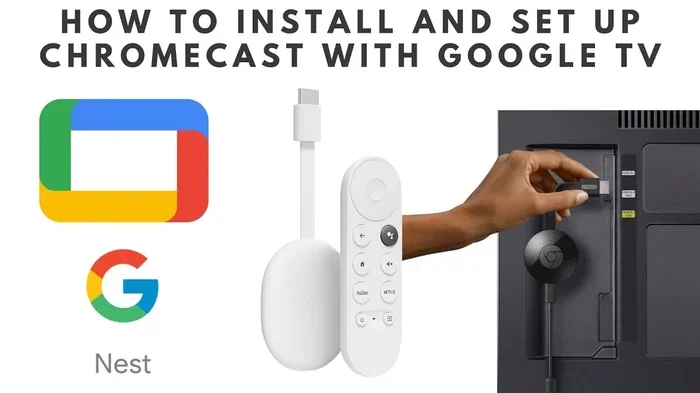
Chromecast is a small streaming device made by Google that plugs into your TV’s HDMI port. It lets you cast content from your phone, tablet, or computer right to your big screen. The device connects to your Wi-Fi network and receives streaming commands from your mobile device or browser.
Google Home is a smart home app that manages Chromecast and other Google devices. It is convenient, but not required. Many people prefer to skip it because they want a lighter setup. Others may not have a compatible phone for the app. Whatever your reason, setting up Chromecast without Google Home is totally doable.
Here are some reasons you might want to avoid the Google Home app:
- Your phone is not compatible with the Google Home app
- You prefer a simpler setup with fewer apps
- You use a computer as your primary device
- You want guest mode for friends and family
- You already have a smart TV with built-in cast support
How to Set Up Chromecast Without Google Home
Method 1: Use the Google Home Website
The easiest way to set up Chromecast without Google Home is through the Google Home website. You can do this on any computer with a Chrome browser. Here is how to get started.
- Plug your Chromecast into your TV’s HDMI port.
- Connect your TV to the HDMI input where you plugged in the device.
- Open Chrome on your computer and go to the Google Home website.
- Make sure your computer and Chromecast are on the same Wi-Fi network.
- Click on the Cast icon in Chrome and select your streaming device.
- Follow the on-screen prompts to complete device configuration.
This method works great because the website handles all the setup steps the app would normally do. You will name your Chromecast, connect it to Wi-Fi, and update its firmware. Everything happens right in your browser.
Method 2: Cast Directly from Your Phone
You can also cast to TV without the Google Home app by using your phone’s built-in casting features. Both Android and iOS devices support this.
On Android phones, go to your network settings and look for the Cast option. On iPhones, you can use the Control Center to access screen mirroring. Both methods let you send content to your Chromecast streaming device without installing any extra apps.
Here is a quick step-by-step for Android users:
- Make sure your phone is connected to the same Wi-Fi as your Chromecast.
- Open the Quick Settings panel by swiping down from the top.
- Tap the Cast icon.
- Select your Chromecast device from the list.
- Choose the content you want to cast to TV.
Method 3: Use Guest Mode for Visitors
Guest mode is a fantastic feature that lets people cast to your streaming device without needing to join your Wi-Fi network. This is perfect for parties or when friends visit.
To use guest mode, your Chromecast needs to be set up first. Once it is, visitors can simply open a casting app on their phone, and they will see your device listed. They can then cast content directly to your TV. This works because Chromecast uses a local Wi-Fi Direct connection to communicate with nearby devices.
Guest mode is one of the best reasons to set up Chromecast without Google Home. It keeps things simple for everyone involved.
Setting Up Wi-Fi and Network Connections
Connecting Chromecast to Your Wi-Fi
A strong Wi-Fi connection is essential for smooth media streaming. When you set up Chromecast without Google Home, you need to make sure your network is properly configured.
First, check that your router is working and your Wi-Fi password is correct. During setup, your streaming device will ask you to select your network and enter the password. Make sure you use the 2.4 GHz band if your router has dual bands, as Chromecast works best on that frequency.
Here are some network settings tips for the best experience:
- Place your router close to your TV for a stronger signal.
- Avoid interference from microwaves and other electronics.
- Use a Wi-Fi extender if your signal is weak in the living room.
- Restart your router if you experience buffering or lag.
Using Wi-Fi Direct and Bluetooth Pairing
Chromecast supports Wi-Fi Direct for direct device connections. This means your phone and Chromecast can communicate even without a traditional Wi-Fi network in some cases. Bluetooth pairing is also used during initial setup to help your phone find the streaming device quickly.
When you go through setup without the Google Home app, these connection methods still work behind the scenes. You do not need to manage them manually. Just make sure Bluetooth is turned on in your phone settings during the initial device pairing process.
Screen Mirroring and Casting Apps
How Screen Mirroring Works
Screen mirroring lets you display everything on your phone or computer screen directly onto your TV. This is different from casting individual apps. With mirroring, your TV shows a live copy of your device’s screen.
To use screen mirroring without Google Home, follow these steps:
- Open your phone’s Quick Settings or Settings menu.
- Tap the Cast or Screen Mirroring option.
- Select your Chromecast device from the list.
- Your screen will now appear on your TV.
This is great for sharing photos, presentations, or any content that does not have a native cast button. It works on both Android and iOS devices, though the experience may vary slightly.
Best Apps for Casting Without Google Home
Many popular apps support casting natively, meaning you do not need Google Home to use them. Here are some of the best apps for media streaming:
- YouTube — One of the most popular apps for casting to TV. Just tap the Cast icon inside any video.
- Netflix — Stream movies and shows directly to your streaming device with one tap.
- Spotify — Cast music to your TV or speakers without any extra setup.
- Google Chrome Browser — Cast any open tab from your computer to your TV.
- Plex — Stream your personal media library directly to your TV.
- Disney Plus — Enjoy all your favorite shows with built-in cast support.
These apps use the Chromecast built-in protocol to send content directly to your device. This means the app handles the streaming, not your phone. Your phone becomes a remote control, which saves battery and improves performance.
Troubleshooting Common Setup Issues
Chromecast Not Showing Up on Your Device
If your streaming device does not appear when you try to cast, do not worry. This is one of the most common issues with Chromecast without Google Home setup. Here is what to do:
- Make sure both devices are on the same Wi-Fi network.
- Restart your Chromecast by unplugging it and plugging it back in.
- Restart your phone or computer.
- Check that your Wi-Fi signal is strong enough near the TV.
- Make sure your device’s Bluetooth is turned on for device pairing.
Buffering and Streaming Problems
Buffering happens when your Wi-Fi connection is too slow to keep up with the stream. To fix this, try these steps:
- Move your router closer to the TV.
- Reduce the number of devices using your Wi-Fi.
- Lower the video quality in your streaming app settings.
- Restart your modem and router.
- Check for firmware updates on your streaming device.
Most streaming problems are caused by Wi-Fi issues. A strong, stable connection makes all the difference for smooth media streaming.
Audio and Video Sync Issues
Sometimes the audio and video on your TV get out of sync. This can happen when casting to TV from a phone or computer. Try reducing the bitrate in your streaming app or switch to a different Wi-Fi band. Restarting both your phone and Chromecast often fixes this problem too.
Expert Tips for the Best Chromecast Experience
Keep Your Firmware Updated
Google regularly releases updates for Chromecast without Google Home users too. These updates add new features, fix bugs, and improve performance. To check for updates, simply open the Google Home website and look for any available device configuration updates.
Use Ethernet for Stability
If your Wi-Fi connection is weak, consider using a Chromecast Ethernet adapter. This plugs into the back of your Chromecast and connects directly to your router. A wired connection gives you the most stable streaming device experience possible.
Organize Your Cast Devices
If you have multiple Chromecasts in your home, give each one a clear name. This makes it easy to select the right device when you want to cast to TV. You can name them by room, like “Living Room TV” or “Bedroom Screen,” during the setup process.
Use the Chrome Browser for Everything
The Google Chrome browser is the best tool for Chromecast without Google Home. You can cast individual tabs, mirror your entire desktop, or stream content directly from websites. It works on Windows, Mac, and Chromebooks.
Key Takeaways
- No Google Home Required: You can set up and use Chromecast without the Google Home app by using the Google Home website or built-in cast features.
- Multiple Setup Methods: There are several ways to connect Chromecast to your TV and Wi-Fi network, including mobile devices, computers, and smart TVs with cast support.
- Guest Mode Makes Sharing Easy: You can let friends cast to your Chromecast without needing to connect to the same Wi-Fi network.
- Screen Mirroring Works Great: You can mirror your entire phone or computer screen to your TV without Google Home.
- Troubleshooting Is Simple: Most common issues can be fixed by restarting your device, checking Wi-Fi, or updating firmware.
- Compatible Apps Make Streaming Easy: Popular apps like YouTube, Netflix, and Spotify support cast features natively.
- Keep Your Firmware Updated: Regular updates ensure smooth performance and new features for your streaming device.
Frequently Asked Questions
Can I set up Chromecast without any app at all?
Yes, you can set up Chromecast without Google Home using the Google Home website in your Chrome browser. You can also cast directly from your phone’s built-in settings without installing any additional apps. The setup process is simple and works on any computer or mobile device with a web browser.
Do I need Wi-Fi to use Chromecast without Google Home?
Yes, a Wi-Fi connection is required for most Chromecast functions. Both your casting device and your streaming device need to be on the same network. However, guest mode allows visitors to cast without joining your Wi-Fi, using a local Wi-Fi Direct connection instead.
Is screen mirroring the same as casting?
No, they are different. Casting sends specific content from an app to your TV, while screen mirroring shows everything on your device screen on the TV. When you cast to TV, your phone can still be used for other things. With mirroring, your TV shows a live copy of your screen.
Can I use Chromecast with an iPhone?
Yes, iPhones work great with Chromecast without Google Home. You can cast from supported apps like YouTube and Netflix using the built-in Cast button. You can also use screen mirroring through the Control Center, though some features may work better on Android devices.
What should I do if my Chromecast keeps disconnecting?
First, check your Wi-Fi connection and make sure your router is working properly. Restart both your Chromecast and your router. Move your router closer to the TV if the signal is weak. Updating your streaming device firmware can also fix frequent disconnection issues.
Can I use Chromecast with a smart TV?
Yes, you can use a Chromecast with any TV that has an HDMI port, including smart TVs. Some smart TVs even have Chromecast built-in, which means you do not need a separate device at all. You can still use the methods in this guide to cast content from your phone or computer.
Conclusion
Setting up Chromecast without Google Home is simple, fast, and gives you full control over your streaming experience. You now know how to use the Google Home website, cast directly from your phone, enable guest mode, and troubleshoot common issues. You also learned about screen mirroring, the best casting apps, and expert tips to get the most out of your streaming device.
With just a few simple steps, you can cast to TV from any device and enjoy your favorite shows, movies, and music on the big screen. No Google Home app needed. The process is straightforward, and once you set it up, you will wonder why you ever thought it was complicated.
Start setting up your Chromecast without Google Home today and unlock the full potential of your media streaming setup. Your TV is waiting.