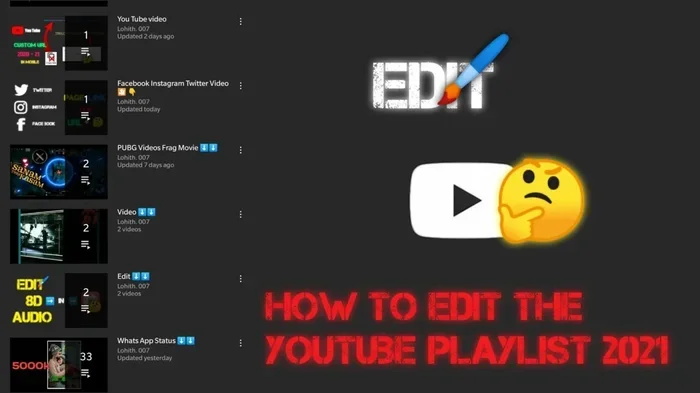
How Do I Change The Order Of My Youtube Playlist Quickly
Changing the order of your YouTube playlist is simple once you know the right steps. Whether you are on a computer or phone, you can drag and drop, sort, or manually reorder videos in just a few taps. This guide walks you through every method so you can rearrange your YouTube playlist in minutes and keep your content organized exactly how you want it.
Have you ever spent hours building a perfect YouTube playlist only to realize the videos are in the wrong order? Maybe you added songs to a music mix and the flow is all wrong. Or perhaps you curated a study playlist and need the videos arranged from beginner to advanced. Whatever the reason, changing the order of your YouTube playlist is something you can do in just a few minutes.
Many people think reordering a playlist is complicated. They assume it requires technical skills or fancy software. That is not true at all. YouTube gives you built-in tools to rearrange your YouTube playlist on both desktop and mobile devices. You do not need to be a tech expert. You just need a few simple steps. This guide covers every method you can use, so you never have to watch your playlist in the wrong sequence again.
In this article, you will learn how to reorder videos in playlist using drag and drop, sorting features, and mobile editing. We will also share quick tips, common mistakes, and expert advice. By the end, you will be able to organize your YouTube playlist like a pro. Let us dive in.
Key Takeaways
- Drag and Drop on Desktop: The easiest way to reorder videos in a playlist on a computer using YouTube’s built-in editor.
- Mobile App Reordering: You can change playlist order on your phone using the YouTube app with a simple touch-and-hold method.
- Sort by Date or Title: YouTube offers sorting options that let you organize playlists automatically without manual work.
- Use Browser Extensions: Third-party tools can supercharge your YouTube playlist management and make reordering faster.
- Create New Playlists: Sometimes the fastest fix is to build a fresh playlist with videos in the exact order you want.
- Reorder on Any Device: The process works on desktop, mobile, and even smart TVs with slight variations.
- Save Before You Edit: Always double-check your playlist after rearranging to make sure nothing got lost in the process.
📑 Table of Contents
- Why Reordering Your YouTube Playlist Matters
- How to Change the Order of Your YouTube Playlist on Desktop
- How to Change the Order of Your YouTube Playlist on Mobile
- Advanced Methods to Organize Your YouTube Playlist
- Common Mistakes to Avoid When Reordering Playlists
- Comparing Playlist Reordering Methods
- Expert Insights on YouTube Playlist Organization
- How to Change the Order of Your YouTube Playlist on Smart TV
- Key Takeaways
- Frequently Asked Questions
- Conclusion
Why Reordering Your YouTube Playlist Matters
A well-organized playlist makes a huge difference. When your videos are in the right order, the viewing experience feels smooth and natural. Think about it. Would you want to watch a workout playlist where the warm-up comes last? Or a cooking playlist where the dessert recipe appears before the main dish? The order matters a lot.
Here are a few reasons why YouTube playlist management is important:
- Better viewer experience: A logical sequence keeps people watching longer.
- Professional look: Ordered playlists look more polished and intentional.
- Easy navigation: Viewers can follow along without skipping around.
- Mood and flow: Music playlists especially need the right sequence to set the tone.
- Learning progress: Educational playlists work best when arranged from easy to hard.
When you take a few minutes to reorder videos in playlist, you improve the experience for everyone. Whether the playlist is for yourself or for an audience, the order makes a real impact.
How to Change the Order of Your YouTube Playlist on Desktop
The desktop method is the most straightforward way to rearrange your YouTube playlist. You can use any modern browser like Chrome, Firefox, or Edge. Here is exactly how to do it.
Step-by-Step Drag and Drop Method
YouTube’s drag-and-drop feature is the fastest way to change playlist order on a computer. Follow these steps carefully:
- Open your web browser and go to YouTube.com.
- Sign in to your account if you are not already logged in.
- Click on your profile picture in the top right corner.
- Select Library from the dropdown menu.
- Find the playlist you want to edit and click on it.
- Look for the Edit button. It usually looks like a small pencil icon.
- Click on the video you want to move. Hold down the mouse button.
- Drag the video to its new position in the list.
- Release the mouse button when the video is in the right spot.
- Click Save to confirm your changes.
That is it! You have successfully reordered your YouTube playlist on desktop. The change happens instantly. You can move as many videos as you want using this method.
Using the Sort Feature
YouTube also offers a sorting option that can save you a lot of time. Instead of moving videos one by one, you can sort the entire playlist automatically. Here is how:
- Open your playlist in edit mode.
- Look for the Sort option near the top of the playlist.
- Choose from options like Date Added, Title, or Duration.
- YouTube will rearrange the videos based on your chosen criteria.
- Click Save to keep the new order.
This method works great for large playlists. If you have fifty or more videos, sorting is much faster than dragging each one. It is a handy trick for YouTube playlist editing that many people overlook.
Quick Tips for Desktop Editing
Here are some pro tips to make your YouTube playlist management smoother on a computer:
- Use keyboard shortcuts: Some browsers allow you to speed up navigation with keyboard keys.
- Zoom in on the playlist: Use Ctrl and plus sign to zoom in. This makes drag and drop more precise.
- Work in batches: Move several videos at once instead of one at a time.
- Check your work: Play the playlist after editing to make sure the order feels right.
- Use a wide screen: A larger monitor gives you more space to see the full playlist.
How to Change the Order of Your YouTube Playlist on Mobile
Not everyone uses a computer to manage their playlists. Many people prefer to edit on their phones. The good news is that reordering YouTube playlist on mobile is also very simple. The YouTube app makes it easy to rearrange videos right from your phone.
Using the YouTube App on iPhone or Android
Follow these steps to change playlist order on your mobile device:
- Open the YouTube app on your phone.
- Tap the Library tab at the bottom of the screen.
- Find the playlist you want to edit and tap on it.
- Tap the Edit button. It is usually a pencil icon at the top.
- Find the three-line handle icon next to the video you want to move.
- Touch and hold the handle icon.
- Drag the video up or down to its new position.
- Release your finger when the video is where you want it.
- Tap Save or the checkmark to confirm.
The mobile method uses the same drag-and-drop concept as desktop. The only difference is that you use your finger instead of a mouse. The touch interface makes it feel very natural and intuitive.
Reordering on Tablets
If you use an iPad or Android tablet, the process is almost identical to the phone method. The larger screen makes it a bit easier to see where you are placing each video. The YouTube playlist organizer works the same way across all mobile devices.
Quick Tips for Mobile Editing
- Use both hands: Hold the phone steady with one hand and drag with the other.
- Turn your phone sideways: Landscape mode gives you more room to see the playlist.
- Be patient: Touch screens can be tricky. Take your time to place videos accurately.
- Update the app: Make sure you have the latest YouTube app version for the best editing experience.
- Use Wi-Fi: A stable connection prevents lag while you are dragging videos.
Advanced Methods to Organize Your YouTube Playlist
Once you master the basic methods, you can explore some advanced techniques. These approaches give you more control over your YouTube playlist customization and help you work faster.
Using Browser Extensions
Browser extensions can supercharge your YouTube playlist management. There are several free extensions available for Chrome and Firefox that add extra features to YouTube. Some extensions let you:
- Preview videos before moving them.
- Batch move multiple videos at once.
- Auto-sort playlists based on custom rules.
- Undo changes easily if you make a mistake.
These tools are especially helpful if you manage large playlists with hundreds of videos. They save a ton of time and make YouTube playlist editing much more efficient.
Creating a New Playlist from Scratch
Sometimes the fastest way to fix a messy playlist is to create a new one. Here is how this approach works:
- Create a new playlist with a temporary name.
- Add videos to the new playlist in the exact order you want.
- Once the new playlist is perfect, delete the old one.
- Rename the new playlist to your original name.
This method works best when you only need to fix a small portion of a playlist. It is also useful when you want to completely rethink the sequence. Think of it as a YouTube playlist sorting shortcut that bypasses the hassle of moving individual videos.
Using YouTube Studio for Creators
If you are a content creator, YouTube Studio gives you even more options for playlist ordering. You can access advanced editing tools that are not available in the regular YouTube interface. Creators can reorder playlists, add sections, and customize how their playlists appear to viewers. This is a powerful feature for anyone who manages multiple playlists regularly.
Common Mistakes to Avoid When Reordering Playlists
Even though changing the order of your YouTube playlist is straightforward, people do make mistakes. Here are some common errors to watch out for:
Forgetting to Save
This is the most common mistake. After you drag and drop videos into a new order, you must click Save. If you forget, your changes will not be kept. Always double-check that you have saved before leaving the page.
Moving Too Many Videos at Once
It can be tempting to rearrange everything in one go. But moving too many videos increases the chance of mistakes. It is better to work in small batches. Move a few videos at a time and check the result before continuing.
Not Testing the Playlist
After you finish editing, always play the playlist from start to finish. This helps you catch any videos that are out of place. Testing takes only a minute but saves a lot of frustration later.
Ignoring Mobile vs Desktop Differences
The mobile and desktop versions of YouTube are slightly different. Some features may not work the same way on both platforms. If you start editing on your phone and something does not work, try switching to a computer. The reverse is also true.
Overcomplicating Things
You do not need fancy tools or complex methods to organize your YouTube playlist. The built-in YouTube features are more than enough for most people. Keep it simple and use the tools YouTube provides.
Comparing Playlist Reordering Methods
Not every method works the same for everyone. Your choice depends on your needs, device, and playlist size. Here is a quick comparison of the main approaches to rearrange your YouTube playlist.
| Method | Device | Best For | Speed |
|---|---|---|---|
| Drag and Drop | Desktop | Precise manual reordering | Fast for small playlists |
| Sort Feature | Desktop | Large playlists with many videos | Very fast |
| Mobile Drag and Drop | Phone/Tablet | Quick edits on the go | Moderate |
| Browser Extensions | Desktop | Advanced playlist management | Very fast |
| New Playlist Creation | Any | Complete playlist overhaul | Moderate |
As you can see, each method has its strengths. For everyday use, the drag-and-drop method on desktop is the most reliable. If you are on your phone, the mobile editing tools work well for quick changes. Choose the method that fits your situation best.
Expert Insights on YouTube Playlist Organization
Managing playlists effectively is a skill that improves with practice. Here are some insights from experienced playlist creators:
Start with a clear vision. Before you add any videos, think about the order you want. Having a plan makes the editing process much faster. You will spend less time moving videos around if you know the sequence in advance.
Use sections for long playlists. If your playlist has more than twenty videos, consider breaking it into sections. YouTube allows you to add section headers within playlists. This makes navigation easier and keeps the content organized.
Review regularly. Your playlist needs may change over time. A playlist that worked perfectly last month might need adjustments now. Set a reminder to review and reorder videos in playlist every few weeks.
Keep backups. If you are making major changes to a playlist, consider saving a copy first. You can create a duplicate playlist before editing. This way, you always have the original version if you need it.
How to Change the Order of Your YouTube Playlist on Smart TV
You can also manage playlists on a smart TV, though the options are more limited. Using a remote, you can access your library and open a playlist. However, reordering videos on a smart TV is not as smooth as on a computer or phone. For serious editing, it is best to use a phone or computer and let the changes sync automatically across all your devices.
Key Takeaways
- Drag and Drop on Desktop: The easiest way to reorder videos in playlist on a computer using YouTube’s built-in editor.
- Mobile App Reordering: You can change playlist order on your phone using the YouTube app with a simple touch-and-hold method.
- Sort by Date or Title: YouTube offers sorting options that let you organize your YouTube playlist automatically without manual work.
- Use Browser Extensions: Third-party tools can supercharge your YouTube playlist management and make reordering faster.
- Create New Playlists: Sometimes the fastest fix is to build a fresh playlist with videos in the exact order you want.
- Reorder on Any Device: The process works on desktop, mobile, and even smart TVs with slight variations.
- Save Before You Edit: Always double-check your playlist after rearranging to make sure nothing got lost in the process.
Frequently Asked Questions
Can I reorder my YouTube playlist on both my phone and computer?
Yes, absolutely. YouTube syncs your playlists across all devices. You can start editing on your phone and finish on your computer, or vice versa. The changes appear everywhere once you save them. This makes YouTube playlist editing very flexible and convenient.
Does changing the order of a playlist affect the videos themselves?
No, changing the order only affects the sequence in which videos appear in the playlist. The actual videos are not changed or removed. Each video stays exactly the same with all its original content, thumbnails, and descriptions intact.
Can I undo a reorder if I make a mistake?
YouTube does not have a built-in undo button for playlist reordering. However, you can simply drag the videos back to their original positions. If you make a major mistake, you can also restore a previous version if you had saved a backup of the playlist.
Is there a limit to how many times I can reorder a playlist?
No, there is no limit. You can rearrange your YouTube playlist as many times as you want. YouTube allows unlimited edits to playlists, so feel free to experiment until you get the perfect order.
Can I reorder a collaborative playlist that other people can edit?
Yes, you can. If you have editing access to a collaborative playlist, you can reorder the videos just like any other playlist. Keep in mind that other collaborators might also make changes, so it is a good idea to communicate with them before making major reordering decisions.
Why can I not drag and drop videos on my playlist?
If the drag-and-drop feature is not working, try these fixes. First, make sure you are in edit mode. Second, clear your browser cache and refresh the page. Third, try using a different browser. Fourth, update your YouTube app if you are on mobile. These steps usually resolve the issue and let you change the order of your YouTube playlist without any problems.
Conclusion
Changing the order of your YouTube playlist is a simple but powerful way to improve your viewing experience. Whether you use a computer or a phone, YouTube gives you all the tools you need to rearrange your YouTube playlist quickly and easily. The drag-and-drop method on desktop is the most popular approach, but the sort feature and mobile editing tools are great alternatives.
Remember to save your changes, test the playlist after editing, and avoid the common mistakes we covered. With these tips and techniques, you can organize your YouTube playlist with confidence. Your videos will be in the perfect order every time. Start reordering your playlist today and enjoy a better, more organized YouTube experience.