How Do I Get My Samsung Phone To Ring Louder Easily
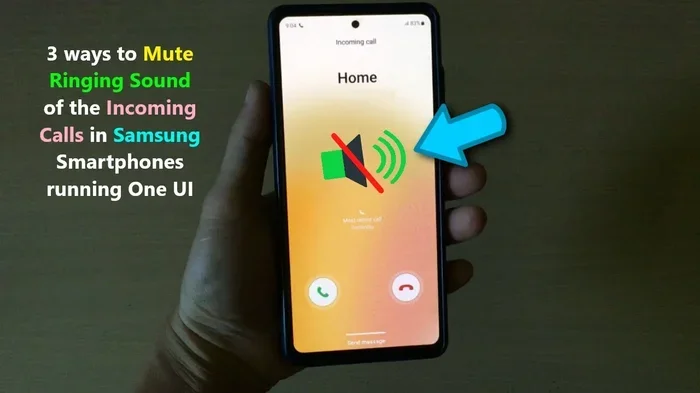
Getting your Samsung phone to ring louder is easier than you think. You can adjust the ringer volume in just a few taps, enable sound enhancement features, and even use free apps to boost your speaker output. Whether your Samsung Galaxy phone is too quiet during calls or you simply need a louder ringtone, this guide covers every proven method to make your device ring at full volume.
Have you ever missed an important call because your Samsung phone was on silent or way too quiet? It happens to all of us. Maybe you were in a noisy restaurant, or your phone was buried under a pile of clothes. Whatever the reason, a Samsung phone that does not ring loud enough is incredibly frustrating.
The good news is that you do not need to be a tech expert to fix this. There are many simple ways to make your Samsung phone ring louder. From basic volume adjustments to hidden sound settings and even free apps, you have plenty of options. In this guide, we will walk you through every method step by step. By the end, you will know exactly how to get your Samsung phone to ring louder and never miss a call again.
Let us start with the most obvious fix and work our way through all the advanced tricks. Whether you have a Samsung Galaxy S series, A series, or any other Samsung model, these tips will work for you.
Key Takeaways
- Adjust Ringer Volume: The simplest fix is using the volume buttons or sound settings to increase your Samsung phone ring volume directly.
- Enable Vivid Sound and Dolby Atmos: Samsung built-in sound enhancement features can significantly boost your speaker output and call clarity.
- Use a Volume Booster App: Free apps from the Play Store can push your Samsung Galaxy volume beyond default limits safely.
- Check Accessibility Settings: Hearing aid support and mono audio options in Samsung accessibility settings help make your phone ring louder.
- Clean Your Speaker: Dust and debris in the speaker grill are a common reason your Samsung phone sounds quiet during calls.
- Try a Different Ringtone: Some Samsung ringtones are naturally louder and more penetrating than others.
- Update Your Software: Outdated Samsung software can cause volume issues that are easily fixed with a simple update.
📑 Table of Contents
- Check Your Samsung Phone Ring Volume Settings
- Adjust Volume During a Call
- Use Samsung Sound Enhancement Features
- Try a Volume Booster App
- Fix Hardware and Speaker Issues
- Accessibility Options to Make Your Phone Ring Louder
- Choose a Louder Ringtone for Your Samsung Phone
- Common Mistakes That Make Your Samsung Phone Sound Quiet
- Quick Tips to Make Your Samsung Phone Ring Louder Right Now
- Conclusion
Check Your Samsung Phone Ring Volume Settings
The first thing you should do is check your basic volume settings. This is the most common reason Samsung phones seem quiet. Sometimes the ringer volume gets turned down without you noticing.
Use the Volume Buttons
Press the volume up button on the side of your Samsung phone while the phone is ringing. This will increase the ringer volume immediately. Make sure you are pressing the button while a call is incoming or while the ringtone is playing. The volume slider that appears on screen has separate controls for media, calls, alarms, and notifications.
Adjust Volume Through Settings
You can also change the ringer volume through your phone settings. Open the Settings app on your Samsung phone. Tap on Sounds and vibration. You will see a slider for Ring volume. Drag it all the way to the right for maximum volume. You can also turn off Vibrate for calls here if you want your phone to rely only on sound.
Another important setting is the Media volume. If your Samsung phone plays music or videos too quietly, this is the slider to adjust. Many people confuse media volume with ringer volume, so make sure you are changing the right one.
Turn Off Do Not Disturb Mode
Do Not Disturb mode is a common culprit for quiet or silent phones. When this mode is active, your Samsung phone will not ring at all for most calls and notifications. To check, swipe down from the top of your screen and look for the Do Not Disturb icon. If it is highlighted, tap it to turn it off.
You can also go to Settings and tap on Sounds and vibration, then select Do Not Disturb. From here, you can set exceptions for important contacts so your Samsung Galaxy phone still rings for certain people even when this mode is on.
Adjust Volume During a Call
Sometimes the issue is not with your ringtone but with your in-call volume. You might have your ringer loud, but the person on the other end sounds too quiet when you are already on the call.
Use the In-Call Volume Controls
When you are on an active call, use the volume up button on the side of your phone. This controls the speaker volume for the call itself, not the ringtone. Many Samsung phone users do not know about this separate volume control.
If you are using the speakerphone, make sure the media volume is also turned up. Some Samsung Galaxy models treat speakerphone audio as media audio, so you may need to adjust both sliders for the best results.
Enable Call Volume Boost
Samsung has a feature called Call Volume Boost in some models. Go to Settings, then Sounds and vibration, and look for an option called Increase call volume. This setting automatically boosts your call volume to a higher level than normal. It is especially helpful if you have trouble hearing people during phone calls.
Use Samsung Sound Enhancement Features
Samsung phones come with built-in sound technologies designed to make audio louder and clearer. These features are often turned off by default, but enabling them can make a big difference in how loud your Samsung phone rings.
Turn on Vivid Sound
Vivid Sound is a Samsung feature that enhances your phone’s speaker output. To turn it on, go to Settings, then Sounds and vibration. Look for Vivid Sound and toggle it on. You can also adjust the balance between treble and bass to find the setting that works best for you.
Vivid Sound works by processing the audio signal before it reaches your speakers. This makes your Samsung phone ringtone and call audio sound fuller and louder without any distortion. It is one of the easiest ways to get more volume out of your device.
Enable Dolby Atmos
Dolby Atmos is another powerful sound enhancement available on most Samsung Galaxy phones. To enable it, go to Settings, then Sounds and vibration, and tap on Sound quality and effects. Look for Dolby Atmos and turn it on.
Dolby Atmos creates a more immersive sound experience and can also make your Samsung phone ring louder. You can choose from different presets like Movie, Music, and Voice. The Voice preset is great for making your ringtone and call audio clearer and more pronounced.
Adjust Sound Assistant Settings
Samsung also has a feature called Sound Assistant that gives you even more control over your phone’s audio. To find it, go to Settings, then Sounds and vibration, and look for Sound Assistant. This tool lets you adjust volume levels for individual apps and even set different volumes for different situations.
You can use Sound Assistant to create custom volume profiles. For example, you can set your Samsung phone to ring at maximum volume during work hours and lower it in the evening. This is a great way to manage your phone’s sound without thinking about it every day.
Try a Volume Booster App
If the built-in settings are not giving you enough volume, you can try a third-party volume booster app. These apps work by amplifying the audio signal before it reaches your speakers. They are especially useful if your Samsung phone speaker is naturally quiet.
Best Free Volume Booster Apps
There are many volume booster apps available on the Google Play Store. Some of the most popular ones include Volume Booster, Equalizer FX, and Viper4Android. These apps let you boost your Samsung phone volume by 100% or more beyond the default maximum.
Most of these apps are free to download and use. They work by adjusting the equalizer settings and increasing the overall gain of your phone’s audio output. You can customize the boost levels to find the perfect balance between volume and sound quality.
Are Volume Booster Apps Safe?
This is a common question, and the answer is mostly yes. Reputable volume booster apps from trusted developers are safe to use on your Samsung Galaxy phone. However, you should be careful about which apps you download. Stick to well-known apps with good reviews and avoid any app that asks for unnecessary permissions.
Using a volume booster app for a short period is generally safe. However, if you use it at maximum volume all the time, it could potentially damage your Samsung phone speaker over time. Think of it like listening to music too loud through headphones. Moderation is key.
How to Set Up a Volume Booster App
Setting up a volume booster app is simple. Download the app from the Play Store, open it, and follow the on-screen instructions. Most apps will automatically detect your Samsung phone’s speaker and apply a volume boost. You can usually adjust the boost level using a slider within the app.
Some apps also include an equalizer feature that lets you fine-tune the sound. This is great for people who want to customize their Samsung phone audio experience. You can boost the bass, increase the treble, or find a balanced setting that sounds good to you.
Fix Hardware and Speaker Issues
Sometimes the problem is not software related. Your Samsung phone speaker might be physically blocked or damaged, which can make your phone sound much quieter than it should.
Clean Your Speaker Grill
Dust, lint, and debris can accumulate in your Samsung phone speaker grill over time. This buildup can block sound from coming out, making your phone seem quiet even when the volume is turned all the way up.
To clean your speaker, use a soft-bristled toothbrush or a small brush. Gently brush the speaker grill to remove any dust or debris. You can also use a can of compressed air to blow out any particles stuck in the grill. Be gentle and do not poke anything into the speaker holes, as this could damage the internal components.
Check for Water Damage
If your Samsung phone has been exposed to water or moisture, the speaker might not work properly. Water damage can cause the speaker to sound muffled or quiet. If you suspect water damage, let your phone dry completely before testing the volume again.
You can also use the Samsung Members app to run a diagnostic test on your phone’s speaker. This test will tell you if your speaker is working properly or if there is a hardware issue that needs to be addressed. To run the test, open the Samsung Members app, go to Support, and tap on Self-diagnosis.
When to Seek Professional Repair
If you have tried all the software fixes and your Samsung phone still sounds quiet, there might be a hardware problem. A damaged speaker or audio chip will need professional repair. Visit a Samsung service center or a trusted repair shop to get your phone checked.
Do not try to open your phone yourself unless you have experience with electronics. Opening your Samsung phone can void the warranty and cause further damage. It is always better to seek professional help for hardware issues.
Accessibility Options to Make Your Phone Ring Louder
Samsung phones have several accessibility features designed to help people with hearing difficulties. These features can also help make your phone ring louder and clearer for everyone.
Enable Hearing Aid Compatibility
Samsung phones have a hearing aid compatibility feature that boosts the audio output for calls and ringtones. To turn it on, go to Settings, then Accessibility, and look for Hearing enhancements. Toggle on Hearing aid compatibility and adjust the amplification level to your preference.
This feature works by increasing the volume of incoming calls and notifications. It also improves the clarity of voice audio during phone calls. Even if you do not use a hearing aid, this setting can make your Samsung phone ring significantly louder.
Use Mono Audio
Mono audio is an accessibility feature that combines the left and right audio channels into one. This can help if you have hearing issues in one ear or if your Samsung phone speaker is not producing balanced sound.
To enable mono audio, go to Settings, then Accessibility, and tap on Audio adjustments. Turn on Mono audio. This setting ensures that all the audio from your Samsung phone comes through clearly, regardless of which ear you are using.
Increase Touch and Hold Delay
This might sound unrelated, but increasing the touch and hold delay can help if you accidentally press the volume down button when you do not mean to. Go to Settings, then Accessibility, and look for Interaction and dexterity. Increase the Touch and hold delay setting.
This small change can prevent accidental volume adjustments on your Samsung phone. It is a simple trick that many people overlook when trying to fix their phone volume issues.
Choose a Louder Ringtone for Your Samsung Phone
The ringtone you choose can also affect how loud your Samsung phone sounds. Some Samsung ringtones are naturally louder and more piercing than others. If your current ringtone is soft and mellow, switching to a different one can make a big difference.
Built-in Loud Ringtone Options
Samsung phones come with several built-in ringtones that are designed to be loud and attention-grabbing. To change your ringtone, go to Settings, then Sounds and vibration, and tap on Phone ringtone. Browse through the options and pick one that sounds louder to you.
Some popular loud Samsung ringtones include Alert, Rising Ring, and Classic. These ringtones have a higher pitch and more volume than softer options like Smooth or Gentle. Test a few different ringtones to find the one that works best for you.
Download Custom Ringtones
If the built-in options are not loud enough, you can download custom ringtones from the Play Store or websites like Zedge. Look for ringtones that are described as loud, sharp, or attention-grabbing. These ringtones are often designed to cut through noise and be heard even in loud environments.
When downloading ringtones, make sure they are in a compatible format like MP3 or M4A. Most Samsung phones support these formats natively. You can set a custom ringtone by going to Settings, then Sounds and vibration, and selecting Phone ringtone from your downloaded files.
Common Mistakes That Make Your Samsung Phone Sound Quiet
There are a few common mistakes that people make that can cause their Samsung phone to sound quieter than it should. Avoiding these mistakes can help you get the most volume out of your device.
Not Checking All Volume Sliders
Many people only check the ringer volume and forget about other volume sliders. Your Samsung phone has separate volume controls for media, calls, alarms, and notifications. Make sure all of these are turned up if you want your phone to be loud in every situation.
Ignoring Software Updates
Samsung regularly releases software updates that fix bugs and improve performance. Sometimes, a quiet speaker issue is caused by a software bug that is fixed in a newer update. Always keep your Samsung phone up to date to ensure the best performance.
Using a Thick Phone Case
Some phone cases can muffle the sound from your Samsung phone speaker. If you have a thick or heavy-duty case, try removing it temporarily to see if the volume improves. If it does, consider switching to a thinner case that does not block the speaker grill.
Quick Tips to Make Your Samsung Phone Ring Louder Right Now
Here are some quick tips you can try right now to make your Samsung phone ring louder:
- Press the volume up button while your phone is ringing. This is the fastest way to increase volume in the moment.
- Turn off Do Not Disturb mode. This ensures your phone will ring for all incoming calls.
- Enable Vivid Sound and Dolby Atmos. These Samsung features boost speaker output significantly.
- Clean your speaker grill. Remove any dust or debris that might be blocking the sound.
- Switch to a louder ringtone. Some Samsung ringtones are naturally more piercing and easier to hear.
- Remove your phone case temporarily. Thick cases can muffle the speaker output.
- Restart your Samsung phone. A simple restart can fix temporary software glitches that affect volume.
Conclusion
Now you know how to get your Samsung phone to ring louder using simple and effective methods. From adjusting basic volume settings to enabling advanced sound features and using volume booster apps, you have many options at your fingertips. The key is to try each method and see which combination works best for your specific Samsung Galaxy model.
Start with the basic volume adjustments and work your way through the more advanced tips. Clean your speaker grill, enable Vivid Sound and Dolby Atmos, and try a louder ringtone. If none of these solutions work, check for hardware issues or visit a Samsung service center.
Remember, your Samsung phone is designed to be loud and clear. With the right settings and a little troubleshooting, you will never miss another important call. Take a few minutes today to adjust your settings and enjoy a louder, more reliable Samsung phone experience.
Frequently Asked Questions
Why is my Samsung phone not ringing loud enough?
There are several reasons your Samsung phone might not be ringing loud enough. The most common causes include low ringer volume, Do Not Disturb mode being enabled, a dirty speaker grill, or a thick phone case muffling the sound. Software bugs and outdated Samsung software can also cause volume issues. Try adjusting your volume settings first, then work through the other troubleshooting steps in this guide.
Can I make my Samsung Galaxy phone volume louder than the maximum?
Yes, you can make your Samsung Galaxy phone volume louder than the default maximum by using a volume booster app or enabling Samsung’s built-in sound enhancement features like Vivid Sound and Dolby Atmos. These tools amplify the audio signal beyond the standard limits. However, be careful not to set the volume too high for extended periods, as this can potentially damage your phone speaker over time.
How do I make my Samsung phone ringtone louder during a call?
To make your Samsung phone ringtone louder during a call, press the volume up button while the phone is ringing. You can also go to Settings, then Sounds and vibration, and adjust the Ring volume slider. Make sure Do Not Disturb mode is off and that your Vivid Sound or Dolby Atmos features are enabled for the best results.
Is it safe to use volume booster apps on Samsung phones?
Yes, it is generally safe to use volume booster apps on Samsung phones as long as you download them from trusted sources like the Google Play Store. Stick to well-reviewed apps from reputable developers. Avoid using volume boosters at maximum levels for extended periods, as this can strain your Samsung phone speaker. Use these apps in moderation for the best balance of volume and speaker longevity.
Why does my Samsung phone sound quiet even with the volume all the way up?
If your Samsung phone sounds quiet even with the volume turned all the way up, the speaker grill might be blocked by dust or debris. A thick phone case can also muffle the sound. Water damage, software bugs, or a damaged speaker are other possible causes. Try cleaning the speaker, removing your case, and restarting your phone. If the problem persists, visit a Samsung service center for professional diagnosis.
What Samsung sound settings should I enable for louder audio?
You should enable Vivid Sound, Dolby Atmos, and Sound Assistant on your Samsung phone for louder and clearer audio. Go to Settings, then Sounds and vibration, and look for these options under Sound quality and effects. These Samsung built-in features enhance your phone’s audio output and can make your ringtone, calls, and media sound significantly louder and better.
=== CONCLUSION ===
Getting your Samsung phone to ring louder is something you can do right now with just a few simple steps. Whether you adjust your volume settings, enable sound enhancements, clean your speaker, or try a volume booster app, there is a solution that will work for you. The key is to take action today and not let another important call go unanswered.
Share this guide with friends and family who might be struggling with the same issue. A loud, clear Samsung phone ringtone ensures you never miss what matters most. Try these tips now and enjoy the difference they make in your daily life.