How Do I Find My Wifi Password On My iPhone Quickly
Finding your wifi password on your iPhone is easier than you think. Whether you need to share your wifi password with a friend or reconnect a device, your iPhone stores saved wifi passwords and lets you view them in just a few taps. This guide walks you through every method, including using your iPhone settings, iCloud, and even your router.
Have you ever been in a situation where you need your wifi password but have no idea where to look? Maybe a friend is visiting and wants to connect to your network. Or perhaps you just bought a new smart TV and need to enter the credentials. Whatever the reason, knowing how do I find my wifi password on my iPhone is a useful skill everyone should have.
The good news is that your iPhone makes this process surprisingly simple. Apple has built several tools into iOS that let you access your saved wireless network password with ease. You do not need to be a tech expert to pull this off. In this guide, we will walk you through every method step by step.
By the end of this article, you will know exactly how to find your wifi password on your iPhone using the settings app, iCloud, a Mac, QR codes, and even your router itself. Let us dive in.
Key Takeaways
- iPhone Settings Method: You can view your saved wifi password directly from your iPhone if you have a Mac or use iCloud Keychain.
- QR Code Sharing: iOS 16 and later let you share your wifi password using a QR code from your iPhone.
- Router Access: You can always find your wifi password on the back of your wireless router or by logging into the router admin page.
- Mac Method: If you own a Mac, you can use it to retrieve any wifi password your iPhone has saved.
- Third-Party Apps: Some password manager apps can help you find and manage saved wifi passwords on your iPhone.
- Reset as Last Resort: If nothing else works, you can reset your router to restore the default network password.
📑 Table of Contents
- Why You Might Need to Find Your Wifi Password on iPhone
- Method 1: View Your Wifi Password Using iPhone Settings
- Method 2: Share Your Wifi Password Using a QR Code
- Method 3: Use Your Mac to Find the Password
- Method 4: Check the Router Itself
- Method 5: Use a Password Manager App
- Comparison Table: Different Methods to Find Your Wifi Password
- Common Mistakes People Make When Finding Their Wifi Password
- Tips for Keeping Your Wifi Network Secure
- Frequently Asked Questions
- Conclusion
Why You Might Need to Find Your Wifi Password on iPhone
There are many reasons why you might need to pull up your network password from your iPhone. Here are some of the most common situations:
- Sharing with guests: A friend or family member needs to connect to your home network.
- Setting up a new device: You bought a new tablet, smart speaker, or gaming console that needs wifi access.
- Reconnecting after a reset: You factory reset a device and need to enter the password again.
- Troubleshooting connection issues: You are trying to diagnose why a device will not connect to your wifi network.
- Moving to a new router: You upgraded your wireless router and need to confirm the password you set.
No matter the reason, your iPhone can help you retrieve that information quickly. Let us look at the different ways to do it.
Method 1: View Your Wifi Password Using iPhone Settings
This is the most direct way to find your saved wifi password on your iPhone. However, there is one catch. Apple does not let you view the password directly within the iPhone settings app unless you have certain tools enabled.
Using iCloud Keychain on iPhone
If you have iCloud Keychain turned on, you can view your wifi network password through a simple process. Here is how to do it:
- Open the Settings app on your iPhone.
- Tap on Passwords. This icon looks like a key.
- You may need to authenticate with Face ID or Touch ID.
- Scroll down to find the wifi network you are connected to or have previously connected to.
- Tap on the network name.
- Tap Password and authenticate again.
- The password will now be visible on your screen.
This method works great if you are already signed into your Apple ID and have iCloud Keychain enabled. It is the fastest way to find your password without needing another device.
What If You Do Not See the Passwords Option?
Some older versions of iOS may not show the passwords section in the same way. Make sure your iPhone is running the latest version of iOS. You can check for updates by going to Settings, then General, then Software Update. Keeping your device updated also helps with wifi security and overall performance.
Quick Tip
If you have an iPhone running iOS 16 or later, you can also use the Passwords app to manage all your saved credentials, including your wifi passkey. This app replaces the older Keychain access system and is much more user-friendly.
Method 2: Share Your Wifi Password Using a QR Code
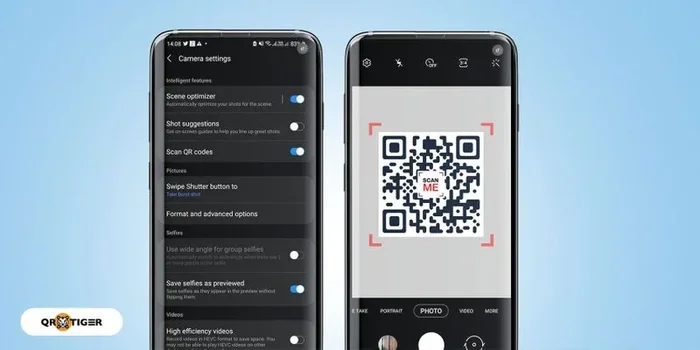
Did you know your iPhone can generate a QR code for your wifi connection? This is one of the coolest features Apple has added in recent updates. It works on iOS 16 and later.
How to Generate a Wifi QR Code
Here is how to share your wireless network password using a QR code:
- Go to Settings on your iPhone.
- Tap on Wifi.
- Find the network you are currently connected to and tap the info icon (the “i” in a circle) next to it.
- Tap on Share Password or the QR code option.
- Point your camera or another device at the QR code.
- The other device will automatically connect without needing to type the password.
This method is perfect when you need to connect multiple devices or when you want to share your wifi password with a guest quickly. It is also more secure because you do not have to speak or type out the password.
Limitations of QR Code Sharing
Keep in mind that both devices need to be compatible. The receiving device must be able to scan QR codes and connect to wifi networks automatically. Most modern Android phones and other iPhones handle this just fine. But older devices might not support this feature.
Method 3: Use Your Mac to Find the Password
If you own a Mac, you have another excellent way to retrieve your saved wifi password. This method works even if you do not have iCloud Keychain enabled on your iPhone. Here is what you need to do:
- Make sure your iPhone and Mac are signed into the same Apple ID.
- On your Mac, open the Keychain Access app. You can find it in Applications, then Utilities.
- In the search bar, type the name of your wifi network.
- Double-click on the network name in the results.
- Check the box that says Show Password.
- Enter your Mac login password when prompted.
- The wifi password will now be visible.
This is a reliable method that works every time. It is especially helpful if you have multiple wireless networks saved and want to find the password for a specific one. The Keychain Access app on Mac stores all your passwords securely, including those for wifi networks.
Expert Insight
Many people do not realize that their Mac and iPhone share passwords through iCloud automatically. This means your network credentials are synced across all your Apple devices. If you ever lose access to your iPhone, your Mac can still retrieve the wifi passkey for you.
Method 4: Check the Router Itself
Sometimes the simplest solution is the best one. Your wireless router usually has the default wifi password printed on a sticker on the back or bottom of the device. This is especially true if you have never changed the password since setting up your network.
What Information You Will Find on Your Router
Most routers have a label that includes the following:
- Network Name (SSID): This is the name of your wifi network.
- Password: The default network password or wifi security key.
- Router IP Address: Usually something like 192.168.1.1 or 10.0.0.1.
- Admin Username and Password: For accessing the router settings page.
If you have changed your password but forgot it, you can log into your router using the IP address and admin credentials. From there, you can view or reset the wireless network password. However, this will reset your network settings, so use this as a last resort.
Method 5: Use a Password Manager App
Another great way to manage and find your wifi password is by using a dedicated password manager. Apps like 1Password, LastPass, and Dashlane can store your network credentials securely and make them easy to retrieve.
Benefits of Using a Password Manager
- Centralized storage: All your passwords, including wifi passwords, are in one place.
- Cross-platform access: You can access your passwords from any device.
- Security: Password managers use strong encryption to protect your data.
- Auto-fill: Many apps can auto-fill your wifi password when connecting new devices.
If you frequently connect new devices to your wifi network, a password manager can save you a lot of time and frustration. It is also a good practice for overall wifi security because you can update and manage passwords more easily.
Comparison Table: Different Methods to Find Your Wifi Password
| Method | Device Needed | Difficulty Level | Works Without Another Device |
|---|---|---|---|
| iPhone Settings | iPhone | Easy | Yes (with iCloud Keychain) |
| QR Code Sharing | iPhone + receiving device | Very Easy | No |
| Mac Keychain Access | Mac + iPhone | Moderate | No |
| Router Label | None (physical access) | Very Easy | Yes |
| Password Manager App | iPhone + app | Easy | Yes |
As you can see, each method has its own advantages. The best approach depends on what devices you have available and how quickly you need the password. For most people, the iPhone settings method or checking the router label will be the fastest options.
Common Mistakes People Make When Finding Their Wifi Password
Before we wrap up, let us talk about some common mistakes people make when trying to find their wifi password on their iPhone:
- Confusing the network name with the password: The SSID is just the name of your network. It is not the password.
- Not checking iCloud Keychain settings: If iCloud Keychain is off, you will not be able to view passwords through the Settings app.
- Trying to find the password on an iPhone without a Mac: Apple restricts direct password viewing on iPhone unless you have a Mac or use iCloud Keychain.
- Forgetting that the router label shows the default password: If you changed your password, the label will not reflect the new one.
- Ignoring the QR code method: Many people do not know that iOS 16 lets you share passwords via QR code.
Avoiding these mistakes will save you time and frustration. Now let us look at some expert tips for keeping your wifi network secure.
Tips for Keeping Your Wifi Network Secure
Finding your wifi password is one thing. Keeping your wireless network safe is another. Here are some tips to help you maintain strong wifi security:
- Change your default password: Always change the default wifi password that comes with your router.
- Use a strong password: Create a password that is at least 12 characters long and includes a mix of letters, numbers, and symbols.
- Update your router firmware: Keep your wireless router firmware up to date to patch security vulnerabilities.
- Use WPA3 encryption: If your router supports it, use WPA3 for the strongest wifi security.
- Hide your SSID: You can hide your network name so it does not show up in the list of available networks.
- Create a guest network: Give visitors a separate wifi network instead of sharing your main password.
Following these tips will help protect your network credentials and keep your wifi connection safe from unauthorized access.
Frequently Asked Questions
Can I find my wifi password on iPhone without a Mac?
Yes, you can. If you have iCloud Keychain enabled, you can view your saved wifi password directly from the Passwords section in your iPhone settings. You can also use the QR code sharing feature in iOS 16 and later to share the password with another device.
Why can I not see my wifi password in iPhone settings?
This usually happens if iCloud Keychain is not enabled or if your iPhone is running an older version of iOS. Make sure iCloud Keychain is turned on by going to Settings, tapping your name, then iCloud, and then Keychain. Also, ensure your iPhone is updated to the latest iOS version.
Is it safe to share my wifi password using a QR code?
Yes, it is very safe. The QR code method encrypts your network password and only shares it with the device scanning the code. It is much safer than typing out the password or telling someone over the phone. This is one of the best ways to share your wifi connection details securely.
What should I do if I forgot my wifi password and do not have access to any Apple device?
In this case, you can check the sticker on the back of your wireless router for the default password. If you have changed the password and forgotten it, you can log into your router admin page using the router IP address and reset the network password. You may also reset the router entirely to restore factory settings.
Can I find the wifi password for a network I am not currently connected to?
If the wifi network is saved on your iPhone and you have iCloud Keychain enabled, you can find it in the Passwords section of your iPhone settings. However, if the network is not saved, you will not be able to retrieve the password from your device.
How do I change my wifi password after finding it?
To change your wifi password, log into your wireless router admin page using the router IP address. Navigate to the wifi settings section and update the password. Make sure to save your changes. All connected devices will need to reconnect with the new password.
Conclusion
Finding your wifi password on your iPhone does not have to be a frustrating experience. With the methods outlined in this guide, you can quickly retrieve your network password using your iPhone settings, a QR code, your Mac, your router, or a password manager app. Each method has its own strengths, so pick the one that works best for your situation.
Remember, your wifi connection is an important part of your daily life. Whether you are sharing the password with a guest, setting up a new smart device, or just reconnecting after a reset, knowing how to find your wifi password on your iPhone puts you in control. Keep your wireless network secure by using strong passwords and updating your router settings regularly.
Now that you know exactly how do I find my wifi password on my iPhone, you are ready to handle any wifi password situation with confidence. Try these methods today and never get stuck without access to your network again.