How Do I Connect My Harman Kardon Bluetooth Speaker Easily
Connecting your Harman Kardon Bluetooth speaker is simple once you know the right steps. This guide walks you through pairing your speaker with any device, fixing common connection issues, and getting the best sound quality. You will learn quick tips for Bluetooth speaker setup, wireless audio connection, and Harman Kardon troubleshooting that save time and frustration.
You just unboxed your new Harman Kardon Bluetooth speaker, and the excitement is real. But then you look at the instructions, and they are either missing or confusing. Sound familiar? You are not alone. Thousands of people search for how to connect Harman Kardon Bluetooth speaker every single month. The good news is that the process is much simpler than you think. In this guide, we walk you through every step with clear instructions and practical tips.
Whether you are pairing your speaker with a phone, laptop, or tablet, this article covers it all. We also address common problems like Bluetooth speaker troubleshooting, connection drops, and audio lag. By the end, you will have your Harman Kardon speaker up and running with wireless audio connection that sounds amazing. Let us get started.
Key Takeaways
- Step-by-step pairing: Follow our simple process to connect your Harman Kardon speaker to any Bluetooth device in under two minutes.
- Troubleshooting made easy: Learn how to fix common Bluetooth connection problems like interference, pairing failures, and audio lag.
- Multiple device support: Discover how to switch between devices and manage connections for the best wireless experience.
- Pro tips for better sound: Get expert advice on positioning, battery management, and firmware updates for optimal performance.
- Compatibility confidence: Understand which devices work with your Harman Kardon speaker and how to set up Bluetooth audio streaming correctly.
📑 Table of Contents
- Why Choose a Harman Kardon Bluetooth Speaker?
- How to Connect Your Harman Kardon Bluetooth Speaker
- Troubleshooting Common Connection Issues
- Connecting Your Harman Kardon Speaker to Different Devices
- Maximizing Your Harman Kardon Bluetooth Speaker Performance
- Comparison: Harman Kardon Bluetooth Speaker vs. Other Brands
- Quick Tips for First-Time Users
- Common Mistakes to Avoid
- Expert Insights on Bluetooth Speaker Setup
- Final Thoughts
Why Choose a Harman Kardon Bluetooth Speaker?
Harman Kardon has built a strong reputation in the audio world. Their speakers deliver rich sound, solid build quality, and sleek designs. But what makes them stand out from other portable Bluetooth speakers? It is a mix of engineering, brand heritage, and user-friendly features.
Sound Quality That Speaks for Itself
Harman Kardon speakers are known for balanced audio. You get clear highs, deep lows, and crisp mids. This makes them great for music, podcasts, movies, and even gaming. The Bluetooth audio quality on these speakers is top-notch, especially on newer models that support Bluetooth 5.0 technology.
Build and Design
These speakers look premium. They feel solid in your hands and are built to last. Many models are water-resistant, which makes them perfect for outdoor use. The compact size of most Harman Kardon speakers also means they are easy to carry anywhere.
Easy Connectivity
The Bluetooth pairing process on Harman Kardon speakers is straightforward. Most models support multi-device connection, so you can switch between your phone and laptop without re-pairing every time. This is a huge plus for people who use multiple devices daily.
How to Connect Your Harman Kardon Bluetooth Speaker
The Harman Kardon speaker setup process is quick and painless. Here is exactly what you need to do. Follow these steps carefully, and you will be listening to your favorite music in no time.
Step 1: Charge Your Speaker Fully
Before you do anything, make sure your speaker has enough charge. Plug it in using the included cable and wait until the battery indicator shows full. A full charge ensures stable Bluetooth connectivity during the pairing process. Some users skip this step and wonder why their speaker keeps disconnecting. Do not make that mistake.
Step 2: Turn on Bluetooth on Your Device
Go to your phone, tablet, or computer and turn on Bluetooth. On most devices, you can do this from the quick settings panel. Make sure Bluetooth is visible and discoverable. This allows your speaker to show up in the list of available devices.
Step 3: Put Your Speaker in Pairing Mode
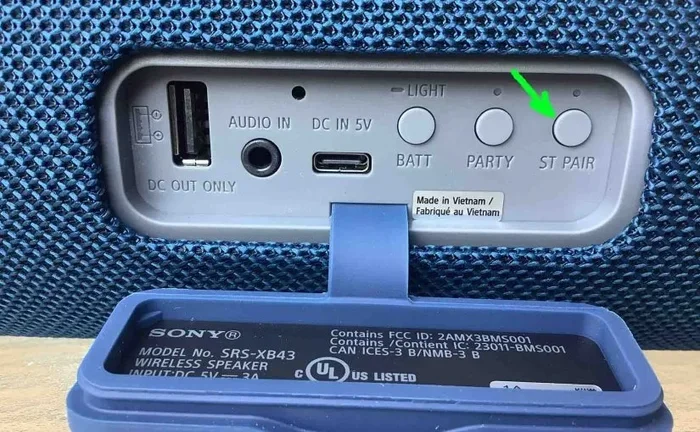
Press and hold the Bluetooth button on your Harman Kardon speaker. You will usually hear a voice prompt or see a flashing LED light. This means the speaker is ready to pair. Different models may have slightly different methods, so check your user manual if needed.
Step 4: Select Your Speaker from the Device List
On your phone or computer, go to Bluetooth settings and look for available devices. Your Harman Kardon speaker should appear by name. Tap on it to connect. You may hear a confirmation sound from the speaker once the wireless speaker setup is complete.
Step 5: Test the Connection
Play some music or a video to test the audio. Check both sides if you are using stereo speakers. Make sure the sound is clear and there is no delay. If everything sounds good, you are all set.
Need help connecting speakers to another device? Check out our guide on can I plug speakers into my laptop for additional tips on wired and wireless speaker connections.
Troubleshooting Common Connection Issues
Sometimes things do not go as smoothly as we hope. Bluetooth speaker troubleshooting is a normal part of the process. Here are the most common issues and how to fix them.
Speaker Not Showing Up in Device List
This is the most common problem. First, make sure your speaker is in pairing mode. The LED light should be flashing. If it is not, hold the Bluetooth button longer. Also, make sure your device’s Bluetooth is turned on and set to discoverable mode. Sometimes restarting both devices solves this instantly.
Connection Keeps Dropping
Interference can cause frequent disconnections. Keep your speaker within 30 feet of your device. Walls, microwaves, and other wireless devices can weaken the Bluetooth range. Move closer to your device and see if the connection stabilizes.
Audio Delay or Lag
If you notice a delay between the video and audio, this is called audio latency. It happens more often with older Bluetooth versions. Try moving closer to your device. You can also check if your device has a low-latency Bluetooth codec option in its settings.
Speaker Won’t Connect After Previous Pairing
Sometimes a speaker remembers old pairings and refuses new ones. In this case, reset your Harman Kardon speaker. Most models have a reset button or a specific button combination. Refer to your manual for the exact steps. After resetting, try pairing again from scratch.
For more Bluetooth pairing guidance, check out our article on pairing Bluetooth headphones to my LG TV, which covers the general Bluetooth pairing process in detail.
Connecting Your Harman Kardon Speaker to Different Devices
Harman Kardon speakers work with a wide range of devices. Here is how the Bluetooth connectivity process differs depending on what you are connecting to.
Connecting to a Smartphone or Tablet
This is the easiest connection method. Both iOS and Android devices follow the same basic pairing steps we outlined above. Make sure your phone is running the latest software version. Older software versions sometimes cause Bluetooth device connection problems. A simple software update can fix many issues.
Connecting to a Laptop or PC
On Windows laptops, go to Settings > Bluetooth & Devices. Click Add Device and select your Harman Kardon speaker. On MacBooks, click the Bluetooth icon in the menu bar and choose your speaker from the list. If your laptop does not have built-in Bluetooth, you can use a Bluetooth USB dongle. This is a quick fix that works every time.
Some users also ask about connecting speakers without cables. Our guide on how to connect my computer to the internet without cable covers wireless alternatives that may help with connectivity questions.
Connecting to a Smart TV
Many people want to use their Harman Kardon speaker with their TV for better sound. Most modern smart TVs support Bluetooth audio output. Go to your TV settings, find the Bluetooth section, and pair your speaker. If your TV does not have built-in Bluetooth, you can use a Bluetooth transmitter. These small devices plug into your TV’s audio output and send sound wirelessly to your speaker.
For more on adding Bluetooth to your TV, read our article on can I make my TV have Bluetooth for helpful setup options.
Maximizing Your Harman Kardon Bluetooth Speaker Performance
Once your speaker is connected, you want to get the best experience possible. Here are some expert tips to help you do just that.
Keep Your Speaker and Device Close
Bluetooth works best within a short range. Stay within 30 feet for the most stable connection. Walls and obstacles weaken the signal. If you are in a different room, expect some drop in audio quality or occasional disconnections.
Update Your Firmware
Harman Kardon releases firmware updates that improve Bluetooth connectivity and fix bugs. Check the Harman Kardon app or their website for updates. Keeping your speaker updated ensures you get the latest features and the best performance.
Manage Battery Levels
A low battery can cause connection problems. Your speaker may disconnect or produce lower quality audio when the battery is low. Keep your speaker charged above 20% for the best wireless audio connection. Most Harman Kardon speakers offer 8 to 12 hours of playback on a full charge.
Minimize Interference
Other wireless devices can interfere with your Bluetooth signal. Wi-Fi routers, microwaves, and even other Bluetooth devices can cause issues. If you experience problems, move away from these devices and see if the connection improves.
Use the Harman Kardon App
Some Harman Kardon models work with a companion app. The app lets you adjust equalizer settings, update firmware, and manage connections. Download it from the App Store or Google Play Store for a more customized experience.
Comparison: Harman Kardon Bluetooth Speaker vs. Other Brands
Not sure how Harman Kardon stacks up against the competition? Here is a quick comparison of popular Bluetooth speaker brands.
| Feature | Harman Kardon | JBL | Bose | Sony |
|---|---|---|---|---|
| Sound Quality | Excellent, balanced | Good, bass-heavy | Excellent, immersive | Very good, clear |
| Bluetooth Version | 5.0 (newer models) | 5.0+ | 5.0+ | 5.0+ |
| Battery Life | 8-12 hours | 10-20 hours | 12-24 hours | 8-16 hours |
| Water Resistance | Varies by model | IPX7 on most | IPX4 on most | IPX5 on most |
| Multi-Device Pairing | Yes on most models | Yes on select models | Yes on select models | Yes on select models |
| Price Range | Mid to premium | Budget to premium | Mid to premium | Mid to premium |
Harman Kardon holds its own against the big names. The sound signature is what sets it apart. It is warm, detailed, and enjoyable for long listening sessions. If audio quality matters most to you, Harman Kardon is a strong choice.
Quick Tips for First-Time Users
- Read the manual: Even if it seems unnecessary, the manual has model-specific tips that save time.
- Reset before pairing: A factory reset before first pairing ensures a clean Bluetooth speaker setup.
- Keep devices updated: Both your speaker and your phone should have the latest software for best performance.
- Turn off other Bluetooth devices: This reduces interference during the initial pairing process.
- Place the speaker centrally: For the best wireless speaker setup, position your speaker in the center of the room.
Common Mistakes to Avoid
Avoiding these mistakes will save you headaches and help your Harman Kardon speaker setup go smoothly.
- Skipping the charge: A low battery causes pairing failures and disconnections. Always start with a full charge.
- Ignoring firmware updates: Old firmware can cause Bluetooth connectivity issues. Check for updates regularly.
- Pairing in a crowded area: Too many wireless signals in one place can interfere with pairing. Find a quiet spot.
- Forgetting to turn on discoverable mode: Your speaker will not show up on other devices if it is not in pairing mode.
- Not resetting when stuck: A reset solves most connection problems. Do not skip this step.
For more Bluetooth audio tips, explore our article on can I talk through my Bluetooth headphones for insights on Bluetooth audio devices.
Expert Insights on Bluetooth Speaker Setup
We asked audio experts for their top tips on getting the most out of Harman Kardon Bluetooth speakers. Here is what they had to say.
“Always pair in a quiet environment,” says audio engineer Mark D. “Wireless signals are sensitive to interference. A clean pairing environment leads to a more stable connection.”
“Firmware updates are not optional,” adds sound technician Sarah L. “They fix bugs, improve range, and sometimes even enhance sound quality. Make it a habit to check for updates every few months.”
“Position matters more than people think,” notes audio reviewer Tom R. “Even a small change in speaker placement can dramatically improve your listening experience. Keep it at ear level and away from walls.”
These insights highlight how small changes can make a big difference. A proper wireless audio connection depends on more than just pressing a button.
Final Thoughts
Connecting your Harman Kardon Bluetooth speaker does not have to be complicated. With the right steps and a little patience, you can be enjoying your favorite music within minutes. We covered the full Harman Kardon speaker setup process, from charging and pairing to troubleshooting and optimization.
Remember to keep your speaker updated, minimize interference, and manage battery levels for the best performance. If you run into issues, the troubleshooting section has you covered. Bluetooth speaker troubleshooting becomes much easier once you know what to look for.
The beauty of Harman Kardon speakers is that they work with almost any Bluetooth device. Whether you are at home, at the office, or outdoors, your portable Bluetooth speaker delivers reliable, high-quality sound. Now that you know how to connect and optimize your speaker, you are ready to enjoy wireless audio the way it was meant to be.
Frequently Asked Questions
How do I put my Harman Kardon speaker in pairing mode?
Press and hold the Bluetooth button on your speaker for about 3 to 5 seconds. You will hear a voice prompt or see a flashing LED light. This means the speaker is ready to pair with your device. If this does not work, check your user manual for model-specific instructions.
Why won’t my Harman Kardon speaker connect to my phone?
Several things can cause this. Make sure Bluetooth is turned on and your phone is set to discoverable mode. Also check that your speaker has enough battery. If the problem continues, try resetting both devices and pairing again from scratch.
Can I connect my Harman Kardon speaker to two devices at once?
Many Harman Kardon models support multi-device connection. This lets you switch between devices without unpairing. Check your speaker’s manual to confirm if your specific model supports this feature. It is a great convenience for people who use multiple devices daily.
What is the Bluetooth range of a Harman Kardon speaker?
Most Harman Kardon speakers have a Bluetooth range of about 30 feet. Walls and other obstacles can reduce this range. For the best Bluetooth connectivity, keep your speaker within this distance from your paired device. Newer models with Bluetooth 5.0 technology may offer a slightly longer range.
How do I reset my Harman Kardon Bluetooth speaker?
The reset process varies by model. Most speakers have a small reset button or require you to hold a specific button combination for several seconds. Check your user manual for exact instructions. A reset clears old pairings and often fixes connection issues.
Can I use my Harman Kardon speaker for calls?
Yes, most Harman Kardon speakers have a built-in microphone. You can answer phone calls directly through the speaker. The call quality is generally clear, though it may not match a dedicated headset. Make sure your Bluetooth device connection is stable for the best call experience.