Connect My Component Cables To My Lg Tv The Easy Way
Connecting component cables to your LG TV is easier than you think. This guide walks you through every step, from plugging in the red, white, and yellow cables to adjusting your TV settings. You will learn how to get crisp video and clear audio on your LG television in just a few minutes.
Have you ever stared at a pile of cables and wondered how to get them connected to your LG TV? It happens more often than you might think. Whether you are setting up an older DVD player, a classic gaming console, or a cable box, component cables still offer a reliable way to get great picture quality. The good news is that connecting component cables to an LG TV does not require any special technical skills. You just need a little patience and the right guidance.
This guide breaks down the entire process into simple, easy-to-follow steps. You will learn what component cables are, where to find the right ports on your LG television, and how to get everything working perfectly. By the end, you will feel confident handling your own TV setup like a pro. Let us get started.
Key Takeaways
- Component cables carry high-quality analog video and audio: They use three separate cables for video and two for stereo sound.
- LG TVs still support component inputs on most models: Check the back or side panels for the matching color-coded ports.
- Correct port matching is essential: Red goes to red, white goes to white, and yellow goes to yellow for both video and audio.
- You may need an adapter if your source device uses HDMI: Converters can bridge the gap between modern and older connections.
- Adjusting TV input settings ensures the best picture: Switching to the right input source makes all the difference.
- Troubleshooting is simple: Most issues come from loose connections or incorrect input selection.
📑 Table of Contents
- What Are Component Cables and Why Do They Matter?
- Understanding Your LG TV Ports
- Step-by-Step Guide to Connect My Component Cables to My LG TV
- Common Issues and How to Fix Them
- Component Cables vs. HDMI: Which Is Better for Your LG TV?
- Tips for Getting the Best Picture Quality
- Quick Tips for a Smooth Setup
- When to Consider Upgrading Your Connection
- Conclusion
What Are Component Cables and Why Do They Matter?
Component cables are a type of analog connection used to transmit audio and video signals. They have been around for decades and are still found on many devices today. Unlike a single cable that carries everything, component cables split the signal into separate parts. This separation helps maintain a cleaner, sharper picture.
Typically, you get three video cables colored red, green, and blue. These carry the video signal. Then you get two audio cables colored red and white. These handle the stereo sound. Together, they form a complete audio and video connection. Many people also refer to them as AV cables or RGB cables.
The Benefits of Using Component Cables
There are several reasons why component cables remain a popular choice. First, they deliver a high-quality analog signal. While not as sharp as HDMI, they still produce a very good picture. Second, they are widely compatible. Many older devices only have component outputs. Third, they are affordable. You can pick up a set of component cables for just a few dollars.
Another big advantage is simplicity. There are no drivers to install or settings to configure. You plug them in, and they work. This makes them a great option for people who want a straightforward cable connection without any hassle.
Understanding Your LG TV Ports
Before you start plugging things in, it helps to know where to look. Most LG TVs have input ports located on the back or side of the television. The exact placement depends on your model. Some LG TVs place all ports on the back panel, while others spread them across the side for easier access.
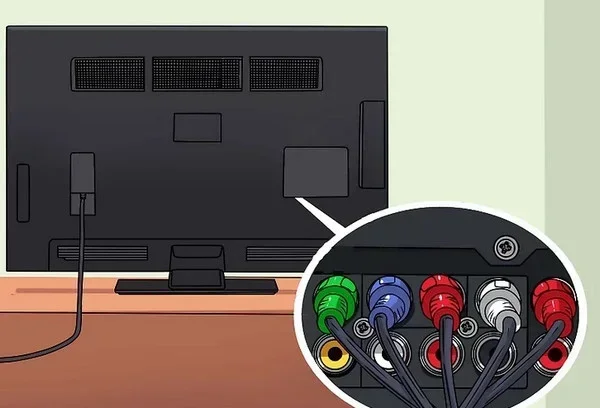
When you find the port area, look for color-coded slots. The component input usually has five separate ports. Three of them are for video, and two are for audio. The colors match the cables exactly. This color-coding system makes it almost impossible to connect them wrong.
How to Identify Component Ports on Your LG TV
Here is what to look for when finding the right ports on your LG television:
- Green port: This carries the brightness and luminance signal.
- Blue port: This carries the blue color difference signal.
- Red port (video): This carries the red color difference signal.
- White port (audio): This carries the left audio channel.
- Red port (audio): This carries the right audio channel.
Take a moment to look closely at each port. You should see the corresponding color printed next to or around each slot. If your LG TV has multiple input sections, make sure you are looking at the component input group and not the HDMI ports or other connections nearby.
If you are having trouble finding the component ports, check your TV manual. The user guide will have a diagram showing exactly where each input is located. You can also look up your specific model online for a visual reference.
Step-by-Step Guide to Connect My Component Cables to My LG TV
Now that you know what to look for, let us walk through the actual connection process. Follow these steps carefully, and you will have your device up and running in no time.
Step 1: Gather Your Cables and Devices
Before you touch your TV, gather everything you need. You will need your component cables, the source device, and your LG television. Lay everything out on a flat surface. This keeps the process organized and prevents you from misplacing anything.
Make sure your cables are not damaged. Check for frayed ends or bent pins. A damaged cable can cause poor picture quality or no signal at all. If you notice any issues, replace the cable before you start.
Step 2: Power Off All Devices
Safety first. Turn off your LG TV and the source device before making any connections. This prevents electrical surges and protects both your TV and your equipment. It also reduces the risk of port damage during plugging and unplugging.
Step 3: Plug in the Video Cables
Take the three video cables and match them to the correct ports on your LG TV:
- Plug the green cable into the green port.
- Plug the blue cable into the blue port.
- Plug the red cable into the red video port.
Push each cable in firmly until it clicks into place. Do not force them. A gentle, steady push is all you need. Loose connections are one of the most common reasons for poor signal or no signal at all.
Step 4: Plug in the Audio Cables
Now connect the two audio cables. The white cable goes to the white port, and the red cable goes to the red audio port. Again, match the colors exactly. This ensures you get stereo sound through both left and right channels.
If you only plug in one audio cable, you will hear sound from only one speaker. Double-checking this step saves a lot of frustration later.
Step 5: Connect the Other End to Your Source Device
Now take the other ends of the cables and plug them into your source device. This could be a DVD player, a VCR, a cable box, or an older gaming console. Match the colors again. Green to green, blue to blue, red to red, white to white, and red to red.
Make sure each connection is snug. You should feel a slight click when the cable seats properly. Once everything is plugged in, you are ready to move to the next step.
Step 6: Power On and Select the Right Input
Turn on your LG TV and your source device. Grab your LG TV remote and press the input or source button. This button is usually labeled “Input,” “Source,” or “Home” depending on your model. Use the arrow keys to navigate to the component input.
Your LG TV may label the component input as “Component,” “AV,” or by a specific number like “Input 1” or “Input 2.” Select the one that matches the port you used. You should now see a picture on your screen.
Common Issues and How to Fix Them
Even with careful setup, you might run into some hiccups. Do not worry. Most problems are easy to fix. Here are the most common issues people face when setting up component cables on an LG TV.
No Picture on the Screen
If you see a blank screen, the first thing to check is the input source. Make sure you have selected the correct input on your LG TV. Press the input button again and cycle through the options. Sometimes the TV defaults to a different input after being turned off.
Next, check all cable connections. A loose cable is the number one culprit. Unplug each cable and plug it back in firmly. Also, make sure the cables are not bent or kinked. Straighten them out if needed.
Poor Picture Quality
If the picture looks fuzzy or blurry, your cables might be the problem. Old or damaged cables often produce a weak signal. Try replacing them with a new set of component cables. You might also want to clean the cable tips with a dry cloth to remove any dust or debris.
Another cause could be the resolution settings on your source device. Some devices output a resolution that does not match what the component input supports. Check your device settings and adjust accordingly.
No Sound or Low Sound
If you have picture but no sound, check the audio cable connections. Make sure the white cable is in the white port and the red cable is in the red port. Also, check the volume on both your TV and your source device. It sounds simple, but it is easy to overlook.
If you are still not getting sound, your TV might be set to the wrong audio output. Go to your LG TV audio settings and make sure it is set to output through the component audio input rather than internal speakers or an HDMI output.
Component Cables vs. HDMI: Which Is Better for Your LG TV?
Many people wonder whether they should use component cables or HDMI on their LG TV. Both have their strengths, and the right choice depends on your situation.
HDMI is the modern standard. It carries both audio and video through a single cable. It supports higher resolutions, including 4K and even 8K on some devices. If your source device has an HDMI output and your LG TV has HDMI ports, HDMI is usually the better choice.
However, component cables still hold their own in certain situations. They work well with older devices that do not have HDMI outputs. They also provide a clean analog signal that some audiophiles and videophiles prefer. If you are using a vintage gaming console, an older cable box, or a classic DVD player, component cables are a great option.
If you need to connect a device that only has HDMI to your LG TV but want to use component cables, you might need an HDMI-to-component converter. These adapters are widely available and affordable. They let you bridge the gap between modern and older connection types.
For those who also want to explore other connection options on their LG TV, you might find it helpful to check out how to convert your TV USB port to HDMI or how to use your TV without Wi-Fi for additional setup options.
Tips for Getting the Best Picture Quality
Want to squeeze every bit of quality out of your component cable setup? Here are some expert tips that make a real difference.
- Keep cables short: Shorter cables produce a stronger signal. Try to keep your component cables under six feet if possible.
- Avoid running cables near power cords: Electromagnetic interference from power cords can degrade your picture quality. Keep component cables away from power cables.
- Use gold-plated connectors: Gold-plated tips reduce corrosion and improve conductivity. They last longer and provide a more reliable connection.
- Adjust your TV picture settings: Go to your LG TV picture settings and tweak the brightness, contrast, and sharpness. This can enhance the image from your component connection.
- Update your TV firmware: Keeping your LG TV software up to date ensures optimal performance with all input types.
For more tips on getting the most out of your LG TV connections, consider reading about how to extend your Wi-Fi range with a wired connection or how to control your TV without Wi-Fi for a more seamless entertainment experience.
Quick Tips for a Smooth Setup
Here are some quick reminders to keep in mind during your setup:
- Always match cable colors to the corresponding ports.
- Power off devices before connecting cables.
- Push cables in gently but firmly until they click.
- Select the correct input source on your LG TV remote.
- Test both video and audio before finishing setup.
- Keep your cables organized to avoid tangles and damage.
Following these simple tips will save you time and frustration. You will enjoy a clean, reliable connection every time you use your component cables with your LG TV.
When to Consider Upgrading Your Connection
While component cables work great for many devices, there comes a time when upgrading makes sense. If you are using a newer device that supports HDMI, switching to HDMI gives you better resolution and a simpler setup. A single HDMI cable replaces five component cables and delivers superior picture and sound quality.
That said, do not rush to replace your component setup. If your current devices work fine and you are happy with the picture quality, there is no need to change anything. Component cables remain a solid and reliable choice for older equipment. They get the job done without any extra cost or complexity.
If you are curious about other ways to connect your devices to your LG TV, you might want to explore options like using Alexa as a Bluetooth speaker for your TV or mirroring your devices wirelessly for a more modern setup.
Conclusion
Connecting component cables to your LG TV does not have to be complicated. With the right knowledge and a few simple steps, you can set up a reliable connection in just minutes. Remember to match your cable colors to the correct ports, select the right input source, and troubleshoot any issues calmly and methodically.
Whether you are setting up an old DVD player, a classic gaming console, or a legacy cable box, component cables continue to deliver solid performance. They are affordable, easy to use, and widely compatible. Your LG TV is ready to work with them right out of the box.
Now that you know how to connect everything properly, you can sit back and enjoy your favorite movies, games, and shows with confidence. Happy viewing!
Frequently Asked Questions
Can I use component cables on any LG TV model?
Most LG TVs manufactured between 2005 and 2020 support component inputs. However, some newer models may not include them. Check the back or side of your TV for the color-coded component ports to confirm your model has them.
Do I need any special tools to connect component cables?
No special tools are needed. You only need your component cables and your source device. The connections are plug-and-play, so you can set everything up by hand in just a few minutes.
Why is my picture black and white when using component cables?
A black and white picture usually means the green video cable is not connected properly. Check that the green cable is firmly plugged into the green port on both your TV and your source device. This is a common and easy fix.
Can I connect component cables to an HDMI port on my LG TV?
No, component cables and HDMI ports are different and not directly compatible. You would need an HDMI-to-component converter or a component-to-HDMI adapter to bridge the two connection types.
How do I know which input to select on my LG TV?
Look at the labels next to the ports on your LG TV. The component input is often labeled “Component,” “AV,” or with an input number like “Input 1.” Press the input or source button on your remote and select the matching label.
Are component cables still worth using in 2025?
Yes, especially for older devices that do not have HDMI outputs. Component cables provide a clean analog signal and work reliably with DVD players, retro gaming consoles, and older cable boxes. They remain a practical and affordable choice for many setups.