How Do I Cast From My Phone To My Projector Wirelessly
Learning how do I cast from my phone to my projector wirelessly is easier than you think. Whether you use an iPhone or Android device, there are multiple ways to mirror your screen to a big display. This guide covers every method, from built-in features like AirPlay and Google Cast to wireless HDMI adapters and screen mirroring apps. You will find clear steps, troubleshooting tips, and expert advice to get your wireless projection working in minutes.
Key Takeaways
- Wireless casting is simple: Most modern phones and projectors support built-in casting features like AirPlay and Google Cast.
- Multiple methods exist: You can use Wi-Fi Direct, a casting dongle, a wireless HDMI adapter, or a dedicated screen mirroring app.
- Compatibility matters: Check your projector’s capabilities before choosing a casting method to avoid frustration.
- Troubleshooting is straightforward: Most issues like lag or connection drops can be fixed with simple steps like restarting devices or updating software.
- Apps make casting easy: Screen mirroring apps like LetsView and ApowerMirror work with almost any projector and phone combination.
- Wired options still work: If wireless fails, an HDMI adapter or USB-C to HDMI cable provides a reliable backup.
📑 Table of Contents
- How Do I Cast From My Phone To My Projector Wirelessly?
- Check Your Projector’s Compatibility First
- Method 1: Use Built-In Phone Features
- Method 2: Use a Casting Dongle or Adapter
- Method 3: Use a Screen Mirroring App
- Method 4: Use a Wireless HDMI Kit
- Quick Tips for the Best Casting Experience
- Common Mistakes to Avoid
- Troubleshooting Common Casting Problems
- Which Casting Method Is Right for You?
- Final Thoughts
How Do I Cast From My Phone To My Projector Wirelessly?
Have you ever wanted to share something on your phone screen with a group of people? Maybe it is a photo, a video, or a presentation. A projector makes everything bigger and more exciting. But connecting your phone to a projector can feel confusing at first.
The good news is that casting from your phone to a projector wirelessly has never been easier. You do not need expensive equipment or technical skills. Most phones and projectors today come with built-in features that make wireless projection a breeze. In this guide, we will walk you through every method step by step.
By the time you finish reading, you will know exactly which method works best for your setup. You will also learn how to fix common problems and get the best quality for your screen mirroring experience. Let us get started.
Why Cast Wirelessly Instead of Using Cables?
Cables work, but they limit your movement. You have to sit close to the projector. You also need the right adapter for your phone model. Wireless casting frees you from all of that. You can move around the room. You can control what you share from your seat. And you do not have to worry about cable compatibility.
Wireless mobile casting also looks cleaner. No tangled cords. No clunky adapters hanging off your phone. Just a simple connection and a big screen. This is why so many people prefer the wireless display approach for movie nights, business meetings, and classroom presentations.
Check Your Projector’s Compatibility First
Before you start casting, you need to know what your projector can do. Not all projectors support the same wireless features. Checking compatibility saves you time and frustration later.
Built-In Wi-Fi Projectors
Some projectors come with Wi-Fi built right in. These Wi-Fi projectors can connect directly to your phone without any extra hardware. Look for labels like “smart projector” or “wireless-ready” on the box or in the manual. Brands like Epson, BenQ, and Anker often include this feature in their newer models.
You can usually find the wireless settings in the projector’s menu. Look for options like “Screen Mirroring,” “Miracast,” or “AirPlay.” If you see any of these, your projector supports direct wireless casting.
Projectors Without Built-In Wi-Fi
Do not worry if your projector does not have Wi-Fi. You can still cast wirelessly. You just need a small extra device. A casting dongle or a wireless HDMI adapter plugs into your projector’s HDMI port. This adds wireless capability to any projector, even older models.
Popular options include the Google Chromecast, Amazon Fire TV Stick, and Miracast adapters. These devices are affordable and work with most projectors. They turn any projector into a smart wireless display in seconds.
Method 1: Use Built-In Phone Features
The easiest way to cast is by using the built-in features already on your phone. Both iPhones and Android phones support native wireless projection options.
Casting From iPhone with AirPlay
If you have an iPhone, you can use AirPlay to mirror your screen. AirPlay is Apple’s built-in wireless sharing feature. Here is how to use it.
- Make sure your iPhone and projector are on the same Wi-Fi network.
- Open the Control Center by swiping down from the top-right corner of your screen.
- Tap the Screen Mirroring button. It looks like two overlapping rectangles.
- Select your projector from the list of available devices.
- Your iPhone screen will now appear on the projector.
AirPlay works great for photos, videos, and presentations. The quality is usually very good as long as you have a strong Wi-Fi connection. If your projector does not support AirPlay directly, you can use an Apple TV or an AirPlay-compatible adapter.
Casting From Android with Google Cast
Android phones use Google Cast (also called Chromecast built-in) for wireless projection. Here is how it works.
- Make sure your Android phone and projector are on the same Wi-Fi network.
- Open the app you want to share (like YouTube or Netflix).
- Tap the Cast icon. It looks like a small rectangle with Wi-Fi waves in the corner.
- Select your projector or Chromecast device from the list.
- Your content will now play on the big screen.
Google Cast works best for streaming content. It is smooth and reliable. For full screen mirroring, you may need a Chromecast device plugged into your projector’s HDMI port. The Google Home app helps you set this up quickly.
Method 2: Use a Casting Dongle or Adapter
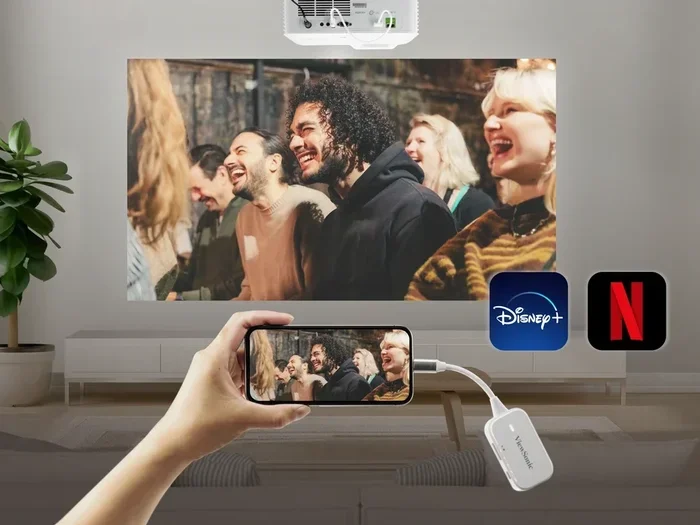
A casting dongle is a small device that plugs into your projector’s HDMI port. It creates a wireless bridge between your phone and the projector. This method works with almost any projector, even older ones.
Google Chromecast
The Google Chromecast is one of the most popular casting devices. It costs around $30 to $50 and works with both Android and iPhone. You plug it into the HDMI port on your projector. Then you connect it to your Wi-Fi network using the Google Home app.
Once set up, you can cast from your phone using the Cast icon in any compatible app. Chromecast also supports screen mirroring from Android devices. For iPhone users, you can mirror your screen through the Google Home app.
Amazon Fire TV Stick
The Amazon Fire TV Stick is another great option. It plugs into HDMI and connects to Wi-Fi. You can cast from your phone using the Fire TV app. It also supports Miracast for wireless display mirroring. The Fire TV Stick is a bit more expensive than Chromecast but offers more features like apps and voice control.
Miracast Adapters
Miracast is a wireless standard built into many Android phones and some Windows devices. A Miracast adapter plugs into your projector’s HDMI port and creates a wireless display receiver. You can then mirror your phone screen directly to the projector without any apps.
Brands like Microsoft and Netgear make reliable Miracast adapters. They are simple to use and do not require a Wi-Fi network. This makes them great for presentations in locations without internet access.
Method 3: Use a Screen Mirroring App
If your projector does not support built-in wireless features and you do not want to buy a dongle, a screen mirroring app is a great alternative. These apps use your phone’s Wi-Fi or Bluetooth connection to send content to the projector.
Top Screen Mirroring Apps
Here are some of the best apps for mobile casting:
- LetsView: Free and works with both Android and iPhone. It supports most projectors and TVs. You just need both devices on the same network.
- ApowerMirror: Offers high-quality screen mirroring with extra features like annotation. It works well for presentations and meetings.
- Screen Mirroring – TV Cast: A simple app that connects quickly. Good for casual use and sharing photos or videos.
- AirScreen: Turns any projector into an AirPlay receiver. Great for iPhone users who do not have a built-in AirPlay projector.
How to Set Up a Mirroring App
Setting up a screen mirroring app is usually simple. Here are the general steps:
- Download the app on your phone from the App Store or Google Play Store.
- Install the corresponding receiver on your projector (if required by the app).
- Make sure both devices are on the same Wi-Fi network.
- Open the app on your phone and select your projector from the device list.
- Start mirroring and enjoy your content on the big screen.
Most apps offer a free version with basic features. Paid versions usually include higher resolution, no ads, and extra tools like recording or drawing on the screen.
Method 4: Use a Wireless HDMI Kit
A wireless HDMI kit is the most premium option for wireless projection. It includes a transmitter and a receiver. The transmitter connects to your phone (usually through a USB-C or Lightning port). The receiver plugs into your projector’s HDMI port. The two devices communicate wirelessly to send high-quality video.
Brands like IOGEAR, AV Screen Mirroring, and Microsoft Wireless Display Adapter make these kits. They offer excellent video quality with very little lag. This makes them ideal for gaming, watching movies, or presenting slides with video content.
The downside is cost. Wireless HDMI kits can range from $50 to $200 or more. But if you need the best quality and reliability, they are worth the investment. They also work without Wi-Fi, which is a big plus for outdoor events or locations with limited internet.
Quick Tips for the Best Casting Experience
Getting the most out of your phone to projector setup is all about a few simple habits. Follow these tips for smooth, high-quality wireless projection.
- Use a strong Wi-Fi connection: A weak signal causes lag and stuttering. Stay close to your router or use a Wi-Fi extender if needed.
- Keep your phone charged: Casting uses battery power quickly. Plug in your phone before a long movie or presentation.
- Turn off notifications: Incoming calls and messages can interrupt your casting. Use Do Not Disturb mode during your presentation.
- Match the resolution: Check your projector’s native resolution and set your phone to match for the clearest picture.
- Close background apps: Too many running apps slow down your phone and affect casting performance.
- Use a dark room: Projectors work best in low-light environments. Dim the lights for the best viewing experience.
Common Mistakes to Avoid
Even with the right setup, people make mistakes that cause problems. Here are the most common ones and how to avoid them.
Not Checking Compatibility
Assuming every projector works with every phone is a big mistake. Always check what wireless standards your projector supports before you try to cast. Look for Miracast, AirPlay, or Chromecast compatibility in the specifications.
Using Different Wi-Fi Networks
Both your phone and projector need to be on the same network. If your phone is on your home Wi-Fi and the projector is on a guest network, they will not find each other. Double-check this before you start troubleshooting.
Ignoring Software Updates
Outdated software causes many casting problems. Make sure your phone’s operating system is up to date. If your projector has a smart interface, update its firmware too. Manufacturers often release updates that fix connectivity bugs.
Overloading the Network
If too many devices are using the same Wi-Fi network, casting quality drops. Try to minimize other internet activity while you are casting. Turn off devices you are not using.
Troubleshooting Common Casting Problems
Sometimes things do not work the first time. That is normal. Here are quick fixes for the most common issues.
- No device found: Restart both your phone and projector. Make sure they are on the same Wi-Fi network. Turn off and back on your casting device.
- Lag or stuttering: Move closer to your Wi-Fi router. Reduce the number of connected devices. Lower the streaming quality in your app settings.
- No sound: Check your phone’s volume and the projector’s volume. Make sure the correct audio output is selected in your phone’s settings.
- Black screen: Your phone may be in low power mode. Disable it and try again. Also check that the HDMI input on the projector is set to the correct port.
- Connection keeps dropping: Your Wi-Fi signal may be weak. Use a wired connection for your router if possible. Or consider a wired backup like an HDMI cable.
Wireless casting troubleshooting is usually simple. A quick restart solves most problems. If not, check your network settings and device compatibility.
Which Casting Method Is Right for You?
Choosing the best method depends on your projector, your phone, and what you want to do. Here is a quick comparison to help you decide.
- Built-in AirPlay or Google Cast: Best for users with compatible smart projectors. No extra cost. Simple and fast.
- Casting dongle (Chromecast or Fire TV Stick): Great for most projectors. Affordable and easy to set up.
- Screen mirroring app: Good for quick, no-hardware-needed casting. Works over Wi-Fi or Bluetooth in some cases.
- Wireless HDMI kit: Best for high-quality, lag-free projection. Ideal for gaming and video-heavy presentations.
- HDMI adapter (wired): Most reliable option. No wireless issues at all. Slightly less convenient but always works.
For most people, a Chromecast or Miracast adapter is the sweet spot. It is affordable, reliable, and works with almost any projector. If you need the absolute best quality, invest in a wireless HDMI kit.
Final Thoughts
How do I cast from my phone to my projector wirelessly? As you have seen, there are many ways to do it. You can use built-in features like AirPlay or Google Cast. You can use a casting dongle or a screen mirroring app. You can even go premium with a wireless HDMI kit. The right choice depends on your projector, your phone, and your needs.
Wireless projection has changed the way we share content. It makes presentations more engaging. It turns movie nights into theater experiences. And it lets you share your phone screen with anyone, anywhere, without a single cable.
Start with the simplest method that fits your setup. Test it out. Adjust as needed. Once you experience the convenience of mobile casting, you will wonder how you ever managed without it. Now go ahead and cast your first movie, presentation, or photo to that big screen. You have got this.
Frequently Asked Questions
Can I cast from my phone to any projector?
Most projectors can receive a wireless signal with the right equipment. If your projector has built-in Wi-Fi and supports AirPlay or Miracast, you can cast directly. If not, a casting dongle or screen mirroring app adds wireless capability to any projector with an HDMI port.
Do I need Wi-Fi to cast from my phone to a projector?
Usually yes. Most wireless casting methods require both your phone and projector to be on the same Wi-Fi network. However, some wireless HDMI kits and Miracast adapters create their own direct connection and do not need a Wi-Fi router.
Why is my cast screen lagging or delayed?
Lag usually happens when the Wi-Fi signal is weak or the network is crowded. Move closer to your router, reduce the number of connected devices, or lower the streaming quality. A wired HDMI connection eliminates lag completely if wireless issues persist.
Can I cast from an iPhone to an Android projector?
Yes. If your projector supports Miracast or has a casting dongle like Chromecast, you can cast from an iPhone. You may need an app like AirScreen or a wireless HDMI adapter to bridge the connection between iPhone and a non-Apple projector.
What is the best free app for screen mirroring to a projector?
LetsView is one of the best free screen mirroring apps. It works with both Android and iPhone and supports most projectors and smart TVs. ApowerMirror also offers a solid free version with good quality for presentations and casual use.
Is casting the same as screen mirroring?
They are similar but not exactly the same. Casting usually sends specific content from an app (like a YouTube video) to the projector. Screen mirroring duplicates your entire phone screen exactly as it appears on your device. Both methods work well for sharing content on a big screen.
=== CONCLUSION ===
Casting from your phone to your projector wirelessly is a simple and powerful way to share anything on a big screen. You have learned about built-in features like AirPlay and Google Cast, casting dongles, screen mirroring apps, and wireless HDMI kits. Each method has its strengths, and the best one depends on your specific projector and phone.
Start by checking your projector’s compatibility. Choose the method that fits your budget and needs. Follow the setup steps carefully. And remember that a little troubleshooting goes a long way when issues come up. With the right approach, your wireless projection will work smoothly every time. Enjoy the big screen experience from the convenience of your phone.