How Do I Allow Tethering On My iPhone Step By Step
Wondering how do I allow tethering on my iPhone? This step-by-step guide walks you through enabling your personal hotspot, setting up Wi-Fi, USB, and Bluetooth tethering, and fixing common issues. You will learn carrier settings, data management tips, and expert advice to share your iPhone internet connection safely and quickly.
Have you ever been in a spot where your laptop or tablet needs internet, but there is no Wi-Fi in sight? Maybe you are at a coffee shop, a park, or a hotel room with spotty connections. The good news is that your iPhone can act as a portable hotspot and share its cellular data with other devices. But many people get stuck trying to figure out how do I allow tethering on my iPhone.
The process is actually much simpler than most people think. Whether you want to connect a MacBook, an iPad, or another phone to your iPhone, tethering makes it possible. In this guide, we will walk you through every step in plain, easy-to-follow language. By the end, you will know exactly how to set up Wi-Fi tethering, USB tethering, and Bluetooth tethering on your iPhone.
We will also cover common problems, data usage tips, and carrier restrictions. This guide is designed for anyone who wants to share their iPhone internet connection without any headaches. Let us get started!
Key Takeaways
- Easy Setup: Enabling tethering on your iPhone takes just a few taps in the settings menu.
- Multiple Connection Types: You can tether via Wi-Fi, USB cable, or Bluetooth depending on your needs.
- Carrier Matters: Some carriers require specific plans or APN settings to allow tethering on your iPhone.
- Data Awareness: Tethering uses your cellular data, so monitoring usage is essential to avoid overage charges.
- Security Tips: Setting a strong hotspot password keeps your shared connection safe from unauthorized users.
- Troubleshooting Available: Most tethering issues can be fixed quickly with simple resets or setting adjustments.
📑 Table of Contents
- What Is Tethering and Why Do You Need It?
- How Do I Allow Tethering On My iPhone Step by Step
- Common Tethering Problems and How to Fix Them
- Tips to Manage Data Usage While Tethering
- Carrier Restrictions and What You Need to Know
- Security Best Practices for iPhone Tethering
- Which Tethering Method Is Best for You?
- Conclusion
What Is Tethering and Why Do You Need It?
Tethering means using your phone as a modem to share its internet connection with other devices. When you tether, your iPhone uses its cellular data plan to create a small local network. Other devices can then connect to that network and access the internet.
There are three main ways to tether an iPhone:
- Wi-Fi Tethering: Your iPhone broadcasts a Wi-Fi signal. Other devices connect just like they would to a regular router.
- USB Tethering: You plug your iPhone into a computer with a cable. The computer gets internet through the cable connection.
- Bluetooth Tethering: Your iPhone pairs with another device using Bluetooth and shares data wirelessly over a short range.
Each method has its own advantages. Wi-Fi tethering is the most popular because it can connect multiple devices at once. USB tethering offers a more stable and faster connection, and it charges your iPhone at the same time. Bluetooth tethering uses less battery but is slower and has a shorter range.
People tether for all kinds of reasons. Travelers use it when hotel Wi-Fi is unreliable. Students use it on campus when the school network is too slow. Remote workers rely on it during commutes or at outdoor meetings. No matter the reason, knowing how do I allow tethering on my iPhone is a valuable skill that can save you from frustrating connectivity gaps.
How Do I Allow Tethering On My iPhone Step by Step
Now let us get into the heart of the guide. Below, you will find detailed steps for enabling tethering on your iPhone. The process is nearly identical across most iPhone models running modern iOS versions. We will cover the personal hotspot settings, each connection type, and some important configuration tips.
Step 1: Check Your Cellular Data and Plan
Before you do anything else, make sure your cellular data is turned on and that your plan supports tethering. Most modern iPhone plans include hotspot data, but some older or budget plans may not. You can check this by opening the Settings app on your iPhone.
Go to Settings then Cellular then Cellular Data Options. Look for the Cellular Data toggle and make sure it is switched on. If you do not see this option, go to Settings then Mobile Data on some older iOS versions.
Next, check if your carrier allows tethering. Some carriers require you to add a specific add-on or upgrade your plan before they enable personal hotspot features. If you are unsure, you can call your carrier or check your plan details in their app or website.
Step 2: Enable Personal Hotspot on Your iPhone
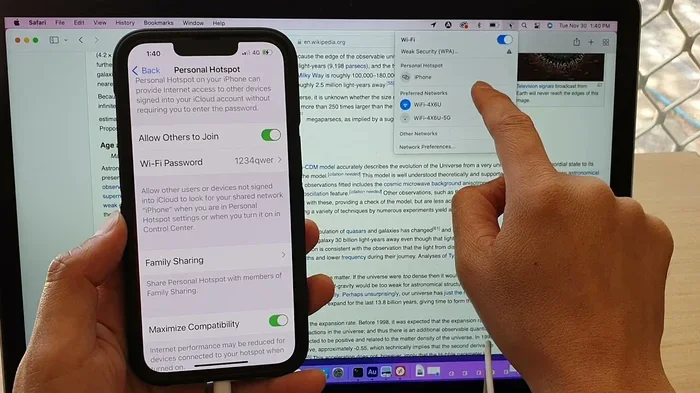
This is the most important step when you are learning how do I allow tethering on my iPhone. The personal hotspot feature is built right into iOS.
Follow these steps:
- Open the Settings app on your iPhone.
- Tap Personal Hotspot. On some iPhones, you may need to go to Settings then Cellular then Personal Hotspot.
- Toggle Allow Others to Join to the ON position.
- Your iPhone will now start broadcasting a Wi-Fi network.
You will see a default password displayed on the Personal Hotspot screen. This password is used by other devices to connect to your iPhone. We recommend changing it to something memorable but secure. To change the password, tap Wi-Fi Password and enter a new one. Use a mix of letters, numbers, and symbols for the best security.
Quick Tip: If you do not see the Personal Hotspot option in your settings, your carrier may not support it. Contact your carrier to confirm and ask them to enable the feature on your line.
Step 3: Connect Other Devices via Wi-Fi Tethering
Wi-Fi tethering is the most common way to share your iPhone internet. Here is how to connect a laptop or another device:
- On the device you want to connect, open the Wi-Fi settings.
- Look for your iPhone name in the list of available networks.
- Tap on your iPhone network and enter the hotspot password.
- Wait a few seconds for the connection to establish.
Once connected, the other device will have internet access through your iPhone. You can tell tethering is active on your iPhone because a blue bar appears at the top of the screen. If you have an older iPhone model, you might see a “Personal Hotspot” icon instead.
Quick Tip: You can connect up to five devices at once via Wi-Fi tethering. However, connecting too many devices can slow down your internet speed, especially if you are streaming videos or downloading large files.
Step 4: Set Up USB Tethering
USB tethering is a great option when you need a fast and stable connection. It also charges your iPhone while you work. Here is how to set it up:
- Plug your iPhone into your computer using a USB cable.
- Make sure iTunes or Apple Devices is installed on your computer if you are on Windows.
- On your iPhone, go to Settings then Personal Hotspot.
- Toggle Allow Others to Join ON.
- On your computer, look for a new network connection. On Windows, this will appear in your Network settings. On Mac, it may show up under System Preferences then Network.
USB tethering is especially useful for people who work from home and need a reliable backup connection. It is also handy when your Wi-Fi signal is weak and you need a more direct, stable link.
Quick Tip: Always use the original Apple USB cable or a certified MFi cable for the best results. Cheap cables can cause connection drops and slow data speeds.
Step 5: Connect via Bluetooth Tethering
Bluetooth tethering is less common but still useful in certain situations. It works well for sharing internet with a single device over short distances.
- Go to Settings then Bluetooth on your iPhone and turn Bluetooth ON.
- Put the device you want to connect into pairing mode.
- On your iPhone, find the device in the Bluetooth list and tap it to pair.
- Go to Settings then Personal Hotspot.
- Turn on Bluetooth PAN or look for the Bluetooth tethering option.
- On the other device, connect to the iPhone through its Bluetooth network settings.
Bluetooth tethering is slower than Wi-Fi or USB, but it uses much less battery. It is a good choice when you only need to connect one device and you want to conserve your iPhone battery life.
Common Tethering Problems and How to Fix Them
Even when you follow all the steps correctly, you might run into issues. This section covers the most common problems people face when trying to allow tethering on their iPhone and how to solve them quickly.
Personal Hotspot Option Is Missing
If you cannot find the Personal Hotspot option in your settings, do not panic. This usually happens for one of two reasons. First, your carrier may not support tethering on your current plan. Second, your iOS might need an update. Go to Settings then General then Software Update and check if a new version is available.
Devices Cannot Connect to Hotspot
If your iPhone shows that tethering is enabled but other devices cannot connect, try these fixes:
- Restart your iPhone and the device you are trying to connect.
- Make sure the hotspot password is correct. Retype it carefully.
- Turn Bluetooth and Wi-Fi off and back on.
- Reset your network settings by going to Settings then General then Transfer or Reset iPhone then Reset then Reset Network Settings.
Warning: Resetting network settings will erase all saved Wi-Fi passwords and Bluetooth pairings. Make sure you know your important passwords before doing this.
Slow Internet Speed While Tethering
Slow speeds are a common complaint when tethering. The main cause is usually a weak cellular signal. Move to an area with better reception if possible. You can also try switching between Wi-Fi and USB tethering to see which gives you better performance.
Another reason for slow speeds is too many connected devices. Each device sharing your hotspot uses part of your available bandwidth. Disconnect devices you are not actively using to improve speed for the ones that matter.
Tips to Manage Data Usage While Tethering
Tethering eats through your cellular data faster than regular phone use. Streaming a movie on a laptop through your iPhone hotspot can use more data than a whole day of normal phone browsing. Here are some practical tips to keep your data usage in check.
- Monitor Your Data: Go to Settings then Cellular to see how much data you have used this cycle. You can also reset your statistics at the start of each billing period.
- Set Data Alerts: Ask your carrier about setting up data usage alerts through their app or customer portal.
- Lower Streaming Quality: When tethering, watch videos at lower resolutions. This can cut your data usage in half or more.
- Turn Off Background Apps: Close apps on both your iPhone and connected devices that use data in the background.
- Use Wi-Fi When Available: Only tether when you really need to. Switch back to Wi-Fi whenever a reliable connection is available.
Expert Insight: Many people do not realize that tethering counts toward your regular data cap. If you have a 10GB plan and you tether for a few hours watching videos, you could easily use 2-3GB in a short time. Always keep an eye on your usage to avoid surprise overage fees.
Carrier Restrictions and What You Need to Know
Not all carriers treat tethering the same way. Some include hotspot data in your plan at no extra cost. Others charge a separate fee or cap your tethering data at a lower amount than your regular data allowance. Understanding your carrier policies is a key part of learning how do I allow tethering on my iPhone effectively.
Major carriers in the US like AT&T, Verizon, and T-Mobile all offer plans that include personal hotspot data. However, the amount of hotspot data varies widely. Some plans give you unlimited hotspot data, while others limit it to 10GB, 15GB, or 50GB per month. If you go over the limit, your speeds may be slowed down or you may be charged extra.
International travelers should also be aware that tethering rules vary by country and carrier. Some carriers abroad do not allow tethering at all unless you have a specific plan. Before you travel, check with your carrier about international tethering policies.
If you are having trouble enabling tethering and you are sure your plan supports it, the issue might be with your APN settings. APN stands for Access Point Name, and it is the setting your phone uses to connect to your carrier’s data network. You can find APN settings by going to Settings then Cellular then Cellular Data Options then Cellular Data Network. If the Personal Hotspot section is empty or missing, your carrier may need to update your APN settings remotely.
Security Best Practices for iPhone Tethering
When you share your iPhone internet connection, you are opening a door for other devices to access your network. Taking a few simple security steps can protect your data and privacy.
- Use a Strong Password: Never leave your hotspot password at the default setting. Create a password that is at least 12 characters long with a mix of uppercase letters, lowercase letters, numbers, and symbols.
- Turn Off Hotspot When Not in Use: Disable your personal hotspot as soon as you are done sharing your connection. This prevents unauthorized devices from connecting and using your data.
- Limit Connected Devices: Only allow devices you trust to join your hotspot. You can see a list of connected devices in the Personal Hotspot settings.
- Avoid Tethering on Public Networks: Do not use tethering in crowded public places where strangers might try to connect to your hotspot without permission.
These simple habits go a long way in keeping your iPhone tethering experience safe and worry-free.
Which Tethering Method Is Best for You?
Each tethering method has different strengths. Here is a quick comparison to help you decide which one works best for your situation:
- Wi-Fi Tethering: Best for connecting multiple devices at once. Great for home or office use where you need your laptop, tablet, and phone all online.
- USB Tethering: Best for a single, fast, and stable connection. Ideal for tasks that require consistent speeds like video calls or large file downloads.
- Bluetooth Tethering: Best for short-term, single-device connections when battery life matters. Good for quick tasks like sending an email or checking a map.
Most iPhone users will find that Wi-Fi tethering covers about 90% of their needs. USB tethering is a great backup for when you need more speed and stability. Bluetooth tethering is a niche option that is helpful in specific situations.
Knowing when to use each method is just as important as knowing how to enable them. With the right approach, you can tether your iPhone confidently and get reliable internet wherever you go.
Conclusion
Learning how do I allow tethering on my iPhone is one of the most useful skills you can build in today’s connected world. Whether you need to share your internet with a laptop, a tablet, or another phone, the process is straightforward once you know where to look. We covered how to enable the personal hotspot, set up Wi-Fi, USB, and Bluetooth tethering, troubleshoot common issues, manage data usage, and keep your connection secure.
The key is to start with the basics. Make sure your cellular data is on, your plan supports tethering, and your personal hotspot is enabled. From there, choose the connection method that fits your situation best. If something goes wrong, the troubleshooting tips in this guide will help you get back on track quickly.
Remember to keep an eye on your data usage and always use a strong hotspot password. These small habits will make your tethering experience smoother, faster, and safer every single time. Now you have everything you need to share your iPhone internet connection with confidence. Go ahead and try it out, and you will see how easy it really is!
Frequently Asked Questions
Can I tether my iPhone for free?
It depends on your carrier and plan. Many modern plans include personal hotspot data at no extra charge. However, some older or budget plans may not support tethering or may charge an additional fee. Check with your carrier to confirm what is included in your specific plan.
Why can’t I find the Personal Hotspot option on my iPhone?
This usually means your carrier does not support tethering on your current plan, or your iOS needs an update. Try updating your iPhone software first. If the option still does not appear, contact your carrier and ask them to enable the personal hotspot feature on your line.
How much data does iPhone tethering use?
Tethering uses the same cellular data as regular iPhone use, but it often uses more because connected devices tend to download or stream larger files. A one-hour video stream can use around 1-3GB of data when tethering. Always monitor your usage to avoid exceeding your data limit.
Can I connect more than one device to my iPhone hotspot?
Yes, your iPhone can connect up to five devices at once via Wi-Fi tethering. Keep in mind that connecting more devices will slow down your internet speed, especially if all devices are streaming or downloading at the same time.
Is USB tethering faster than Wi-Fi tethering on iPhone?
USB tethering generally provides a more stable and consistent connection than Wi-Fi tethering. It is less affected by distance or interference. However, the actual speed depends on your cellular signal strength and your carrier’s network quality in your area.
How do I change my iPhone hotspot password?
Go to Settings then Personal Hotspot and tap Wi-Fi Password. Enter a new password and save it. Make sure the password is strong and easy for you to remember but hard for others to guess.