How Can I Watch Security Cameras Without Wifi Today
You can watch security cameras without wifi using local storage, cellular data, or direct connections. This guide covers offline methods like NVR systems, mobile hotspots, and SD card recording so you never miss a moment.
Have you ever wondered how to keep an eye on your property when the internet goes down? Maybe your wifi cut out during a storm, or you live in a rural area where broadband is spotty. Whatever the reason, watching security cameras without wifi is totally possible. And the good news is, you have more options than you might think.
In this guide, we will walk you through every practical method to monitor your cameras offline. From local storage solutions to cellular backups, we cover it all. You will learn how to set up a system that works even when the internet is completely down. Let us get into it.
Security is something you cannot afford to compromise. Whether you are protecting a home, a small business, or a remote property, having reliable camera access is essential. The methods below will help you stay connected to your surveillance feeds no matter what happens with your internet service.
Key Takeaways
- Local Storage Works Great: Cameras with SD cards or NVRs record footage without needing internet access.
- Cellular Data Is a Solid Backup: You can use a mobile hotspot or 4G/5G camera systems to view feeds remotely.
- Direct Connections Are Simple: Connecting cameras directly to a monitor or TV lets you view live footage with zero wifi.
- Offline Systems Are More Secure: Without internet, your camera feeds are harder to hack or intercept.
- Hybrid Setups Offer the Best of Both Worlds: Combine offline recording with periodic cloud uploads for maximum flexibility.
- Power Matters: Ensure your cameras and recording devices have reliable power sources when running offline.
📑 Table of Contents
- Why Watch Security Cameras Without WiFi?
- How Security Cameras Work Without WiFi
- Methods to Watch Security Cameras Without WiFi
- Best Security Camera Systems for Offline Viewing
- Setting Up Your Cameras for Offline Viewing
- Common Mistakes to Avoid
- Can You View Camera Feeds on a TV Without WiFi?
- Expert Tips for Maximizing Offline Security
- Final Thoughts
Why Watch Security Cameras Without WiFi?
You might be thinking, why would anyone want to watch cameras without wifi? The reasons are more common than you think. Internet outages happen more often than most people realize. Storms, construction accidents, and equipment failures can all knock out your connection for hours or even days.
Here are some real reasons people need offline camera access:
- Internet outages: Your ISP goes down and you still need to check your cameras.
- Rural locations: Broadband options are limited or unreliable in many areas.
- Security concerns: Wired or offline systems are harder to hack remotely.
- Cost savings: Avoiding monthly internet plans for dedicated camera systems.
- Privacy: Keeping footage local means fewer third parties accessing your data.
No matter your reason, knowing your options gives you peace of mind. You will never have to worry about being locked out of your camera feeds again.
How Security Cameras Work Without WiFi
Understanding how offline cameras function helps you choose the right setup. Most people assume all security cameras need an internet connection. That is simply not true. Many cameras can operate entirely on local networks or standalone systems.
Here is how the main offline methods work:
Local Network Recording
Cameras connected to a local network recorder (NVR or DVR) do not need the internet to function. They send footage to a recorder on the same local network. You can view this footage on a monitor connected directly to the recorder. This is one of the most reliable offline setups available.
SD Card Storage
Many wireless cameras support microSD cards. The camera records footage directly to the card inserted in the device. You can remove the card and view the footage on a computer or TV. This method is simple and requires no network at all.
Direct Connection to a Monitor
Some cameras can plug directly into a monitor or TV using an HDMI or composite cable. This gives you live viewing with no wifi, no internet, and no extra equipment needed. It is about as simple as it gets.
Cellular Data Transmission
Cellular security cameras use a SIM card to transmit footage over a mobile network. You can view these cameras from anywhere with cell service. This is a great option for remote properties where wifi is not available.
Methods to Watch Security Cameras Without WiFi
Now that you understand the basics, let us dive into the specific methods you can use. Each approach has its own strengths, so choose the one that fits your situation best.
Method 1: Use a Local NVR or DVR System
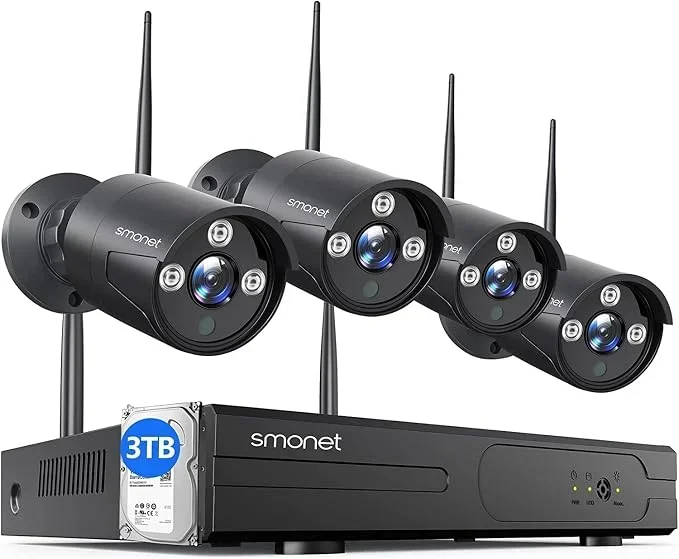
A Network Video Recorder (NVR) or Digital Video Recorder (DVR) is the backbone of many offline security setups. Cameras connect to the recorder using Ethernet cables or local wireless signals. The recorder stores all footage on a hard drive inside the unit.
To view your cameras, you simply connect a monitor to the NVR or DVR. No internet required. You can also access the recorder from a local computer on the same network. This gives you flexibility without relying on any external connection.
Best for: Home security systems and small businesses that want reliable offline recording.
One major advantage of NVR systems is that they work even if someone cuts your internet line. Thieves cannot disable your cameras by taking down your router. Your footage keeps recording to the local hard drive.
Method 2: Record to SD Cards
Many modern security cameras come with a microSD card slot. You insert a card into the camera, and it starts recording automatically. When you want to review footage, you remove the card and plug it into a computer or card reader.
This method is incredibly easy to set up. There is no need for a recorder, a monitor, or any network connection. The camera does all the work on its own.
Best for: Single camera setups, outdoor cameras, and budget-friendly home security.
Keep in mind that SD cards have limited storage. A 128GB card can hold about 20 to 40 hours of footage depending on your camera settings. You will need to swap out cards regularly or set up a schedule for reviewing and backing up footage.
Method 3: Connect Cameras Directly to a Monitor or TV
Some security cameras come with HDMI or VGA outputs. You can plug the camera directly into a TV or monitor and view the live feed. This is perfect for checking on your property in real time without any wifi involved.
You can also use a simple switcher box to connect multiple cameras to one monitor. This lets you cycle through different camera feeds with the push of a button.
Best for: Quick setups, garage monitoring, and temporary surveillance needs.
Method 4: Use Cellular Security Cameras
Cellular security cameras are a game changer for properties without reliable wifi. These cameras use a SIM card to connect to a mobile network. You can view live feeds and receive alerts on your phone from anywhere with cell service.
You will need a data plan for the SIM card, but this is often cheaper than paying for a full home internet plan just for cameras. Some cellular cameras also support local SD card storage, giving you double backup options.
Best for: Remote properties, farms, construction sites, and locations without broadband.
If you want to learn more about getting connectivity without a traditional provider, check out this guide on getting wifi without an internet provider. It covers alternative connectivity options that can complement your camera setup.
Method 5: Use a Mobile Hotspot for Remote Viewing
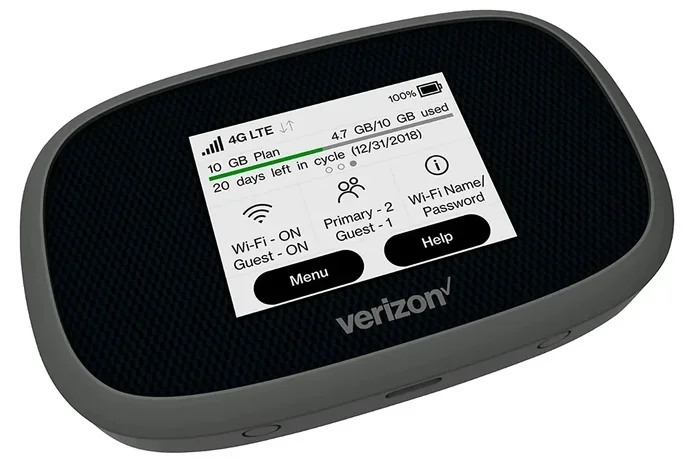
You can use a mobile hotspot device or your phone’s tethering feature to create a temporary internet connection for your cameras. This lets you access camera feeds remotely when your main internet is down.
Here is how it works:
- Turn on your mobile hotspot.
- Connect your cameras or viewing device to the hotspot.
- Open your camera app or NVR software.
- View your feeds as normal.
Keep an eye on your data usage, though. Streaming video uses a lot of data. A single camera can use 1 to 3 GB per day depending on quality settings. If you have a limited data plan, this method may not be practical for long-term use.
Best Security Camera Systems for Offline Viewing
Not all camera systems are created equal when it comes to offline capabilities. Here are some popular options that work well without wifi.
| System Type | Offline Capability | Price Range | Best For |
|---|---|---|---|
| DVR with Analog Cameras | Full offline recording | $100 – $300 | Budget home setups |
| NVR with IP Cameras | Full offline recording | $200 – $500 | Medium to large properties |
| SD Card Cameras | Local recording only | $30 – $100 per camera | Single camera needs |
| Cellular Cameras | Remote viewing via mobile | $50 – $200 per camera | Remote locations |
| PoE Cameras with Local NVR | Full offline + wired reliability | $150 – $400 | Reliable home or business |
Each system has its own strengths. The key is matching the system to your specific needs and environment. Think about how many cameras you need, where they will be placed, and how often you need to access the footage.
Setting Up Your Cameras for Offline Viewing
Setting up an offline camera system is easier than most people expect. Follow these steps to get your system running quickly.
Step 1: Choose Your Recording Method
Decide whether you want to use an NVR, SD cards, or direct monitor connections. This choice determines the rest of your setup. If you are unsure, an NVR with local storage is the most versatile option.
Step 2: Install Your Cameras
Mount your cameras in the locations you want to monitor. Make sure they have power. For wired cameras, run Ethernet cables from each camera to your NVR or router. For wireless cameras, place them within range of your local network.
Step 3: Configure Storage
Set up your storage medium. If using an NVR, install a hard drive. If using SD cards, insert them into each camera. Set your recording schedule and quality settings based on your storage capacity.
Step 4: Connect a Viewing Device
Connect a monitor to your NVR or DVR for live viewing. You can also connect a laptop to the local network to access camera feeds. For cellular cameras, use the manufacturer’s app on your phone.
Step 5: Test Everything
Before relying on your system, test it thoroughly. Check that all cameras record properly, that you can view footage, and that storage is working as expected. A little testing now saves headaches later.
If you want to extend your camera’s reach outdoors, you might also want to learn how to boost your Wi Fi signal outside for better coverage even in offline setups.
Common Mistakes to Avoid
Setting up offline cameras comes with its own challenges. Here are some common mistakes people make and how to avoid them.
- Forgetting to back up footage: SD cards and hard drives can fail. Always back up important footage to another device regularly.
- Using the wrong cables: Cheap cables can cause signal loss and poor video quality. Invest in good quality Ethernet or HDMI cables.
- Ignoring power needs: Offline cameras still need power. Make sure your power source is reliable and consider battery backup options.
- Not testing the system regularly: A system that works today might not work tomorrow. Test it monthly to catch problems early.
- Overlooking storage limits: Running out of storage means new footage overwrites old footage. Monitor your storage and expand it when needed.
Can You View Camera Feeds on a TV Without WiFi?
Yes, you can absolutely view camera feeds on a TV without wifi. Many NVR systems come with HDMI outputs that connect directly to any modern TV. You can also connect cameras directly to a TV using HDMI cables if the camera supports it.
If you want to learn more about connecting devices to your TV for viewing, check out this article on connecting your Wi Fi directly to your TV for additional viewing options.
For computer-based viewing, you may need a Wi Fi card for your computer if you want to access local network cameras from a laptop without built-in wireless capability.
Expert Tips for Maximizing Offline Security
Here are some expert tips to get the most out of your offline camera system:
- Use PoE (Power over Ethernet) cameras: These cameras get power and data through a single cable, reducing setup complexity.
- Add a UPS (Uninterruptible Power Supply): A battery backup keeps your cameras running during power outages.
- Label your cables and cameras: This saves time when troubleshooting or expanding your system.
- Use weatherproof cameras outdoors: Even the best camera will fail if it cannot handle rain, snow, or extreme heat.
- Set motion detection alerts: This helps you focus on important footage and saves storage space.
For those interested in a more portable setup, you might also explore options for having a portable Wi Fi setup that can serve as a backup viewing option when your main internet is unavailable.
Final Thoughts
Watching security cameras without wifi is not only possible, it is often simpler than you would expect. Whether you choose a local NVR system, SD card recording, direct monitor connections, or cellular cameras, you have solid options that keep you connected to your property no matter what.
The key is planning ahead. Choose a method that fits your location, budget, and security needs. Test your setup regularly and back up your footage. With the right approach, you will have reliable camera access even when the internet is completely down.
Offline security systems also offer extra benefits like better privacy and resistance to remote attacks. So even if you have wifi most of the time, having an offline backup plan is a smart move. Your peace of mind is worth it.
Start with one method that fits your situation and build from there. You will be surprised how quickly you can have a fully functional offline camera system protecting your home or business. Do not wait for the next internet outage to find out that your cameras are useless without a connection. Take action today and set up a system that works when it matters most.
Frequently Asked Questions
Can I watch my security cameras on my phone without wifi?
Yes, you can watch security cameras on your phone without wifi by using cellular cameras with a SIM card or by connecting to a local NVR through a mobile hotspot. Cellular cameras use mobile data to stream footage, while hotspot methods let you access local cameras temporarily when your main internet is down.
Do security cameras work without internet?
Many security cameras work perfectly fine without internet. Cameras connected to a local NVR or DVR, those with SD card storage, and cameras that plug directly into a monitor all function without any internet connection. The footage is stored locally and accessible without a web connection.
How do I view offline security camera footage?
You can view offline security camera footage by connecting your NVR or DVR to a monitor, removing the SD card from a camera and viewing it on a computer, or using a local network connection on a laptop. Each method lets you access recorded footage without needing the internet.
Are cellular security cameras worth it?
Cellular security cameras are worth it for remote properties, farms, and locations where wifi or broadband is unavailable. They use a SIM card and mobile network to transmit footage, giving you remote access from anywhere with cell service. They typically require a monthly data plan but offer great flexibility.
What is the best budget option for offline camera viewing?
The best budget option is a camera with a built-in SD card slot. These cameras record footage directly to a removable memory card and cost between $30 and $100 per camera. You simply remove the card and view the footage on any computer or card reader. No extra equipment needed.
Can I use my existing cameras with an offline setup?
It depends on your camera type. Many IP cameras can connect to a local NVR without internet. Analog cameras work directly with a DVR. Check your camera specifications to see if it supports local recording or direct monitor connections. Most modern cameras offer at least one offline viewing option.