How Can I Listen To My Cds Without A Cd Player Today
You can still enjoy your favorite CDs even without a dedicated CD player. Whether you use a computer, an external USB drive, or Bluetooth speakers, there are multiple easy ways to play your discs. This guide covers every practical method so you can listen to your CDs without a CD player today.
Key Takeaways
- Use your laptop: Many computers still have disc drives or can use external ones to play CDs.
- Rip to digital: Converting your CDs to MP3 files lets you listen anywhere, anytime.
- Bluetooth options: You can pair wireless speakers or headphones to play CD audio wirelessly.
- Smart TVs work too: Many TVs accept USB drives and can play audio from converted files.
- External drives are affordable: A USB CD drive costs less than a new CD player and works with any device.
📑 Table of Contents
- How Can I Listen To My CDs Without A CD Player Today
- Why You Should Still Listen To Your CDs
- Method 1: Use Your Computer Or Laptop To Play CDs
- Method 2: Rip Your CDs To Digital Files
- Method 3: Use An External USB CD Drive
- Method 4: Connect Your CD Player To Bluetooth Speakers
- Method 5: Use A Smart TV Or Streaming Device
- Comparing Your Options
- Common Mistakes To Avoid
- Expert Tips For The Best Listening Experience
- Final Thoughts
How Can I Listen To My CDs Without A CD Player Today
There was a time when CD players ruled our shelves. They sat proudly on desks and stood tall in entertainment centers. But technology has moved fast. Many of us no longer own a standalone CD player. Yet our collections of favorite discs still hold value. Maybe you have old albums you love. Perhaps you found a stack of CDs at a garage sale. Whatever the reason, you might be wondering how to play them now.
The good news is simple. You have more options than you think. You can listen to your CDs without a CD player using tools you likely already own. A laptop, a phone, a smart TV, or a small external drive can all do the job. This guide walks you through every practical method. You will learn how to set up each option step by step. By the end, you will know exactly which method fits your needs best.
Let us dive in and bring those old discs back to life. Your music collection deserves to be heard again.
Why You Should Still Listen To Your CDs
Some people think CDs are outdated. They see them as old-fashioned. But CDs still offer real benefits. The audio quality on a CD is excellent. It delivers sound in a way that streaming sometimes cannot match. When you stream music, the quality depends on your internet connection. A CD plays the same quality every single time. There is no buffering. There is no compression loss.
Your music collection also holds sentimental value. Maybe a friend gave you a mix CD years ago. Perhaps you own a limited edition album. These physical items carry memories. They are more than just plastic discs. Keeping them playable keeps those memories alive.
Another reason matters too. CDs do not need an internet connection. You own the music outright. No subscriptions. No monthly fees. No risk of a song being removed from a platform. That kind of ownership feels good in a world of streaming.
The Value Of Physical Music
Physical media has a charm that digital files lack. You hold the album cover in your hands. You read the liner notes. You see the tracklist printed right there. It creates a connection to the music that a screen cannot replicate. Many audiophiles still prefer the warm, rich sound of a CD over compressed digital streams.
If you have a shelf full of CDs sitting untouched, now is the time to revisit them. You do not need a CD player to enjoy them. Let us look at the methods that work.
Method 1: Use Your Computer Or Laptop To Play CDs
The easiest way to play a CD without a CD player is through your computer. Most laptops and desktops made before 2015 came with an built-in optical drive. If your machine has one, you are already set. Simply insert the disc and let your operating system handle the rest.
On Windows, the built-in Windows Media Player will often open automatically. On Mac, the Apple Music app handles CDs with ease. Both options let you play, pause, skip tracks, and even rip the music to your hard drive.
What If Your Laptop Does Not Have A Disc Drive
Many modern laptops no longer include an optical drive. This is where an external USB CD drive comes in handy. These drives are small and portable. You plug them into any USB port and they work immediately. They are very affordable too. You can find a reliable one for under thirty dollars.
Once connected, your computer treats the external drive just like a built-in one. Insert your CD and open your media player. The process is simple and fast. You can listen right away or rip the tracks for later.
If you want better sound from your computer setup, you might consider how you can plug speakers into your laptop for a richer listening experience.
Best Software For CD Playback On Computers
Your operating system comes with built-in players. But third-party software can offer more features. Programs like VLC Media Player handle almost any disc format. They are free and reliable. You can also use iTunes on Windows or Music on Mac for a clean, simple interface. These tools let you organize your tracks and manage your library with ease.
Method 2: Rip Your CDs To Digital Files
Ripping a CD means copying the audio tracks to your computer as digital files. This is one of the best ways to enjoy your music long-term. Once ripped, you can listen on any device. No disc needed. No drive required. Just your files and your favorite music.
How CD Ripping Works
The process is straightforward. You insert the CD into your drive. Then you use ripping software to copy each track. The software extracts the audio and saves it as a file on your computer. Common formats include MP3, FLAC, and AAC. Each has its own benefits.
MP3 files are small and widely compatible. They work on almost every device. FLAC files are larger but offer lossless quality. They preserve every detail of the original recording. Choose based on your needs and storage space.
Popular CD Ripping Tools
- Exact Audio Copy (EAC): Free and very accurate. Great for Windows users who want perfect rips.
- Apple Music / iTunes: Built into macOS. Simple and effective for most users.
- VLC Media Player: Free and supports ripping on both Windows and Mac.
- dBpoweramp: A paid option with excellent metadata and quality settings.
Once your files are ripped, you can load them onto your phone, tablet, or any music player. Your collection becomes truly portable. You never have to dig out a disc again.
Organizing Your Digital Music Library
After ripping, you will want to keep your files organized. Use music management software to sort by artist, album, and genre. Tag your files properly so they display correctly on all devices. A well-organized library makes finding your favorite tracks effortless.
Method 3: Use An External USB CD Drive
If you do not want to rip your CDs, an external drive is a great alternative. These compact devices connect to any computer or laptop through USB. They read CDs just like a built-in drive would.
External CD drives are lightweight and easy to carry. You can take them to a friend’s house or bring them on trips. They work with both Windows and Mac computers. Most models also read DVDs and Blu-ray discs, so you get extra value for your money.
Setting Up An External CD Drive
The setup process is very simple. Plug the drive into a USB port. Wait for your computer to recognize it. Insert your CD. Open your media player. That is all there is to it. No software installation is usually needed. The drive works plug and play on most systems.
Look for a drive that supports both CDs and DVDs. Some models also handle Blu-ray discs. Check the product description before buying. A reliable external drive will serve you for years.
Top Things To Look For In An External Drive
- USB connectivity: USB 3.0 offers faster read speeds than older USB 2.0 models.
- Multi-format support: Choose a drive that handles CDs, DVDs, and Blu-rays.
- Portability: A slim, lightweight design makes it easy to carry around.
- Compatibility: Make sure it works with your operating system, whether Windows, Mac, or ChromeOS.
Method 4: Connect Your CD Player To Bluetooth Speakers
What if you still have a CD player but want wireless freedom? You can connect your existing CD player to Bluetooth speakers. This gives you the best of both worlds. You keep your CD player and enjoy wireless audio at the same time.
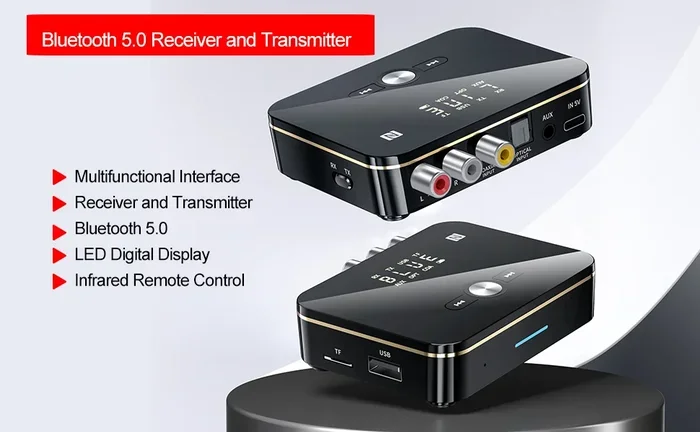
You will need a Bluetooth transmitter. This small device plugs into the headphone jack or optical output of your CD player. It sends the audio signal wirelessly to any Bluetooth speaker or headphones within range. The setup takes just a few minutes.
How Bluetooth Transmitters Work
A Bluetooth transmitter acts as a bridge. It takes the audio output from your CD player and converts it into a wireless signal. Your Bluetooth speaker receives this signal and plays the music. The quality is surprisingly good. Most modern transmitters support aptX or aptX HD codecs. These deliver near-lossless audio quality over Bluetooth.
This method works great if you want to listen to your CDs in another room. You can move freely without being tethered to your CD player by a cable.
For a similar wireless experience with other devices, you might explore how you can pair Bluetooth headphones to your TV for private listening sessions.
Best Bluetooth Transmitters For CD Players
- Sony transmitters: Reliable and widely compatible with most audio devices.
- 1Mii Bluetooth transmitters: Affordable and support high-quality codecs.
- Avantree transmitters: Great range and stable connections for uninterrupted listening.
Method 5: Use A Smart TV Or Streaming Device
Your smart TV might be able to help you play CDs. Many modern TVs have USB ports. If you rip your CDs to a USB drive, you can play them through your TV speakers. This works well for casual listening. It is especially nice if you want to fill a room with music.
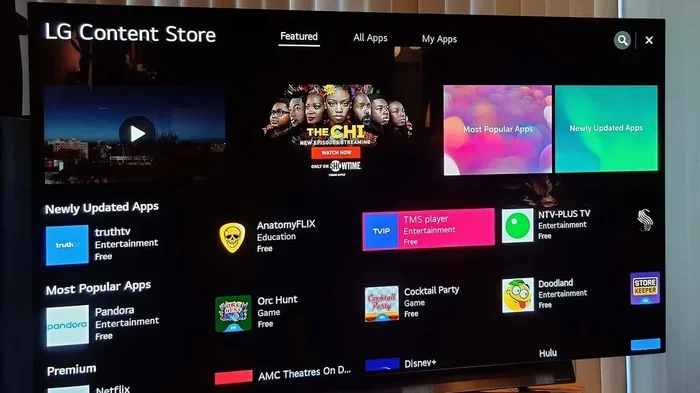
Not all TVs support audio files from USB drives. Check your TV manual or settings to confirm compatibility. Most Samsung, LG, and Sony smart TVs handle common audio formats like MP3 and AAC without issues.
Step By Step: Playing CDs Through Your TV
- Rip your CD tracks to a USB flash drive as MP3 files.
- Plug the USB drive into your smart TV.
- Navigate to the media or file browser on your TV.
- Select the audio files and press play.
- Adjust the volume and enjoy your music.
This method is simple and requires no extra equipment. Your TV becomes a speaker system for your music collection. It is a great option for parties or background music during gatherings.
Some people also use smart speakers like Alexa to play their digital music files. If you are curious about using Alexa as a speaker for your devices, there are simple setups that make it work.
Smart TV Limitations To Keep In Mind
Smart TVs are not designed primarily for music playback. The interface can be slow when browsing through files. Some TVs only support certain audio formats. And the sound quality depends entirely on your TV speakers. For the best experience, consider connecting your TV to an external soundbar or speaker system.
Comparing Your Options
Each method has its own strengths. Here is a quick comparison to help you decide which approach works best for you.
| Method | Cost | Ease Of Use | Audio Quality | Portability |
|---|---|---|---|---|
| Computer Built-in Drive | Free | Very Easy | Excellent | Low |
| External USB CD Drive | $20-$40 | Very Easy | Excellent | High |
| Rip To Digital Files | Free (software) | Moderate | Excellent (FLAC) | Very High |
| Bluetooth Transmitter | $15-$30 | Easy | Very Good | High |
| Smart TV USB Playback | Free | Easy | Good | Low |
As you can see, most methods are affordable and easy to set up. The best choice depends on your situation. If you want permanent access to your music, ripping to digital is the way to go. If you prefer the hands-on experience of putting a disc in, an external drive or Bluetooth transmitter works perfectly.
Common Mistakes To Avoid
When trying to play CDs without a CD player, some common mistakes can cause frustration. Avoid these pitfalls to save time and protect your discs.
- Using scratched or damaged discs: Clean your CDs before playing them. A soft cloth and gentle wiping can remove dust and fingerprints that cause skipping.
- Ignoring file formats: Not all devices support every audio format. Stick to MP3 or AAC for the widest compatibility.
- Skipping software updates: Keep your ripping software and media players updated. Updates fix bugs and improve compatibility with newer operating systems.
- Forgetting to rip at the right speed: Rip at a slower speed for better accuracy. Fast ripping can introduce errors in the audio files.
- Not backing up your rips: Always keep a backup copy of your digital files. Hard drives fail. Cloud storage or a second USB drive keeps your music safe.
Expert Tips For The Best Listening Experience
Want to get the most out of your CD collection? Here are some pro tips that make a real difference.
First, invest in a good pair of headphones or speakers. The quality of your audio output matters just as much as the source. Cheap earbuds will not do justice to a well-mastered CD. A decent pair of wired headphones or a Bluetooth speaker brings out the details in your music.
Second, rip your CDs to FLAC format if storage allows. FLAC preserves every bit of the original recording. You get studio-quality sound on your digital files. It is the closest thing to owning the original master tape.
Third, label your digital files properly. Include the artist name, album title, track number, and year. Good file organization makes searching and browsing your library a pleasure. It also ensures that your music displays correctly on all devices and media players.
Finally, consider how you can extend your audio setup. If you want to share your music with a larger group, a wireless speaker system works wonders. You can even explore how you can extend your WiFi range to stream audio to different rooms in your home.
Final Thoughts
Listening to your CDs without a CD player is easier than you might think. Whether you use a computer, an external drive, or Bluetooth technology, there is a method that fits your needs. The key is to find the approach that works best for your situation and your music habits.
Ripping your collection to digital files gives you the most freedom. You can listen anywhere, on any device, without worrying about discs. But if you love the ritual of putting a CD in and pressing play, an external drive or Bluetooth transmitter keeps that experience alive.
Your music collection is worth preserving. These methods ensure that your favorite CDs continue to bring you joy for years to come. Start with one method today and rediscover the pleasure of your physical music library.
Frequently Asked Questions
Can I Play CDs On My Laptop If It Does Not Have A Disc Drive?
Yes, you can. You just need an external USB CD drive. These drives are affordable and connect easily to any laptop with a USB port. Once plugged in, your laptop will recognize the drive and you can play CDs right away.
Is Ripping CDs To Digital Files Legal?
In most countries, ripping CDs you personally own for personal use is considered legal. However, laws vary by location. You should not share or distribute ripped files. Always check your local copyright regulations to be sure.
What Audio Format Should I Use When Ripping CDs?
MP3 is the most widely compatible format and works on almost every device. If you want the best possible audio quality, choose FLAC. It is lossless and preserves every detail of the original recording. AAC is another solid option that balances quality and file size.
Can I Use Bluetooth Headphones To Listen To CDs?
Yes, you can. You will need either a computer with Bluetooth or a Bluetooth transmitter connected to your CD player or external drive. Pair your headphones to the transmitter and enjoy wireless listening. The audio quality is very good with modern Bluetooth codecs.
How Long Does It Take To Rip A Full CD?
It usually takes about five to ten minutes per disc. The time depends on your computer speed and the file format you choose. Ripping to MP3 is faster than FLAC. You can also rip multiple discs at once if you have several drives connected.
Do Smart TVs Support Playing Audio Files From USB Drives?
Most modern smart TVs do support USB audio playback. Samsung, LG, and Sony models typically handle MP3 and AAC files without issues. Check your TV manual to confirm supported formats. Some older models may have limited compatibility.