Improve Your Xbox Wifi Connection with These Great Tips
Struggling with lag on your Xbox? This guide shows you exactly how to improve your Xbox wifi connection with easy, actionable steps. You will learn router placement tricks, DNS tweaks, band switching, and hardware upgrades that make a real difference. Whether you game casually or competitively, these tips will transform your online Xbox experience.
Key Takeaways
- Router placement matters: Moving your router closer to your Xbox can dramatically improve signal strength.
- Switch to 5GHz: The 5GHz band offers faster speeds and less interference than 2.4GHz for gaming.
- Update firmware regularly: Keeping your router firmware current fixes bugs and boosts performance.
- Adjust DNS settings: Changing your DNS can reduce latency and speed up your Xbox connection.
- Consider mesh WiFi: A mesh system eliminates dead zones and provides consistent coverage throughout your home.
- Wired is best: An ethernet cable always beats WiFi for stable, low-latency Xbox gaming.
📑 Table of Contents
- Why Your Xbox Wifi Connection Matters
- How to Improve Your Xbox Wifi Connection
- Advanced Network Settings for Xbox
- Hardware Solutions for Better WiFi
- When to Use a Wired Connection Instead
- Troubleshooting Persistent Xbox Wifi Issues
- Common Mistakes That Hurt Xbox Wifi Performance
- Expert Insights on Xbox Networking
- Quick Tips for Instant Improvement
- Conclusion
Why Your Xbox Wifi Connection Matters
Every gamer knows the frustration. You are in the middle of an intense match. Your character freezes. The screen spins. You get kicked from the lobby. A poor Xbox wifi connection can ruin even the best gaming sessions.
Your internet connection is the backbone of online gaming. It affects everything from how fast you load into matches to how smoothly you move through maps. Xbox wifi connection quality directly impacts your rank, your fun, and even your reputation with teammates.
Many players blame their console when the real problem is their wireless network. The good news? You do not need expensive gear to fix most issues. A few simple changes can make your Xbox feel lightning fast. Let us dive into exactly how to improve your Xbox wifi connection.
How to Improve Your Xbox Wifi Connection
Optimize Your Router Placement
Where you put your router changes everything. Walls, floors, and furniture block wireless signals. If your router sits in a basement or behind a TV stand, your Xbox suffers.
Place your router in a central, open area of your home. Elevate it on a shelf. Keep it away from thick walls and metal objects. WiFi signal strength drops fast when blocked by obstacles.
Here are quick placement tips:
- Put the router in the same room as your Xbox if possible.
- Keep the router upright and uncovered.
- Avoid placing it near microwaves or baby monitors.
- Point antennas vertically for horizontal coverage.
If moving the router is not an option, consider using a WiFi extender to push the signal closer to your gaming area. A boost your WiFi signal setup can work wonders for Xbox players in distant rooms.
Update Your Router Firmware
Routers need software updates just like your Xbox does. Outdated firmware causes slow speeds, dropped connections, and security problems. Most modern routers have an auto-update feature.
Check your router admin panel to see if updates are available. Log in through your browser using the router IP address. Look for a firmware or update section. Apply any pending updates and restart your router.
This simple step often fixes mysterious connection drops. It improves overall network stability and can even add new features to your router.
Switch to the 5GHz Band
Most routers broadcast two wireless bands: 2.4GHz and 5GHz. The 2.4GHz band reaches farther but is slower and crowded. The 5GHz band is faster and less congested.
For Xbox gaming, you want the 5GHz band. It provides the internet speed for gaming you need. Here is how to switch:
- Open your Xbox settings.
- Go to Network settings.
- Select your 5GHz WiFi network from the list.
- Enter your password and connect.
If your router does not show a separate 5GHz network, check the admin panel. Many routers let you enable or disable each band individually. Wireless connection quality improves significantly on 5GHz because there is less WiFi interference from other devices.
Advanced Network Settings for Xbox
Change Your DNS Settings
DNS stands for Domain Name System. It translates website names into IP addresses. Your default DNS from your internet provider may be slow. Switching to a faster DNS can reduce latency and improve your Xbox wifi connection.
Popular free DNS options include:
- Google DNS: 8.8.8.8 and 8.8.4.4
- Cloudflare DNS: 1.1.1.1 and 1.0.0.1
- OpenDNS: 208.67.222.222 and 208.67.220.220
To change DNS on your Xbox, go to Network settings, select your WiFi connection, and choose Advanced settings. Switch from Automatic to Manual and enter the DNS addresses. This small change can shave milliseconds off your ping time.
Adjust QoS Settings on Your Router
QoS stands for Quality of Service. It lets you prioritize certain devices or traffic types on your network. When you enable QoS, your router gives gaming packets priority over other traffic.
Log into your router settings and look for QoS or Traffic Management. Set your Xbox as a priority device. Some routers let you prioritize gaming traffic by application type.
This is especially helpful when other family members are streaming videos or downloading files while you game. Bandwidth gets allocated where it matters most.
Check Your NAT Type
NAT type affects how your Xbox communicates with other players online. There are three types: Open, Moderate, and Strict. Open NAT gives you the best connection for multiplayer games.
To check your NAT type on Xbox:
- Go to Settings
- Select General
- Choose Network settings
- Look at the NAT type section
If your NAT type is Strict, your Xbox wifi connection is being blocked by your router. Opening your router ports or enabling UPnP can fix this. Check your router settings for Universal Plug and Play and turn it on.
Hardware Solutions for Better WiFi
Use a WiFi Extender or Repeater
A WiFi extender picks up your existing signal and rebroadcasts it. This is an affordable way to improve coverage in areas where the signal is weak. Extenders work well for Xbox consoles in rooms far from the router.
Look for an extender that supports the same WiFi standard as your router. Dual-band extenders give you flexibility. Place the extender halfway between your router and your Xbox for the best results.
Add an External Antenna to Your Router
Some routers come with weak built-in antennas. You can often replace these with higher-gain antennas. Adding an external antenna significantly improves signal range and strength.
Check if your router has detachable antennas before buying replacements. Omnidirectional antennas work best for homes because they broadcast in all directions. This is one of the cheapest ways to boost your wireless network performance.
Consider a Mesh WiFi System
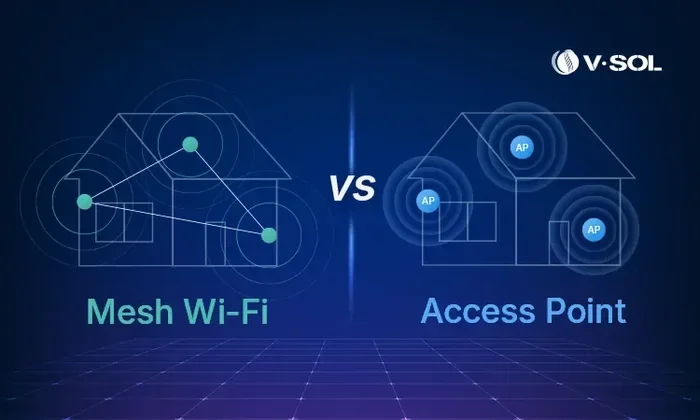
Mesh WiFi systems replace your traditional router with multiple nodes placed around your home. Each node creates a seamless coverage zone. There are no dead spots, and your Xbox stays connected as you move between rooms.
A WiFi 6 mesh to WiFi 5 router setup can future-proof your network. Mesh systems handle multiple devices well, which matters in households with many connected gadgets.
If you have a large home or thick walls, mesh is the best solution. It provides consistent network settings performance across every room.
When to Use a Wired Connection Instead
Benefits of Ethernet for Xbox Gaming
Nothing beats a wired connection for Xbox gaming. An ethernet cable provides the most stable, lowest-latency connection possible. You eliminate wireless interference completely.
Benefits of using ethernet include:
- Zero packet loss during matches
- Consistent speeds with no fluctuation
- Lower ping times for competitive play
- No interference from neighbors networks
Even a 100-foot ethernet cable can reach from your router to your Xbox setup. Many gamers report immediate improvements after switching from wireless to wired.
How to Connect Xbox with an Ethernet Cable
Connecting your Xbox with a cable is simple:
- Plug one end of the ethernet cable into your router.
- Plug the other end into the Xbox ethernet port.
- Go to Xbox Network settings.
- Select Wired network.
Your Xbox will automatically detect the wired connection. You should see an immediate improvement in connection stability. If your router is far from your gaming setup, run the cable along baseboards or through door frames.
Troubleshooting Persistent Xbox Wifi Issues
Test Your Internet Speed
Before making any changes, test your current internet speed. Go to Xbox Settings, then Network settings, and select Test network speed and stats. This tells you your download speed, upload speed, and ping.
For smooth online gaming, you want at least 3 Mbps download speed and 1 Mbps upload speed. Ping should stay under 50 milliseconds. If your speeds are well below these numbers, the problem is your internet service, not your Xbox.
Contact Your Internet Service Provider
If basic fixes do not work, call your ISP. They can run line tests and check for outages in your area. Sometimes the problem is on their end, not yours.
Ask them about upgrading your plan if needed. A faster plan gives you more bandwidth for gaming and streaming simultaneously. You can also ask about changing your WiFi router if your current one is outdated.
Common Mistakes That Hurt Xbox Wifi Performance
Many Xbox players unknowingly make mistakes that hurt their connection. Avoid these common pitfalls:
- Placing the router on the floor: Signals spread outward and downward. Floor placement blocks the signal from reaching your Xbox.
- Ignoring channel congestion: If your neighbors use the same WiFi channel, interference increases. Switch to a less crowded channel in your router settings.
- Not restarting your router: Restarting your router once a week clears its memory and refreshes connections.
- Overloading your network: Too many devices streaming or downloading at once kills your gaming performance.
- Skipping updates: Both your Xbox and router need regular updates for optimal performance.
Fixing these simple mistakes alone can improve your Xbox wifi connection by a noticeable margin. Most players see results within minutes of making these changes.
Expert Insights on Xbox Networking
Professional Xbox gamers and network engineers agree on a few key principles. First, stability matters more than raw speed. A consistent 20 Mbps connection beats a fluctuating 100 Mbps connection for gaming.
Second, wired connections should always be the first choice. Xbox Live performance improves dramatically with ethernet. If you must use WiFi, invest in quality hardware and optimize your setup.
Third, your network adapter on the Xbox plays a role. Newer Xbox models have improved wireless adapters that support WiFi 5 and WiFi 6. If you have an older model, consider using a USB ethernet adapter for the best results.
Finally, monitor your packet loss and latency regularly. These metrics tell you more about connection quality than speed tests alone. A clean, stable connection is the foundation of great online gaming.
Quick Tips for Instant Improvement
Want fast results? Try these quick wins right now:
- Restart your router and Xbox. This clears temporary network issues instantly.
- Move closer to the router. Even a few feet can make a big difference.
- Disconnect unused devices. Free up bandwidth for your Xbox.
- Switch to 5GHz. Less interference means smoother gameplay.
- Change your DNS. Faster name resolution means quicker connections.
- Close background apps. Downloads and updates on other devices steal bandwidth.
These tips take less than five minutes and can transform your gaming experience. They are the fastest way to see results.
Conclusion
Improving your Xbox wifi connection does not require expensive equipment or technical expertise. Start with router placement and band selection. Move on to DNS changes and QoS settings. Add hardware solutions like extenders or mesh systems if needed.
Remember that a wired ethernet connection always wins for consistency and low latency. Use WiFi when convenience matters most, but switch to cable for competitive play.
Your gaming experience depends on your network. Take the time to optimize it. Follow the tips in this guide and you will notice smoother gameplay, faster matchmaking, and fewer disconnections. Your Xbox deserves a connection that keeps up with your skills.
Start with one or two changes today. Test your connection. Then add more improvements over time. Soon you will have a setup that delivers the fast, stable Xbox wifi connection every gamer deserves.
Frequently Asked Questions
Why is my Xbox WiFi connection so slow?
Slow Xbox WiFi usually comes from router placement, outdated firmware, or a crowded 2.4GHz band. Try moving your router closer to your Xbox and switching to the 5GHz band. These two changes often solve slow connection problems immediately.
Can I use a WiFi extender with my Xbox?
Yes, a WiFi extender works well with Xbox consoles. Place the extender halfway between your router and Xbox for the best signal. Look for a dual-band extender that supports the same WiFi standard as your router for optimal performance.
Is WiFi 6 better for Xbox gaming?
WiFi 6 offers faster speeds, better device handling, and lower latency compared to older standards. If your Xbox and router both support WiFi 6, you will see noticeable improvements in connection stability and speed during online gaming sessions.
How do I fix a strict NAT type on Xbox?
Strict NAT limits your ability to connect with other players. Enable UPnP in your router settings or manually open the Xbox gaming ports. This allows your Xbox to communicate freely with Xbox Live servers and other players.
Should I use WiFi or ethernet for Xbox gaming?
Ethernet is always better for Xbox gaming. It provides a direct, stable connection with no wireless interference. Use WiFi only when running a cable is not practical. For competitive or ranked play, ethernet gives you the edge you need.
How often should I restart my router for best Xbox performance?
Restarting your router once a week helps maintain optimal performance. It clears cached data, refreshes connections, and resolves minor glitches. Many gamers also restart their router before important gaming sessions for the best possible connection.