How Can I Change My Wifi Name And Password In Mobile
Changing your WiFi name and password on mobile is simple and quick. This guide walks you through the exact steps for both Android and iPhone users. You will learn how to access your router settings, update your network name, and create a strong new password. We also share common mistakes to avoid and expert tips to keep your WiFi safe. By the end, you will feel confident managing your home network from your phone.
Have you ever wanted to change your WiFi name and password right from your phone? Maybe your neighbor keeps borrowing your internet, or you simply want a more personal network name. Whatever the reason, how can I change my WiFi name and password in mobile is one of the most common questions people ask today. The good news is that you do not need a computer or any special skills. Your smartphone can handle everything you need. In this guide, we will walk you through every step with clear instructions.
Whether you use an Android phone or an iPhone, the process is straightforward and fast. You will learn how to find your router settings, update your network name, and create a secure wireless password. We also cover important topics like router admin pages, WiFi encryption, and network security keys. By the time you finish reading, you will know exactly what to do. Let us get started and take control of your home network.
Key Takeaways
- Easy Access: You can change WiFi settings directly from your mobile device or through your router admin page.
- Android and iPhone Friendly: Step-by-step instructions work for both operating systems.
- Security First: A strong password and custom network name boost your WiFi protection.
- Router Login Matters: Knowing your default gateway and admin credentials is essential.
- Avoid Common Mistakes: Simple errors can cause connectivity issues after changing settings.
📑 Table of Contents
- Why Changing Your WiFi Name and Password Matters
- How to Change WiFi Name and Password on Android
- How to Change WiFi Name and Password on iPhone
- Changing WiFi Settings Through Your Router
- Common Mistakes When Changing WiFi Settings
- Expert Tips for Better WiFi Security
- How Can I Change My WiFi Name And Password In Mobile: A Recap
Why Changing Your WiFi Name and Password Matters
Many people set up their WiFi once and never think about it again. But your network settings matter more than you might think. A default WiFi name can reveal your router brand, which makes it easier for hackers to target your network. A weak password leaves your connected devices vulnerable to unauthorized access. Changing both your network name and password regularly keeps your home internet safe and private.
Protect Your Personal Data
Your WiFi network carries sensitive information. Every time you browse the web, check email, or shop online, data travels through your wireless connection. If someone gains access to your network, they can intercept this information. A strong WPA2 password and a unique network name act as your first line of defense. Think of it like locking your front door. You would not leave it unlocked, so do not leave your WiFi open either.
Improve Network Performance
Changing your WiFi name can also help with performance. If you live in an apartment building, multiple networks might have similar names. A custom SSID (Service Set Identifier) makes it easier to identify your network. This means fewer connection mistakes and faster speeds. Plus, when you change your password, you kick off any unknown devices that might be slowing down your broadband router.
How to Change WiFi Name and Password on Android
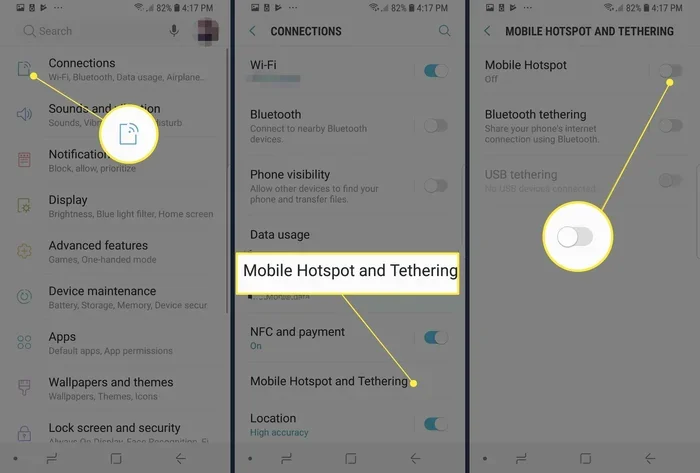
Android phones make it easy to manage your WiFi settings. You can change your password directly from the settings menu. However, changing the network name usually requires accessing your router admin page. Let us break this down into simple steps.
Step 1: Open Your WiFi Settings
Start by unlocking your Android phone. Swipe down from the top of your screen to open the quick settings panel. Tap the WiFi icon to make sure it is turned on. Then go to your main Settings app and select WiFi or Network & Internet. You will see a list of available networks. Tap on the network you are currently connected to. This opens a new menu with your connection details.
Step 2: Find Your Router Gateway Address
Look for a section called Gateway or Router. This shows your default gateway IP address. It usually looks something like 192.168.1.1 or 192.168.0.1. Write this number down or copy it. You will need it to access your router settings. This address is the doorway to your router admin panel.
Step 3: Access the Router Admin Page
Open your phone browser and type the gateway address into the URL bar. Press enter. A login page will appear. Here you need your router login credentials. These are often printed on a sticker on the back of your router. The username is usually admin, and the password might be admin or password. If you changed these before and forgot them, you can reset your router by holding the reset button for ten seconds.
Step 4: Update Your WiFi Name and Password
Once logged in, look for a section called Wireless Settings or WiFi Settings. Here you can change your network name (SSID) and create a new wireless password. Choose a name that is personal but does not reveal too much about you. For the password, use a mix of letters, numbers, and symbols. Make it at least twelve characters long. Tap save or apply, and your router will restart with the new settings.
Quick Tips for Android Users
- Always use the latest WiFi encryption type, which is usually WPA3 or WPA2.
- Write down your new password in a safe place before you forget it.
- Restart your phone after saving changes to ensure a smooth connection.
- Check your internet service provider website if you cannot find your router login details.
How to Change WiFi Name and Password on iPhone
iPhone users follow a very similar process. Apple makes it simple to access WiFi settings and router configurations. Let us walk through the steps one by one.
Step 1: Go to Your iPhone WiFi Settings
Open the Settings app on your iPhone. Tap WiFi to see your network options. Make sure WiFi is turned on. Find the network you are connected to and tap the small info icon (the letter i in a circle) next to it. This shows your connection details, including your router address.
Step 2: Locate Your Router IP Address
Scroll down until you see the Router field. The number shown here is your default gateway. It works the same way as on Android. Write this number down because you will need it to enter your router admin page.
Step 3: Open Your Router Admin Page
Open the Safari browser on your iPhone. Type the router IP address into the address bar and press go. The router login page will load. Enter your admin username and password. These credentials are usually found on the router itself or in the manual that came with it.
Step 4: Change Your Network Name and Password
Navigate to the wireless or WiFi settings section inside the router admin page. You will see fields for the network name and password. Type in your new network name and create a strong wireless password. Make sure to select WPA2 or WPA3 encryption for the best security. Tap save or apply. Your router will update and restart within a minute.
Quick Tips for iPhone Users
- If the router page does not load, try using a different browser like Chrome or Firefox.
- Turn off auto-join for your old network name after changing it to avoid confusion.
- Your iPhone will forget the old network. Simply reconnect using the new name and password.
- Enable two-factor authentication on your router if it supports it for extra protection.
Changing WiFi Settings Through Your Router
Sometimes it is easier to change WiFi settings directly on the router itself. This method works regardless of whether you use Android or iPhone. You simply access the router admin panel using a computer or mobile device. Let us look at how this works.
Finding Your Router Model and Login Details
Every router has a model number and default login information. Check the label on the bottom or back of your device. It will show the default IP address, username, and password. If you have changed these before and cannot remember, you can always perform a factory reset. Just press and hold the small reset button on the back of the router for about ten seconds. This restores all settings to their original defaults.
Navigating the Router Admin Panel
Once you log in, the admin panel will look different depending on your router brand. Popular brands include Netgear, TP-Link, Linksys, and ASUS. Look for a tab or menu item labeled Wireless, WiFi, or Network Settings. Inside, you will find the SSID field for your network name and the password or passphrase field. Update both and save your changes. The router may take a moment to apply the new settings.
Understanding WiFi Encryption Types
When changing your password, you will see different encryption options. WPA3 is the newest and most secure. WPA2 is still very safe and widely used. Avoid using WEP or open networks because they offer little protection. Always choose WPA2 or WPA3 for your network security key. This ensures that only people with the correct password can access your internet.
Common Mistakes When Changing WiFi Settings
Changing your WiFi name and password sounds simple, but small mistakes can cause big problems. Here are some errors to watch out for.
Forgetting Your New Password
This is the most common mistake. People change their password and then cannot remember it. Always save your new password somewhere safe. You can use a password manager app or write it down on a piece of paper kept in a secure location.
Choosing a Weak Password
Simple passwords like 123456 or password are easy to guess. Hackers use tools that can crack weak passwords in seconds. Your new wireless password should be long and complex. Use a mix of uppercase letters, lowercase letters, numbers, and special characters.
Not Updating All Connected Devices
When you change your WiFi name or password, every device that was connected will lose access. Your phone, tablet, smart TV, and smart home devices all need the new credentials. Make sure to update each device one by one to avoid connectivity issues.
Skipping the Router Restart
Some people change the settings and immediately try to reconnect. This often causes errors. Always let your router restart fully before attempting to connect with new credentials. Wait about one to two minutes for the process to complete.
Expert Tips for Better WiFi Security
Changing your password is just the beginning. Here are some expert-level tips to keep your WiFi network management top-notch.
Create a Guest Network
Most modern routers let you set up a guest network. This gives visitors internet access without sharing your main password. Keep your primary network name and password private. The guest network is perfect for friends, family, and delivery drivers.
Update Your Router Firmware
Router manufacturers release firmware updates to fix security flaws. Log into your admin panel every few months and check for updates. Keeping your firmware current is one of the best things you can do for network configuration and overall safety.
Hide Your Network Name
You can choose to hide your SSID so it does not show up in the list of available networks. Only people who know the exact network name can connect. This adds an extra layer of privacy, though it is not a replacement for a strong password.
Monitor Connected Devices
Many router admin pages show a list of all connected devices. Check this list regularly. If you see a device you do not recognize, change your password immediately. This helps you catch unauthorized users early.
How Can I Change My WiFi Name And Password In Mobile: A Recap
By now, you know that how can I change my WiFi name and password in mobile is a question with a very clear answer. You can do it directly through your phone settings or by logging into your router admin page. Both Android and iPhone users have simple paths to follow. The key is to remember your new credentials, choose strong encryption, and restart your router properly.
Take a few minutes today to update your WiFi name and password. It takes less than five minutes and makes a huge difference for your online safety. Share this guide with friends and family who might be struggling with the same task. A little effort now saves a lot of trouble later.
Your home network is the gateway to all your internet activities. Treat it with care. Use strong passwords, update them regularly, and stay informed about best practices. With the steps in this article, you are now fully equipped to manage your WiFi like a pro. Go ahead and make those changes. Your network will be safer and more personal because of it.
Frequently Asked Questions
Can I change my WiFi name and password directly from my phone?
Yes, you can change your WiFi password directly from your phone settings. However, changing the network name usually requires accessing your router admin page through your phone browser. Both steps are simple and do not need a computer.
What should I do if I forget my new WiFi password?
If you forget your new password, you can reset your router to factory defaults. Press and hold the reset button on the back of your router for about ten seconds. This will restore the original password printed on the router label. You can then set a new password you will remember.
Is it safe to change WiFi settings on a mobile browser?
Yes, it is safe as long as you are on a secure connection. Always make sure you are logged into your own router admin page. Check that the URL starts with your local network address like 192.168.1.1. Avoid using public WiFi when making these changes.
How often should I change my WiFi password?
Experts recommend changing your WiFi password every three to six months. You should also change it if you suspect someone unauthorized is using your network. Regular updates keep your network security key strong and your connected devices safe.
Will changing my WiFi name disconnect all my devices?
Yes, changing your WiFi name or password will disconnect all devices. You will need to reconnect each device using the new name and password. Make sure to update your smart home devices, phones, tablets, and laptops one at a time.
What is the difference between WiFi name and SSID?
There is no difference. SSID stands for Service Set Identifier, which is the technical term for your WiFi network name. When you change your network name in the router settings, you are changing the SSID. Both terms refer to the same thing.
=== CONCLUSION ===
Changing your WiFi name and password on mobile is easier than most people think. Whether you use Android or iPhone, the steps are clear and manageable. You now know how to access your router admin page, update your network name, and create a secure wireless password. You also understand the importance of WiFi encryption, network security keys, and regular WiFi network management. These skills give you full control over your home internet. Take action today and make your network safer, more personal, and more reliable. Your future self will thank you for it.