Does Windows Have A Dvd Player Here Is The Full Answer
Yes, Windows can play DVDs, but the built-in Windows Media Player no longer includes DVD playback support by default in Windows 10 and Windows 11. You will need to install a third-party DVD player app or purchase a DVD codec pack to get your discs working. This guide covers every method you need to play DVDs on Windows without any hassle.
So you pop a DVD into your computer and nothing happens. You double-click the disc icon. You open Windows Media Player. Still nothing. You start to wonder, does Windows have a DVD player built into the operating system? The short answer is no, and the longer answer is where things get interesting.
If you have been using Windows for a while, you might remember the days when DVD playback just worked. You inserted a disc, Windows Media Player opened, and the movie started. Those days are gone for the most part. Microsoft made a big change starting with Windows 10 that removed the built-in DVD decoder from the operating system. This means your PC no longer knows how to read commercial movie DVDs out of the box.
But here is the good news. You have several easy options to get your DVDs playing again. Whether you want a free solution, a paid app, or a hardware fix, this guide has you covered. Let us walk through everything you need to know about DVD playback on Windows in 2024 and beyond.
Key Takeaways
- No Built-In DVD Player: Windows removed native DVD playback from Windows Media Player starting with Windows 10.
- VLC Is The Best Free Option: VLC Media Player plays any DVD instantly without extra codecs or fees.
- Windows Media Center Is Dead: It was retired and is no longer available for modern Windows versions.
- External DVD Drives Work Great: You can plug in a USB DVD drive to any laptop or desktop for full DVD support.
- Windows DVD Player App Exists: Microsoft offers a paid DVD player app in the Microsoft Store for $14.99.
- Free Alternatives Work Just As Well: Several free media players outperform the paid Microsoft offering.
📑 Table of Contents
- Why Windows No Longer Includes DVD Playback
- The Best Free DVD Players For Windows
- The Paid Option: Windows DVD Player App
- How To Set Up DVD Playback On Your Windows PC
- Troubleshooting Common DVD Playback Problems
- Can You Play Blu-rays On Windows?
- Alternatives To Physical DVDs
- Expert Insights And Pro Tips
- The Bottom Line
Why Windows No Longer Includes DVD Playback
Microsoft made a business decision years ago to stop bundling DVD playback support into Windows. The reason comes down to licensing costs. DVD decryption and playback require special codecs that are patented and owned by other companies. Microsoft would have to pay licensing fees every time someone played a DVD on a Windows PC. By removing this feature, Microsoft saved money and also encouraged users to switch to digital streaming services.
The change started with Windows 10. Even though Windows Media Player is still on your computer, it no longer includes the tools needed to decode commercial DVD movies. If you try to play a DVD, you will get an error message saying you need a DVD decoder. This is the same situation for both Windows 10 and Windows 11. The operating system itself does not have the capability to play encrypted DVD discs without additional software.
What This Means For Your PC
Does this mean your computer cannot play DVDs at all? Not at all. It just means you need to add a piece of software to handle the job. Think of it like a car without a radio. The car still works perfectly. You just need to add a radio if you want music. Your Windows PC works perfectly fine. You just need a DVD player app to handle the disc.
Some older versions of Windows still include DVD support. Windows 7 had built-in DVD playback through Windows Media Center. Windows 8 also included basic DVD support. But if you are on Windows 10 or Windows 11, you will need to take action to get your DVDs working.
The Best Free DVD Players For Windows
You do not need to spend money to watch DVDs on your Windows PC. There are several excellent free options that work better than anything Microsoft used to include. These players handle all DVD formats, region codes, and special features without any extra cost.
VLC Media Player
VLC is the undisputed king of free media players. It plays DVDs, Blu-rays, audio files, video files, and almost any other media format you can think of. The best part is that VLC comes with its own built-in DVD decoder. You do not need to install any extra codecs or software. Just download VLC, insert your DVD, and hit play.
VLC is open-source and completely free. It has no ads, no premium tiers, and no hidden costs. The developers update it regularly to fix bugs and add new features. Millions of people around the world use VLC as their primary media player for Windows. It is available for Windows 10 and Windows 11 in both 32-bit and 64-bit versions.
To play a DVD in VLC, simply open the app, go to Media, select Open Disc, choose your DVD drive, and click Play. It really is that simple. VLC also lets you adjust audio and video settings, skip chapters, and access DVD menus just like a standalone DVD player.
Other Great Free Options
VLC is the top choice, but it is not the only one. Here are a few other free players worth trying:
- MPC-HC (Media Player Classic Home Cinema): A lightweight player that uses very little system resources. Great for older computers.
- PotPlayer: A feature-rich player with a clean interface and excellent DVD support.
- KMPlayer: Supports a wide range of formats and has a user-friendly design.
All of these players are free to download and use. They work with any standard DVD drive connected to your Windows PC. If you have an external DVD drive, they work with those too. Just plug the drive into a USB port, install your player of choice, and you are good to go.
The Paid Option: Windows DVD Player App
Microsoft does offer an official DVD player app in the Microsoft Store. It is called simply “Windows DVD Player.” This app is designed specifically for DVD playback on Windows and integrates smoothly with the operating system. However, it comes with a price tag of $14.99. You purchase it once and it works on the PC where you buy it.
Is It Worth The Money?
Honestly, most people do not need to pay for this app. The free options like VLC work just as well, if not better. The Windows DVD Player app does have one advantage though. It supports DVD menus and special features more reliably than some free alternatives. If you watch a lot of movie DVDs and want the full cinema experience with chapter selection, subtitles, and bonus features, the paid app might be worth it.
But for casual DVD watching, the free route is the clear winner. You save $14.99 and get a player that handles more than just DVDs. VLC and other free players handle CDs, Blu-rays, and video files too. That is a lot more value for your money.
How To Get The Windows DVD Player
If you decide to go with the paid option, here is how to get it. Open the Microsoft Store on your Windows PC. Search for “Windows DVD Player.” Click the app listing and select Buy. Once purchased, the app installs automatically. Insert your DVD and open the app to start watching. The app will also check your disc for the correct DVD region code and adjust settings automatically.
Keep in mind that the Windows DVD Player app only works on Windows 10. It does not support Windows 11. Microsoft has not updated the app to work with the newer operating system. So if you are on Windows 11, you will need to use a free alternative like VLC.
How To Set Up DVD Playback On Your Windows PC
Setting up DVD playback on Windows is a straightforward process. The exact steps depend on which method you choose, but the general process is similar. Here is a step-by-step guide to get you watching DVDs in minutes.
Step 1: Check Your DVD Drive
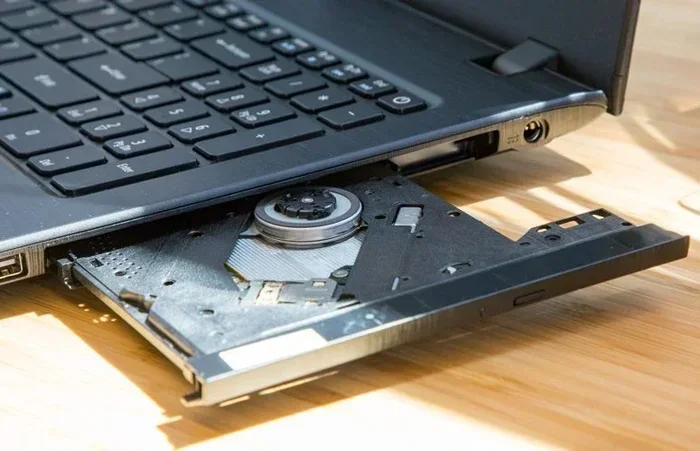
First, make sure your computer has a DVD drive. Many modern laptops no longer include an optical drive. If you have a desktop PC, it likely has one built in. Laptop users may need an external DVD drive that connects via USB. These drives are affordable and work with any Windows computer.
To check if your PC has a DVD drive, open File Explorer and look for your DVD drive under This PC. If you see a DVD or CD drive listed, you are good to go. If not, you will need to buy an external drive.
Step 2: Install A DVD Player
Next, download and install a DVD player. VLC is the recommended choice for most users. Go to the official VideoLAN website, download the Windows version, and run the installer. The installation takes less than a minute. Once installed, VLC is ready to play any DVD you insert.
If you prefer the paid Windows DVD Player app, visit the Microsoft Store and purchase it instead. Both options take just a few minutes to set up.
Step 3: Insert Your DVD And Play
Now just insert your DVD into the drive. If VLC does not open automatically, open it manually and go to Media, then Open Disc. Select your DVD drive from the list and click Play. Your movie should start right away. If you are using the Windows DVD Player app, it should open automatically when you insert a disc.
Some DVDs may ask you to select a region code. This is a standard feature of commercial movie DVDs. Choose the region that matches where you bought the disc. Most players default to the correct region automatically.
Troubleshooting Common DVD Playback Problems
Even after setting up your DVD player, you might run into issues sometimes. DVDs can be finicky, and not every disc plays perfectly on every computer. Here are the most common problems and how to fix them.
DVD Will Not Play At All
If your DVD does not play at all, first check that your DVD drive is working. Try a different disc to rule out a bad DVD. If other discs work, the problem might be with the specific disc. Scratched or damaged DVDs often fail to play on computers. Clean the disc with a soft cloth and try again.
If the drive itself is not recognized by Windows, try unplugging and replugging an external DVD drive. For internal drives, check your cable connections. You can also go to Device Manager and look for any issues with your DVD drive under DVD/CD-ROM drives.
Video Plays But There Is No Sound
No sound during DVD playback is a common issue. This usually happens because of a missing audio codec or a wrong audio output setting. In VLC, go to Tools, then Preferences, and check your audio output device. Make sure it is set to your computer speakers or headphones, not a disconnected device.
Another fix is to update your audio drivers. Go to Device Manager, expand Sound, video and game controllers, right-click your audio device, and select Update driver. This often resolves sound issues with DVD playback.
DVD Plays But The Picture Is Pixelated Or Garbled
A garbled picture usually means your DVD drive is having trouble reading the disc. Clean the DVD with a soft, lint-free cloth. Try the disc in a different DVD drive if possible. If the picture is still bad, the disc itself might be damaged or scratched beyond repair.
Some older DVDs were burned at low quality and do not play well on computer DVD drives. Commercial movie DVDs from stores should play without issues on any modern DVD drive.
Can You Play Blu-rays On Windows?
Blu-ray discs require even more specialized software than DVDs. The same free players like VLC can handle some Blu-rays, but not all. Blu-ray discs use stronger encryption that requires additional plugins or software. For full Blu-ray support, you may need a paid Blu-ray player app.
If you watch a lot of Blu-ray discs, consider investing in a dedicated Blu-ray player software. Some options include Leawo Blu-ray Player and CyberLink PowerDVD. These players handle Blu-ray menus, bonus features, and high-definition video properly. They are more expensive than free DVD players but offer the full experience.
Keep in mind that DVD playback and Blu-ray playback are different. A DVD player app will not play Blu-ray discs. You need software specifically designed for Blu-ray discs. If you only watch DVDs, the free options mentioned earlier are all you need.
Alternatives To Physical DVDs
Physical DVDs are becoming less common as more people switch to digital streaming. If you find yourself frustrated with DVD playback issues, consider switching to digital copies of your favorite movies. Services like Netflix, Amazon Prime Video, Disney+, and Hulu offer huge libraries of movies and TV shows for a monthly fee.
You can also rip DVDs to your computer for digital playback. This involves using software to copy the DVD content to a hard drive or SSD. VLC can do basic ripping, and dedicated tools like HandBrake offer more advanced options. Just remember to respect copyright laws and only rip discs you own.
Another option is to buy or rent digital copies of movies through platforms like Apple TV, Google Play Movies, or Amazon Prime Video. These digital copies do not require any DVD drive or special software. They work on any device with an internet connection, including smart TVs, phones, tablets, and computers.
Expert Insights And Pro Tips
Here are some expert tips that will make your DVD watching experience on Windows much better:
- Keep Your DVD Player Updated: Software updates fix bugs and improve compatibility with new DVD formats. Check for updates regularly.
- Use A USB-C Hub For Laptops: If your laptop only has USB-C ports, use a USB-C to USB-A adapter or hub to connect an external DVD drive. You can find a guide on can I plug a USB C cable into a USB A port to understand the compatibility better.
- Check Your Disc First: Before troubleshooting software, always check the DVD itself. A dirty or scratched disc causes most playback problems.
- Download VLC From The Official Site: Avoid downloading VLC from third-party sites. Go directly to videolan.org to get the safe, original version.
- Region Codes Matter: If a DVD asks for a region code, match it to where you purchased the disc. Most DVDs sold in the US are Region 1.
These simple tips will save you time and frustration. Most DVD playback issues come down to dirty discs, outdated software, or missing drivers. A little maintenance goes a long way.
The Bottom Line
So, does Windows have a DVD player? The honest answer is no, not anymore. Microsoft removed built-in DVD playback from Windows starting with Windows 10. But that does not mean you cannot watch DVDs on your Windows PC. You just need to add a simple piece of software to handle the job.
VLC Media Player remains the best free option for DVD playback on Windows. It is fast, reliable, and handles every DVD format with ease. If you want a more integrated experience, the paid Windows DVD Player app works well but costs $14.99 and does not support Windows 11. For most users, the free route is the clear winner.
Whether you are watching old movie DVDs, installing software from discs, or listening to music CDs, your Windows PC can handle it all. Just add the right software, and your computer becomes a full-featured media center. The days of not being able to play a DVD on Windows are over. With the right tools, you will be watching your favorite movies in minutes.
If you are having trouble getting your DVD drive recognized, you might also want to check whether your USB ports are working properly. A guide on plugging USB A into USB C can help you understand connection issues that might be affecting your external DVD drive setup.
Frequently Asked Questions
Can Windows 11 play DVDs natively?
No, Windows 11 does not include built-in DVD playback either. You need to install a third-party DVD player like VLC or purchase the Windows DVD Player app (though the app does not support Windows 11). The free VLC option works perfectly on Windows 11 and is the recommended solution for most users.
Why does my DVD player app ask for a region code?
Commercial DVDs are encoded with region codes to control where they can be played. This is a standard practice by movie studios. Your DVD player software will prompt you to select the region that matches where you purchased the disc. You can usually change this setting a limited number of times before it locks.
Can I play DVDs on a laptop without a DVD drive?
Yes, you can use an external USB DVD drive with any laptop. These drives are affordable and connect via USB. Simply plug the drive in, install a DVD player like VLC, insert your disc, and watch. External DVD drives work with both Windows 10 and Windows 11 laptops.
Is VLC Media Player safe to download and use?
Yes, VLC is completely safe. It is open-source software developed by the VideoLAN project. It has no ads, no spyware, and no premium upsells. Download it only from the official website at videolan.org to ensure you get the legitimate, virus-free version.
Can I rip DVDs to my Windows PC for digital playback?
Yes, you can use software like VLC or HandBrake to copy DVD content to your hard drive. This allows you to watch movies without needing the physical disc. Make sure you only rip DVDs you personally own and respect copyright laws in your country. Ripping protected commercial DVDs may be illegal in some regions.
Does the Windows DVD Player app support Blu-ray discs?
No, the Windows DVD Player app only supports standard DVDs. It does not play Blu-ray discs. For Blu-ray playback, you need dedicated software like CyberLink PowerDVD or Leawo Blu-ray Player, which are paid applications designed specifically for high-definition disc formats.
=== CONCLUSION ===
Does Windows have a DVD player? Not built-in anymore, but you have plenty of great options to get your DVDs working. The free VLC Media Player is the go-to choice for most users. It is reliable, fast, and handles every DVD format you throw at it. For those who prefer a more integrated experience, the paid Windows DVD Player app is available, though it comes with limitations. Whatever route you choose, watching DVDs on your Windows PC is easy and straightforward. Just install the right software, insert your disc, and enjoy your movie. The days of DVD frustration on Windows are officially over.