Does Chromecast Work Off Wi Fi Or Bluetooth Explained
Does Chromecast work off Wi-Fi or Bluetooth? The answer is clear: Chromecast relies entirely on Wi-Fi for streaming content, while Bluetooth only plays a small role during initial setup. Understanding this distinction helps you troubleshoot issues and get the best performance from your Google streaming device.
When you plug in a Chromecast device and try to get it running, one of the first questions that comes up is simple but important. Does Chromecast work off Wi-Fi or Bluetooth? This matters because it shapes how you set up your device, how you troubleshoot problems, and what you can expect from your streaming experience.
Many people assume that since Bluetooth is so common these days, their Chromecast must use it too. The truth is different from what most people expect. Chromecast depends on Wi-Fi for almost everything it does. Bluetooth only steps in for a small part of the process.
In this guide, we will walk through exactly how Chromecast connects, why Wi-Fi is essential, what Bluetooth does (if anything), and how to get the best results. Whether you are a tech beginner or someone who just wants to understand your device better, this article covers it all.
## What Is Chromecast and How Does It Connect
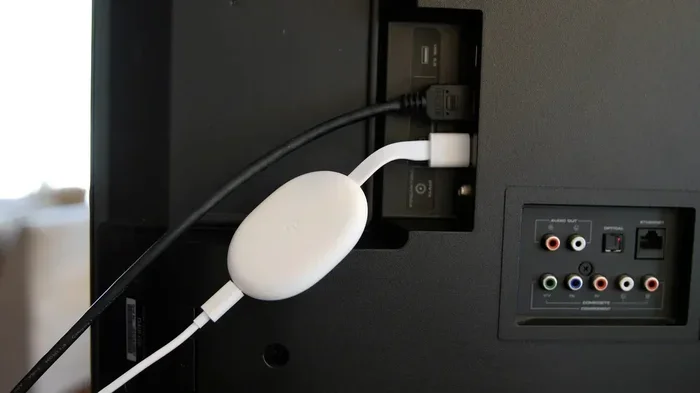
Chromecast is a small streaming device made by Google. You plug it into your TV’s HDMI port, and it turns any television into a smart TV. From there, you can watch videos, listen to music, and mirror your screen from a phone, tablet, or computer.
The way Chromecast connects to your home network is straightforward. It joins your wireless network just like a smartphone or laptop would. Once connected, it becomes part of your home internet setup. This means that every piece of content you stream travels through your router and over the air to your TV.
Here is how the basic connection process works:
- Plug Chromecast into your TV’s HDMI port.
- Connect the Chromecast to power using the USB cable or power adapter.
- Switch your TV to the correct HDMI input.
- Download the Google Home app on your phone or tablet.
- Follow the on-screen steps to connect Chromecast to your Wi-Fi network.
That is really all there is to it. No Bluetooth dongles, no extra cables, no complicated pairing process. Just a Wi-Fi connection and you are good to go.
## Does Chromecast Use Wi-Fi or Bluetooth
This is the big question, and the answer is simple. Chromecast works off Wi-Fi, not Bluetooth. All the heavy lifting happens over a wireless internet connection. When you cast a YouTube video from your phone to your TV, the video data flows from the internet to your router, then to your Chromecast, and finally to your television screen.
Bluetooth is a short-range wireless technology designed for connecting devices directly to each other. Think of wireless headphones or a keyboard. Chromecast does not use Bluetooth to receive streaming content. The bandwidth is not enough, and the range is too short for what Chromecast needs to do.
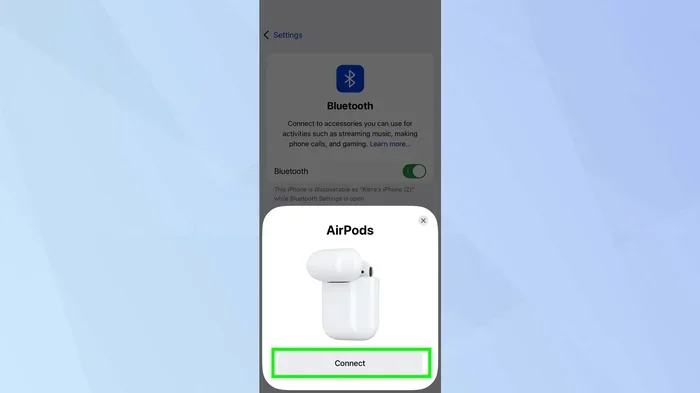
So what role does Bluetooth play with Chromecast? Very little. During the initial setup process, your phone might use Bluetooth to discover the Chromecast device nearby. This helps the Google Home app find your Chromecast faster. But once setup is complete, Bluetooth steps aside and Wi-Fi takes over completely.
Here is a quick comparison to make this clear:
- Wi-Fi: Used for streaming all content, receiving data from the internet, and communicating with your devices over your home network.
- Bluetooth: Used only during initial device discovery and setup. Not used for actual streaming or casting.
### Why Wi-Fi and Not Bluetooth for Streaming
There are good reasons why Google chose Wi-Fi over Bluetooth for Chromecast. First, Wi-Fi offers much higher data speeds. Streaming a 4K video requires a lot of bandwidth, and Bluetooth simply cannot deliver that. Second, Wi-Fi has a longer range. Your Chromecast can be in one room while your router is in another, and it still works fine. Third, Wi-Fi supports multiple devices at once, which is essential when multiple people in a household want to cast to the same TV.
## How to Set Up Chromecast with Wi-Fi
Setting up Chromecast is a quick process, but doing it right makes a big difference in performance. Here is a step-by-step walkthrough.
### Step 1: Plug In and Power On
Connect your Chromecast to an available HDMI port on your TV. Attach the power cable. Turn on your TV and switch to the HDMI input where Chromecast is plugged in. You should see a setup screen on your TV.
### Step 2: Download the Google Home App
On your phone or tablet, download the Google Home app from the App Store or Google Play Store. Make sure your phone is connected to the same Wi-Fi network you want Chromecast to use.
### Step 3: Find and Connect Your Chromecast
Open the Google Home app. Tap the plus icon and select Set up device. The app will search for your Chromecast. When it finds it, follow the on-screen prompts to connect it to your wireless network. Enter your Wi-Fi password when asked.
### Step 4: Update and Test
Once connected, the app may prompt you to update your Chromecast firmware. Always say yes. Updates improve connection stability and add new features. After updating, try casting a video to make sure everything works smoothly.
### Quick Tips for a Smooth Setup
- Place your router close to your TV for the strongest Wi-Fi signal.
- Use the 5GHz band on your router if available. It offers faster speeds than the 2.4GHz band.
- Make sure no other devices are hogging all the bandwidth during setup.
- If your router has dual-band, try both bands to see which gives better results.
## Can You Use Chromecast Without Wi-Fi
The short answer is no. Chromecast needs Wi-Fi to work. Without an active internet connection, you cannot stream content from services like Netflix, YouTube, or Spotify. The device simply does not have the capability to function offline the way some other devices can.
There is one partial exception. You can use Chromecast’s guest mode to cast locally shared files from your phone without needing internet access. But even this works best when the phone and Chromecast are on the same Wi-Fi network.
Some people wonder if they can use a mobile hotspot as a workaround. The answer is yes, but with limitations. If you share your phone’s mobile data connection as a hotspot, Chromecast can connect to it. However, streaming video uses a lot of data, so you may quickly use up your data plan. Also, the connection might not be as stable as a home Wi-Fi network.
### What About Using Bluetooth as a Backup
You might wonder if you can pair your phone to Chromecast via Bluetooth as a backup when Wi-Fi is down. Unfortunately, this does not work. Chromecast does not support Bluetooth streaming. If your Wi-Fi goes down, your Chromecast will not be able to receive any content until the connection is restored.
If you frequently experience Wi-Fi issues, consider checking your Wi-Fi signal strength and router placement. Sometimes a simple router reboot solves the problem. You can also look into Wi-Fi extenders to boost coverage in areas with weak signals.
## Troubleshooting Common Chromecast Connection Issues
Even with a good setup, you may run into connection problems from time to time. Here are the most common issues and how to fix them.
### Chromecast Keeps Buffering
Buffering usually means your Wi-Fi connection is too slow for the video quality you have selected. Try lowering the streaming resolution in the app you are using. Also, make sure no one else in your household is downloading large files or streaming on another device at the same time.
### Chromecast Does Not Show Up in the App
If the Google Home app cannot find your Chromecast, check these things first. Make sure your phone is on the same Wi-Fi network. Restart your Chromecast by unplugging it and plugging it back in. Restart your phone as well. If that does not work, try resetting the Chromecast to factory settings.
### Audio and Video Are Out of Sync
This issue often happens when the Wi-Fi signal is weak or when there is network congestion. Move your router closer to your TV or consider using a Wi-Fi mesh system for better coverage throughout your home.
### Chromecast Disconnects Frequently
Frequent disconnections point to an unstable connection. Check if your router firmware is up to date. Also, make sure your Chromecast is not too far from the router. Walls, microwaves, and other electronics can interfere with the wireless signal.
### Expert Tip for Better Stability
Place your router in a central location in your home. Avoid hiding it inside a cabinet or behind large furniture. The fewer obstacles between your router and Chromecast, the stronger and more stable your connection will be.
## Chromecast vs Other Streaming Devices
It helps to understand how Chromecast compares to other streaming devices when it comes to connectivity.
### Chromecast vs Roku
Roku devices primarily use Wi-Fi for streaming, just like Chromecast. However, Roku also supports wired Ethernet connections through an optional adapter. Roku does use Bluetooth for some remote control functions and for pairing accessories like headphones. Both devices need Wi-Fi for streaming content.
### Chromecast vs Fire TV Stick
Amazon Fire TV Stick also relies on Wi-Fi for streaming. It does not use Bluetooth for content delivery either. Fire TV does support Bluetooth for connecting controllers and headphones. In terms of connectivity, Chromecast and Fire TV Stick follow a similar model.
### Chromecast vs Apple TV
Apple TV is a bit different. It supports both Wi-Fi and Ethernet for wired connections. Apple TV also uses Bluetooth for pairing remotes and accessories. But like Chromecast, the main content streaming happens over Wi-Fi.
What all these devices have in common is that Wi-Fi is the primary connection method for streaming. Bluetooth plays a supporting role at best. If you are choosing between devices, focus on Wi-Fi performance and range rather than Bluetooth capabilities.
## Frequently Asked Questions
Can I use Chromecast without a Wi-Fi connection?
No, Chromecast requires an active Wi-Fi connection to stream content. Without Wi-Fi, the device cannot receive data from streaming services or cast content from your phone. The only partial workaround is using guest mode for local casting, but even that works best with Wi-Fi.
Does Chromecast use Bluetooth for audio output?
Chromecast does not use Bluetooth for audio output. All audio is delivered through the HDMI connection to your TV. If your TV has built-in speakers or is connected to a sound system, the audio comes through those. There is no Bluetooth audio streaming option on standard Chromecast devices.
Can I connect my phone to Chromecast via Bluetooth?
No, you cannot pair your phone to Chromecast using Bluetooth for streaming or casting. The connection between your phone and Chromecast happens over the same Wi-Fi network. Bluetooth may only be used briefly during the initial setup to help your phone discover the Chromecast device.
How do I improve my Chromecast Wi-Fi performance?
To improve performance, move your router closer to your TV, use the 5GHz frequency band, reduce interference from other electronics, and make sure your internet plan provides enough speed for HD or 4K streaming. You can also check your Wi-Fi signal strength regularly to ensure it stays strong.
Can multiple phones cast to one Chromecast at the same time?
Only one person can cast at a time, but any phone on the same Wi-Fi network can take control and start casting. This means family members can switch between casting their content without needing to reconfigure the device. Everyone just needs to be connected to the same wireless network.
Is guest mode on Chromecast useful without Wi-Fi?
Guest mode allows visitors to cast to your Chromecast without joining your Wi-Fi network. However, guest mode still requires the Chromecast itself to be connected to Wi-Fi. It simply allows other devices to discover and connect to Chromecast through a local Wi-Fi direct connection, not through Bluetooth.
## Conclusion
The answer to the question Does Chromecast Work Off Wi Fi Or Bluetooth is clear and straightforward. Chromecast works entirely on Wi-Fi. It does not use Bluetooth for streaming, casting, or delivering content to your TV. Bluetooth only appears briefly during the initial setup to help your phone find the device.
Understanding this distinction is important because it affects how you troubleshoot problems, how you optimize your setup, and what you can expect from your streaming experience. A strong and stable Wi-Fi connection is the foundation of everything Chromecast does.
If you want the best performance from your Chromecast, invest in a good router, place it strategically in your home, and make sure your internet speed meets the requirements for the video quality you want. With the right setup, your Chromecast will deliver smooth, high-quality streaming every time.
Remember, when you are setting up or troubleshooting any streaming device, always start with the Wi-Fi connection. That is where the magic happens, and that is where most issues originate. Keep your network strong, keep your devices updated, and enjoy seamless streaming on your TV.
Key Takeaways
- Chromecast uses Wi-Fi, not Bluetooth: All content streaming happens over a wireless network, not through Bluetooth pairing.
- Bluetooth only helps with initial setup: You may use Bluetooth to connect your phone during the first configuration step.
- A strong Wi-Fi signal matters: Poor connection leads to buffering and low streaming quality.
- You cannot cast without Wi-Fi: Unlike some devices, Chromecast needs an active internet connection to function.
- Multiple devices can share one Chromecast: As long as they are on the same Wi-Fi network, anyone can cast.
- Guest mode exists: Visitors can cast to your Chromecast without needing your Wi-Fi password.
Frequently Asked Questions
What is Does Chromecast Work Off Wi Fi Or Bluetooth?
Does Chromecast Work Off Wi Fi Or Bluetooth is an important topic with many practical applications.