Do Wi Fi Cards Need Drivers To Work With Your Computer
Do Wi Fi Cards Need Drivers? Yes, they do! A Wi-Fi card acts as the bridge between your computer and the internet, but it cannot communicate without the right software. This guide explains exactly why your wireless adapter needs a driver and how to fix connection issues.
Key Takeaways
- Drivers are essential: Your Wi-Fi card cannot connect to the internet without the correct software.
- Operating systems handle most updates: Windows and Mac usually download drivers automatically.
- Manual installation is sometimes needed: Older or specialty cards might require a disk or download.
- USB dongles work similarly: Both internal cards and external adapters need drivers.
- Troubleshooting is straightforward: Device Manager is your best friend for fixing driver problems.
📑 Table of Contents
What Is A Wi-Fi Card And Why Does It Need A Driver?
A Wi-Fi card is a small piece of computer hardware. It lives inside your laptop or desktop computer. Its main job is to let you connect to the internet without using any wires at all. But here is the big question that many people ask every day. Do Wi Fi Cards Need Drivers to work properly? The answer is a firm and absolute yes.
Think of a network adapter like a translator at a big international meeting. Your computer speaks a digital language made of ones and zeros. The wireless adapter needs to speak the language of your router and the wider internet. A driver is the special software that makes this translation possible. Without it, the two devices simply cannot understand each other at all.
Without the right driver, your computer does not even know the Wi-Fi card is there. It is like having a telephone sitting on your desk with no SIM card inserted. The hardware is present and sitting in the slot. But it cannot make any phone calls or send any messages. You need the right software update to bridge the gap between the physical card and your digital world.
When you turn on your computer, the operating system starts checking for all attached hardware right away. It looks for a network driver that matches the Wi-Fi card. If the operating system finds the right driver, it loads it up immediately. Then, the card and the computer can talk freely and share data back and forth. This whole process happens in seconds, and you never even notice it is happening because it is so smooth.
The driver tells the Wi-Fi card how much power to use. It also tells the card which Wi-Fi standards to support. Without the driver, the card cannot connect to your router. You will see a red X or a yellow triangle instead of a working internet icon. This is the first sign that something is missing. Always check your network adapter status if you suddenly lose your internet connection.
How Your Wireless Adapter Talks To The Computer
The way your wireless adapter communicates is very important. When you plug in or turn on a Wi-Fi card, the computer checks for a matching driver. The operating system looks for this specific software in its hidden database. If it finds the driver, it loads it up right away. Then, the card and the computer can talk freely and share data without any problems.
The operating system could be Windows, Mac OS, or Linux. Each system needs its own special driver to work correctly. A Windows driver will not work on a Mac computer. This is why hardware compatibility matters so much when you buy a new card. Always check that the network adapter works with your specific system before you buy it. You can usually find this info on the product box or the maker’s website.
Sometimes the driver is built right into the operating system. Other times, you have to download it yourself. The network adapter will not work until the right software is in place. This is true for every single Wi-Fi card on the market today. There are no exceptions to this rule.
Do Wi Fi Cards Need Drivers?
Yes, all Wi-Fi cards need drivers to function properly. But how you get them changes based on your specific setup and computer brand. Some computers come with drivers already installed from the factory. Others need you to download them yourself. Let us look at the two main types of wireless adapters you will find in stores today.
Internal PCIe Cards vs USB Wi-Fi Dongles
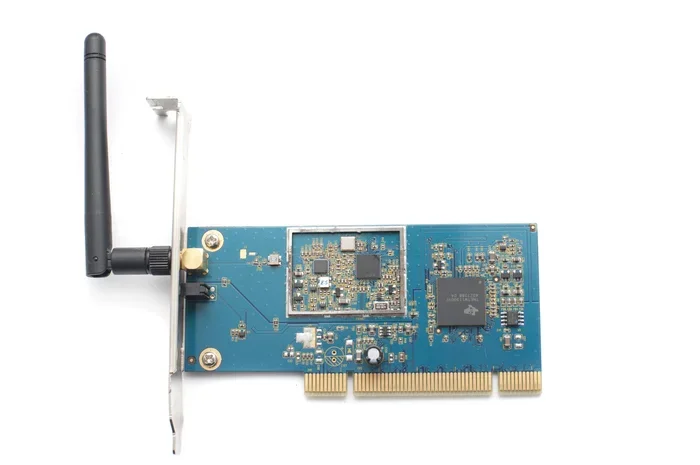
An internal PCIe card plugs directly into your motherboard inside the computer case. It stays inside the computer forever. It is a permanent part of your setup that you rarely think about. A USB Wi-Fi dongle plugs into a port on the outside of your machine. It is small, light, and very easy to remove when you are traveling. Both types need a driver to send and receive data over the air.
Internal cards often have drivers built into Windows. This makes the setup process very easy for most regular users. A USB Wi-Fi dongle might need a quick download from the maker’s website. Either way, the network adapter will not work without the correct software. You cannot skip this step, no matter which type of wireless adapter you choose for your needs.
The driver tells the USB Wi-Fi dongle how to handle wireless signals. It also manages the signal strength and the connection speed. Without the right driver, the dongle is just a useless piece of plastic. Always make sure you have the latest software for your network adapter to get the best performance.
Windows vs Mac Compatibility
Windows 10 and Windows 11 are great at finding drivers on their own. They use a huge online database to search for matches automatically. When you plug in a Wi-Fi card, Windows searches the web for the right file. It downloads the proper driver in just a few seconds. This is why most Windows users never even think about drivers anymore.
Mac OS does this too, but in a different and unique way. Apple controls both the hardware and the software for their computers. This makes driver updates much smoother and faster than on other systems. You still need the right software for your network adapter to work. But Apple handles the heavy lifting behind the scenes for you. You rarely have to do anything manually.
Linux users have a different experience with drivers. The open-source community often provides drivers for free. You might need to install them through a terminal window. But the rule remains the same. Every Wi-Fi card needs a driver to connect to the internet. The method just changes based on your operating system.
How To Install Wi-Fi Card Drivers
Installing a driver is not hard at all. You can do it in just a few minutes. You just need to know where to look and what to click. Here is how you get your Wi-Fi card working again if it is not connecting.
Using Automatic Windows Updates
The easiest way is to let Windows do all the work for you. Go to your settings and click on the update section. Windows will check for any missing drivers on your system. It will download the right one for your specific network adapter automatically. This is the best method for most people because it takes zero effort and zero technical skill.
This is the best method for most users out there. You do not need to search the web yourself or find a download link. Windows handles the software update for you behind the scenes. Just make sure you are connected to the internet first. If you are using a wired Ethernet cable for now, you can run the updates safely without any worries.
After you run the update, restart your computer. This lets the new driver install properly. You should see your internet connection bars come back. If they do not, do not worry. There are other ways to fix the problem. Keep reading to learn more about manual installation.
Installing From A Disk Or Download
Sometimes, Windows cannot find the right driver on its own. This happens with older Wi-Fi cards or very new models that just came out. In this case, you might need a physical disk. Many network adapters come with a small CD or DVD in the retail box when you buy them.
If you do not have a disk, do not worry at all. You can go to the maker’s website easily using another device. Find your exact model number online. Download the correct driver file for your specific system. Run the file and follow the simple on-screen steps. Your internet connection will be back up and running fast.
Always check the version of the driver you are installing. Newer is usually better for hardware compatibility. If you get an error message, try running the file as an administrator. This gives the installer the permissions it needs to work correctly. A successful install means your Wi-Fi card is ready to connect.
Common Driver Problems And How To Fix Them
Even after you install a driver, things can sometimes go wrong. You might see a yellow warning sign in your system tray. Or your internet connection might drop every few minutes. Do not panic. Most troubleshooting steps are very simple and fast to do right now.
The Wi-Fi Card Is Not Showing Up
Open your Device Manager to check this problem right away. This built-in tool shows you all your computer’s hardware in one list. If you see a yellow triangle next to your Wi-Fi card, the driver is not working right now. The computer knows the card is there, but it cannot talk to it.
Right-click the device and pick the update option from the menu. Windows will search the web for a fix automatically. If that does not work, you may need to uninstall the driver completely. Then, restart your PC. Windows will reinstall the driver fresh when it boots back up. This fixes most hidden network adapter issues quickly and easily.
You can also try rolling back the driver. Sometimes a new update causes problems. Rolling back puts the old software back in place. This can restore your internet connection in just a few clicks. The Device Manager is your best friend for all these fixes.
Slow Internet Speeds After Installing
Sometimes a new driver can cause slow speeds. This is rare but it does happen to some users. Your signal strength might drop when you move around the room. Web pages might take forever to load. Videos might keep buffering.
Check if your Wi-Fi card supports the latest Wi-Fi standards. Old drivers might not support Wi-Fi 6 or newer technology. Go to the maker’s site and grab the newest software. This often fixes slow speed issues very fast. You will notice the difference in loading times right away.
Also, check your router. Sometimes the problem is not the network adapter at all. Move closer to the router to test your signal strength. If the speed improves, the driver is probably fine. If not, try a different driver version. You can also try a clean install. Uninstall the driver completely and then install it again from scratch.
Quick Tips For Keeping Your Drivers Updated
Keeping your drivers up to date is very important for your PC. It keeps your internet connection fast and your personal data safe. Here are a few quick tips to remember every single month.
Why Regular Updates Matter For Security
Hackers love old drivers. They use known flaws to break into your network and steal your data. New software patches these security holes quickly. Updating your network adapter keeps your personal information safe from prying eyes and bad actors.
You should check for updates at least once a month. It only takes a few minutes of your time. This small step stops big problems from happening later on. A little prevention goes a long way toward keeping your PC healthy and secure.
Using Third-Party Software Safely
There are many tools that promise to update drivers for you automatically. Some of these tools are perfectly safe to use on your computer. But others can bring bad software or malware onto your PC without you knowing. Always use the official maker’s website first whenever possible to stay safe.
If you decide to use a third-party tool, be very careful. Only download from trusted names you know and respect. Never click on fake download buttons on shady or suspicious sites. Stick to the official source to keep your PC clean and free from viruses.
Another great tip is to create a restore point before updating any driver. This way, if something goes wrong, you can easily roll back your system. It is a smart safety step that takes only a minute. You can find restore points in the Windows search bar. Type “create a restore point” and hit enter. This protects your network settings from accidental changes.
When Should You Replace Your Wi-Fi Card?
Sometimes, updating the driver is simply not enough to fix your issues. Your hardware might be too old to keep up with modern internet demands. Here is how to know if you need a brand new Wi-Fi card instead of just a new driver.
Signs Your Hardware Is Outdated
Do you still use Wi-Fi 4 or Wi-Fi 5 standards? These older Wi-Fi standards are much slower than the newest technology. New routers use Wi-Fi 6 or Wi-Fi 7 today. An old network adapter simply cannot keep up with the speed of modern connections. You will be stuck with slow speeds no matter what you do.
You might also see frequent disconnects every day. If your internet connection fails repeatedly, check the physical hardware inside your computer. The card might be dying or broken completely. At that point, a new driver will not help you at all. You need fresh equipment to solve the problem for good.
Consider buying a USB Wi-Fi dongle if you do not want to open your computer case. They are cheap and easy to install. You can also buy a new internal PCIe card for the best speeds. Always check the Wi-Fi standards before you buy. Look for Wi-Fi 6 or Wi-Fi 7 support to future-proof your network.
Also, think about your usage habits. If you game or stream a lot, you need the fastest hardware possible. Old drivers for old Wi-Fi standards will bottleneck your speed. A new PCIe card can unlock much faster speeds. It is a great investment for heavy users. Your router might be fast, but your network adapter must be fast enough to match it.
Internal vs External Wi-Fi Cards
| Feature | Internal PCIe Card | USB Wi-Fi Dongle |
|---|---|---|
| Needs Driver | Yes | Yes |
| Easy To Install | Moderate | Very Easy |
| Portability | Not Portable | Highly Portable |
| Speed | Usually Faster | Good for Most |
Final Thoughts
So, do Wi-Fi cards need drivers? Yes, they absolutely do. A driver is the vital link between your network adapter and your operating system. Without it, you have no internet connection at all. The driver makes the hardware work with your computer.
Whether you use an internal PCIe card or a USB Wi-Fi dongle, the rule is exactly the same. Always make sure your driver is current and up to date. This keeps your speeds fast and your network safe from online threats. Do not ignore update notifications for your network adapter.
Take a few minutes today to check your drivers. Your future self will thank you for a smooth and stable internet connection. Now you know exactly how to keep your wireless adapter running at its very best. Enjoy your fast and reliable wireless speeds every single day!
Frequently Asked Questions
What happens if I do not install a driver for my Wi-Fi card?
Your computer will not see the Wi-Fi card at all. You will have no internet connection. The hardware stays silent until the right software is loaded. The network adapter will not work without its driver.
Can I use a Wi-Fi card without a driver?
No, you cannot. The network adapter needs the driver to talk to your operating system. It is the bridge that makes the hardware functional. Without it, the card is useless.
How do I know if my Wi-Fi card driver is outdated?
Check your Device Manager for yellow warnings. You might also have slow speeds or frequent drops. Visiting the maker’s site will show you the latest software version. Updating fixes most problems.
Is it safe to download Wi-Fi drivers from the internet?
Yes, if you go to the official maker’s website. Avoid random sites that look suspicious. Always check the model number of your network adapter before downloading anything. This keeps your PC safe.
Do USB Wi-Fi dongles need drivers too?
Yes, they do. A USB Wi-Fi dongle is still a wireless adapter. It needs a driver to work with your PC, even though it plugs in easily. Never assume it is plug-and-play without the right software.
Why does my computer keep losing the Wi-Fi driver?
This usually means the driver is corrupted or outdated. A software update often fixes this problem. You can also try uninstalling and reinstalling the network adapter driver. This resets the connection.