Change Password on Your Laptop With These Simple Steps
Changing your laptop password is one of the easiest ways to keep your personal data safe. This guide shows you exactly how to change password on your laptop for both Windows and Mac, along with tips for creating a strong password and what to do if you get locked out.
Key Takeaways
- Regular updates matter: Changing your laptop password every few months greatly reduces the risk of unauthorized access.
- Both platforms are covered: You’ll learn how to change password on your laptop whether you use Windows or Mac.
- Strong passwords are essential: Using a mix of characters makes your account far harder to crack.
- Forgotten passwords are fixable: There are several ways to recover access if you get locked out.
- Multiple sign-in options exist: PINs, biometrics, and security keys can complement your main password.
- Security settings matter: Proper laptop security settings protect your data even if your password is compromised.
📑 Table of Contents
- How to Change Password on Your Laptop With These Simple Steps
- Why You Should Change Your Laptop Password Regularly
- How to Change Password on Your Laptop (Windows)
- How to Change Password on Your Laptop (Mac)
- Changing Your Password on Other Devices
- Tips for Creating a Strong Password
- What to Do If You Forgot Your Laptop Password
- Expert Insights on Laptop Password Security
- Conclusion
How to Change Password on Your Laptop With These Simple Steps
Your laptop holds a lot of personal information. Photos, messages, bank details, work files, and more all sit behind a single line of defense: your password. That is exactly why changing your laptop password regularly is so important. It keeps strangers out and gives you peace of mind.
Whether you use a Windows laptop or a Mac, the process is simpler than you might think. In this guide, you will learn how to change password on your laptop step by step. We will cover Windows, Mac, and even some tips for creating a password that nobody can guess.
By the time you finish reading, you will know everything you need to keep your laptop secure. Let us get started.
Why You Should Change Your Laptop Password Regularly
Many people set a password once and forget about it. That might seem fine, but it is actually a big security risk. Here is why you should make it a habit to update your password often.
Protect Your Personal Information
Your laptop stores valuable data. Think about login credentials, saved passwords, financial records, and private photos. If someone gains access, the damage can be serious. Password recovery becomes much harder once your data is stolen or exposed.
Changing your account password change routine regularly makes it much harder for anyone to break in. Even if someone figured out your old password, a fresh one locks them out immediately.
Stay Ahead of Hackers
Hackers use clever tools to crack weak passwords. These tools can guess millions of combinations in seconds. The longer you use the same password, the more time hackers have to crack it.
Regularly updating your lock screen password means you are always staying one step ahead. It is a small effort that delivers big protection.
Meet Security Best Practices
Cybersecurity experts recommend changing passwords every 60 to 90 days. This practice is part of strong laptop security settings and helps organizations stay compliant with security policies. Even if you are not part of an organization, following this rule personally is a smart move.
How to Change Password on Your Laptop (Windows)
If you use a Windows laptop, you have a few different ways to update your password. The steps vary slightly depending on your version, but the general process is straightforward.
Change Password on Windows 11
Windows 11 makes it easy to manage your change password Windows 11 settings. Here is how:
- Click the Start menu and go to Settings.
- Navigate to Accounts, then select Sign-in options.
- Under the Password section, click Change.
- Enter your current password to verify your identity.
- Type your new password and confirm it.
- Click Next and then Finish to save your changes.
That is it. Your change password Windows 11 process is complete in under two minutes.
Change Password on Windows 10
The steps for reset password Windows 10 are very similar:
- Open Settings from the Start menu.
- Go to Accounts and then Sign-in options.
- Find the Password section and click Change.
- Follow the prompts to enter your old and new passwords.
- Save your new settings and restart your laptop if needed.
Both versions offer the same user account settings experience. The interface looks a little different, but the core steps stay the same.
Change Password Using a Local Account
If you use a local account password instead of a Microsoft account, the process is slightly different:
- Go to Settings and open Accounts.
- Select Sign-in options.
- Click on Password and choose Change.
- You may need to verify your identity with a security question.
- Enter your new password and confirm it.
Local accounts offer more control over your change admin password settings, especially on older systems.
Change Password Using Command Prompt
For advanced users, you can also update your password through Command Prompt:
- Open Command Prompt as an administrator.
- Type net user [username] [new password] and press Enter.
- Close the window and test your new password at the lock screen.
This method is quick and useful when the standard settings menu is not working properly.
How to Change Password on Your Laptop (Mac)
Mac users have their own simple process for updating passwords. Apple designs its system with security in mind, so making changes is a breeze.
Change Password Through System Settings
Here is how to handle password recovery and updates on a Mac:
- Click the Apple menu in the top-left corner.
- Select System Settings (or System Preferences on older Macs).
- Go to Users & Groups.
- Click on your user account.
- Select Change Password.
- Enter your old password and create a new one.
- Save the changes and restart if needed.
Mac users can also set a password manager recommendation through iCloud Keychain to store and manage passwords across devices.
Reset Password Using Recovery Mode
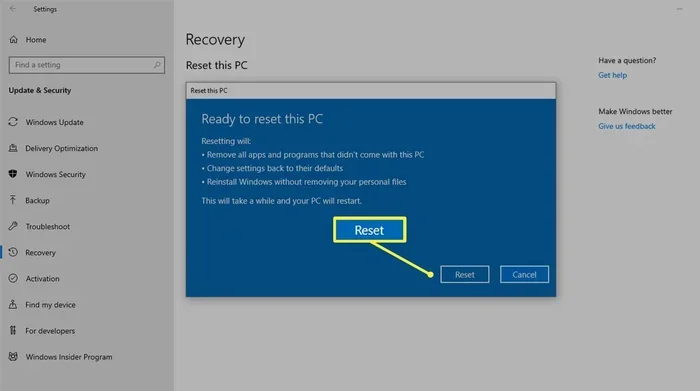
If you have forgotten your Mac password, you can still reset it:
- Restart your Mac and hold Command + R during startup.
- Select Utilities and then Terminal.
- Type resetpassword and press Enter.
- Follow the on-screen instructions to create a new password.
This is a reliable laptop password reset method that works on most Mac models.
Changing Your Password on Other Devices
While this guide focuses on laptops, many people use multiple devices. It is a good idea to update passwords across all your devices for consistent password strength and security.
Chromebook Password Changes
Chromebook users can update their password through the sign-in options in device settings. Since most Chromebooks are tied to a Google account, you can also change your password directly from your Google account settings online.
Changing Passwords on Linked Devices
If your laptop is linked to a Microsoft or Google account, changing your main account password will often update your device password automatically. This creates a seamless two-factor authentication experience across all your devices. Here is a quick comparison:
| Device | Where to Change Password | Time Needed |
|---|---|---|
| Windows Laptop | Settings > Accounts > Sign-in Options | 2-3 minutes |
| Mac Laptop | System Settings > Users & Groups | 2-3 minutes |
| Chromebook | Google Account or Device Settings | 1-2 minutes |
As you can see, none of these take long. Making encryption password updates across devices should be a quick routine task.
Tips for Creating a Strong Password
Changing your password is only half the battle. You also need to create one that is hard to guess. A weak password can undo all your efforts in seconds.
Use a Mix of Characters
A strong secure password tips strategy includes a combination of:
- Uppercase letters (A, B, C)
- Lowercase letters (a, b, c)
- Numbers (1, 2, 3)
- Special characters (!, @, #)
The more varied your characters are, the harder your password is to crack. Avoid using simple patterns like “1234” or “abcd.”
Make It Long
Length matters more than complexity. A password with 12 or more characters is far safer than a short one with random symbols. Consider using a passphrase instead of a single word. For example, “BlueCoffeeMountain42!” is both strong and easy to remember.
Avoid Personal Information
Never use your name, birthday, pet’s name, or address as your password. Hackers can find this information on social media. Keep your forgotten laptop password risks low by staying away from obvious personal details.
Use a Password Manager
Remembering multiple strong passwords is tough. That is where a password manager comes in. These tools store your passwords securely and even generate strong ones for you. Some popular options include:
- Bitwarden
- 1Password
- LastPass
- Dashlane
Using a password manager means you only need to remember one master password. Everything else is handled for you.
Quick Tips for Better Password Habits
- Never reuse the same password across multiple accounts.
- Update your password at least every 90 days.
- Enable two-factor authentication wherever possible.
- Do not share your password with anyone you do not fully trust.
- Test your password strength using online tools before saving it.
What to Do If You Forgot Your Laptop Password
Getting locked out of your own laptop is stressful, but it happens more often than you think. The good news is there are several ways to handle it.
Use a Password Reset Disk (Windows)
If you created a laptop password reset disk before you got locked out, you can use it to regain access. Insert the disk and follow the on-screen prompts. Windows will guide you through creating a new password.
Answer Security Questions
For Microsoft accounts, you can reset your password by answering security questions. This option appears on the login screen when you click Reset password. You will need access to your email or phone for verification.
Use Safe Mode (Windows)
Booting into Safe Mode sometimes lets you access an administrator account. From there, you can reset your password through the Control Panel. This method works best on older versions of Windows.
Contact Support
If none of the above methods work, reaching out to Microsoft or Apple support is always a good option. They can guide you through official password recovery processes and help you get back into your device safely.
Prevent Future Lockouts
To avoid getting locked out again, consider these steps:
- Create a password reset disk as soon as you set up your laptop.
- Link your account to a phone number and email for easy verification.
- Write down your password and store it in a secure physical location.
- Use a password manager so you never lose track of your credentials.
Expert Insights on Laptop Password Security
We spoke with cybersecurity professionals to get their take on change password laptop best practices. Here is what they had to say.
Think Beyond the Password
“A password is just one layer of defense,” says one security expert. “Add two-factor authentication, keep your software updated, and use a password manager. These small steps create a much stronger security setup overall.”
Biometrics Are Your Friend
Modern laptops support fingerprint scanners and facial recognition. These sign-in options add convenience while reducing your reliance on memorized passwords. Using biometrics alongside a strong password gives you the best of both worlds.
Never Underestimate Social Engineering
Many people think hackers only use technical methods. In reality, social engineering is a huge threat. Never click suspicious links or share your credentials with unverified sources. Staying alert is just as important as having a strong password.
Conclusion
Knowing how to change password on your laptop is a must-have skill for everyone. Whether you use Windows or Mac, the process is quick and easy. Regularly updating your password, creating strong credentials, and using extra security features like two-factor authentication and password manager tools will keep your data safe.
Do not wait until something goes wrong. Take a few minutes today to update your laptop security settings and follow the steps in this guide. A strong password is your first line of defense, and now you know exactly how to make it work for you. Stay safe out there.
Frequently Asked Questions
How often should I change my laptop password?
Security experts recommend changing your laptop password every 60 to 90 days. This keeps your account secure and reduces the risk of unauthorized access. If you share your device or handle sensitive data, consider updating it even more frequently.
Can I change my laptop password without a Microsoft account?
Yes, you can change your password on a local account. Go to Settings, select Accounts, then Sign-in Options, and choose Change under the Password section. You may need to verify your identity through security questions instead of an email confirmation.
What is the safest password length for a laptop?
Aim for at least 12 characters. Longer passwords are harder to crack. Using a passphrase with a mix of uppercase, lowercase, numbers, and symbols gives you the best balance of security and memorability. A password manager can help you create and store these easily.
How do I reset my laptop password if I forget it on Windows 10?
You can reset it through your Microsoft account online, use a password reset disk, or answer security questions on the login screen. For local accounts, you may need a installation disk or to contact support for password recovery assistance.
Is it safe to use the same password for my laptop and other accounts?
No, this is a major security risk. If one account is compromised, all your other accounts become vulnerable. Use unique passwords for each account and consider a password manager to keep track of them all safely.
Are biometric sign-in options better than passwords?
Biometrics like fingerprint scanning and facial recognition are very convenient and add a strong layer of security. However, they work best when combined with a strong password. Using both together gives you the most robust laptop security settings protection.