Can You Use Red White Yellow Cables For Component Now
Red white yellow cables are composite AV cables, not component cables. Many people confuse these two connection types, but they serve different purposes. Using the wrong cables can lead to poor video quality or no signal at all. This guide breaks down everything you need to know about red white yellow cables for component setups.
Key Takeaways
- Red white yellow cables are composite, not component: They carry a single video signal and two audio channels, unlike true component cables.
- Color similarity causes confusion: Both composite and component cables use red and white for audio, but the video connection differs entirely.
- Using the wrong cables affects quality: Composite cables cannot deliver the same resolution as component connections.
- Legacy devices still rely on these cables: Older DVD players, VCRs, and retro gaming consoles use composite outputs.
- Adapters can bridge the gap: You can use converters to connect composite devices to component or HDMI inputs.
- Modern alternatives exist: Wireless options like Are 5G Towers For Wi Fi technology are replacing traditional cables in many homes.
- Check your device ports first: Always verify what your TV or source device supports before buying cables.
📑 Table of Contents
- Can You Use Red White Yellow Cables For Component?
- What Are Red White Yellow Cables?
- What Is Component Video?
- Can You Use Red White Yellow Cables For Component Connections?
- Composite vs Component: Key Differences
- Common Mistakes When Using These Cables
- Quick Tips for Better Connection Quality
- When Should You Upgrade From Composite Cables?
- Frequently Asked Questions
- Final Thoughts
Can You Use Red White Yellow Cables For Component?
Here is a question that confuses a lot of people. You look at the back of your TV or old DVD player. You see red, white, and yellow ports. You think, “Hey, these look like component cables.” But are they the same thing? The short answer is no. Red white yellow cables for component setups are a common mix-up, and understanding the difference matters a lot.
When you plug in the wrong type of cable, you might get no picture at all. Or worse, you get a blurry image that ruins your movie night. Nobody wants that. This guide will walk you through everything you need to know. We will cover what these cables actually are, how they differ from true component cables, and what you should do instead.
The world of audio video connections can feel overwhelming. There are so many colors, so many ports, and so many names. Composite. Component. RCA. HDMI. It is easy to get lost. But once you understand the basics, it all makes sense. Let us dive in and clear up this confusion once and for all.
What Are Red White Yellow Cables?
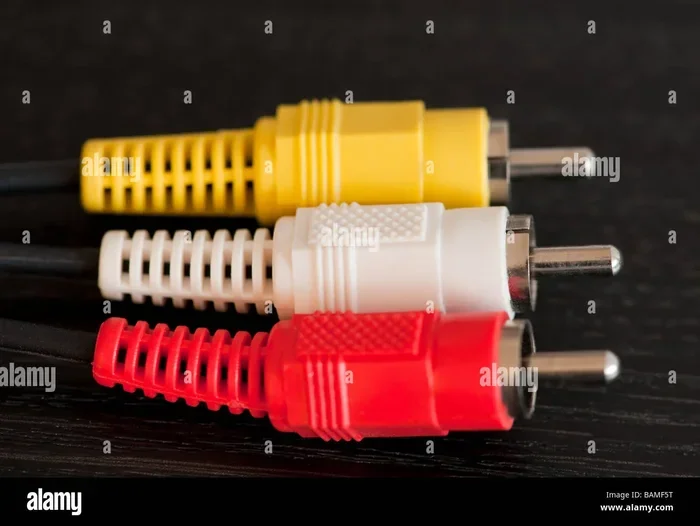
Red white yellow cables are also known as composite cables. They are one of the oldest audio video connection types still in use today. Each cable has a specific job. The yellow cable carries the video signal. The white cable carries the left audio channel. The red cable carries the right audio channel.
These cables use RCA connectors. That is the standard round plug with a center pin. You have probably seen these on the back of almost every older TV, VCR, or gaming console. They are simple to plug in. You just match the colors. Yellow goes into the yellow port. White goes into the white port. Red goes into the red port.
Composite cables carry analog signals. That means they transmit video as a continuous wave, not as digital data. This limits the resolution you can get. Most composite setups max out at 480i or 576i resolution. That is standard definition. It is not high definition by any stretch.
Despite their limitations, composite cables still work fine for many situations. If you are connecting an old retro console or a basic DVD player, they get the job done. They are also cheap and widely available. You can find them at almost any electronics store for just a few dollars.
The Role of Each Cable Color
Let us break down what each color does in a composite setup:
- Yellow cable: This is your video cable. It carries all the visual information. Without it, you get no picture at all.
- White cable: This is the left audio channel. It handles the left side of your stereo sound.
- Red cable: This is the right audio channel. It handles the right side of your stereo sound.
Together, these three cables deliver basic audio and video. They are reliable, but they are not designed for high-definition content. If you want better picture quality, you need a different type of connection.
What Is Component Video?
Component video is a different connection standard entirely. It also uses analog signals, but it splits the video signal into three separate channels. This gives it much better quality than composite cables.
True component cables use green, blue, and red connectors for video. These are called YPbPr connections. Green carries the luminance (brightness) signal. Blue carries the blue color difference. Red carries the red color difference. Then you also need red and white RCA cables for audio, just like composite setups.
Component video can support much higher resolutions than composite. It can handle 480p, 720p, and even 1080i signals. That is a huge upgrade from the standard definition you get with yellow composite cables. This is why component was the go-to connection for HD TVs in the mid-2000s.
Component cables were the best analog option available before HDMI took over. If you have an older HDTV or a Blu-ray player from that era, component might still be your best analog choice. But here is where the confusion starts.
Can You Use Red White Yellow Cables For Component Connections?
This is the big question. And the answer is tricky. You cannot use red white yellow composite cables for a true component video connection. Here is why.
Component video needs three separate video cables: green, blue, and red. These carry different parts of the video signal. Composite cables only have one video cable: the yellow one. It carries a combined signal that mixes all the color and brightness information together.
If you try to plug a yellow composite cable into a component green port, it will not work correctly. The signal types are incompatible. You might get a faint image, a black and white picture, or no signal at all. The same goes for trying to use the red and white audio cables in place of component video cables. They simply do not carry the same type of information.
However, there is a gray area. Some devices have ports labeled with colors that look similar but serve different purposes. This is where people get confused. Always check the labels on your ports. A red port on a composite cable is for audio. A red port on a component cable is for video. They are completely different signals.
If you want the best picture quality from your older devices, you need the right cables. Composite cables are fine for standard definition. But if your TV supports higher resolutions, you should use component or HDMI cables instead.
Composite vs Component: Key Differences
Let us compare these two connection types side by side. This will help you understand exactly what you are working with.
Signal Type and Quality
Both composite and component cables carry analog signals. But they handle that signal very differently. Composite bundles everything into one cable. Component splits it into three separate channels. This split is what gives component its quality advantage.
With composite, the video signal has to share bandwidth across all color and brightness data. With component, each cable handles a specific part of the signal. This means less interference and a cleaner picture. The difference is especially noticeable on larger screens.
Resolution Support
Composite cables are limited to standard definition. They typically support up to 480i resolution. That is about the same quality as a DVD. Component cables can handle much more. They support 480p, 720p, and 1080i resolutions. That puts them in the high definition range.
If you are trying to watch HD content on an older TV, component cables are your best bet. Composite cables simply cannot deliver the detail you need.
Cable Count and Setup
Composite cables use three cables total. Component cables use five cables total. That is three video cables plus two audio cables. More cables means more complexity. But the extra cables are worth it for the better picture quality.
Compatibility With Modern Devices
Most modern TVs have dropped composite and component ports entirely. They now rely on HDMI for everything. But if you have older devices, these analog connections are still essential. Many retro gaming consoles, older DVD players, and vintage equipment still use these ports.
Quick Comparison Table
| Feature | Composite (Red White Yellow) | Component (Green Blue Red + White Red) |
|---|---|---|
| Video Cables | 1 (Yellow) | 3 (Green, Blue, Red) |
| Audio Cables | 2 (White, Red) | 2 (White, Red) |
| Max Resolution | 480i (SD) | 1080i (HD) |
| Signal Type | Analog (combined) | Analog (separated) |
| Picture Quality | Standard Definition | High Definition |
| Common Use | DVD players, VCRs, retro consoles | HD TVs, Blu-ray players, projectors |
Common Mistakes When Using These Cables
People make several mistakes when setting up their audio video connections. Let us look at the most common ones and how to avoid them.
Mixing Up Composite and Component Ports
This is the biggest mistake. People see red and white cables and assume they can plug into any red and white port. But as we discussed, the red port on a composite setup is for audio. The red port on a component setup is for video. Plugging the wrong cable into the wrong port will not work.
Always look at the labels near the ports on your TV or device. They will usually say “Composite In” or “Component In.” If there are no labels, check the color of the ports. Component video ports are green, blue, and red. Composite video ports are yellow.
Using Too Long Cables
Longer cables can weaken your signal. This is especially true for analog connections like composite and component. If your cable run is over 25 feet, you might notice signal loss. The picture might get fuzzy or the colors might fade.
Keep your cables as short as possible. If you need a longer run, consider using a signal booster or switching to a digital connection like HDMI or even exploring wireless options such as Are 5G Towers For Wi Fi connectivity solutions that can deliver clean signals without long cable runs.
Bending or Damaging Cables
RCA cables are not very durable. The connectors can break easily if you bend them too much. Once a connector is damaged, you get intermittent signal or no signal at all.
Handle your cables gently. Do not run them across doorways where they can get stepped on. Do not bend them at sharp angles. Store them coiled loosely when not in use.
Assuming All Red White Yellow Cables Are the Same
Not all composite cables are created equal. Cheap cables might have poor shielding. This leads to interference and signal noise. You might see static or ghosting on your screen.
Buy cables from reputable brands. You do not need to spend a fortune, but avoid the absolute cheapest options. A mid-range composite cable set will give you reliable performance for years.
Quick Tips for Better Connection Quality
Want to get the best picture and sound from your red white yellow cables? Here are some quick tips that make a big difference.
- Clean your ports: Dust and dirt can cause poor connections. Use a dry cloth to wipe down the ports before plugging in cables.
- Push connectors in firmly: Loose connections cause flickering and signal loss. Make sure each cable is pushed in all the way.
- Use quality cables: Better shielding means less interference. Look for cables with braided shielding and gold-plated connectors.
- Keep audio and video cables apart: Running audio and video cables close together can cause electromagnetic interference. Keep them separated by at least a few inches.
- Check your TV settings: Make sure your TV is set to the right input mode. If you are using composite, select the composite or AV input option.
- Replace old cables: If your cables are frayed or cracked, replace them. Damaged cables degrade signal quality over time.
When Should You Upgrade From Composite Cables?
Composite cables serve their purpose, but they are not always the best choice. Here are some situations where you should consider upgrading.
If you have a modern TV with HDMI ports, use HDMI. It carries both audio and video in one cable and supports much higher resolutions. If you have an older HDTV with component inputs, use component cables instead of composite. You will see a noticeable improvement in picture quality.
For retro gaming, composite cables are fine for older consoles like the NES or SNES. But if you are using an emulator or a retro mini console, you might want to explore HDMI output options. Many modern retro devices come with HDMI built in.
Also consider your viewing distance. If you sit close to your TV, composite cable limitations become more obvious. The picture might look pixelated or blurry up close. For a large screen or a home theater setup, component or HDMI is always the better choice.
If you are setting up a whole home theater system, think about your cable strategy from the start. Plan your connections carefully. Make sure each device has the right cables for the inputs available on your TV. A little planning saves a lot of frustration later.
Frequently Asked Questions
Can I use red white yellow cables for component video on my TV?
No, you cannot. Red white yellow cables are composite cables that carry a combined video signal through the yellow cable. Component video requires three separate video cables: green, blue, and red. Plugging composite cables into component ports will not produce a proper image.
What happens if I plug a yellow composite cable into a green component port?
You will likely get no picture or a very faint black and white image. The signal types are incompatible. Component ports expect a separated video signal, while composite cables deliver a combined signal. The two are not interchangeable.
Are red and white cables the same in both composite and component setups?
Yes, the red and white cables serve the same purpose in both setups. They carry audio signals. White is the left channel and red is the right channel. The difference is in the video cables, not the audio cables.
Can I convert composite cables to component connections?
Yes, you can use a composite to component converter box. These devices take the single composite video signal and convert it into the three separate component signals. They also upscale the resolution when possible. You will still need component cables to connect the converter to your TV.
Do red white yellow cables support HD content?
No, composite cables do not support HD content. They are limited to standard definition resolution, typically 480i or 576i. If you want to watch HD content, you need component cables or an HDMI connection instead.
What is the best cable type for older gaming consoles?
It depends on your TV and the console itself. For the best quality on older HDTVs, component cables are ideal. For modern setups, HDMI converters are the best option. Composite cables work fine for standard definition TVs and older consoles that do not support higher resolutions.
Final Thoughts
The confusion between red white yellow cables for component setups is completely understandable. The colors overlap, the names sound similar, and the ports look alike at a glance. But now you know the difference. Composite cables use yellow for video and red and white for audio. Component cables use green, blue, and red for video, plus red and white for audio.
Using the right cables makes a real difference in your viewing experience. You get a clearer picture, better colors, and sharper detail. Take the time to identify what your devices support and get the right cables for the job. Your eyes will thank you.
If you are dealing with older equipment, composite cables are still perfectly useful. Do not throw them away. They work great for standard definition setups. But if you want to upgrade your picture quality, consider moving to component or HDMI connections. And remember, technology keeps evolving. Wireless solutions and modern connectivity options are making cable setups simpler all the time. Enjoy your setup and happy viewing!