Can You Connect Wi Fi To Ethernet And How To Set It Up
Can You Connect Wi-Fi To Ethernet? Yes, absolutely! You can bridge your wireless and wired networks using simple tools like adapters, bridges, or access points. This guide walks you through every method, from beginner-friendly setups to advanced configurations. Whether you want to extend your wired network wirelessly or share a Wi-Fi connection over Ethernet, we have you covered. Read on to learn the best approaches, top devices, and expert tips for a seamless setup.
Have you ever wondered if you can connect Wi-Fi to Ethernet? Maybe you have a smart TV that only supports wired connections, or your gaming console needs a stable link. Whatever the reason, the good news is that you absolutely can. Can You Connect Wi-Fi To Ethernet is one of the most common questions people ask when setting up their home networks. The answer is a confident yes, and there are several straightforward ways to do it.
In this guide, we will walk you through every method step by step. You will learn about wireless adapters, bridge modes, and access points. We will also share practical tips, common mistakes to avoid, and expert insights that save you time and frustration. Whether you are a beginner or a seasoned tech user, this article has something valuable for you. Let us dive right in!
Key Takeaways
- Yes, you can connect Wi-Fi to Ethernet: Multiple methods exist to bridge wireless and wired networks easily.
- Wireless adapters and bridges are your best tools: They let you share a Wi-Fi connection over Ethernet cables.
- Bridge mode is the most popular method: It creates a seamless link between your wireless and wired devices.
- Speed and performance vary: Your results depend on the adapter quality, router, and network setup.
- Common mistakes slow you down: Avoid outdated drivers, wrong configurations, and cheap adapters for best results.
- Expert tips boost performance: Simple tweaks like firmware updates and proper placement make a big difference.
📑 Table of Contents
What Is the Difference Between Wi-Fi and Ethernet?
Before we get into the setup, let us quickly understand what sets these two connections apart. Both Wi-Fi and Ethernet let your devices access the internet, but they do it in very different ways.
Understanding Wi-Fi Connectivity
Wi-Fi uses radio waves to send data between your router and your devices. It is wireless, which means no cables are needed. This makes it super convenient for phones, laptops, and tablets. However, wireless signals can weaken through walls and interference from other devices. Wi-Fi connectivity is great for mobility but may not always deliver the steadiest speeds.
How Ethernet Connections Work
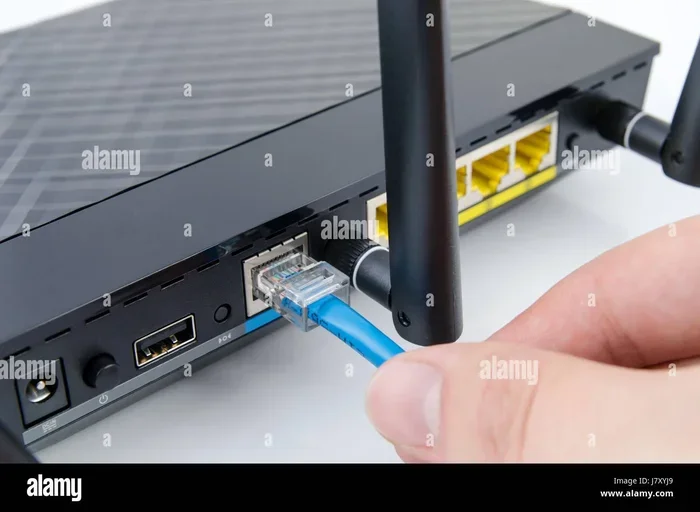
Ethernet uses a physical cable to connect your device directly to the router or network. This creates a wired network that is fast, stable, and reliable. Ethernet connections are ideal for devices that need consistent performance, like desktop PCs, gaming consoles, and smart TVs. The trade-off is that you are limited by the cable length and must stay near the router.
So why would anyone want to link these two together? Great question. Let us explore that next.
Can You Connect Wi-Fi to Ethernet?
The short answer is yes. You can absolutely connect Wi-Fi to Ethernet and share a wireless internet connection with wired devices. This process is called bridging, and it opens up a lot of flexibility for your home network.
Why Would You Want to Do This?
There are many real-world reasons to set up a wireless to wired connection. Here are some common scenarios:
- Your device only has an Ethernet port: Smart TVs, gaming consoles, and older desktops often lack Wi-Fi support.
- You need a more stable connection: Wired links reduce lag and buffering compared to wireless signals.
- Your Wi-Fi signal is weak in certain rooms: Bridging lets you extend coverage to distant areas.
- You want better security: Wired connections are harder to intercept than wireless ones.
- You are setting up a home office: A stable wired link ensures smooth video calls and file transfers.
No matter your reason, connecting Wi-Fi to Ethernet is a practical solution that many people use every day.
Common Methods to Bridge Wi-Fi and Ethernet
There are three main ways to link these two network types. Each method has its own strengths and ideal use cases.
- Wireless Adapter Method: You plug a USB Wi-Fi adapter into a device with an Ethernet port. The adapter receives the wireless signal and shares it over the wired connection.
- Network Bridge Mode: You configure your router or a dedicated bridge device to link the wireless and wired networks together seamlessly.
- Wireless Access Point Method: You set up a device that acts as both a Wi-Fi receiver and an Ethernet transmitter, creating a two-way link.
Each method works well. Your choice depends on your equipment, budget, and technical comfort level. Let us look at each one in detail.
How to Set Up a Wi-Fi to Ethernet Connection
Now let us get into the hands-on part. Below, we walk you through each setup method in simple steps. You do not need to be a tech expert to follow along.
Method 1: Using a Wireless Adapter
This is the easiest and most affordable method. A WiFi to Ethernet adapter is a small device that plugs into your computer or router and picks up the wireless signal. Then it shares that connection through an Ethernet cable.
Here is how to set it up:
- Buy a compatible wireless USB adapter or bridge device.
- Plug the adapter into your device’s USB port or Ethernet port.
- Install any drivers or software that come with the adapter.
- Scan for available Wi-Fi networks and select yours.
- Enter your Wi-Fi password and connect.
- Plug an Ethernet cable from the adapter to your target device.
- Test the connection by browsing the web or streaming a video.
Quick Tip: Look for adapters that support dual-band frequencies (2.4 GHz and 5 GHz). They offer faster speeds and less interference. Brands like TP-Link, ASUS, and Netgear make reliable options at various price points.
Method 2: Setting Up Network Bridge Mode
Bridge mode is a powerful way to connect Wi-Fi to Ethernet without extra hardware in many cases. Your router may already support this feature. Here is how it works:
- Log in to your router’s admin panel. Usually, you type 192.168.1.1 or 192.168.0.1 into your browser.
- Look for the “Bridge Mode” or “Network Bridge” setting in the advanced menu.
- Enable bridge mode and select your wireless network.
- Enter your Wi-Fi credentials and save the settings.
- Connect your wired device to the router’s Ethernet port.
- The router now shares the wireless internet connection over the wired port.
Quick Tip: Not all routers support bridge mode. Check your router’s manual or the manufacturer’s website before trying this method. If your router does not support it, a separate bridge device is your next best option.
Method 3: Using a Wireless Access Point
A wireless access point (WAP) is a device that receives a Wi-Fi signal and rebroadcasts it as a wired network. This method is popular in offices and larger homes where stability matters most.
- Purchase a wireless access point or a router that can function as one.
- Connect the WAP to your main router using an Ethernet cable.
- Access the WAP’s settings page through a web browser.
- Configure the WAP to connect to your existing Wi-Fi network.
- Set up new Ethernet ports on the WAP for your wired devices.
- Test each Ethernet connection to ensure it is working properly.
This method gives you the best network performance because the wired devices get a strong, dedicated signal from the access point. It is also the most scalable option if you plan to add more devices later.
Best Adapters and Devices for Wi-Fi to Ethernet
Choosing the right hardware makes a huge difference. Below, we compare some popular options so you can pick the one that fits your needs.
| Device | Type | Speed | Best For |
|---|---|---|---|
| TP-Link Archer T9UH | USB Wi-Fi Adapter | Up to 1900 Mbps | Desktop PCs and laptops |
| Netgear WNCE3001 | Wi-Fi to Ethernet Bridge | Up to 300 Mbps | Smart TVs and game consoles |
| ASUS RT-AC68U | Router with Bridge Mode | Up to 1900 Mbps | Whole-home network setups |
| Ubiquiti UniFi AP AC Lite | Wireless Access Point | Up to 1300 Mbps | Large homes and offices |
| Linksys RE7000 | Wi-Fi Range Extender | Up to 1900 Mbps | Extending weak Wi-Fi signals |
When picking a device, consider your speed needs, budget, and the number of devices you want to connect. A cheap adapter may save money upfront but could limit your internet speed and cause frustration over time.
Common Mistakes and How to Avoid Them
Even with the right hardware, small mistakes can cause big problems. Here are the most common pitfalls and how to steer clear of them.
Pitfall 1: Using Outdated Drivers
Old drivers on your adapter or bridge device can cause slow speeds and dropped connections. Always check the manufacturer’s website for the latest driver updates. Set a reminder to check every few months.
Pitfall 2: Wrong Network Configuration
Sometimes the bridge settings are not configured correctly. Double-check that your wireless and wired networks are on the same subnet. Mismatched settings are the number one cause of failed connections.
Pitfall 3: Cheap, Low-Quality Adapters
Budget adapters may seem tempting, but they often lack the hardware needed for stable performance. Invest in a well-reviewed adapter from a trusted brand. Your network configuration will thank you.
Pitfall 4: Ignoring Interference
Wi-Fi signals can suffer from interference from microwaves, cordless phones, and neighboring networks. If your connection is unstable, try switching to the 5 GHz band or moving your router to a central location.
Pitfall 5: Overlooking Firmware Updates
Your router, bridge, and access point all run on firmware. Manufacturers release updates that fix bugs and improve performance. Check for updates regularly and install them promptly.
Avoiding these mistakes will save you hours of network troubleshooting and keep your setup running smoothly.
Expert Tips for Better Network Performance
Want to get the most out of your Wi-Fi to Ethernet setup? These expert-backed tips will help you squeeze out better speeds and reliability.
Place Your Bridge Device Centrally
The closer your bridge or adapter is to the router, the stronger the wireless signal it receives. Try to position the bridge device in a central location with minimal walls between it and the router.
Use High-Quality Ethernet Cables
Do not skimp on your cables. Cat6 or Cat6a cables support faster speeds and reduce signal loss. A good cable can make a noticeable difference in your network performance.
Enable QoS Settings on Your Router
Quality of Service (QoS) settings let you prioritize traffic for specific devices. If your gaming console is connected via Ethernet, set it as a high-priority device. This ensures it gets the bandwidth it needs even when other devices are streaming.
Monitor Your Network Regularly
Use free tools like GlassWire or your router’s built-in dashboard to monitor bandwidth usage and device connections. Catching issues early prevents small problems from turning into big headaches.
Consider a Mesh System for Large Homes
If your home is large or has multiple floors, a single router may not cover every room. A mesh Wi-Fi system extends coverage evenly and pairs well with bridge devices for wired connections in distant rooms.
These tips may seem small, but they add up to a much better experience. A well-optimized setup delivers faster speeds, fewer dropouts, and happier users.
Frequently Asked Questions
Can I connect Wi-Fi to Ethernet without any extra hardware?
Yes, if your router supports bridge mode, you can link Wi-Fi and Ethernet without buying additional devices. Simply enable bridge mode in your router settings and connect your wired device to an Ethernet port. Check your router’s manual to confirm this feature is available.
Will connecting Wi-Fi to Ethernet slow down my internet speed?
It can, but usually only slightly. The wireless signal must be converted to a wired one, which adds a small amount of latency. Using a high-quality adapter or bridge device minimizes this impact. In most cases, the speed loss is barely noticeable for everyday tasks.
What is the best device for bridging Wi-Fi to Ethernet?
The best device depends on your needs. For simple setups, a USB Wi-Fi adapter works great. For whole-home coverage, a wireless access point or a router with bridge mode is ideal. The TP-Link Archer T9UH and Netgear WNCE3001 are popular, reliable choices for most users.
Is it safe to bridge Wi-Fi and Ethernet networks?
Yes, bridging is safe when done correctly. Both connections use standard encryption protocols like WPA3 or WPA2. Just make sure your Wi-Fi password is strong and your router firmware is up to date. Avoid using public Wi-Fi networks for bridging sensitive devices.
Can I connect multiple Ethernet devices to one Wi-Fi source?
Absolutely. Using a network bridge or a wireless access point, you can share one Wi-Fi connection with multiple wired devices. Just make sure your bridge device or router has enough Ethernet ports to support all your devices. A switch can also help expand your port count if needed.
Do I need technical skills to set up a Wi-Fi to Ethernet connection?
Not really. Most modern adapters and routers come with simple setup wizards. If you can plug in a cable and follow on-screen prompts, you can do it. The methods in this guide are designed to be beginner-friendly. Only advanced configurations like manual subnet settings require deeper technical knowledge.
Conclusion
Can You Connect Wi-Fi To Ethernet? The answer is a clear and definitive yes. Whether you use a wireless adapter, bridge mode, or a dedicated access point, linking your wireless and wired networks is easier than you might think. Each method offers unique benefits, and the right choice depends on your specific needs and equipment.
We covered the key differences between Wi-Fi and Ethernet, explored three practical setup methods, and shared a comparison of top devices. We also highlighted common mistakes to avoid and expert tips that elevate your setup from good to great. With the right tools and a bit of patience, you can enjoy the best of both worlds — the convenience of Wi-Fi and the reliability of Ethernet.
Now it is your turn. Pick the method that fits your situation, gather your equipment, and follow the steps in this guide. Your network configuration will be stronger, faster, and more versatile in no time. Happy networking!