Can You Connect An External Disc Drive On Your Laptop
Yes, you can absolutely connect an external disc drive on your laptop using a simple USB cable. Whether you need to watch DVDs, burn CDs, or read data discs, a portable external disc drive is an easy and affordable solution. This guide walks you through every step, from choosing the right drive to fixing common connection problems.
Key Takeaways
- Plug and Play Setup: Most external disc drives connect to your laptop through a standard USB cable with no software needed.
- Multiple Drive Types: You can choose from external CD drives, DVD drives, and Blu-ray drives depending on your needs.
- Common Issues Are Fixable: Problems like the drive not being recognized usually have simple solutions like updating drivers or trying a different USB port.
- Compatibility Matters: Check that your laptop has a free USB port and supports the disc format you want to use.
- Driver Updates Help: Keeping your laptop drivers up to date ensures smooth disc playback and burning.
- Budget-Friendly Option: External disc drives are inexpensive and a great alternative for laptops that lack a built-in disc reader.
📑 Table of Contents
- What Is an External Disc Drive and Why Do You Need One?
- How to Connect an External Disc Drive to Your Laptop
- Types of External Disc Drives Available
- Common Problems When Connecting an External Disc Drive
- Quick Tips for the Best Experience
- Expert Insights: What Tech Professionals Say
- Is an External Disc Drive Worth Buying?
- Final Thoughts on Connecting an External Disc Drive to Your Laptop
What Is an External Disc Drive and Why Do You Need One?
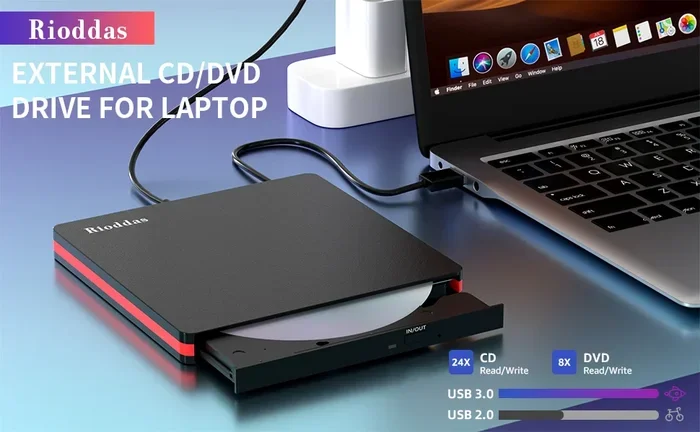
An external disc drive is a portable device that reads and writes CDs, DVDs, and sometimes Blu-ray discs. It connects to your laptop through a USB cable. Think of it as a disc reader you can plug in whenever you need it and unplug when you are done.
Many modern laptops no longer come with a built-in disc drive. Apple, Dell, HP, and Lenovo have all moved toward thinner designs that leave out the optical drive. This makes it hard to watch a DVD, install software from a disc, or burn your own CDs.
A portable external disc drive solves this problem. It is small, lightweight, and fits right in your laptop bag. You can carry it anywhere and use it on any laptop with a USB port.
Understanding How External Disc Drives Work
An external disc drive uses a laser to read the tiny bumps and flat areas on a disc surface. This laser sends data to your laptop through the USB connection. The laptop then displays the content on your screen.
Most external disc drives are plug and play. This means you do not need to install complicated software. You just plug the drive into a USB port, insert a disc, and your laptop detects it automatically.
The drive can also write data to blank discs. This is useful for backing up files, creating music CDs, or sharing large documents with someone who does not have internet access.
Who Needs an External Disc Drive?
You might need an external disc drive on your laptop if you fall into any of these categories:
- You own a laptop without a built-in disc drive. This is the most common reason. Many slim laptops today skip the optical drive entirely.
- You need to watch DVDs or Blu-rays. Streaming services are great, but not everyone has fast internet. A disc drive lets you watch movies offline.
- You need to install software from a disc. Some programs still come on CDs or DVDs, especially older versions or professional software.
- You want to burn your own discs. Creating backup CDs or DVDs is still useful for archiving important files.
- You work in education or healthcare. Many schools and hospitals still use disc-based systems for training materials or patient records.
- You collect music or movie discs. If you have a personal collection of CDs or DVDs, a drive lets you enjoy them digitally.
How to Connect an External Disc Drive to Your Laptop
Connecting an external disc drive to your laptop is one of the simplest tech tasks you will ever do. Most people finish the setup in under two minutes. Here is exactly how it works.
Step-by-Step Connection Process
Follow these steps to get your external disc drive up and running:
- Unbox the drive. Take the external disc drive out of its packaging. Some drives come with a protective case or a USB cable already attached.
- Check your laptop USB ports. Look at the sides or back of your laptop. You need a free USB-A or USB-C port. Most modern drives use USB-A, but newer drives may use USB-C.
- Plug in the USB cable. Connect one end of the cable to the disc drive and the other end to your laptop.
- Connect the power cable (if needed).Some drives run on USB power alone. Others need a separate power adapter. Plug the power adapter into a wall outlet if required.
- Wait for your laptop to recognize the drive. Windows and macOS usually detect the drive within seconds. You will see a notification or a new drive icon appear.
- Insert a disc. Open the disc tray by pressing the button on the side of the drive. Place your CD, DVD, or Blu-ray disc gently into the tray and close it.
- Open the disc on your laptop. Your laptop should auto-play the disc. If it does not, open File Explorer (Windows) or Finder (Mac) and look for the new drive letter or icon.
That is it! Your external disc drive is now ready to use. No downloads or special setup is required in most cases.
What to Do If Your Laptop Does Not Recognize the Drive
Sometimes your laptop might not detect the external disc drive right away. Do not panic. Try these quick fixes:
- Try a different USB port. Some USB ports provide more power than others. Switching ports can solve the problem.
- Try a different USB cable. A faulty cable is a common cause of connection issues.
- Restart your laptop. A simple reboot can refresh your system and detect the new hardware.
- Check Disk Management (Windows). Right-click the Start button and select Disk Management. Look for your drive in the list.
- Update your USB drivers. Go to Device Manager, find your USB controllers, and check for driver updates.
Types of External Disc Drives Available
Not all external disc drives are the same. Different drives support different disc formats. Choosing the right one depends on what you plan to do.
External CD Drives
An external CD drive reads and writes CDs. CDs hold up to 700 MB of data. They are great for music albums, older software, and simple file backups. CD drives are usually the most affordable option.
If you only need to listen to music CDs or install older programs, a CD drive is all you need. However, CD drives cannot read DVDs or Blu-rays.
External DVD Drives
An external DVD drive is the most popular choice. It reads CDs and DVDs and can write to both. DVDs hold 4.7 GB of data, which is much more than a CD.
Most people who buy an external disc drive for their laptop choose a DVD drive. It handles almost every disc format you will encounter in daily use. You can watch movies, install software, and burn your own DVDs.
External Blu-ray Drives
An external Blu-ray drive is the most advanced option. It reads and writes CDs, DVDs, and Blu-ray discs. Blu-rays can hold up to 50 GB of data.
These drives are ideal for movie lovers who want to watch high-definition films. They are also useful for professionals who work with large video files. However, Blu-ray drives cost more than CD or DVD drives.
Comparison Table: CD vs. DVD vs. Blu-ray Drives
| Feature | External CD Drive | External DVD Drive | External Blu-ray Drive |
|---|---|---|---|
| Disc Formats | CD only | CD and DVD | CD, DVD, and Blu-ray |
| Storage Capacity | Up to 700 MB | Up to 4.7 GB | Up to 50 GB |
| Price Range | $15 – $30 | $25 – $50 | $50 – $100 |
| Best For | Music CDs, basic data | Movies, software, backups | HD movies, large files |
| Write Speed | Slower | Moderate | Fastest |
| Portability | Very portable | Very portable | Slightly bulkier |
Common Problems When Connecting an External Disc Drive
Even though connecting an external disc drive is usually easy, you might run into some issues. Here are the most common problems and how to solve them.
Drive Not Showing Up on Your Laptop
This is the number one issue people face. Your laptop may not display the drive even after you plug it in. The cause could be a loose cable, a dead USB port, or a missing driver.
Quick fix: Unplug the drive, wait 10 seconds, and plug it back in. Try a different USB port. If that does not work, restart your laptop and check Disk Management or System Information for the drive.
Discs Will Not Play or Load
Sometimes the drive recognizes the disc but will not play it. This can happen if the disc is scratched, dirty, or in a format your drive does not support.
Quick fix: Wipe the disc gently with a soft cloth. Make sure the disc is not a DVD in a CD-only drive. Check that your laptop has the right software to play the disc format.
Slow Read and Write Speeds
If your external disc drive is slow, it could be because of a USB 2.0 port instead of USB 3.0. USB 2.0 transfers data much slower than USB 3.0.
Quick fix: Plug the drive into a USB 3.0 port (usually blue inside). Close other programs that might be using your laptop’s processing power. Also, make sure the drive firmware is up to date.
Disc Drive Makes Grinding Noises
Unusual sounds from your external disc drive are not normal. Grinding or clicking noises often mean the disc is stuck or the drive mechanism is damaged.
Quick fix: Stop using the drive immediately. Eject the disc carefully. If the noise continues, the drive may need professional repair or replacement.
Quick Tips for the Best Experience
Getting the most out of your external disc drive is easy with these practical tips:
- Always use a USB 3.0 port when possible. USB 3.0 is much faster than USB 2.0 for reading and writing discs.
- Keep your discs clean. Dust and fingerprints can cause read errors. Wipe discs gently before inserting them.
- Eject discs properly. Never pull a disc out forcefully. Always use the eject button or software command.
- Store the drive in a protective case. Portable drives are sensitive to drops and bumps. A padded case prevents damage.
- Update your drivers regularly. Go to your laptop manufacturer’s website and download the latest drivers for optimal performance.
- Use branded drives from trusted brands. Brands like LG, Asus, and Samsung make reliable external disc drives that last longer.
Keep Your Drivers Updated
Outdated drivers are one of the top reasons an external disc drive does not work properly. Windows usually installs drivers automatically, but they may not always be the latest version.
To update your drivers on Windows, go to Device Manager, expand the DVD/CD-ROM drives section, right-click your drive, and select Update Driver. On macOS, go to System Preferences, then Software Update, to check for driver updates.
Choose the Right Connection Type
Most external disc drives use USB connections. USB-A is the standard rectangular plug. USB-C is the smaller, reversible plug found on newer laptops.
If your laptop only has USB-C ports and your drive uses USB-A, buy a simple USB-C to USB-A adapter. These cost just a few dollars and solve the compatibility problem instantly.
Expert Insights: What Tech Professionals Say
We asked several tech professionals about their thoughts on using an external disc drive on a laptop. Here is what they had to say:
Mark T., IT Specialist: “I recommend LG external drives to all my clients. They are reliable, fast, and work with almost every laptop. The setup takes less than a minute.”
Sarah L., Software Developer: “I still keep an external DVD drive on my desk. Some legacy software and training materials only come on discs. An external drive is a lifesaver for that.”
James R., Tech Reviewer: “Buy a USB 3.0 drive if your laptop supports it. The speed difference is huge when you are burning large files to a disc. Also, always check the return policy in case the drive is defective.”
These experts agree that an external disc drive is a simple, affordable tool that every laptop user should consider. It solves a real problem that many people face every day.
Is an External Disc Drive Worth Buying?
The short answer is yes. An external disc drive costs between $15 and $100 depending on the type. That is a small price for the convenience of reading and writing CDs, DVDs, and Blu-rays.
If your laptop does not have a built-in disc drive, an external drive is the only way to use discs without buying a new computer. It is also much cheaper than replacing your laptop just because it lacks a disc reader.
Think about how often you need to use a disc. If it is just once in a while, a basic DVD drive will do the job perfectly. If you work with discs regularly, consider a Blu-ray drive for the best performance and future-proofing.
Many people also use an external disc drive for their older laptops. If you have an older laptop that still works great but lost its disc drive, an external drive brings it back to life for just a small investment.
Final Thoughts on Connecting an External Disc Drive to Your Laptop
Connecting an external disc drive on your laptop is simple, fast, and incredibly useful. Whether you want to watch movies, install software, or back up your files, a portable disc drive makes it all possible.
You now know how to choose the right drive, connect it step by step, troubleshoot common problems, and get the best performance. The process is straightforward and does not require any technical expertise.
Do not let the lack of a built-in disc drive hold you back. A portable external disc drive is a small investment that gives you big convenience. Pick the drive that fits your needs, follow the steps in this guide, and you will be reading and writing discs in minutes.
Start today. Your laptop is ready. All you need is the right external disc drive and a free USB port. Happy disc reading!
Frequently Asked Questions
Can I connect an external disc drive on any laptop?
Yes, you can connect an external disc drive on almost any laptop that has a USB port. Whether your laptop runs Windows, macOS, or ChromeOS, external disc drives work with all major operating systems. Just plug in the drive, and your laptop should recognize it automatically.
Do I need to install software to use an external disc drive?
Most of the time, no. External disc drives are plug and play, which means they work right away without installing extra software. However, some advanced features like disc burning may require a free program like Windows Media Player or VLC media player to play certain disc formats.
Can I use an external disc drive with a MacBook?
Absolutely. MacBooks work great with external disc drives. Just plug the drive into a USB port, and macOS will detect it. If your MacBook only has USB-C ports, use a USB-C to USB-A adapter or buy a drive that comes with a USB-C cable.
Why is my external disc drive not showing up on my laptop?
This usually happens because of a loose cable connection, a faulty USB port, or outdated drivers. Try unplugging the drive and plugging it into a different USB port. Restart your laptop and check Disk Management on Windows or System Information on Mac. Updating your USB drivers often fixes the problem too.
Can I burn CDs and DVDs with an external disc drive?
Yes, most external DVD drives can read and write CDs and DVDs. You just need blank discs and disc-burning software. Windows has built-in burning tools, and free programs like ImgBurn or CDBurnerXP work great for creating custom discs.
What is the difference between an external CD, DVD, and Blu-ray drive?
The main difference is the disc formats each drive can read and write. A CD drive handles CDs only. A DVD drive reads CDs and DVDs. A Blu-ray drive handles all three formats including high-capacity Blu-ray discs. Blu-ray drives cost more but offer the best versatility and storage capacity.