Can Too Much RAM Be Bad For Your Computer Performance
Adding more RAM seems like an easy fix, but can too much RAM be bad for your system? The answer is yes — excess memory can cause compatibility issues, wasted money, and even stability problems. This guide breaks down the real risks of overloading your system and shows you how to find the right amount for your needs.
You might think more RAM always means a faster computer. After all, memory is the backbone of every task you do. But here is the truth — can too much RAM be bad? Surprisingly, yes. Adding more memory than your system needs can actually hurt your performance, waste your money, and even cause strange bugs.
In this article, we will break down everything you need to know about excess memory. We will cover the real downsides, the signs of too much RAM, and how to find your perfect amount. Whether you are building a new PC or upgrading an old one, this guide has you covered.
Key Takeaways
- More RAM is not always better: Excess memory can lead to diminishing returns and wasted spending.
- Compatibility matters: Your motherboard and operating system limit how much RAM you can actually use.
- Too much RAM can cause stability issues: Including boot failures and memory mapping conflicts.
- Diminishing performance returns: Beyond a certain point, extra RAM does nothing for your daily tasks.
- Power and heat increase: More RAM modules draw more power and generate more heat.
- Know your actual needs: Match your RAM to your workload, not your budget or fears.
📑 Table of Contents
What Is RAM and Why Does It Matter?
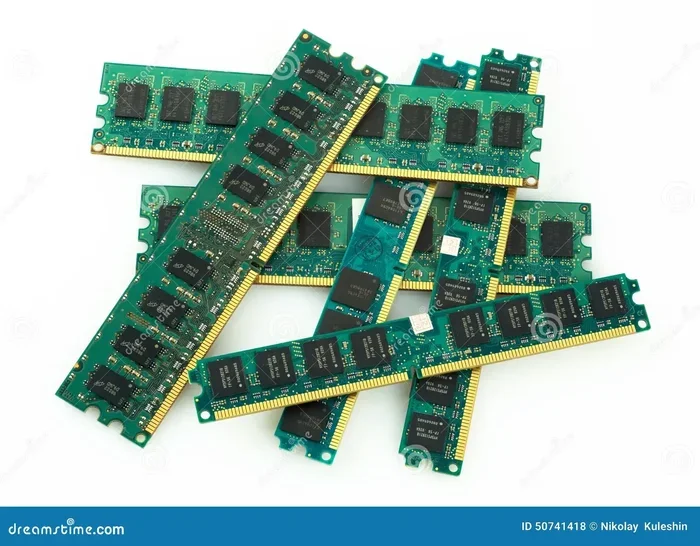
RAM stands for Random Access Memory. Think of it as your computer’s short-term workspace. When you open apps, browse the web, or play games, your system loads data into RAM. This lets your processor access information fast. Without enough RAM, your computer slows down. It starts using your hard drive as a temporary substitute, which is much slower.
But here is the part many people miss. RAM is not like a bigger hard drive. More RAM does not always mean better speed. Your system can only use so much at one time. Anything beyond that goes to waste. That is where the question of too much RAM comes into play.
Understanding how computer memory works helps you make smarter upgrade decisions. You do not just want to throw money at the problem. You want to match your memory capacity to what you actually do on your computer.
How RAM Affects System Performance
Your system performance depends on a balance of parts. The processor, storage, and memory all work together. When you have enough RAM, everything runs smoothly. Apps open fast. Multitasking feels effortless. But when you go overboard, the benefits stop.
Here is a simple way to think about it. Imagine a desk. A bigger desk lets you spread out more papers. But if your desk is already big enough for your work, adding more desk space does nothing. You just waste room. RAM works the same way. Your system can only use what it needs.
Can You Actually Have Too Much RAM?
The short answer is yes. You can install more memory than your system can effectively use. But the reasons might surprise you. It is not just about waste. There are real technical and practical problems that come with excess memory.
Many people assume that buying the most RAM available is the best move. They think it future-proofs their system. But in reality, too much RAM can create problems that do not exist with a balanced setup. Let us look at why this happens.
Motherboard and Operating System Limits
Every motherboard has a maximum memory capacity. This is the most RAM it can support. Older motherboards may only handle 16GB or 32GB. Newer ones can take 64GB or even 128GB. But just because your board supports a lot does not mean you need that much.
Your operating system also plays a role. A 32-bit version of Windows can only use about 4GB of RAM. A 64-bit version can handle much more. But even then, there is a point of diminishing returns. For most users, 32GB is already plenty. Going beyond that rarely helps.
Memory Channel Limitations
Your CPU communicates with RAM through memory channels. Most consumer systems use dual-channel architecture. This means two sticks of RAM work together for better speed. If you add more sticks than your system supports in its channel configuration, you may actually slow things down.
Some memory modules also run at different speeds. When you mix RAM sticks with different frequencies, all of them downclock to the slowest one. This can hurt your RAM speed and memory latency. So more sticks do not always mean better performance.
Signs That You Have Too Much RAM
How do you know if you have gone too far? There are a few clear signs. These symptoms can be frustrating, especially if you do not know what is causing them.
Your System Won’t Boot Properly
One of the most obvious signs is boot failure. Your computer turns on, but nothing displays on the screen. Or it restarts repeatedly. This can happen when the motherboard cannot recognize or properly map all the installed memory. It is a compatibility issue that many people overlook.
Sometimes the BIOS simply cannot handle the total capacity. This is more common with older hardware. If you have recently added RAM and your PC won’t start, too much memory could be the culprit.
Memory Not Fully Recognized
You install 64GB of RAM, but your system only shows 32GB. This is another red flag. When your motherboard or OS cannot use all the installed memory, the extra goes to waste. You paid for memory you cannot access. That is money down the drain.
Check your system information to see how much RAM is actually in use. On Windows, you can open Task Manager and look at the Memory tab. On Mac, use Activity Monitor. If your system is using less than half of what is installed, you likely have too much.
No Performance Improvement
The biggest clue is a lack of real-world benefit. You spent extra on RAM, but your computer feels the same. Apps open at the same speed. Games run at the same frame rate. This is a clear sign that your system does not need more memory.
Before buying more RAM, check your current usage. If your memory usage sits around 50 percent during heavy workloads, adding more will do nothing. Your system requirements are already met.
How Much RAM Do You Really Need?
The right amount of RAM depends on what you do. A gamer has different needs than a video editor. A casual web surfer does not need the same memory capacity as someone running virtual machines.
For Everyday Use
If you use your computer for browsing, streaming, and office work, 8GB to 16GB is plenty. This is the sweet spot for most people. Your system performance will be smooth and responsive. You will not notice any benefit from going beyond 16GB.
Quick Tip: Before upgrading, open Task Manager and watch your memory usage for a few days. If it rarely goes above 70 percent, you are fine.
For Gaming
Most modern games recommend 16GB of RAM. Some heavy titles run well with 32GB. But very few games actually use more than 16GB. Adding 64GB for gaming is overkill for 99 percent of players.
Focus on RAM speed and dual-channel configuration before adding more capacity. Two 16GB sticks in dual-channel will give you better performance than four 8GB sticks in single-channel.
For Content Creation and Professional Work
Video editing, 3D rendering, and large-scale data processing can benefit from 32GB or more. These workloads push your memory to its limits. In these cases, more RAM does provide a real performance boost.
Even here, there is a ceiling. If your software cannot use more than 32GB, buying 64GB will not help. Always check the system requirements of the apps you use most.
| Use Case | Recommended RAM | Max Beneficial RAM |
|---|---|---|
| Web browsing and office work | 8GB – 16GB | 16GB |
| Gaming | 16GB – 32GB | 32GB |
| Video editing | 32GB – 64GB | 64GB |
| 3D rendering and simulation | 64GB+ | 64GB – 128GB |
| Casual use | 4GB – 8GB | 8GB |
The Hidden Downsides of Excess RAM
Beyond the obvious waste of money, too much RAM can cause real problems. These issues are not always obvious, but they can affect your daily computing experience.
Increased Power Consumption
Every RAM stick draws power. More modules mean more energy usage. This might not sound like a big deal, but it adds up over time. If you are running a server or a system that stays on 24/7, the extra power draw can be significant.
For laptop users, excess RAM can also reduce battery life. Your system has to keep more memory powered and refreshed at all times. This is one of the hidden costs of over-provisioning memory.
Heat Generation
RAM modules generate heat, especially high-performance ones. More sticks mean more heat inside your case. This can affect the temperature of your other components. In tight spaces or small form factor PCs, this becomes a real concern.
Good airflow and proper cooling can help. But if you are pushing your system with too much memory, you may need to rethink your cooling setup. This adds cost and complexity.
Stability and Compatibility Issues
Mixing different memory modules is a common cause of instability. Different brands, speeds, and timings can conflict with each other. Your system may crash, freeze, or show blue screen errors.
Even with matching sticks, adding too much total capacity can cause problems. Some motherboards have been known to be finicky with high-capacity kits. The memory controller in your CPU also has limits. Exceeding those limits leads to unpredictable behavior.
Diminishing Returns on Investment
This is the most important point. Every dollar you spend on RAM beyond what you need gives you zero return. That money is better spent on a faster SSD, a better graphics card, or a stronger processor. These upgrades will give you a real performance boost that you can actually feel.
Before buying more RAM, ask yourself a simple question. Is my current memory the bottleneck? If the answer is no, then more RAM will not help. Focus on the component that is actually slowing you down.
Virtual Memory and Swap File Overhead
When your system has enough RAM, it rarely needs to use virtual memory. But when you have too much RAM, some programs behave strangely. They may hold onto memory they do not need, preventing other apps from using it efficiently.
This creates an odd situation where your system has plenty of free RAM but still slows down. The memory mapping becomes inefficient. This is a subtle but real problem that many people do not realize is caused by excess memory.
How to Find Your Sweet Spot for RAM
Finding the right amount of RAM is not guesswork. You can follow a few simple steps to make the best decision for your setup.
Step 1: Check Your Current Usage
Open your task manager or activity monitor. Watch how much memory you use during your typical workday. Note the peak usage. This tells you how much RAM you actually need. If your peak is 12GB, then 16GB is a safe choice. If it hits 14GB, 16GB is right at the edge.
Step 2: Research Your Workload
Look up the recommended RAM for the apps and games you use most. Software developers often list system requirements on their websites. Match your upgrade to those numbers. Do not guess.
Expert Insight: A good rule of thumb is to have 4GB more than your peak usage. This gives you a comfortable buffer without going overboard.
Step 3: Match Your Motherboard
Check your motherboard manual for the maximum supported capacity. Also look at the recommended configuration. Most boards perform best with two or four sticks in specific slots. Following these guidelines ensures optimal dual-channel performance.
Step 4: Buy Matching Kits
Always buy RAM in matched kits. A kit of two or four sticks is tested together. They run at the same speed and timings. This avoids the compatibility and stability issues that come with mixing individual modules.
Quick Tip: When shopping, look for kits labeled “2-pack” or “4-pack.” These are pre-matched and tested for compatibility. They save you from a lot of headaches.
Step 5: Consider Future Needs
It is smart to leave some room for growth. If you plan to start video editing next year, 32GB now makes sense. But do not buy 64GB just in case. That is how people end up with too much RAM and wasted money.
Plan for the next one to two years. Not the next five. Technology changes fast, and your needs will evolve. A balanced upgrade today beats an oversized one that never pays off.
Common Mistakes to Avoid
- Buying RAM without checking compatibility. Always verify your motherboard supports the type and capacity you want.
- Mixing different RAM brands and speeds. This can cause instability and reduce performance.
- Assuming more RAM fixes all slow performance. A slow SSD or weak processor is often the real problem.
- Ignoring RAM speed and timings. Capacity is not the only factor. Speed matters too.
- Overlooking your operating system limits. A 32-bit OS cannot use more than 4GB of RAM.
Conclusion
So, can too much RAM be bad? The answer is a clear yes. While RAM is an essential part of any computer, adding more than your system can use creates real problems. You waste money. You risk compatibility issues. You may even hurt your performance.
The key is to find your sweet spot. Match your memory capacity to your actual workload. Check your current usage. Research your software requirements. And always buy matching kits from the same brand and series.
A balanced system with the right amount of RAM will always outperform one with excess memory. Before your next upgrade, ask yourself whether you truly need more. In most cases, the answer will be no. Focus on the parts of your system that actually need an upgrade, and you will get the best results.
Smart upgrades come from understanding your needs, not from assumptions. Now you know the truth about too much RAM. Use that knowledge to build a faster, more efficient, and more reliable computer.
Frequently Asked Questions
Does adding too much RAM slow down your computer?
Yes, it can. When your system has more memory than it can effectively manage, it may experience slower performance. The memory controller has to work harder to map and access all the installed modules, which can introduce latency and reduce overall system performance.
Is 64GB of RAM overkill for gaming?
For most gamers, yes. Very few games use more than 16GB of RAM. While 32GB can help with multitasking and future-proofing, 64GB offers no real benefit for gaming. Your money is better spent on a stronger graphics card or faster storage.
Can too much RAM cause blue screen errors?
It can. When the motherboard or memory controller cannot properly handle the total capacity, it may lead to crashes and blue screen errors. This is especially common when mixing RAM sticks with different speeds, capacities, or timings.
How do I know if I have too much RAM?
Check your memory usage in Task Manager or Activity Monitor. If your system rarely uses more than half of what is installed, you likely have too much. Another sign is no noticeable performance improvement after adding more memory.
Does more RAM increase power consumption?
Yes. Each RAM module draws power, and more modules mean higher overall consumption. This is especially noticeable in systems that run 24/7 or in laptops where it can reduce battery life.
What is the maximum RAM most computers can use?
For most consumer PCs, 32GB to 64GB is the practical maximum. High-end workstations can support 128GB or more. However, the real limit depends on your motherboard, CPU, and operating system. Check your hardware specifications before buying.