Can Nintendo Wii Use Hdmi For Better Picture Quality
Can Nintendo Wii Use HDMI for better picture quality? Yes, it can, but you need the right adapter. The original Wii does not have a built-in HDMI port, so you will need an external converter to connect it to modern HDTVs. Using an HDMI adapter transforms your Wii’s standard definition output into a cleaner, sharper signal. This simple upgrade can make a noticeable difference in screen clarity and color accuracy. Whether you are a retro gaming fan or just want a better setup, this guide covers everything you need to know.
If you have been asking yourself, “Can Nintendo Wii Use HDMI,” you are not alone. Many retro gaming fans want to hook up their old Wii to a modern HDTV and get a better picture. The good news is that it is totally possible. With the right adapter, your Wii can output a much cleaner signal than the old yellow, red, and white cables ever allowed.
Back when the Wii launched in 2006, HDMI was already becoming the standard. But Nintendo chose to stick with composite and component cables for the original console. This decision left many users stuck with a standard definition experience on their big flat-screen TVs. The result was a blurry, soft image that did not do the games justice.
Fast forward to today, and the gaming world has changed. Most people now own HDTVs or even 4K displays. Playing a classic Wii game on one of these screens with the original cables can feel disappointing. That is where HDMI adapters come in. They bridge the gap between your old console and your modern TV, giving you a sharper, clearer picture. In this guide, we will walk you through everything you need to know about connecting your Wii to HDMI.
Key Takeaways
- The Wii lacks built-in HDMI: You must use an external adapter or converter to connect the console to an HDTV.
- HDMI improves picture quality: The digital signal from HDMI offers a cleaner image compared to the old composite or component cables.
- Both official and third-party adapters work: Nintendo offered an official component cable, but third-party HDMI adapters are widely available and affordable.
- Setup is simple: Plug the adapter in, change your TV input, and adjust the Wii display settings in the menu.
- Upscaling helps but has limits: The Wii’s hardware caps at 480p, so HDMI will improve clarity but not turn it into true HD.
- Watch for audio sync issues: Some adapters may cause a slight delay between video and audio, which is easy to fix.
📑 Table of Contents
- Understanding the Nintendo Wii Video Output Options
- Can You Connect a Nintendo Wii to HDMI Directly
- Best HDMI Adapters and Cables for the Nintendo Wii
- Step-by-Step Guide to Setting Up HDMI on Your Wii
- Does HDMI Really Improve Picture Quality on the Wii
- Common Problems and How to Fix Them
- Wii HDMI and the Future of Retro Gaming
- Final Thoughts
Understanding the Nintendo Wii Video Output Options
Before you buy any cables or adapters, it helps to understand what video options the Wii actually supports. The console was designed during a time when standard definition was still the norm. So, its built-in video output options reflect that era of gaming.
What Comes in the Box
When you first opened a Wii console, it came with composite AV cables. These are the classic cables with a yellow plug for video and red and white plugs for audio. They plug into the back of the console and into the corresponding inputs on your TV. The picture quality from composite cables is… not great. You get a maximum resolution of 480i, which looks fuzzy on any modern screen.
Nintendo also released a component cable kit separately. This kit replaced the yellow composite plug with three color-coded cables: green, blue, and red. Component cables offer a better picture than composite. They support 480p output, which is a progressive scan and looks noticeably sharper. However, component cables still use an analog signal, which means some quality loss during transmission.
Standard Definition vs High Definition
The Wii was never designed to output true high definition. Its maximum resolution is 480p. That is standard definition by today’s standards. Compare this to the Wii U, which could output up to 1080p, or modern consoles like the Nintendo Switch, which supports 1080p and even 4K in some docked modes.
So what does this mean for you? It means that even with an HDMI connection, the Wii cannot magically output HD resolution. What HDMI does is improve the signal quality. A digital HDMI signal is cleaner and more stable than an analog one. The TV can then upscale the 480p image to fit your screen better. The result is a clearer, more vibrant picture, even if the native resolution stays the same.
Can You Connect a Nintendo Wii to HDMI Directly
The short answer is no. The Wii does not have an HDMI port on the back of the console. There is no way to plug an HDMI cable directly into the Wii. You need a converter or adapter to transform the Wii’s analog video signal into a digital HDMI signal that your TV can read.
Why the Wii Does Not Have Built-in HDMI
Nintendo made a cost-driven decision when designing the original Wii. The console was meant to be affordable and accessible. Adding HDMI hardware would have increased the manufacturing cost. At the time, most TVs still had composite or component inputs. HDMI was common on high-end sets but not universal yet.
By the time HDMI became standard on every TV, the Wii was already selling well with its existing cable setup. Nintendo did not release an official HDMI solution for the original Wii. They did, however, include improved AV options in later revisions and for the Wii U.
The Role of the Wii HDMI Adapter
An HDMI adapter for the Wii is a small external device. You connect the Wii’s AV output to the adapter, and then run an HDMI cable from the adapter to your TV. The adapter converts the analog signal to digital in real time. Some adapters also upscale the image, which can improve the overall look on larger screens.
These adapters are small, affordable, and easy to use. They do not require any software or modification to the Wii itself. You simply plug and play. This makes them a popular choice for anyone who wants to enjoy Wii games on a modern HDTV without dealing with blurry composite cables.
Quick Tips
- Always buy an adapter that supports 480p input, since that is the Wii’s maximum output.
- Look for adapters that include a built-in upscaler for the best results on large TVs.
- Make sure the adapter supports both PAL and NTSC signal formats if you play games from different regions.
- Check that the adapter comes with an HDMI cable or plan to buy one separately.
Best HDMI Adapters and Cables for the Nintendo Wii
Not all HDMI adapters are created equal. Some offer better upscaling, cleaner audio, and more reliable connections than others. Here is what you need to know when choosing the right one for your setup.
Official Nintendo Options
Nintendo never released an official HDMI adapter for the original Wii. However, they did offer a high-quality component cable kit. The Wii Component AV Cable was an official Nintendo product that provided the best analog picture quality the console could deliver. It was a great option at the time, but it is now outdated for anyone using a modern HDTV.
If you still have the original Wii and want the best analog experience, the component cable is worth seeking out. But if your goal is to connect via HDMI, you will need a third-party solution.
Third-Party HDMI Adapters
The market is full of third-party Wii HDMI adapters. Prices range from about $10 to $50 depending on the brand and features. Most of these adapters do the same basic job: convert the Wii’s analog signal to HDMI. But some offer extras like built-in upscaling, noise reduction, and improved audio output.
Popular brands in this space include RetroTINK, UpScaler, and various generic brands available on major online retailers. When shopping, look for adapters with positive reviews and clear compatibility listings. Avoid the cheapest options, as they sometimes produce poor audio sync or low-quality image output.
Comparison: Top Wii HDMI Adapters
- RetroTINK Wii to HDMI: Excellent upscaling, clean digital output, and reliable build quality. A top choice for retro gamers who want the best picture.
- Generic Budget Adapters: Affordable and functional, but image quality can vary. Good for casual users who just want a simple connection.
- Wii2HDMI Pro Models: These often include features like scanline retention, which appeals to fans of the classic retro look.
Common Mistakes to Avoid
- Buying an adapter that only supports 480i and not 480p. You will miss out on the sharper progressive scan image.
- Choosing an adapter without audio output. Some cheap models drop the audio entirely or have it out of sync.
- Ignoring TV input compatibility. Make sure your TV has an HDMI input and supports the adapter’s output format.
- Forgetting to check if the adapter requires external power. Some need a USB cable plugged into your TV or a wall adapter.
Step-by-Step Guide to Setting Up HDMI on Your Wii
Setting up HDMI on your Nintendo Wii is straightforward. You do not need any technical skills or special tools. Just follow these steps and you will be gaming in no time.
What You Need Before Starting
- A Nintendo Wii console
- A Wii HDMI adapter or converter
- An HDMI cable
- Your HDTV with an available HDMI input
- The original Wii AV cables (for initial setup if needed)
Connecting the Adapter
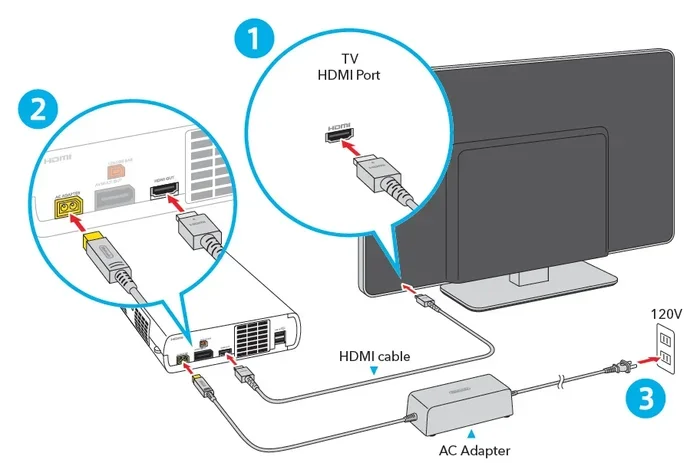
Start by plugging the Wii’s AV cable into the adapter. The yellow, red, and white plugs connect to the corresponding inputs on the adapter box. Next, take your HDMI cable and plug one end into the adapter and the other into your TV’s HDMI port.
Power on the Wii and switch your TV to the correct HDMI input. You should see the Wii menu on your screen. If you do not see anything, double-check all connections and make sure the TV input is correct.
Adjusting Display Settings on the Wii
Once you have a picture, go to the Wii Settings menu. Navigate to “Screen” and then “TV Resolution.” Select 480p if your TV and adapter support it. This gives you the sharpest possible image from the console.
If 480p does not work or looks wrong, try 480i instead. Some older TVs or certain adapters only support interlaced output. You can also adjust the screen position and size from this menu to make sure the image fills your TV properly without any black bars.
Expert Insight
According to retro gaming experts, the biggest improvement from using an HDMI adapter is not the resolution boost. It is the signal clarity. Analog cables pick up interference and degrade over distance. A digital HDMI signal stays clean all the way from the adapter to the TV. This alone can make games look significantly better, even at the same 480p resolution.
Does HDMI Really Improve Picture Quality on the Wii
This is the question most people want answered. And the honest answer is: yes, but with some caveats. HDMI will improve your Wii experience, but it will not turn the console into a high-definition machine.
Comparing Component Cables vs HDMI
When you compare the old composite cables to an HDMI adapter, the difference is clear. The composite image looks washed out, with muted colors and blurry edges. The HDMI image is sharper, with better contrast and more accurate colors. Text in menus is easier to read, and game visuals look cleaner overall.
Compared to the Wii component cables, the HDMI upgrade is less dramatic but still noticeable. Component cables already offer a decent 480p image. HDMI adds the benefits of a digital signal and upscaling. On a large TV, the difference between component and HDMI can be subtle but real, especially in fast-moving games where analog signal artifacts are more visible.
What to Expect from Upscaling
Most Wii HDMI adapters include an upscaler that stretches the 480p image to fit your TV’s native resolution. On a 1080p TV, the adapter will upscale the image to 1080p. On a 4K TV, it may upscale to 4K. The upscaling quality depends on the adapter you use.
Better adapters produce a smoother, more natural upscaled image. Cheaper adapters may make the image look blocky or soft. This is why investing in a quality adapter matters if picture quality is important to you. The upscaling does not add real detail, but it makes the image look much better on a big screen than the raw 480p signal would.
Quick Tips for Best Picture Quality
- Use a high-quality HDMI cable. A cheap or damaged cable can degrade the signal.
- Place the adapter close to the Wii to minimize cable clutter and signal interference.
- Enable any noise reduction or sharpening features on your TV to enhance the upscaled image.
- Play in a dimly lit room to better appreciate the improved contrast and color depth.
Common Problems and How to Fix Them
While setting up HDMI on a Wii is generally easy, you may run into a few issues along the way. Here are the most common problems and their solutions.
No Signal on the TV
If your TV shows no signal after connecting the Wii via HDMI, the first thing to check is the input selection. Make sure your TV is set to the correct HDMI port. Then try unplugging the adapter and plugging it back in. Sometimes the Wii needs to be powered on before the adapter initializes the connection.
If you still get no signal, the adapter may not be compatible with your TV’s HDMI version. Try a different HDMI port on your TV or test the adapter on another TV. In rare cases, the adapter itself may be defective.
Audio Sync Problems
A common issue with some Wii HDMI adapters is audio lag. The sound comes a fraction of a second after the video. This can be annoying, especially in games where timing matters. The fix is usually simple. Check if your TV has an audio delay or lip-sync setting in its audio menu. Adjusting this setting can often correct the sync issue.
Some adapters also have a built-in audio delay adjustment. Check the adapter’s manual or settings menu if it has one. If the delay persists, try a different HDMI port on your TV or a different HDMI cable.
Flickering or Poor Image Quality
If your image flickers or looks poor, it could be a cable issue. Make sure all connections are firm and secure. A loose connection will cause intermittent signal loss. Also, check that your HDMI cable is not damaged or too long. HDMI cables over 15 feet can sometimes lose signal quality.
Another cause of flickering is an incompatible TV resolution setting. Go back to the Wii display settings and try a different resolution. If the problem persists, the adapter may be faulty or your TV may not fully support the adapter’s output format.
Expert Insight
Retro gaming communities recommend testing your setup with a known good game before troubleshooting further. This helps you determine if the issue is with the adapter, the cables, or the TV settings. Many users find that simply switching to a different HDMI port on their TV resolves most issues.
Wii HDMI and the Future of Retro Gaming
The Nintendo Wii may be an older console, but it still has a huge fan base. Retro gaming is more popular than ever, and people want to play classic titles on modern hardware. HDMI adapters play a big role in making that possible.
The Wii’s library includes some of the most beloved games of its generation. Titles like Twilight Princess, Super Mario Galaxy, and The Legend of Zelda: Skyward Sword are still played by millions today. Being able to play these games on a crisp HDTV with a clean HDMI signal makes the experience much more enjoyable.
Nintendo has moved on to the Switch and other modern platforms. But the demand for Wii accessories, including HDMI adapters, remains strong. Third-party manufacturers continue to improve their products, offering better upscaling, cleaner audio, and more compact designs. The retro gaming market is thriving, and the Wii is a big part of that ecosystem.
Looking ahead, we can expect even better adapter technology. Some companies are already working on devices that can output higher resolutions from older consoles. While the Wii’s hardware will always cap at 480p, the way that signal is delivered and displayed can continue to improve. For now, a good HDMI adapter is the best way to enjoy your Wii on a modern TV.
Final Thoughts
So, can Nintendo Wii use HDMI for better picture quality? Absolutely. The original Wii does not have a built-in HDMI port, but that does not stop you from getting a much better image on your HDTV. A simple HDMI adapter transforms your gaming experience. The digital signal is cleaner, the colors are more vivid, and the overall picture is sharper than what composite or component cables can offer.
Setting up an HDMI connection is easy and affordable. You do not need to modify your console or buy expensive equipment. A basic adapter and an HDMI cable are all you need. The result is a Wii that looks and feels much more modern on your big screen TV.
Whether you are a longtime Wii owner or someone rediscovering the console, an HDMI adapter is one of the best upgrades you can make. It is a small investment that delivers a big improvement. Your favorite Wii games deserve to look their best, and HDMI helps make that happen.
Take the time to find a good adapter, follow the setup steps in this guide, and enjoy your Wii games the way they were meant to be seen. Your retro gaming setup will thank you.
Frequently Asked Questions
Can I plug an HDMI cable directly into a Nintendo Wii?
No, the original Nintendo Wii does not have an HDMI port. You need an external HDMI adapter or converter to connect the Wii to an HDMI cable. The adapter plugs into the Wii’s AV output and converts the analog signal to a digital HDMI signal that your TV can display.
Does using HDMI really improve the Wii’s picture quality?
Yes, it does. HDMI provides a clean digital signal that is free from the interference and signal degradation that affects analog cables. While the Wii’s maximum resolution stays at 480p, the digital HDMI output looks significantly sharper and clearer than composite or component cables, especially on modern HDTVs.
What kind of HDMI adapter do I need for the Wii?
You need a Wii-to-HDMI converter or adapter that supports 480p input. Look for adapters that offer upscaling and good audio output. Popular options include RetroTINK and other third-party brands. Make sure the adapter is compatible with your TV’s HDMI version and supports both NTSC and PAL signal formats if needed.
Can I use a Wii HDMI adapter with a 4K TV?
Yes, you can. Most Wii HDMI adapters will work with 4K TVs. The adapter will upscale the Wii’s 480p output to fit your 4K screen. However, the image will still be based on 480p resolution, so it will not look as sharp as true 4K content. The improvement comes from the cleaner digital signal and better upscaling.
Why is there audio lag when using HDMI with my Wii?
Audio lag is a common issue with some HDMI adapters. It happens because the adapter needs time to convert the analog signal to digital. You can usually fix this by adjusting the audio delay or lip-sync settings in your TV’s audio menu. Some adapters also have their own delay adjustment feature in a settings menu.
Is it worth buying an HDMI adapter for an old Wii?
Yes, it is definitely worth it if you still play your Wii and want a better picture on a modern TV. HDMI adapters are affordable, easy to set up, and make a noticeable difference in image quality. They are one of the simplest and most cost-effective ways to improve your retro gaming setup.
=== CONCLUSION ===
The answer to “Can Nintendo Wii Use HDMI” is a clear yes. You just need the right adapter to make it work. The original Wii was not built with HDMI output, but modern adapters solve that problem easily. With a simple plug-and-play converter, you can enjoy your favorite Wii games on a big HDTV with a much cleaner, sharper picture.
The upgrade from composite or component cables to HDMI is one of the easiest ways to breathe new life into your old Wii. The digital signal eliminates interference, improves color accuracy, and makes text and graphics look much crisper. Whether you are playing Mario Kart, Zelda, or any other classic title, HDMI makes the experience more enjoyable.
Grab a quality adapter, follow the setup steps, and get ready to rediscover your Wii library in a whole new way. A better picture is just one connection away. Your retro gaming setup deserves this simple but impactful upgrade.