Can a Laptop Work Without GPU Discover the Surprising Truth
Many people wonder: can a laptop work without GPU? The answer might surprise you. Laptops can still function using integrated graphics and CPU processing, but performance will vary greatly depending on your tasks and hardware setup.
Key Takeaways
- Integrated graphics are essential: Modern CPUs come with built-in GPUs that handle basic visual tasks, so a separate GPU isn’t always required.
- Task dependency matters: A laptop without a dedicated GPU can handle web browsing and office work but will struggle with gaming and video editing.
- Software rendering exists: Even without hardware acceleration, your system can use CPU-based software rendering for basic display output.
- Battery life improves: Removing or disabling a dedicated GPU can extend laptop battery life significantly during everyday use.
- External GPUs offer a fix: Users can connect an external GPU via Thunderbolt to boost graphics performance on GPU-less laptops.
- System boot is possible: Laptops can boot and run operating systems without a dedicated GPU as long as integrated graphics are present.
📑 Table of Contents
- Can a Laptop Work Without GPU? The Surprising Truth Revealed
- What Is a GPU and Why Does It Matter?
- Can a Laptop Actually Work Without a GPU?
- What Happens When You Remove the GPU?
- Real-World Scenarios: Laptops Without Dedicated GPUs
- How to Check If Your Laptop Has a GPU
- Tips for Improving Performance Without a Dedicated GPU
- Common Mistakes People Make About GPUs in Laptops
- Expert Insights: What Professionals Say
- Frequently Asked Questions
- Conclusion
Can a Laptop Work Without GPU? The Surprising Truth Revealed
Every laptop user has experienced that moment. You’re trying to run a program, and the screen freezes. You start wondering: can a laptop work without GPU support? The truth is more nuanced than most people think.
A laptop can absolutely work without a dedicated GPU. Modern processors come equipped with integrated graphics that handle everyday tasks like web browsing, document editing, and video playback. However, you won’t get the same laptop performance you’d expect for demanding applications.
In this guide, we’ll break down everything you need to know. We’ll explore how CPU processing takes over when a graphics card is absent, what tasks still work, and how to get the best experience from your machine. Whether you’re a casual user or a curious tech enthusiast, this article has answers for you.
What Is a GPU and Why Does It Matter?
Before we dive into the main question, let’s clarify what we’re talking about. A GPU, or graphic processing unit, is a specialized chip designed to handle visual data. It renders images, videos, animations, and 3D graphics on your screen.
Dedicated vs. Integrated Graphics
Not all GPUs are created equal. There are two main types you should know about:
- Dedicated GPU: This is a separate graphics card installed on your laptop’s motherboard. It has its own memory and processing cores. Think of it like a sports car built just for visual tasks.
- Integrated graphics: This GPU is built directly into your CPU. It shares RAM and processing power with the main processor. It’s more like a fuel-efficient commuter car — it gets the job done, just not at top speed.
Most modern laptops come with integrated graphics as standard. Brands like Intel (with Iris Xe) and AMD (with Radeon graphics) build capable visual computing chips right into their processors. These chips can handle surprisingly well for everyday use.
Why GPUs Matter for Specific Tasks
Certain tasks demand serious processing power from a GPU. Here’s where it makes the biggest difference:
- Gaming: Modern games require dedicated graphics processing to run smoothly at high frame rates.
- Video rendering: Editing 4K or 8K video files needs heavy video rendering muscle.
- 3D modeling: Software like Blender or AutoCAD relies on GPU acceleration.
- Machine learning: AI training workloads benefit enormously from GPU parallel processing.
But here’s the thing. Most people don’t do these tasks daily. If you’re checking email, writing reports, or streaming movies, your integrated graphics handle it perfectly fine.
Can a Laptop Actually Work Without a GPU?
The short answer is yes. A laptop can function without a dedicated GPU. But how does that actually work? Let’s break it down step by step.
The Role of the CPU
Your laptop’s CPU is the brain of the operation. When no graphics card is available, the CPU steps up. It uses software rendering to process visual data. This means the processor calculates everything on its own, without specialized hardware.
Think of it this way. Normally, the GPU is like a dedicated artist who draws pictures for your screen. Without that artist, the CPU becomes the artist. It can still draw, but it takes longer and uses more energy.
Integrated Graphics Fill the Gap
In most real-world cases, laptops don’t truly run “without GPU.” They run without a dedicated GPU. The integrated graphics on the CPU take over. These built-in chips handle:
- Display output to your laptop screen or external display
- Video playback for streaming services and local files
- Basic desktop rendering for Windows, macOS, or Linux
- Web browsing with animated content and videos
Modern integrated graphics from Intel and AMD are genuinely impressive. Intel’s Iris Xe and AMD’s Radeon graphics can run light games at lower settings. They handle 4K video playback without breaking a sweat. So in many cases, you never even notice there’s no dedicated GPU.
System Boot Without a GPU
Here’s something interesting. Even during system boot, a laptop doesn’t need a dedicated GPU right away. The motherboard initializes the display through integrated graphics first. The operating system loads, and the desktop appears. Everything works normally — at least for basic tasks.
However, if a laptop somehow had zero GPU at all (no integrated, no dedicated), it would struggle to produce any visual output. You might see a black screen or error messages. A display output source is essentially mandatory for a usable laptop.
What Happens When You Remove the GPU?
Some users actually remove or disable their graphics card. This can happen for different reasons. Let’s look at what happens in each scenario.
Disabling a Dedicated GPU in BIOS
Many laptops allow you to disable the dedicated GPU through the BIOS settings. This is common on gaming laptops that users want to use for work. By turning off the graphics card, you save battery life and reduce heat.
When you do this:
- The laptop switches to integrated graphics automatically
- Battery life often improves by 1-2 hours
- Thermal management becomes easier — the laptop runs cooler
- High-performance applications will either fail or run very slowly
Physically Removing a GPU
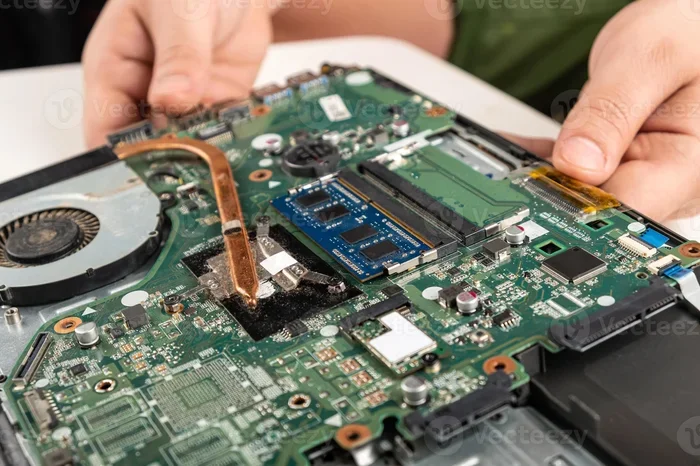
Some advanced users physically remove a dedicated GPU from a laptop. This is rare and risky. Not all laptops have removable graphics cards. But when they do, here’s what changes:
- The system relies entirely on CPU processing for visual output
- Software rendering takes over for tasks the GPU would normally handle
- Heat output drops noticeably
- Laptop performance drops for anything visually intensive
One real-world example: creative professionals sometimes remove dedicated GPUs from older laptops to repurpose them as office machines. It works, but they lose the ability to edit photos or videos efficiently.
Impact on Battery Life
This is where things get interesting. A dedicated graphics card consumes significant power. Removing it can extend battery life substantially. Some users report gains of 30-40% during light usage.
Why? Because integrated graphics use less energy. They share resources with the CPU instead of drawing from a separate power-hungry chip. For users who prioritize portability over performance, this tradeoff makes sense.
Real-World Scenarios: Laptops Without Dedicated GPUs
Let’s look at how laptops without dedicated GPUs perform in everyday life. This will help you understand what to expect.
Everyday Computing Tasks
For daily use, a laptop with only integrated graphics works wonderfully. Here’s a quick rundown:
- Web browsing: Smooth and responsive. Even with multiple tabs open, integrated graphics handle it well.
- Document editing: Microsoft Office, Google Docs, and similar apps run perfectly fine.
- Video streaming: Netflix, YouTube, and Hulu work great. Most integrated graphics support hardware-accelerated video decoding.
- Video calls: Zoom, Teams, and Skype run without issues. Display output quality remains sharp.
- Music streaming: Spotify and Apple Music need zero GPU power. They’ll run flawlessly.
Gaming Performance
Now, gaming is where the difference becomes obvious. Without a dedicated GPU, you’ll notice:
- Older or lightweight games run at lower frame rates
- Modern AAA titles either won’t start or are unplayable
- Competitive online games like Fortnite or League of Legends may run at reduced settings
- VR gaming is completely off the table
Some integrated graphics can handle esports titles surprisingly well. Intel’s Iris Xe, for example, can run games like Rocket League or Minecraft at 60fps on medium settings. But don’t expect more than that.
Creative and Professional Work
For content creators, the lack of a graphics card is felt quickly. Here’s how different tasks fare:
- Photo editing: Basic editing in Photoshop works. But large files and complex filters slow down significantly.
- Video editing: Timeline scrubbing becomes choppy. Video rendering times increase dramatically.
- 3D work: Blender, Maya, and similar tools struggle without dedicated visual computing power.
- Programming: Most coding tasks are fine. GPU-intensive development (like game dev) is not recommended.
| Task Type | With Dedicated GPU | Without Dedicated GPU |
|---|---|---|
| Web Browsing | Excellent | Excellent |
| Office Work | Excellent | Excellent |
| Video Streaming | Excellent | Very Good |
| Casual Gaming | Excellent | Fair |
| Video Editing | Excellent | Poor |
| 3D Rendering | Excellent | Very Poor |
Thermal Management Benefits
One underrated advantage of running without a dedicated GPU is cooler operating temperatures. Thermal management becomes much simpler. Your laptop fans spin less often, and the device stays comfortable on your lap.
This also means fewer thermal throttling events. When the CPU stays cool, it maintains higher clock speeds for longer. So ironically, some tasks might actually feel snappier without the graphics card generating extra heat.
How to Check If Your Laptop Has a GPU
If you’re unsure about your laptop’s graphics setup, checking is easy. Here are simple methods for each operating system.
On Windows
Follow these steps:
- Right-click on your desktop and select Display Settings.
- Scroll down and click Graphics Settings.
- You’ll see which graphics card is being used for different apps.
- For detailed info, open Device Manager and expand Display Adapters.
This shows you both your integrated graphics and any dedicated GPU installed. Most laptops list two entries — one for each type.
On macOS
Apple handles things differently. MacBooks with M-series chips use unified memory architecture. To check:
- Click the Apple menu and select About This Mac
- Look for the chip and memory information
- The GPU details are embedded within the processor info
Apple’s M1, M2, and M3 chips have powerful integrated graphics built in. They perform admirably for most tasks.
On Linux
Open your terminal and type lspci | grep VGA. This command shows all graphics processing devices on your system. You’ll see both integrated and dedicated options if both are present.
Tips for Improving Performance Without a Dedicated GPU
If your laptop relies on integrated graphics, you can still optimize performance. Here are practical tips that actually work.
Optimize Your Software Settings
- Lower display resolution: Running at 1080p instead of 4K reduces strain on integrated graphics.
- Disable animations: Turn off Windows visual effects for smoother performance.
- Use lightweight apps: Choose apps with lower visual computing demands.
- Update drivers: Always keep your graphics card drivers up to date for best compatibility.
Hardware Upgrades That Help
Even without a dedicated GPU, you can boost your laptop:
- Add more RAM: Integrated graphics share system memory. More RAM means more budget for graphics.
- Switch to an SSD: Faster storage reduces load times and improves overall responsiveness.
- Keep it clean: Dust buildup hurts thermal management. Clean your laptop’s vents regularly.
Quick Tips for Better Experience
- Close unused background apps to free up processing power
- Use dark mode — it can reduce GPU load on some systems
- Plug in your laptop for maximum performance
- Consider an external GPU via Thunderbolt if you need a serious boost
Using an External GPU
An external GPU (eGPU) is a great solution. You connect it to your laptop through a Thunderbolt 3 or 4 port. Suddenly, your GPU-less laptop has full dedicated GPU power.
This is perfect for users who want portability at work but gaming laptop performance at home. The setup costs more, but it’s a flexible option worth considering.
Common Mistakes People Make About GPUs in Laptops
Let’s clear up some widespread misconceptions about can a laptop work without GPU setups.
Mistake 1: Assuming No GPU Means No Display
Many people think removing a graphics card means no screen output. That’s wrong. Integrated graphics provide display output to your screen. Your laptop will still show images, videos, and everything else normally.
Mistake 2: Thinking Software Rendering Is Fast
Software rendering works, but it’s slow. Some users expect smooth 3D performance without a dedicated GPU. The reality is that CPU-based rendering can’t match dedicated hardware. It works for basic tasks, not demanding ones.
Mistake 3: Ignoring Battery Life Impact
Running without a dedicated GPU saves energy, but other factors also affect battery life. Screen brightness, background processes, and Wi-Fi usage all matter. Don’t assume removing the GPU alone doubles your battery.
Mistake 4: Overlooking Driver Updates
Users with integrated graphics often forget to update drivers. This leads to bugs, poor performance, and compatibility issues. Regular driver updates keep your graphics processing running smoothly.
Expert Insights: What Professionals Say
Tech experts generally agree on a few key points about laptops and GPUs:
- For everyday users: Integrated graphics are more than enough. You don’t need a dedicated GPU unless you game or create content.
- For gamers: A dedicated GPU is non-negotiable. Integrated graphics simply can’t deliver the frame rates modern games demand.
- For professionals: It depends on your workload. Video editors and 3D artists need dedicated hardware. Writers and analysts do not.
- For travelers: Removing a graphics card improves battery life and reduces weight — both valuable on the go.
One notable insight from hardware reviewers: modern integrated graphics have improved so much that the gap between them and entry-level dedicated GPUs is smaller than ever. A laptop with Intel Iris Xe or AMD Radeon graphics handles most tasks that users throw at it.
Frequently Asked Questions
Can a laptop boot without any GPU at all?
A laptop needs at least integrated graphics to produce a display output. Without any GPU — integrated or dedicated — your laptop will fail to show anything on screen. The motherboard requires a graphics processing unit to render the display during system boot and beyond.
Does removing a GPU affect RAM usage?
Yes, it does. Integrated graphics share system RAM for their operations. Without a dedicated GPU that has its own memory, your CPU uses a portion of your RAM as video memory. This means less RAM is available for other tasks like browsing or running applications.
Can I game on a laptop without a dedicated GPU?
You can play older or less demanding games. Modern AAA titles won’t run well without a dedicated GPU. However, integrated graphics from Intel and AMD handle esports titles and casual games surprisingly well. Expect lower frame rates and reduced visual quality compared to a gaming laptop setup.
Is software rendering a good alternative to a GPU?
Software rendering is a fallback option, not a replacement. It uses CPU processing to handle visual tasks. It works for basic desktop operations and simple animations. But for anything intensive — gaming, video editing, or 3D work — it’s far too slow to be practical.
How much battery life can I gain without a dedicated GPU?
Most users see a 20-40% improvement in battery life when disabling a dedicated GPU. The exact gain depends on your usage. Light tasks like browsing benefit the most. Thermal management also improves, reducing fan noise and heat output.
Can I add a GPU to a laptop that doesn’t have one?
In most cases, you can use an external GPU connected via Thunderbolt. This gives your laptop dedicated GPU power without opening the device. However, not all laptops support eGPUs. Check your laptop’s ports and manufacturer specifications before buying one.
Conclusion
So, can a laptop work without GPU support? The answer is a clear yes — as long as it has integrated graphics or some form of display output capability. Modern processors make this possible and surprisingly efficient.
Your laptop can handle everyday tasks, stream media, browse the web, and power through office work without a dedicated GPU. CPU processing and integrated graphics work together to keep everything running smoothly. The tradeoff comes with demanding tasks like gaming, video editing, and 3D rendering.
Understanding your laptop’s graphics processing capabilities helps you make smarter decisions. You can optimize performance, extend battery life, and get the best experience from your machine. Whether you keep your dedicated GPU enabled or disable it to save power, the choice is yours.
The surprising truth is this: most laptops don’t really need a dedicated GPU for daily use. Integrated graphics have come a long way. Embrace what your laptop can do, and upgrade only when your specific needs demand it.