Can I Use My Own Router With My Internet Provider
Yes, you can use your own router with most internet providers. Switching to your own hardware saves money on monthly rental fees and gives you better control over your network. This guide covers compatibility, setup, benefits, and common pitfalls so you can make the right choice for your home.
You have probably wondered whether you can use your own router with your internet provider. Maybe you are tired of paying that monthly rental fee. Or maybe your ISP’s equipment just feels slow and outdated. Whatever the reason, the answer is almost always yes. You can use your own router with most internet providers, but there are a few things you need to know first.
Using your own router gives you more control over your home network. You get better features, faster speeds, and stronger WiFi coverage. In this guide, we will walk you through everything you need to know about bringing your own router to your ISP. We will cover compatibility, setup, benefits, and common mistakes to avoid.
Key Takeaways
- Bring Your Own Router Is Possible: Most internet providers allow you to use your own router, but you need to check compatibility first.
- Save Money Every Month: Ditching the ISP rental fee can save you $100 or more per year.
- Better Performance and Features: Your own router often offers faster speeds, better range, and more advanced settings.
- Check DOCSIS and Modem Compatibility: You need a compatible modem or modem-router combo to work with your ISP’s network.
- Setup Is Usually Simple: Most routers have a guided setup process that takes less than 15 minutes.
- Watch Out for Common Mistakes: Using the wrong modem or skipping firmware updates can cause problems.
📑 Table of Contents
What Does It Mean to Use Your Own Router?
When you sign up for internet service, your provider usually gives you a modem or a modem-router combo. This is called ISP equipment. You pay a rental fee each month to use it. But you are not required to use it forever. You can buy your own router and connect it to your ISP’s modem. This is often called the bring your own router approach.
A modem-router combo is a single device that does two jobs. It connects to your internet provider’s network and it also creates a WiFi network in your home. When you bring your own router, you typically keep the ISP modem but remove the combo device. Then you connect your new router to the modem using an Ethernet cable.
This setup gives you the best of both worlds. Your ISP modem handles the connection to the internet. Your personal router handles WiFi, security, and network management. Many people find that this setup works better than relying on ISP-provided hardware.
Benefits of Using Your Own Router
Save Money on Rental Fees
The biggest reason people switch is the cost. Most ISPs charge between $10 and $15 per month to rent their equipment. Over a year, that adds up to $120 to $180. A good router costs $80 to $200. So you can pay for your own router in just a few months and then save money every month after that. Over three or four years, the savings are significant.
Better Internet Speed and Performance
ISP-provided routers are often basic models. They may not support the latest WiFi standards. They may also struggle with multiple devices. When you use your own router, you can choose a model that matches your internet plan. If you pay for gigabit internet, you need a router that can handle those speeds. A better router means faster downloads, smoother streaming, and less lag during video calls.
Stronger WiFi Coverage
Many ISP routers have weak antennas. They may not reach every room in your home. A better personal router offers stronger signal strength and more antennas. Some routers support mesh WiFi, which lets you place extra nodes around your home for full coverage. This is especially helpful in larger homes or homes with thick walls.
More Advanced Features
Your own router gives you access to features that ISP equipment often lacks. These include:
- Parental controls to manage screen time and block inappropriate content
- Guest networks so visitors can use the internet without accessing your main network
- QoS (Quality of Service) settings that prioritize traffic for gaming or video calls
- Better security with regular firmware updates and advanced encryption
- More Ethernet ports for wired connections to smart TVs, game consoles, and PCs
Full Control Over Your Network
When you use your own router, you own the network. You can change settings, update firmware, and customize everything. You are not at the mercy of your ISP’s limited admin panel. This control is especially important for power users and home offices.
Things to Check Before You Buy Your Own Router
Check Your Internet Plan and Speed
Before you buy a router, check your internet plan. What speed tier do you have? If you have a 100 Mbps plan, most modern routers will handle it easily. But if you have a 1 Gbps or faster plan, you need a router that supports those speeds. Look for routers with gigabit Ethernet ports and WiFi 6 or WiFi 6E support.
Make Sure Your Modem Is Compatible
This is the most important step. Your modem must be compatible with your ISP. Each provider uses different technology and standards. For cable internet, look for a DOCSIS 3.1 modem. For fiber internet, the modem is usually provided by the ISP. DSL users need a modem that matches their provider’s requirements. You can usually find a list of approved modems on your ISP’s website.
Check Router Compatibility With Your ISP
Most modern routers work with any ISP. But some ISPs have restrictions. For example, some providers require you to register your router’s MAC address. Others may block certain router features. Before you buy, check your ISP’s website or call customer support to confirm there are no restrictions. Most major providers like Comcast, AT&T, Spectrum, and Verizon allow third-party routers.
Consider Your Home Size and Layout
Think about how big your home is and where you need WiFi coverage. A small apartment may only need a single router. A large house with multiple floors might benefit from a mesh system. Mesh routers use multiple nodes to spread WiFi throughout your home. They are more expensive but offer much better coverage in large spaces.
Set a Budget
Routers range from $50 to $300 or more. You do not need the most expensive model unless you have very high speeds or many devices. A good mid-range router costs $100 to $150 and handles most households well. If you have a lot of smart home devices or work from home, consider spending a bit more for better performance.
How to Set Up Your Own Router With Your ISP
Step 1: Connect Your Modem
Start by connecting your ISP modem to the wall outlet or fiber terminal. Power it on and wait for the lights to stabilize. Most modems take one to two minutes to fully connect. Check that the online or internet light is solid.
Step 2: Connect Your Router to the Modem
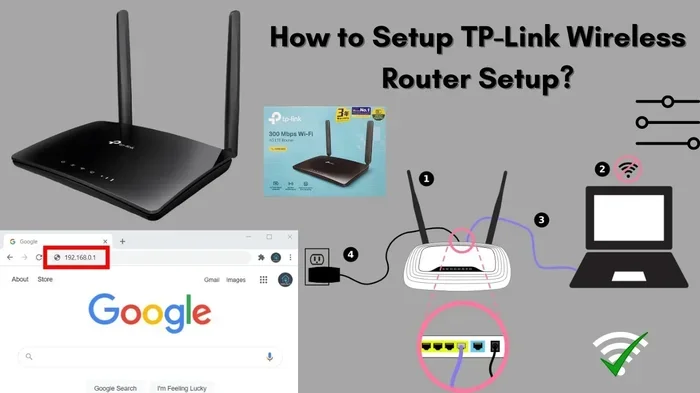
Use an Ethernet cable to connect the modem to your new router. Plug one end into the modem’s Ethernet port and the other end into the router’s WAN or Internet port. This port is usually colored differently from the other ports.
Step 3: Power On Your Router
Plug in your router and turn it on. Wait for it to fully boot up. This usually takes about two minutes. Look for a solid power light and a WiFi signal light.
Step 4: Access the Router Settings
Open a web browser on your computer or phone. Type in the router’s default IP address. This is usually printed on the router’s label. Common addresses include 192.168.1.1 or 192.168.0.1. Log in with the default username and password. You should change these right away for better network security.
Step 5: Configure Your WiFi Settings
Set up your WiFi network name and password. Choose a strong password to keep your network safe. If your router supports dual-band, set up both the 2.4 GHz and 5 GHz networks. The 5 GHz band is faster but has shorter range. The 2.4 GHz band is slower but reaches farther.
Step 6: Update the Firmware
After setup, check for firmware updates. Firmware is the software that runs your router. Updates fix bugs, improve performance, and patch security holes. Most modern routers have an auto-update feature. Turn it on if available.
Quick Tips for a Smooth Setup
- Keep your modem and router in a central location for the best WiFi coverage
- Do not hide your router inside a cabinet or closet
- Place the router on a high shelf for better signal distribution
- Restart both devices if you experience connection issues
- Write down your WiFi password and keep it in a safe place
Common Problems and How to Fix Them
No Internet Connection After Setup
This is the most common issue. First, check all cable connections. Make sure the Ethernet cable is plugged into the correct port on both the modem and router. Restart both devices. If that does not work, you may need to clone your modem’s MAC address in the router settings. This tells your ISP that your new router is an approved device.
Slow Internet Speeds
If your speeds are slower than expected, try a few things. Move closer to the router and test again. Switch to the 5 GHz band if you are far from the router. Check if other devices are using bandwidth. Also make sure your router’s firmware is up to date. If none of these work, your router may not support your internet speed tier.
WiFi Keeps Dropping
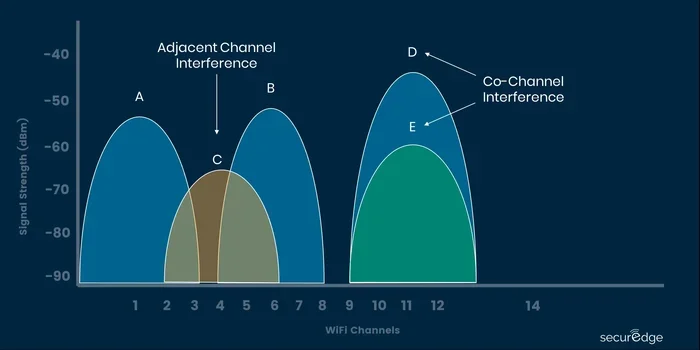
Interference from other devices can cause WiFi drops. Microwaves, baby monitors, and cordless phones can all interfere with the 2.4 GHz band. Try changing your WiFi channel in the router settings. Also make sure your router is not placed near thick walls or large metal objects.
ISP Customer Support Will Not Help
Some ISPs will not troubleshoot issues with your own router. They only support their own equipment. This does not mean your router is broken. It just means you need to handle setup and troubleshooting yourself. Check the router manufacturer’s support site for help. Many brands offer excellent online guides and community forums.
Can I Use My Own Router With My Internet Provider If I Have a Gateway Device?
Yes, but you need to put the gateway into bridge mode first. A gateway is a modem-router combo device. When you use your own router, you want the gateway to act only as a modem. Bridge mode disables the router functions of the gateway. Then your personal router takes over. Check your gateway’s manual or your ISP’s support page for instructions on enabling bridge mode.
Should You Switch to Your Own Router?
The answer depends on your situation. If you are paying a monthly rental fee and your current router feels slow or outdated, switching makes sense. You will save money and get better performance. But if you are on a tight budget and your ISP equipment works fine, there is no urgent need to switch.
Also consider your technical comfort level. Setting up your own router is not hard, but it does require some basic knowledge. If you are not comfortable with tech, you might want to stick with your ISP’s equipment or ask a friend for help. Many modern routers have very simple setup apps that make the process easy.
Here is a quick comparison to help you decide:
- ISP Equipment: No upfront cost, easy support, but limited features and ongoing rental fees
- Your Own Router: Higher upfront cost, full control, better performance, and no monthly rental fee
Most people who switch to their own router are happy with the decision. The improved speed, coverage, and features make a noticeable difference. Plus, the savings over time are hard to ignore.
Final Thoughts
So, can you use your own router with your internet provider? The answer is a clear yes. Most ISPs allow it, and the process is straightforward. You save money, get better performance, and take full control of your home network. Just make sure your modem is compatible, choose a router that fits your needs, and follow the setup steps carefully.
Do not let the idea of setting up a new router scare you. It is easier than most people think. With a little patience and this guide, you can be up and running in under 30 minutes. Your internet experience will feel faster, more reliable, and more personalized. Give it a try and see the difference for yourself.
Frequently Asked Questions
Can I Use My Own Router With My Internet Provider if I Have Cable Internet?
Yes, cable internet users can almost always use their own router. You just need to make sure your modem is DOCSIS-compatible with your provider. Check your ISP’s approved modem list before buying. Once you have a compatible modem, connecting your own router is simple and straightforward.
Will My Internet Provider Charge Me If I Use My Own Router?
No, your provider will not charge you extra for using your own router. In fact, you will save money because you can stop paying the monthly rental fee for their equipment. Just make sure you return any ISP-provided equipment if you no longer need it to avoid extra charges.
Do I Need a Modem if I Already Have a Modem-Router Combo?
If you are using your own router, you do not need a combo device. You keep the ISP modem and connect your personal router to it. The modem handles the internet connection, and your router handles WiFi and network management. This two-device setup usually performs better than a single combo unit.
What Is Bridge Mode and Do I Need It?
Bridge mode turns your ISP gateway into a modem-only device. You need it when your ISP gave you a modem-router combo and you want to use your own router. Without bridge mode, you will have two routers fighting for control, which causes connection problems. Check your gateway’s settings to enable bridge mode before connecting your new router.
Can I Return My ISP Equipment After I Buy My Own Router?
Yes, most ISPs let you return their equipment once you are using your own router. Call customer support or visit a store to return the device. Make sure you get a confirmation or receipt. Returning the equipment stops the monthly rental fee immediately.
What WiFi Standard Should I Look for in a New Router?
Look for WiFi 6 or WiFi 6E routers for the best performance. These standards support faster speeds, more devices, and better range. If you have a smaller home and a lower-speed plan, WiFi 5 routers still work well and cost less. Match the WiFi standard to your internet plan and the number of devices in your home.
=== CONCLUSION ===
Can I Use My Own Router With My Internet Provider? Absolutely. Using your own router is one of the best upgrades you can make for your home network. You save money on rental fees, enjoy faster speeds, and get access to features that ISP equipment simply does not offer. The setup process is simple, and the results are worth the effort.
Take a few minutes to check your modem compatibility, choose the right router, and follow the setup steps. You will wonder why you did not switch sooner. Better WiFi, lower bills, and full control over your network are all within your reach. Make the switch today and experience the difference.