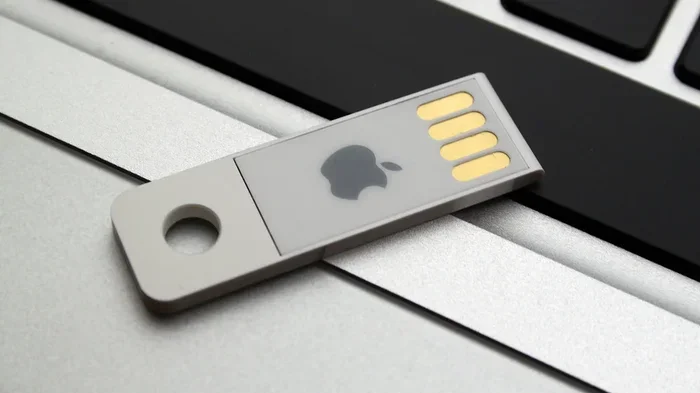
Can I Use Any Flash Drive On A Mac And Have It Work
Yes, you can use almost any flash drive on a Mac, but not every drive works perfectly right out of the box. The key to making a flash drive work on a Mac lies in the file system format and the USB connection type. Whether you own a Macbook Pro, Macbook Air, or any other Mac, understanding Mac compatibility with different drives saves time and frustration. This guide walks you through everything you need to know about using a USB flash drive on your Mac.
So you just bought a new flash drive and want to plug it into your Mac. The question is simple: can you use any flash drive on a Mac and have it work? The short answer is yes. The longer answer is that it depends on a few things you should know about first.
Not every flash drive works perfectly on every Mac right out of the box. The file system the drive uses, the type of USB connection, and even the macOS version on your computer all play a role. If you have a Macbook Pro, Macbook Air, or any other Mac, this guide covers everything you need to know.
We will walk through Mac compatibility with different drives, explain why formatting matters, and give you step-by-step instructions to get any portable drive working. By the end, you will know exactly what to look for and how to fix problems when they come up.
Key Takeaways
- Most flash drives work on a Mac: Standard USB flash drives are generally plug and play, but format matters.
- File system compatibility is critical: exFAT and FAT32 work best for cross-platform use, while APFS and HFS+ are Mac-only formats.
- USB-C and USB-A both work: You may need an adapter depending on your Mac model.
- Formatting erases all data: Always back up your files before reformatting a drive.
- NTFS drives are read-only on Mac: You need third-party software to write to NTFS-formatted drives.
- Disk Utility is your best friend: It is the built-in tool for formatting and managing external storage on macOS.
- Some drives are Mac-specific: Drives pre-formatted for Windows may need reformatting for full Mac functionality.
📑 Table of Contents
- What Is a Flash Drive and How Does It Work on a Mac
- Which Flash Drives Are Compatible with a Mac
- File Systems: Why Format Matters for Mac Compatibility
- How to Format a Flash Drive for Your Mac
- Troubleshooting Common Flash Drive Problems on a Mac
- Best Flash Drives for Mac Users
- Expert Tips for Using Flash Drives with Your Mac
- Conclusion
What Is a Flash Drive and How Does It Work on a Mac
A flash drive is a small, portable storage device that connects to your computer through a USB port. People also call it a thumb drive, jump drive, or USB drive. It stores files like documents, photos, videos, and music in a compact package you can carry in your pocket.
When you plug a flash drive into a Mac, the operating system detects it and tries to read the data. This process is usually instant. macOS supports several file systems, which are the methods used to organize and store data on a drive. The most common ones are FAT32, exFAT, APFS, HFS+, and NTFS.
Here is the thing that trips most people up. A flash drive formatted for Windows will not always work the same way on a Mac. And a drive formatted for an older Mac may not work well on a newer one. That is why understanding cross-platform compatibility matters so much.
Why Does the File System Matter
The file system is like the language your drive speaks. If your Mac and the drive do not speak the same language, problems happen. A drive formatted as NTFS, which is the default for Windows, will show up on your Mac as read-only. You can look at the files but you cannot add, change, or delete anything.
On the other hand, a drive formatted as exFAT works beautifully on both Mac and Windows. It is the best choice if you need external storage that works on multiple computers. FAT32 is another option, but it has a file size limit of 4 GB, which can be a real hassle with large video files.
Which Flash Drives Are Compatible with a Mac
Almost any USB flash drive will work on a Mac to some degree. But the level of compatibility depends on the drive’s format and connection type. Let us break this down.
USB-A vs USB-C Flash Drives
Older Macs use USB-A ports. Newer Macs, especially the Macbook Pro and Macbook Air models from 2016 onward, use USB-C or Thunderbolt ports. You can still use a USB-A flash drive on a modern Mac, but you will need a USB-C adapter.
Some flash drives come with both USB-A and USB-C connectors built in. These are called dual connector drives and they are very convenient. If you use your Macbook on the go, a dual connector drive is a smart choice for portable storage.
Pre-Formatted Drives
Many flash drives come pre-formatted as FAT32 or exFAT. These drives will work on a Mac without any extra steps. Drives formatted as NTFS, which is common for drives sold in bulk for office use, will have limited functionality on macOS.
If you buy a drive that is already formatted for Windows, do not panic. You can still use it on your Mac. You just will not be able to write new files to it without some extra help. More on that in a moment.
Mac-Specific Drives
Some manufacturers sell flash drives specifically designed for Mac users. These drives come pre-formatted as APFS or HFS+. They work right away on Mac computers but will not work on Windows without reformatting.
These Mac-specific drives often come with extra software or features like password protection. They can be a good choice if you only use Mac computers and want a hassle-free experience with external storage.
File Systems: Why Format Matters for Mac Compatibility
The file system is the most important factor in determining whether a flash drive will work on your Mac. Let us look at each one in detail.
FAT32
FAT32 is one of the oldest and most widely supported file systems. It works on Macs, Windows PCs, Linux machines, and even some TVs and car stereos. The big downside is the 4 GB file size limit. You cannot copy a single file larger than 4 GB to a FAT32 drive.
For transferring small documents, photos, and short videos, FAT32 works fine. For anything larger, you will need a different format.
exFAT
exFAT is the sweet spot for cross-platform use. It has no file size limit and works on both Mac and Windows. Apple has supported exFAT since macOS Snow Leopard, and it is the recommended format for most users who need a USB flash drive that works everywhere.
If you want a drive that you can use on your Mac at home and a Windows PC at work, exFAT is the way to go.
APFS and HFS+
APFS is the default file system for modern macOS. HFS+ was the default before that. Both are Mac-only formats. They offer features like encryption and snapshots that NTFS and FAT32 do not have.
The problem is that Windows cannot read APFS or HFS+ drives without special software. If you plan to use a flash drive only with Mac computers, these formats work great. If you need cross-platform access, stick with exFAT.
NTFS
NTFS is the default file system for Windows. On a Mac, NTFS drives show up as read-only. You can open and copy files from the drive, but you cannot save new files to it.
If you absolutely need to write to an NTFS drive on your Mac, you will need third-party software like Paragon NTFS or Tuxera. These tools add write support for NTFS drives on macOS.
How to Format a Flash Drive for Your Mac
Formatting a flash drive erases all the data on it. Make sure you back up any important files before you start. Once you format the drive, the data is gone for good.
Using Disk Utility
Disk Utility is a built-in macOS tool that makes formatting a flash drive very easy. Here is how to do it.
- Plug your flash drive into your Mac.
- Open Disk Utility. You can find it by searching in Spotlight or going to Applications > Utilities > Disk Utility.
- Select your flash drive from the list on the left side.
- Click the Erase button at the top of the window.
- Choose a name for your drive.
- Select the format. For most users, exFAT is the best choice.
- Click Erase and wait for the process to finish.
That is it. Your flash drive is now formatted for Mac and ready to use. If you ever need to use it on a Windows PC too, just format it as exFAT again.
Choosing the Right Format
Here is a quick guide to help you pick the right format for your needs.
- exFAT: Best for cross-platform use. No file size limit. Works on Mac and Windows.
- FAT32: Good for small files and older devices. 4 GB file size limit.
- APFS: Best for Mac-only use. Offers advanced features like encryption.
- HFS+: Older Mac format. Works on older macOS versions but lacks modern features.
- NTFS: Windows format. Read-only on Mac without extra software.
Troubleshooting Common Flash Drive Problems on a Mac
Even with the right format, you might run into issues when using a flash drive on your Mac. Here are the most common problems and how to fix them.
The Drive Does Not Show Up
If you plug in a flash drive and it does not appear on your desktop or in Finder, try these steps.
- Try a different USB port. Some ports may not provide enough power.
- Try a different cable if your drive uses a cable rather than plugging in directly.
- Check Disk Utility to see if the drive appears there. If it does, it may just not be mounted.
- Restart your Mac. Sometimes a simple restart fixes detection issues.
The Drive Is Read-Only
If you can open files from the drive but cannot add or change anything, the drive is probably formatted as NTFS or has a permissions issue.
You can check the format in Disk Utility. If it is NTFS, you will need third-party software to write to it. If it is exFAT or FAT32 and still read-only, try repairing the disk using Disk Utility’s First Aid feature.
The Drive Runs Slow
Some flash drives are much slower than others. Cheap drives with low-quality memory can bottleneck your file transfers. If your drive is very slow, it might just be a low-quality product.
To test your drive speed, you can use a free app like Blackmagic Disk Speed Test. It gives you read and write speeds so you can see if your drive is performing as expected.
The Drive Keeps Disconnecting
If your flash drive keeps ejecting or disconnecting, the USB port might be loose or the drive itself could be faulty. Try plugging the drive into a different port. If the problem continues, the drive may be damaged and need to be replaced.
Best Flash Drives for Mac Users
Not all flash drives are created equal. Some are designed specifically to work well with Mac computers. Here are a few options worth considering.
SanDisk Cruzer Blade
The SanDisk Cruzer Blade is a reliable, affordable USB flash drive. It comes pre-formatted as FAT32, which works on Macs right away. It is small, durable, and perfect for everyday file transfers.
Samsung BAR Plus
The Samsung BAR Plus is a metal-bodied drive that is water-resistant and shock-proof. It supports USB 3.1 for fast transfer speeds. It comes formatted as exFAT, making it a great cross-platform option.
Lexar JumpDrive S73
This drive features a USB-C connector and USB-A connector in one sleek design. It is fast, durable, and works with both older and newer Macs. It comes pre-formatted for Mac compatibility.
Kingston DataTraveler Max
The Kingston DataTraveler Max is one of the fastest USB flash drives available. It supports USB 3.2 and offers blazing fast read and write speeds. It is ideal for transferring large files like video projects on a Macbook Pro.
Expert Tips for Using Flash Drives with Your Mac
Here are some practical tips that will help you get the most out of your flash drive on a Mac.
- Always eject your drive properly. Do not just pull it out. Click the eject icon next to the drive name in Finder or drag it to the Trash. This prevents data corruption.
- Keep your macOS updated. Newer macOS versions often improve support for external storage devices.
- Avoid using your flash drive as a backup drive. Flash drives are not designed for long-term storage. Use Time Machine with an external hard drive instead.
- Label your drives. If you use multiple flash drives, give them names so you can tell them apart in Finder.
- Scan for viruses on Windows machines. If you use your Mac flash drive on a Windows PC, make sure the PC has antivirus software. Malware from a Windows machine can affect your Mac.
These simple habits will keep your external storage healthy and your files safe. A little care goes a long way with portable drives.
Conclusion
The answer to the question Can I Use Any Flash Drive On A Mac And Have It Work is mostly yes. Almost any flash drive will work on a Mac, but the experience depends on the file system format and the type of USB connection your Mac has.
If you want the smoothest experience, choose a drive formatted as exFAT. It works on Mac and Windows, has no file size limits, and requires no extra software. If your drive is formatted as NTFS, you can still use it, but you will be limited to reading files only unless you install third-party software.
Take a few minutes to check your drive format and get to know Disk Utility. These small steps will save you hours of frustration down the road. Now you have all the knowledge you need to use any flash drive on your Mac with confidence. Go ahead, plug in that drive, and start transferring files.
Frequently Asked Questions
Can I use a Windows-formatted flash drive on a Mac?
Yes, you can use a Windows-formatted flash drive on a Mac. Drives formatted as NTFS will work in read-only mode, meaning you can open and copy files but cannot add or change them. If you need full write access, you will need to reformat the drive or install third-party software like Paragon NTFS.
What is the best file system for a flash drive used on both Mac and Windows?
exFAT is the best file system for cross-platform use. It has no file size limit and works natively on both macOS and Windows. Most experts recommend exFAT for anyone who needs a portable drive that works on different computers.
Do I need an adapter to use a USB flash drive on a Mac?
It depends on your Mac model. Older Macs have USB-A ports, so a standard USB-A flash drive plugs in directly. Newer Macs use USB-C or Thunderbolt ports, so you will need a USB-C adapter or a drive with a built-in USB-C connector.
Will formatting my flash drive erase all the data on it?
Yes, formatting a flash drive erases all data on it. Always back up your files to another location before formatting. Once the format is complete, the data cannot be recovered through normal means.
Can I use APFS-formatted flash drives on Windows?
No, Windows cannot natively read APFS-formatted drives. APFS is a Mac-only file system. If you need a drive that works on both Mac and Windows, format it as exFAT instead.
How do I safely remove a flash drive from my Mac?
Open Finder and find the drive in the sidebar. Click the eject icon next to the drive name, or right-click the drive and select Eject. Wait until the drive icon disappears from your desktop before unplugging it. This prevents data corruption and keeps your files safe.