Can I Use A Displayport To Hdmi Adapter For Dual Monitors
Yes, you can use a DisplayPort to HDMI adapter for dual monitors, but there are a few important things to know first. Adapter compatibility, resolution support, and your graphics card outputs all play a big role in whether your setup will work smoothly. This guide breaks down everything you need to consider before buying or setting up your dual monitor configuration.
Have you been staring at your single monitor and thinking it is time to go dual? You are not alone. Millions of workers, gamers, and creatives add a second screen every year because it boosts productivity and makes multitasking so much easier. But when your computer only has certain ports, the question comes up fast: can I use a DisplayPort to HDMI adapter for dual monitors?
The short answer is yes. You absolutely can. But the longer answer involves a few things you need to check first. Not every adapter works the same way. Not every graphics card handles dual outputs equally. And not every monitor plays nice with every connection type. In this guide, we walk through everything you need to know. We cover compatibility, setup steps, common mistakes, and expert tips that save you time and money.
Whether you are a remote worker adding a second screen for spreadsheets, a gamer wanting an immersive setup, or a designer needing color-accurate displays, this article has you covered. Let us dive in and make sure your dual monitor setup works perfectly from day one.
Key Takeaways
- Dual monitors work with adapters: A DisplayPort to HDMI adapter can successfully connect two monitors to a single computer.
- Active vs passive matters: Active adapters convert the signal, while passive ones simply pass it through — choose the right one for your setup.
- Check your graphics card outputs: You need at least one DisplayPort and one HDMI output, or two DisplayPorts with an adapter.
- Resolution and refresh rate vary: Your adapter quality determines whether you get 4K, 1080p, or higher refresh rates on both screens.
- Daisy chaining is an alternative: Some monitors support DisplayPort daisy chaining, which eliminates the need for multiple adapters.
- Common mistakes cause issues: Using the wrong adapter type or outdated drivers can lead to no signal or poor performance.
- USB-C docks offer flexibility: A USB-C docking station can simplify your dual monitor setup with fewer cables.
📑 Table of Contents
- Understanding DisplayPort and HDMI Connections
- Can You Run Dual Monitors with a DisplayPort to HDMI Adapter?
- What to Look for When Buying an Adapter
- Setting Up Your Dual Monitor Configuration
- Common Mistakes and How to Avoid Them
- Expert Insights and Pro Tips
- DisplayPort Daisy Chaining: An Alternative Worth Considering
- How Adapter Quality Affects Your Display Experience
- FAQ
- Conclusion
Understanding DisplayPort and HDMI Connections
Before you buy any adapter, it helps to understand what these two connection types actually do. Both DisplayPort and HDMI carry video and audio signals from your computer to your monitor. They just use different connectors and slightly different technology underneath.
HDMI is the most common port on modern TVs, monitors, and laptops. You probably have several HDMI cables lying around already. DisplayPort is more common on desktop computers and graphics cards. It is a digital display interface developed by VESA and is known for supporting high resolutions and refresh rates.
What Does a DisplayPort to HDMI Adapter Do?
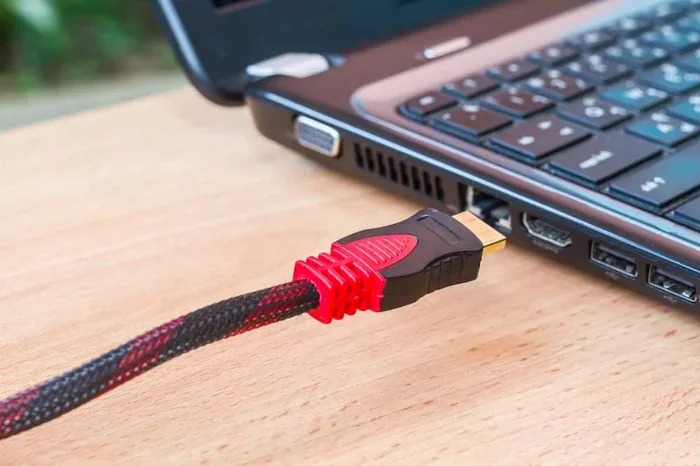
An adapter simply converts the signal from one type of port to another. When you plug a DisplayPort to HDMI adapter into your computer, it takes the DisplayPort output and translates it into a signal your HDMI monitor can read. Think of it like a translator between two languages. The information stays the same, but the format changes.
Some adapters are small dongles that plug directly into your port. Others are cable-style adapters that connect one cable to another. Both work fine. The important thing is choosing the right one for your needs.
Active vs Passive Adapters
This is where things get tricky. There are two main types of adapters:
- Passive adapters simply pass the signal through without any conversion. They work when your graphics card supports DisplayPort over HDMI natively. These are cheaper but less flexible.
- Active adapters actively convert the signal from DisplayPort to HDMI. They are more expensive but work with almost any setup. They also handle more complex signal conversions.
For a dual monitor setup, you almost always want an active adapter. It gives you more flexibility and fewer headaches. Passive adapters can work in some cases, but they depend heavily on your specific hardware combination.
Can You Run Dual Monitors with a DisplayPort to HDMI Adapter?
Yes, you can run two monitors using a DisplayPort to HDMI adapter. But how you do it depends on what ports your computer has available. Let us look at the most common scenarios.
Scenario 1: One DisplayPort and One HDMI Output
If your graphics card has both a DisplayPort and an HDMI output, you are in luck. You can plug one monitor directly into the HDMI port. Then you use a DisplayPort to HDMI adapter for the second monitor. This is the simplest setup and works with almost any graphics card.
In this case, you do not even need an adapter for the first monitor. The adapter only handles the second display. This keeps costs down and setup simple.
Scenario 2: Two DisplayPort Outputs, No HDMI
This is the most common situation on desktop PCs. Your graphics card has two DisplayPort outputs but no HDMI. You want to connect two HDMI monitors. You need two DisplayPort to HDMI adapters. This works perfectly fine. Just make sure both adapters are good quality and support the resolution you need.
Some people worry that using two adapters will cause performance issues. In most cases, it does not. Modern graphics cards handle multiple outputs easily. The bottleneck is usually your monitor’s refresh rate or resolution, not the adapter itself.
Scenario 3: USB-C or Thunderbolt Laptops
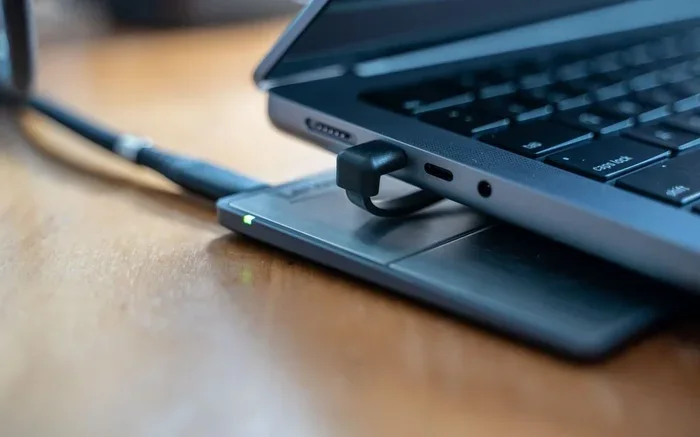
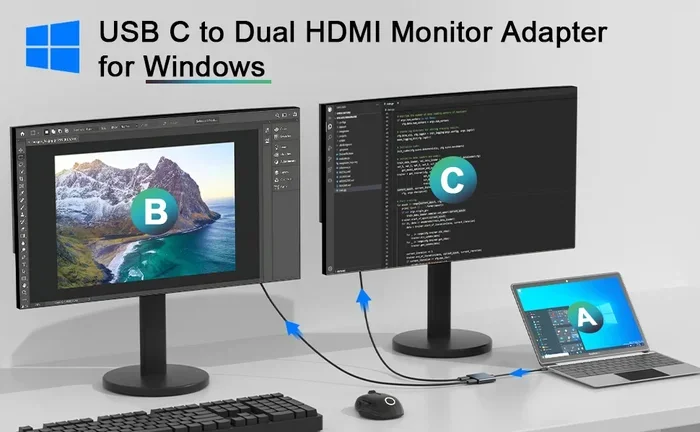
If you have a modern laptop with USB-C or Thunderbolt ports, you have even more options. Many USB-C ports support DisplayPort Alt Mode, which means you can use a USB-C to HDMI adapter. Some people use a USB-C docking station with multiple HDMI outputs to connect two monitors at once.
This approach is great for laptop users who want a clean desk setup. Instead of juggling multiple adapters, one dock handles everything. You plug in one cable and both monitors light up.
What to Look for When Buying an Adapter
Not all adapters are created equal. Shopping for the right one can feel overwhelming with so many options on Amazon and other stores. Here is what matters most.
Resolution Support
Check what resolution the adapter supports. If you have a 4K monitor, you need an adapter that handles 4K at 60Hz or higher. Cheap adapters often only support 1080p or 4K at 30Hz. The difference is noticeable. A 30Hz refresh rate makes the screen feel laggy and uncomfortable.
Look for adapters that explicitly state their resolution and refresh rate on the packaging. If it does not say 4K 60Hz, assume it is lower quality.
Version Compatibility
DisplayPort and HDMI have different versions. DisplayPort 1.2, 1.4, and 2.1 all carry different amounts of bandwidth. HDMI 2.0 and HDMI 2.1 also vary. Your adapter needs to match or exceed the version of both your computer output and your monitor input.
For most users, a DisplayPort 1.2 or higher adapter with HDMI 2.0 support is more than enough. It handles 4K at 60Hz easily. Only extreme gamers or professionals working with very high resolutions need the latest versions.
Build Quality and Brand Reputation
Cheap no-name adapters fail more often. They overheat. They cause flickering. They lose signal after a few weeks. Spending a little extra on a reputable brand saves you from these headaches. Brands like Cable Matters, StarTech, and UGREEN make reliable adapters that last.
Read reviews before you buy. Look for mentions of signal drops, overheating, or compatibility issues. A few minutes of research saves hours of frustration later.
Setting Up Your Dual Monitor Configuration
Once you have the right adapter, setting up your dual monitors is straightforward. Here is a step-by-step process that works for most setups.
Step 1: Connect Your Monitors
Plug your first monitor directly into the HDMI port on your graphics card. Then plug your second monitor into the DisplayPort to HDMI adapter, and connect the adapter to the DisplayPort output on your computer. Both monitors should power on.
Step 2: Configure Display Settings
On Windows, right-click your desktop and select Display Settings. You should see two monitor icons. If you do not, click Detect. Then drag the icons to match the physical arrangement of your monitors on your desk.
On macOS, go to System Settings, then Displays. Your Mac should detect both screens automatically. You can arrange them to match your desk layout and choose which is your primary display.
Step 3: Adjust Resolution and Orientation
Make sure both monitors are set to their native resolution. If one monitor looks blurry, the resolution is probably wrong. You can also choose to extend your desktop across both screens or mirror them, depending on your needs.
For most productivity setups, extending the desktop works best. It gives you a giant workspace to spread out your windows. For presentations or media consumption, mirroring makes more sense.
Step 4: Update Your Graphics Drivers
Do not skip this step. Outdated graphics drivers are one of the most common causes of dual monitor problems. Visit your GPU manufacturer’s website and download the latest drivers. Whether you use NVIDIA, AMD, or Intel, updated drivers fix most display issues.
Common Mistakes and How to Avoid Them
Even with the right adapter, people make mistakes that cause problems. Here are the most common ones and how to avoid them.
Using a Passive Adapter When You Need Active
This is the number one mistake. Passive adapters only work in specific situations. If your graphics card does not support the DisplayPort to HDMI signal conversion natively, a passive adapter will give you no signal at all. Always go with an active adapter for dual monitor setups. It costs a few dollars more but saves you from troubleshooting for hours.
Ignoring Bandwidth Limitations
Every adapter has a bandwidth limit. If you try to push 4K at 144Hz through an adapter that only supports 4K at 30Hz, you will get a bad experience. Check the specifications carefully before you buy. The box should clearly state the maximum resolution and refresh rate.
Using a Low-Quality Cable
The adapter is only as good as the cable connected to it. A cheap HDMI cable can cause signal loss, flickering, or no signal at all. Use high-quality cables that are rated for the resolution you need. For 4K setups, look for cables rated Premium High Speed HDMI or equivalent.
Forgetting to Enable Both Displays
Sometimes both monitors are connected but only one shows an image. This usually happens because Windows or macOS has not enabled the second display. Go into your display settings and make sure both monitors are turned on. It sounds obvious, but it happens more often than you think.
Expert Insights and Pro Tips
We asked a few tech professionals about their favorite tips for multi-monitor setups using adapters. Here is what they had to say.
Start with your graphics card manual. Every GPU has a maximum number of displays it can support. Some budget cards only handle two outputs. High-end cards can handle four or more. Check your card’s specifications before you buy adapters or monitors.
Consider a docking station for cleaner setups. If you have multiple adapters and cables everywhere, a docking station simplifies things dramatically. You connect one cable to your laptop and plug both monitors into the dock. Less cable clutter, fewer adapter failures.
Test your setup with a simple task first. Before you start a big project or gaming session, open a few windows and drag them between screens. Make sure everything works smoothly. Fixing issues before you are in the middle of important work saves a lot of stress.
Keep your adapters cool. Adapters can get warm during long use sessions. Do not place them under papers or in enclosed spaces. Good airflow keeps them running reliably for years.
DisplayPort Daisy Chaining: An Alternative Worth Considering
If you are buying new monitors, consider ones that support DisplayPort daisy chaining. This means you connect the first monitor to your computer via DisplayPort, then connect the second monitor to the first monitor using another DisplayPort cable. Both monitors receive the signal through a single connection on your computer.
Daisy chaining eliminates the need for adapters entirely. It also reduces cable clutter on your desk. Not all monitors support this feature, so check the specifications before you buy. Monitors with DisplayPort In and DisplayPort Out ports are daisy chain capable.
This approach works best when both monitors have DisplayPort inputs. If you have HDMI-only monitors, you still need adapters. But for new purchases, daisy chain monitors are a great option that simplifies your setup.
How Adapter Quality Affects Your Display Experience
The quality of your adapter directly impacts what you see on screen. A premium adapter delivers crisp images, accurate colors, and smooth motion. A cheap adapter might introduce flickering, color shifts, or reduced refresh rates.
For creative professionals who need color accuracy, look for adapters that support 10-bit color depth and wide color gamut. For gamers, prioritize adapters that support high refresh rates and low latency. For office workers, almost any decent adapter will do the job.
Price is not always an indicator of quality, but extremely cheap adapters under $10 are usually a gamble. Spending $15 to $30 on a well-reviewed adapter gives you reliable performance and peace of mind.
FAQ
Can I use a DisplayPort to HDMI adapter for dual monitors on any computer?
Most computers can use a DisplayPort to HDMI adapter for dual monitors, but you need to check your graphics card outputs. You need at least one DisplayPort output and one HDMI output, or two DisplayPort outputs with adapters. Some older or budget graphics cards may only support one display output total.
Does using an adapter reduce display quality?
A good quality active adapter does not reduce display quality noticeably. You get the same resolution and color accuracy as a direct connection. Cheap or passive adapters may limit resolution or refresh rate, so always buy from reputable brands.
Can I use two DisplayPort to HDMI adapters at the same time?
Yes, you can use two adapters simultaneously for a dual monitor setup. Your graphics card just needs two DisplayPort outputs. Make sure both adapters are active adapters and support your desired resolution and refresh rate.
Why is my second monitor showing no signal with the adapter?
This usually happens because the adapter is passive when you need active, or the display is not enabled in your settings. Try using an active adapter instead. Also check your display settings and make sure both monitors are detected and turned on.
Do I need special drivers for a DisplayPort to HDMI adapter?
Most adapters work plug and play without special drivers. However, updating your graphics card drivers can resolve detection and performance issues. Always keep your GPU drivers up to date for the best experience with any adapter setup.
Can I use a USB-C to HDMI adapter instead of DisplayPort to HDMI?
Yes, if your computer has a USB-C port that supports DisplayPort Alt Mode, a USB-C to HDMI adapter works just as well. This is a popular alternative for laptops and modern desktops. Just verify that your USB-C port supports video output before you buy.
Conclusion
So, can I use a DisplayPort to HDMI adapter for dual monitors? Absolutely yes. With the right active adapter and a graphics card that supports multiple outputs, you can set up two monitors in minutes. The key is choosing quality hardware, checking your ports, and configuring your display settings correctly.
A good dual monitor setup transforms how you work and play. You get more screen space, better multitasking, and a setup that feels professional. Whether you are connecting two HDMI monitors to a DisplayPort-equipped PC, or using adapters with a laptop, the process is straightforward once you know what to look for.
Avoid the common mistakes we covered. Invest in a reliable adapter. Keep your drivers updated. And if you are buying new monitors, consider daisy chaining to simplify your setup even further. Your productivity and entertainment will thank you for the extra screen space.
Now that you have all the information you need, go ahead and set up your dual monitors. You will wonder how you ever worked with just one screen.