Can I Install Windows 10 On My Hp Laptop Without Trouble
Yes, you can install Windows 10 on most HP laptops with ease. This guide walks you through every step, from checking compatibility to finishing the setup. You will learn about system requirements, how to create installation media, and how to avoid common mistakes. We also share quick tips that save time and prevent headaches. By the end, you will feel confident to start the process yourself.
Key Takeaways
- Most HP laptops support Windows 10: The vast majority of HP laptops made after 2015 can run Windows 10 without any problems.
- Check system requirements first: You need at least 1 GHz processor, 2 GB RAM, and 20 GB of free disk space to install Windows 10.
- You have two installation paths: You can do a clean install or upgrade from your existing operating system.
- Create bootable USB media: Using the Media Creation Tool from Microsoft is the easiest and most reliable way to get started.
- Backup your data first: Always save your files before installing a new operating system to avoid losing anything important.
- Drivers matter after installation: HP provides free driver support through HP Support Assistant to keep your laptop running smoothly.
- Activation is straightforward: If your laptop came with Windows 10 already, your digital license will transfer automatically after installation.
📑 Table of Contents
- Can I Install Windows 10 On My Hp Laptop Without Trouble
- Understanding Windows 10 Compatibility With HP Laptops
- How To Prepare for Windows 10 Installation
- Creating Windows 10 Installation Media for Your HP Laptop
- Step-by-Step Installation Process
- Post-Installation Steps for HP Laptops
- Common Problems and How To Fix Them
- Clean Install Versus Upgrade: Which Is Better
- Expert Tips for a Smooth Windows 10 Installation on HP Laptops
- Final Thoughts
Can I Install Windows 10 On My Hp Laptop Without Trouble
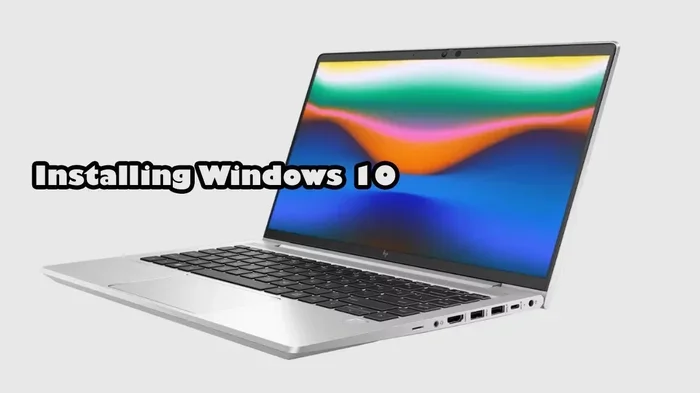
If you own an HP laptop, you have probably wondered whether Windows 10 will work on it. The good news is that most HP laptops handle Windows 10 just fine. HP has been making laptops that support Windows 10 for many years now. Whether you have a budget model or a premium Spectre device, the odds are strongly in your favor.
Installing a new operating system can feel intimidating. You might worry about losing your files, breaking your laptop, or running into compatibility issues. But here is the truth. The process is much simpler than most people think. With the right guidance, you can install Windows 10 on your HP laptop smoothly and confidently.
This article gives you a complete walkthrough. We explain compatibility checks, step-by-step installation, and troubleshooting tips. By the time you finish reading, you will know exactly what to do. You will also understand how to avoid the most common pitfalls that trip people up during the process.
Understanding Windows 10 Compatibility With HP Laptops
Before you begin anything, you need to know whether your specific HP laptop can run Windows 10. Not every model qualifies, but the vast majority do. Let us break down what you need to check.
HP Laptop Models That Support Windows 10
HP launched laptops that officially support Windows 10 starting around 2015. Models from the Pavilion, Envy, EliteBook, ProBook, and Omen lines all work well. Even some older models from 2012 and 2013 can still run Windows 10, though you may need to update certain drivers afterward.
Here are some popular HP laptop lines that work great with Windows 10:
- HP Pavilion – Great for everyday use and students
- HP Envy – A solid choice for creative work and multitasking
- HP EliteBook – Built for business professionals
- HP ProBook – Reliable and affordable for office work
- HP Omen – Designed for gaming and heavy performance tasks
- HP Spectre – Premium thin-and-light laptops with great build quality
If your laptop falls into one of these lines, you are likely good to go. You can also check HP’s official website for a full list of compatible models.
Windows 10 System Requirements for HP Laptops
Microsoft sets minimum system requirements for Windows 10. Your HP laptop must meet or exceed these specs to install the operating system successfully.
| Requirement | Minimum Specification |
|---|---|
| Processor | 1 GHz or faster |
| RAM | 2 GB for 64-bit version |
| Storage | 20 GB free disk space |
| Graphics Card | DirectX 9 or later with WDDM 1.0 driver |
| Display | 800 x 600 resolution or higher |
| USB Port | Available for bootable installation media |
Most modern HP laptops far exceed these minimums. Even older models usually have enough power to run Windows 10 without any noticeable slowdown. The real bottleneck tends to be storage space, especially on laptops with smaller hard drives.
How To Prepare for Windows 10 Installation
Preparation is the most important step in the entire process. Skipping this phase is the number one reason people run into trouble. Take your time here, and the rest of the installation will go much more smoothly.
Backup Your Important Files
Even though installing Windows 10 does not always delete your files, it can happen. A failed installation or a wrong partition choice could wipe your data. So before you do anything else, back up everything that matters.
Here are simple ways to back up your files:
- Copy important documents to an external hard drive
- Upload photos and videos to cloud storage like OneDrive or Google Drive
- Use a USB flash drive to transfer key folders
- Save any browser bookmarks or passwords you might need later
Do not skip this step. It takes just a few minutes, and it can save you hours of stress later on.
Gather Your Product Key and Drivers
Your HP laptop likely came with a Windows product key. This key is stored digitally in your laptop’s BIOS or UEFI firmware. You usually do not need to find a physical sticker or card. During installation, Windows 10 will automatically detect and apply your digital license.
However, it is still a smart move to download the latest drivers from HP’s website. You especially want to grab the network driver, because you will need internet access during and after installation. Store these drivers on a separate USB drive just in case.
Check Your Current Operating System
Knowing what you are running right now helps you plan the installation. If you are already on Windows 7 or Windows 8.1, you can upgrade directly to Windows 10. If you are on an older system, you may need a clean install instead.
To check your current operating system, follow these steps:
- Click the Start menu
- Go to Settings
- Click on System
- Select About
- Look for the Windows edition and version number
This quick check tells you exactly where you stand and which installation path makes the most sense.
Creating Windows 10 Installation Media for Your HP Laptop
You cannot install Windows 10 directly from the internet. You need a bootable USB drive or a DVD with the installation files. Microsoft provides a free tool that makes this process very easy.
Using the Media Creation Tool
The Media Creation Tool is the official Microsoft utility for creating Windows 10 installation media. It downloads the correct files for your system and prepares a bootable USB drive automatically.
Here is how to use it:
- Go to the Microsoft Windows 10 download page
- Click the “Download tool now” button
- Run the tool and accept the license terms
- Choose “Create installation media for another PC”
- Select your language, edition, and architecture (64-bit is standard)
- Choose “USB flash drive” as the media type
- Insert a USB drive with at least 8 GB of space
- Let the tool download and prepare the installation files
Once the tool finishes, you have a fully bootable USB drive ready to go. This method works for virtually every HP laptop model.
Alternative Methods for Creating Installation Media
If you do not want to use the Media Creation Tool, you have other options. You can use a third-party tool like Rufus to create a bootable USB drive from a Windows 10 ISO file. You can also burn the ISO to a DVD if your laptop has an optical drive.
That said, the Media Creation Tool is the most reliable option. It handles all the technical details for you, and you do not need to worry about making mistakes during the creation process.
Step-by-Step Installation Process
Now comes the part you have been waiting for. Installing Windows 10 on your HP laptop is straightforward once you know the steps. Let us walk through the entire process together.
Step 1: Enter BIOS and Change Boot Order
Before your HP laptop can boot from the USB drive, you need to change the boot order in the BIOS. The BIOS is the basic system that starts your computer before the operating system loads.
To access the BIOS on most HP laptops, turn on the laptop and press F10 repeatedly as soon as the screen lights up. On some models, you may need to press F9 or Esc instead. Once inside the BIOS, navigate to the Boot tab and move USB to the top of the boot priority list. Save your changes and exit.
Quick Tip: If Secure Boot is enabled, it might block the installation. You can temporarily disable Secure Boot in the BIOS settings. Just remember to turn it back on after installation for better security.
Step 2: Boot from the USB Drive
Insert your prepared USB drive into the HP laptop. Restart the computer. When the HP logo appears, press F9 to open the Boot Menu. Select your USB drive from the list. The laptop will now boot into the Windows 10 installation screen.
Step 3: Start the Installation
On the installation screen, you will see options to install Windows 10. Choose your language, time format, and keyboard layout. Then click “Install Now.” Enter your product key if prompted, though Windows 10 often lets you skip this step and activate later.
You will then be asked to choose the type of installation. If you want a fresh start, select “Custom: Install Windows only.” If you are upgrading from an older version of Windows, choose “Upgrade.”
Step 4: Partition Your Hard Drive
This is the step where many people get nervous. Do not worry. The partitioning process is simple and safe if you follow the instructions carefully.
You will see a list of all the drives and partitions on your laptop. Select the partition where you want to install Windows 10. If you want a completely fresh start, delete all existing partitions on that drive first. Then select the unallocated space and click Next. Windows will create the necessary partitions automatically.
Important: Double-check that you are selecting the right drive. Deleting the wrong partition could result in data loss. When in doubt, back up your files again before proceeding.
Step 5: Complete the Installation
After you select the drive, Windows 10 begins copying files and installing features. This process takes about 20 to 40 minutes depending on your laptop’s speed. Your HP laptop will restart several times during this phase. Do not turn it off or remove the USB drive while the installation is in progress.
When the installation finishes, you will be greeted by the Windows 10 setup wizard. Follow the on-screen prompts to set your region, keyboard layout, and user account. Once you reach the desktop, the installation is complete.
Post-Installation Steps for HP Laptops
Installing Windows 10 is only half the battle. The post-installation phase ensures your HP laptop runs at its best. Skipping these steps can lead to missing drivers, poor performance, and other frustrating issues.
Install HP Drivers and Updates
Windows 10 will automatically install most basic drivers. However, HP-specific drivers for things like the touchpad, function keys, audio, and webcam may not install correctly. You need to download and install them manually.
The easiest way to do this is through HP Support Assistant. This free tool comes pre-installed on most HP laptops. It scans your system, identifies missing drivers, and installs them automatically. If your HP laptop does not have HP Support Assistant, you can download it from the HP website.
Alternatively, you can visit the HP Support page and enter your laptop’s model number. From there, you can download all the latest drivers one by one. This method gives you more control over which drivers get installed.
Activate Windows 10
Windows 10 will run in evaluation mode for 30 days without activation. After that, you will see watermarks and lose access to some personalization features. The good news is that if your HP laptop originally came with Windows 10, your digital license is tied to the hardware. It will activate automatically once you connect to the internet.
If activation fails, you can use the Settings app to troubleshoot. Go to Settings, then Update and Security, then Activation. Click “Troubleshoot” and follow the prompts. In most cases, this resolves any activation issues quickly.
Restore Your Personal Files and Settings
Once Windows 10 is running and all drivers are installed, you can restore your backed-up files. Copy your documents, photos, and other important data from your external drive or cloud storage back to your laptop.
You should also reinstall any applications you use regularly. Web browsers, office suites, media players, and productivity tools are all essential for daily use. Take this opportunity to organize your desktop and set up your preferences from scratch.
Common Problems and How To Fix Them
Even with careful preparation, you might run into some issues during the installation process. Here are the most common problems and how to solve them.
HP Laptop Does Not Boot from USB
This is the most frequent issue people encounter. The most common cause is that the boot order in the BIOS has not been changed correctly. Go back into the BIOS, move the USB drive to the top of the boot list, and try again.
Another possible cause is that the USB drive was not created properly. Try recreating the bootable USB using the Media Creation Tool. Use a different USB drive if the first one is old or damaged.
Windows 10 Installation Freezes or Hangs
Sometimes the installation process freezes midway. This can happen if your laptop overheats or if there is a problem with the USB drive. Try restarting the laptop and booting from the USB again.
If the problem persists, check that your USB drive is not corrupted. You can also try using a different USB port. Some USB 3.0 ports have compatibility issues with certain installation media, so switching to a USB 2.0 port can help.
No Internet Connection After Installation
Windows 10 setup asks you to connect to the internet during the initial setup. If your HP laptop does not detect any Wi-Fi networks, you likely need to install the wireless network driver. Use the drivers you saved on a separate USB drive earlier in the process. Install the network driver first, then connect to Wi-Fi and continue with the setup.
Clean Install Versus Upgrade: Which Is Better
When installing Windows 10 on your HP laptop, you have two main options. You can do a clean install or upgrade from your existing operating system. Both approaches have their advantages and disadvantages.
A clean install gives you a fresh start. Everything on your drive is wiped clean, and you get a brand new Windows 10 system. This option is best if your laptop has been running slowly, has accumulated lots of clutter, or is running an operating system that is no longer supported.
An upgrade keeps your files, settings, and applications in place while replacing the core operating system with Windows 10. This option is faster and less risky. It is ideal if your laptop is already running Windows 7 or Windows 8.1 and you just want to switch to Windows 10 without losing anything.
For most people, a clean install provides the best long-term performance. It removes any lingering issues from the old operating system and gives you a smooth, optimized Windows 10 experience on your HP laptop.
Expert Tips for a Smooth Windows 10 Installation on HP Laptops
Here are some insider tips that make the entire process easier and faster. These come from years of experience helping people install Windows 10 on HP laptops.
- Use a high-quality USB drive: A reliable USB 3.0 flash drive reduces the chance of errors during installation.
- Disable antivirus software temporarily: Some antivirus programs interfere with the installation process. Turn it off before you start and re-enable it afterward.
- Keep your HP laptop plugged in: A sudden power loss during installation can corrupt the operating system. Make sure your battery is fully charged or keep the charger connected.
- Download drivers before you need them: Having all the HP drivers ready on a separate USB drive saves a lot of time after installation.
- Do not rush the process: Take your time with each step. Rushing leads to mistakes, and mistakes lead to problems.
Final Thoughts
So, can you install Windows 10 on your HP laptop without trouble? The answer is a clear yes. As long as your HP laptop meets the basic system requirements, the process is straightforward and well-supported by both Microsoft and HP. You have all the tools you need, and the steps are simple enough for anyone to follow.
The key to success is preparation. Back up your files, gather your drivers, create proper installation media, and follow each step carefully. When you do, the installation goes smoothly and you end up with a fast, modern operating system on your HP laptop.
Do not let fear of the unknown hold you back. Thousands of HP laptop users install Windows 10 every single day, and most of them have a great experience. With the guidance in this article, you are fully equipped to do the same. Take the first step today, and enjoy the benefits of a fresh Windows 10 installation on your HP laptop.
Frequently Asked Questions
Do all HP laptops support Windows 10?
Most HP laptops made after 2015 support Windows 10 without any issues. Some older models from 2012 and 2013 can also run Windows 10, though they may need updated drivers. You can check your specific model on the HP website to confirm compatibility.
Do I need a product key to install Windows 10?
Not necessarily. If your HP laptop came with Windows 10 pre-installed, your digital license is stored in the BIOS. Windows 10 will activate automatically after installation when you connect to the internet. You can skip entering a product key during setup and activate later.
Can I install Windows 10 from a USB drive on my HP laptop?
Yes, using a USB drive is the most common and reliable method. You create a bootable USB using the Microsoft Media Creation Tool, then boot from it by pressing F9 or F10 during startup. The USB method works on all HP laptop models.
Will I lose my files if I install Windows 10 on my HP laptop?
If you choose a clean install and delete all partitions, your files will be erased. That is why backing up your data before installation is absolutely essential. If you choose the upgrade option, your files and settings are preserved.
How long does it take to install Windows 10 on an HP laptop?
The installation process typically takes between 30 and 60 minutes. The actual file copying and setup takes about 20 to 40 minutes. Post-installation tasks like driver updates and app installation can add another 30 minutes or so.
What should I do if Windows 10 will not activate on my HP laptop?
First, make sure you are connected to the internet. Then go to Settings, Update and Security, and Activation. Click “Troubleshoot” to let Windows try to resolve the issue automatically. If that does not work, contact HP support or Microsoft support for further assistance.