Can Macbook Use Fat32 Here Is What You Need To Know
Yes, your Macbook can use Fat32 drives, but there are important limits you need to know. Fat32 is an older file system that works across Mac and Windows, making it great for cross-platform file transfer. However, Fat32 has a 4GB maximum file size cap and cannot handle drives larger than 2TB. We will walk you through everything you need to know about formatting, using, and troubleshooting Fat32 on your Macbook.
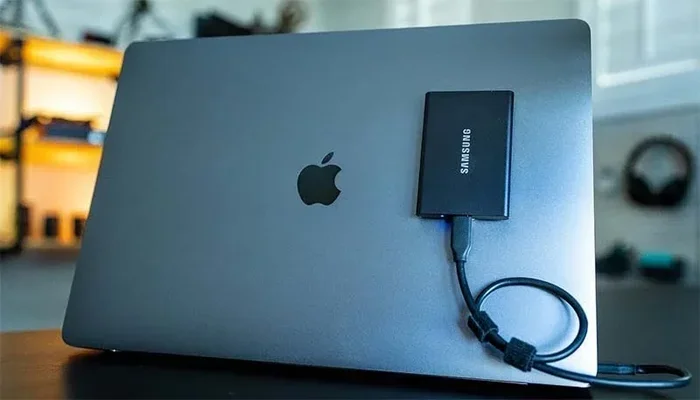
If you own a Macbook and you have an external hard drive or a USB flash drive, you have probably wondered about file systems. The format of your drive determines what it can do. It decides which devices can read it and how big your files can be. One format that comes up a lot is Fat32. It is old, reliable, and works on almost everything. But the real question is: can Macbook use Fat32?
The short answer is yes. Your Macbook can read and write to Fat32 formatted drives. However, there are some important limitations you should understand before you start moving files around. In this guide, we will cover everything you need to know. We will talk about what Fat32 is, how to format a drive to Fat32 on your Macbook, what the limits are, and when you should pick a different format instead. Let us get into it.
Key Takeaways
- Macbook fully supports Fat32: You can read and write Fat32 formatted drives without any extra software.
- The 4GB file size limit is the biggest constraint: No single file on a Fat32 drive can exceed 4 gigabytes.
- ExFAT is often a better choice: If you need larger file support, ExFAT works on both Mac and Windows without the Fat32 restrictions.
- Disk Utility makes formatting easy: You can format any external drive to Fat32 using the built-in Mac tool in just a few clicks.
- FAT32 has a 2TB drive limit: Drives larger than 2TB cannot be fully formatted as Fat32.
- Common issues are fixable: Problems like write errors or unrecognized drives usually have simple solutions.
- Use Fat32 for compatibility, not storage: It is best for sharing files between different operating systems, not for long-term Mac storage.
📑 Table of Contents
- What Is Fat32 and Why Does It Matter for Macbook Users?
- Can Macbook Use Fat32? The Short Answer
- How to Format a Drive to Fat32 on Your Macbook
- Fat32 vs ExFAT: Which Format Is Better for Macbook?
- Common Problems When Using Fat32 on Macbook
- When Should You Avoid Fat32 for Macbook?
- Quick Tips for Using Fat32 with Macbook
- Final Thoughts
What Is Fat32 and Why Does It Matter for Macbook Users?
Fat32 stands for File Allocation Table 32. It is one of the oldest file systems still in wide use today. Microsoft created it back in 1996 for Windows 95. Since then, it has become a universal format. Almost every device that can connect to a computer supports Fat32. That includes Macbooks, Windows PCs, gaming consoles, smart TVs, and car infotainment systems.
For Macbook users, Fat32 matters because of cross-platform compatibility. If you need to move files between a Mac and a Windows machine, Fat32 makes that easy. You do not need any special software. You just plug in the drive and go. That is the main reason people choose Fat32 over other formats.
But Fat32 is not perfect. It has some serious limitations that can cause frustration. The biggest one is the 4GB file size limit. No single file on a Fat32 drive can be larger than 4 gigabytes. That means you cannot store a large video project, a disk image, or even some modern game installs on a Fat32 drive. There is also a 2TB maximum partition size. Anything bigger than that will not work with Fat32.
Despite these limits, Fat32 remains popular. It is simple, it is widely supported, and it works without any setup. For everyday file transfers and sharing, it gets the job done.
How Fat32 Compares to Other File Systems
To really understand Fat32, it helps to see how it compares to other file systems. Here are the most common ones you will encounter:
- Fat32: Works on Mac, Windows, Linux, and many devices. 4GB max file size. 2TB max drive size.
- ExFAT: Also works across platforms. No practical file size limit. No partition size limit. Best for large files.
- NTFS: Windows default. Mac can read but not write to NTFS drives without extra software.
- APFS: Mac default format. Only works on Apple devices. Not compatible with Windows at all.
As you can see, Fat32 sits in a middle ground. It is more compatible than APFS or NTFS, but it has more restrictions than ExFAT. That trade-off is what you need to keep in mind.
Can Macbook Use Fat32? The Short Answer
Yes, your Macbook can use Fat32 drives without any problems. macOS has built-in support for reading and writing Fat32 formatted drives. You do not need to download any third-party apps or drivers. When you plug a Fat32 USB drive into your Macbook, it shows up on your desktop and in Finder just like any other storage device.
You can copy files to and from the drive. You can delete files and add new ones. Everything works smoothly. This makes Fat32 a great choice for simple file sharing between different devices.
However, there are two important caveats. First, you cannot put any single file larger than 4GB on a Fat32 drive. If you try, your Macbook will give you an error message. Second, you cannot format a drive larger than 2TB as Fat32 using the standard Disk Utility tool. These limits are built into the Fat32 file system itself, not into macOS.
So if your needs are simple, Fat32 works great on Macbook. If you need to store large files or use very large drives, you should consider ExFAT instead. We will cover that comparison in detail below.
How to Format a Drive to Fat32 on Your Macbook
If you have a new external drive and you want to format it to Fat32 for use with your Macbook, the process is straightforward. You will use the built-in Disk Utility application. Here is how to do it step by step.
Step by Step Guide to Formatting
- Connect your drive to your Macbook. Use a USB cable or USB-C adapter depending on your drive and your Macbook model.
- Open Disk Utility. Press Command and Space bar together to open Spotlight Search. Type “Disk Utility” and hit Enter.
- Select your drive in the sidebar. Make sure you select the actual drive, not just a volume on it. Look for the top-level name.
- Click the Erase button. It is at the top of the Disk Utility window.
- Set the format to FAT. In the Format dropdown menu, choose “MS-DOS (FAT).” This is the Fat32 option in macOS.
- Give your drive a name. Choose something recognizable like “Shared Drive” or “Macbook Compatible.”
- Click Erase. Disk Utility will format the drive. This will delete all existing data on the drive, so make sure you have backups.
- Wait for the process to finish. Once it is done, your drive is ready to use as Fat32.
Important Tips Before You Format
- Back up your data first. Formatting erases everything on the drive. There is no undo.
- Use a drive 2TB or smaller. Disk Utility cannot format drives larger than 2TB as Fat32.
- Close all apps that use the drive. If any files are open on the drive, the format may fail.
- Use a fast connection. USB 3.0 or USB-C will make the formatting process much quicker.
If you run into errors during formatting, try using a different USB port or cable. Sometimes the issue is with the connection, not the drive itself.
Fat32 vs ExFAT: Which Format Is Better for Macbook?
This is the question most Macbook users should really be asking. Both Fat32 and ExFAT work on Macbook, and both work on Windows. But they are not the same. Let us break down the differences.
| Feature | Fat32 | ExFAT |
|---|---|---|
| Cross-platform support | Yes (Mac, Windows, Linux, consoles) | Yes (Mac, Windows, Linux) |
| Max file size | 4GB | 16EB (practically unlimited) |
| Max partition size | 2TB | 128PB (practically unlimited) |
| Mac read/write support | Yes | Yes |
| Windows read/write support | Yes | Yes |
| Best for | Small files, old devices | Large files, modern use |
As you can see from the comparison table, ExFAT beats Fat32 in almost every way for modern use. The only advantage Fat32 has is broader device compatibility. Older gaming consoles, car stereos, and some smart TVs only support Fat32. If you need to use your drive with one of these older devices, Fat32 is your best option.
For most Macbook users today, ExFAT is the smarter choice. You get cross-platform support without the annoying 4GB file limit. If you are transferring video files, large backups, or disk images, ExFAT will save you a lot of headaches.
When Fat32 Still Makes Sense
Even though ExFAT is better in most cases, there are still times when Fat32 is the right pick:
- You need to use the drive with an older device. Some devices simply do not support ExFAT.
- All your files are under 4GB. If you are just sharing documents, photos, and small media files, Fat32 works fine.
- You want maximum compatibility. Fat32 works on more devices than any other format.
- You are formatting a small USB flash drive. For drives under 32GB, Fat32 is simple and effective.
Think of it this way. Fat32 is the universal translator of file systems. It might not be the most powerful option, but it works almost everywhere. ExFAT is the more modern, more capable alternative. Choose based on what you actually need.
Common Problems When Using Fat32 on Macbook
Even though Fat32 is simple, you might run into some issues when using it with your Macbook. Here are the most common problems and how to fix them.
Cannot Copy Files Larger Than 4GB
This is the number one issue people run into with Fat32. If you try to copy a file that is larger than 4GB, macOS will give you an error that says the file is too large for the destination volume. There is no workaround for this within Fat32. You would need to split the file into smaller parts, or reformat the drive to ExFAT.
Drive Not Showing Up in Finder
Sometimes you plug in a Fat32 drive and it does not appear on your desktop. This usually happens because the drive is not mounted properly. Try these steps:
- Check the USB cable and try a different port.
- Open Disk Utility and see if the drive appears there.
- If it shows in Disk Utility but not Finder, click Mount in the sidebar.
- Restart your Macbook and try again.
Drive Shows as Read Only
In rare cases, a Fat32 drive may show up as read only on your Macbook. You can read files but cannot write to the drive. This often happens if the drive was previously formatted for Windows and has an incompatible partition table. You can fix this by reformatting the drive to Fat32 using Disk Utility.
Slow Transfer Speeds
Fat32 does not support modern features like journaling or advanced caching. This can sometimes result in slower transfer speeds compared to formats like ExFAT or APFS. If speed matters to you, ExFAT will generally perform better on large file transfers.
When Should You Avoid Fat32 for Macbook?
Fat32 is not the right choice for every situation. Here are some cases where you should definitely avoid using Fat32 with your Macbook.
If you work with large video files. A single 4K video clip can easily be 10GB or more. Fat32 simply cannot handle files that large. You would need to constantly split your footage into smaller chunks, which is not practical. Use ExFAT or APFS instead.
If you are using a drive larger than 2TB. Disk Utility on macOS cannot format drives larger than 2TB as Fat32. You would need to use third-party formatting tools, and even then, you will run into the 4GB file limit for every file on the drive.
If you are using the drive only with Mac devices. If you never need to share the drive with Windows or other devices, there is no reason to use Fat32. APFS or Mac OS Extended (HFS+) are better choices for Mac-only use. They offer better performance, better security, and no file size limits.
If you need journaling for data protection. Fat32 does not support journaling. This means that if your drive gets disconnected unexpectedly or there is a power loss, your data could become corrupted. ExFAT and APFS both offer journaling for safer file storage.
Quick Tips for Using Fat32 with Macbook
Here are some practical tips to get the most out of Fat32 on your Macbook:
- Use Fat32 for temporary file sharing. It is perfect for moving documents and small media files between devices.
- Label your drives clearly. Since Fat32 is so universal, you might end up with multiple drives. Give them distinct names so you do not mix them up.
- Check your file sizes before copying. Make sure no single file exceeds 4GB to avoid errors.
- Eject your drive properly. Always use the Eject option in Finder before unplugging your drive. This prevents data corruption.
- Consider a dual format setup. If you need both Fat32 and ExFAT, you can partition a single drive to have both formats on different sections.
- Keep your macOS updated. Newer versions of macOS handle Fat32 drives more reliably and with better performance.
Final Thoughts
So can Macbook use Fat32? Absolutely yes. Your Macbook handles Fat32 drives with ease. You can read and write files, share them across devices, and use them with all kinds of hardware. The format is simple, universal, and requires zero setup.
But Fat32 is not for everyone. The 4GB file size limit and 2TB drive limit make it impractical for many modern workflows. If you are working with large files or need a drive for long-term storage, ExFAT is the better choice. It gives you the same cross-platform compatibility without the annoying restrictions.
At the end of the day, the best format depends on what you need to do. For quick file sharing and broad compatibility, Fat32 is a solid option. For serious work with large files, go with ExFAT. Now you have all the information you need to make the right choice for your Macbook. Go ahead and format that drive with confidence.
Frequently Asked Questions
Is Fat32 safe to use on Macbook?
Yes, Fat32 is completely safe to use on Macbook. macOS has built-in support for reading and writing Fat32 formatted drives. Your files will be stored and accessed normally. The only safety concern is that Fat32 does not support journaling, which means there is a slightly higher risk of data corruption if the drive is disconnected unexpectedly. Always eject your drive properly before unplugging it.
Can I format a 1TB drive to Fat32 on Macbook?
Yes, you can format a 1TB drive to Fat32 on Macbook using Disk Utility. Disk Utility supports formatting drives up to 2TB as Fat32. Just connect your drive, open Disk Utility, select the drive, choose Erase, and pick MS-DOS (FAT) from the Format menu. Remember that all data on the drive will be erased during formatting.
Why can’t I format my drive to Fat32 on Macbook?
If you cannot format your drive to Fat32, it is likely because the drive is larger than 2TB. Disk Utility on macOS does not support formatting drives over 2TB as Fat32. Another common reason is that the drive has a partition scheme that is incompatible. In that case, you may need to use a third-party formatting tool or try reinitializing the drive with a GUID partition map first.
What is the difference between Fat32 and ExFAT on Macbook?
The main difference is file size support. Fat32 limits individual files to 4GB, while ExFAT has no practical file size limit. Both formats work on Macbook and Windows. Both support read and write access. ExFAT also supports larger drive sizes than Fat32. For most modern users, ExFAT is the better choice because it removes the 4GB file restriction.
Can I use a Fat32 formatted USB drive with my Macbook and a Windows PC?
Yes, that is one of the biggest advantages of Fat32. It works on both Macbook and Windows PC without any extra software. You can plug the same drive into either device and access your files. This makes Fat32 ideal for sharing files between different operating systems. Just keep in mind the 4GB file size limit on both platforms.
Does formatting a drive to Fat32 erase all data on it?
Yes, formatting a drive to Fat32 erases all existing data on the drive. This is true for any format change, not just Fat32. Before you format, make sure you have backed up any important files to another location. Once the format is complete, the data cannot be recovered through normal means.
=== CONCLUSION ===
Can Macbook use Fat32? Yes, it can, and it works well for simple file sharing tasks. Fat32 is a universal format that your Macbook supports natively. It is easy to set up and works across all major platforms. However, the 4GB file size limit and 2TB drive limit mean it is not ideal for everyone. If you need to handle large files or modern storage sizes, consider switching to ExFAT instead. Either way, you now have everything you need to make the right decision for your Macbook storage needs.