Can I Use My Surface Pro As A Laptop Every Single Day
Yes, you can use your Surface Pro as a laptop every single day. With the right accessories and setup, this 2-in-1 laptop handles work, school, and creative tasks with ease. Learn the pros, cons, and must-have add-ons to make it your primary device.
Can you really use a Surface Pro as a laptop every single day? The short answer is yes. But the real question is whether it fits your workflow, your lifestyle, and your daily needs. Many people wonder if this sleek 2-in-1 device can truly replace a traditional Windows laptop. The truth is, it depends on what you do and how you set it up.
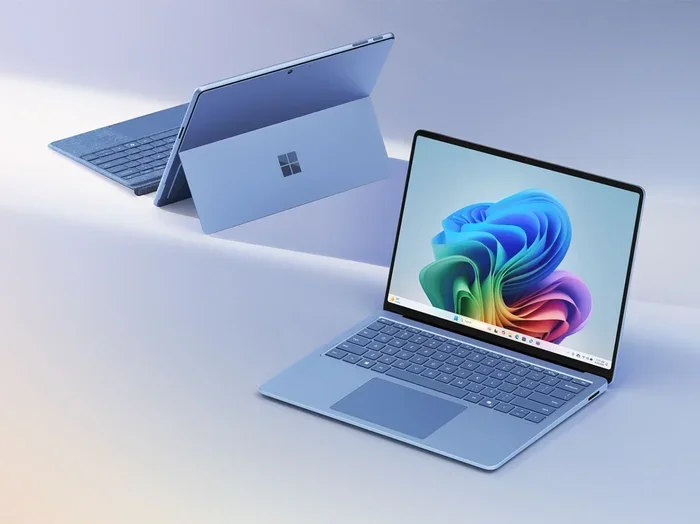
The Surface Pro line from Microsoft has always pushed the line between tablet and computer. It looks like a tablet. It feels like a tablet. But with the right keyboard cover and a few smart accessories, it transforms into something that feels like a real laptop replacement. In this guide, we will walk through everything you need to know about using your Surface Pro as your daily driver. We will cover setup tips, pros and cons, must-have accessories, and real-world use cases.
Whether you are a student, a remote worker, or someone who travels often, this article will help you decide if the Surface Pro can handle your day-to-day tasks. Let us dive in and explore what it is really like to use this hybrid laptop as your only computer.
Key Takeaways
- Full Laptop Replacement: The Surface Pro works as a daily driver with the keyboard cover and proper setup.
- Great for Students: It is lightweight, portable, and perfect for taking notes and writing essays.
- Battery Life Matters: You need to manage power settings and carry a charger for long days.
- Accessories Make the Difference: A keyboard cover, Surface Pen, and USB-C dock unlock full productivity.
- Know the Limits: Heavy gaming and intensive software may still need a traditional laptop.
- Windows Flexibility: Running full Windows gives you access to desktop apps and multitasking tools.
📑 Table of Contents
- What Makes the Surface Pro Work as a Laptop
- Setting Up Your Surface Pro for Daily Use
- Pros and Cons of Using the Surface Pro as a Laptop
- Real-World Use Cases: Can It Handle Your Day?
- Must-Have Accessories for a Laptop-Like Experience
- Common Mistakes People Make When Using the Surface Pro as a Laptop
- Expert Insights: What Professionals Say About the Surface Pro
- Surface Pro vs. Traditional Laptop: A Quick Comparison
- Final Thoughts: Is the Surface Pro Worth Using as Your Daily Laptop
- Frequently Asked Questions
What Makes the Surface Pro Work as a Laptop
The Surface Pro is not your average tablet. It runs full Windows 11 or Windows 10. This means you get access to the same desktop apps, file systems, and multitasking features you love on a standard laptop. When you attach the Surface Pro keyboard cover, it starts to feel a lot more like a laptop. The trackpad works like a laptop trackpad. The screen flips into laptop mode. And suddenly, you have a portable productivity device that fits in a backpack.
The Power Behind the Device
Microsoft has packed some serious hardware into the Surface Pro. The latest models come with Intel Core processors that handle everyday tasks with ease. You can browse the web, edit spreadsheets, stream videos, and even do light video editing. The Surface Pro performance is impressive for a device this thin and light.
Here is what you get in most Surface Pro models:
- Intel Core i5 or i7 processors for smooth multitasking
- 8GB to 16GB of RAM for running multiple apps at once
- 256GB to 1TB of storage for files, apps, and media
- A bright touchscreen display that supports the Surface Pen
- Windows Hello facial recognition for quick and secure login
These specs are more than enough for most people. If you do not run heavy 3D rendering software or play AAA games all day, the Surface Pro will serve you well as a daily driver.
The Detachable Design Advantage
One of the biggest selling points of the Surface Pro is its detachable keyboard design. You can remove the keyboard cover and use it as a pure tablet. This gives you flexibility that a traditional laptop simply cannot match. Want to read a PDF on the couch? Detach the keyboard. Need to type a long email? Snap the keyboard back on. This hybrid laptop approach means you carry one device instead of two.
The keyboard cover itself has improved over the years. The latest versions have a solid trackpad, good key travel, and a comfortable typing experience. It is not exactly like typing on a full-sized laptop keyboard, but it is close enough for daily work. Many users say they forget they are typing on a tablet after a few days of use.
Setting Up Your Surface Pro for Daily Use
To get the most out of your Surface Pro as a laptop replacement, you need to set it up the right way. Out of the box, it works fine as a tablet. But with a few tweaks and the right accessories, it becomes a powerful daily driver.
Step 1: Attach the Keyboard Cover
Your first step should be attaching the Surface Pro keyboard cover. This is not just an accessory. It is essential if you plan to use the device as a laptop every day. The keyboard cover adds protection, gives you a physical keyboard, and provides a trackpad for navigation.
When choosing a keyboard cover, you have options:
- Surface Pro Signature Keyboard – The official Microsoft option. It feels premium and works seamlessly.
- Third-party keyboard covers – More affordable options from brands like Logitech and SPARIN.
The Signature Keyboard is the best choice for most users. It has a built-in trackpad, good key spacing, and a sleek design. It also protects the screen when folded over the device.
Step 2: Add a Surface Pen
If you take notes, sketch, or sign documents, the Surface Pen is a game changer. It pairs perfectly with the Surface Pro display and offers pressure sensitivity and tilt detection. Students and creatives will especially love this feature. The pen magnetically attaches to the side of the device, so it is always within reach.
Step 3: Connect a USB-C Dock
One of the best ways to make your Surface Pro feel like a real laptop is to connect it to a USB-C docking station. A single cable connects your Surface Pro to an external monitor, keyboard, mouse, and Ethernet connection. When you unplug, you have a tablet. When you plug in, you have a full workstation. This setup is perfect for people who work from a desk most of the day.
Step 4: Optimize Windows Settings
Take a few minutes to tweak your Windows settings for the best experience:
- Turn on Battery Saver mode to extend your usage time
- Adjust the display brightness to save power
- Use Snap Layouts to multitask efficiently
- Enable Tablet Mode when the keyboard is detached
- Set up virtual desktops for different workflows
These small adjustments make a big difference in your daily experience. They help the device run smoother and last longer on a single charge.
Pros and Cons of Using the Surface Pro as a Laptop
Every device has strengths and weaknesses. The Surface Pro is no exception. Let us look at the real-world pros and cons of using it as your primary computer.
The Pros
- Incredibly portable: It weighs as little as 1.9 pounds. You can carry it anywhere without shoulder pain.
- Touchscreen and pen support: No other laptop in this price range offers this level of input flexibility.
- Full Windows experience: You get the same desktop apps and software as any other Windows laptop.
- Great battery life: Modern Surface Pro models last 10 to 15 hours on a single charge with normal use.
- Versatile form factor: Use it as a tablet, a laptop, a tent, or a studio. It adapts to any situation.
- Premium build quality: The design is sleek, sturdy, and professional looking.
The Cons
- Keyboard feels smaller: Even with the best keyboard cover, typing on a compact layout takes getting used to.
- Limited port selection: Most models have only one or two USB-C ports. You will need a dock for multiple connections.
- Thermal throttling: Under heavy load, the device can get warm and slow down slightly.
- Price adds up: The base model is affordable, but with the keyboard cover, pen, and dock, the total cost climbs quickly.
- Not ideal for gaming: The integrated graphics can handle casual games but struggle with demanding titles.
Overall, the pros outweigh the cons for most users. If you prioritize portability and versatility, the Surface Pro is hard to beat.
Real-World Use Cases: Can It Handle Your Day?
Theoretical specs are one thing. Real-world performance is another. Let us look at how the Surface Pro handles different daily scenarios.
For Students
Students will love the Surface Pro. It is light enough to carry between classes all day. The touchscreen and Surface Pen make note-taking easy and natural. You can type essays with the keyboard cover, browse research materials, and watch lecture videos. The battery easily lasts through a full day of classes. Many students use it as their student laptop and never look back.
For Remote Workers
Remote workers benefit from the flexibility of the Surface Pro. You can work from the couch, the kitchen table, or a coffee shop. When you need a full setup, dock it with a monitor and external keyboard. The Windows laptop experience is fully present with all the apps you need for emails, video calls, and document editing.
For Creative Professionals
Artists, designers, and photographers will appreciate the Surface Pen support and the vibrant display. You can sketch directly on the screen, edit photos in Lightroom, and create designs in Adobe apps. While it is not a replacement for a dedicated workstation, it is a powerful portable workstation for creative tasks on the go.
For Business Professionals
Business users will find the Surface Pro to be a reliable business laptop. It handles email, spreadsheets, presentations, and video conferencing with ease. The professional look and feel of the device also makes a great impression in meetings. The built-in Windows security features help keep company data safe.
Must-Have Accessories for a Laptop-Like Experience
The Surface Pro is great on its own. But to truly use it as a laptop replacement, you need a few key accessories. These add-ons transform the device from a good tablet into a powerful daily driver.
Surface Pro Signature Keyboard Cover
This is the most important accessory. It turns your tablet into something that looks and feels like a laptop. The keys are responsive, the trackpad is accurate, and the overall typing experience is smooth. Without this keyboard, the Surface Pro is just a tablet.
Surface Pen (Signature Slim or Slim Pen 2)
The Surface Pen opens up a world of possibilities. You can take handwritten notes, draw diagrams, sign PDFs, and navigate the interface with precision. It is especially useful for students and creatives. The pen charges wirelessly when attached to the device, so you never run out of power unexpectedly.
USB-C Docking Station
A docking station solves the limited port problem. It gives you extra USB ports, an HDMI output for external displays, Ethernet connectivity, and more. With a single cable, you can turn your Surface Pro into a full desktop setup. This is perfect for home office use.
Laptop Stand or Case
A good laptop stand or protective case makes the Surface Pro more comfortable to use on a desk. It elevates the screen to eye level and provides better airflow for cooling. A sturdy case also protects the device from drops and scratches during daily travel.
Common Mistakes People Make When Using the Surface Pro as a Laptop
Many users run into issues because they do not set up their Surface Pro correctly. Here are common mistakes to avoid.
Skipping the Keyboard Cover
Some people buy the Surface Pro and try to use it as a laptop without the keyboard cover. This is a mistake. The keyboard cover is not optional if you want a laptop-like experience. It is a core part of the setup. Budget for it from the start.
Ignoring Battery Management
The Surface Pro has good battery life, but it is not infinite. If you do not manage your power settings, you will run out of juice before the end of the day. Use Battery Saver mode, lower screen brightness, and close apps you are not using. Carry your charger for long days away from an outlet.
Overlooking the Need for a Dock
Without a USB-C dock, you will constantly be plugging and unplugging peripherals. This gets annoying fast. A docking station simplifies your setup and makes the transition between tablet and laptop mode seamless.
Expecting Gaming-Level Performance
The Surface Pro is a productivity device first. It is not designed for heavy gaming or 3D rendering. If you try to run demanding games or intensive software, you will be disappointed. Know what the device is built for and use it accordingly.
Not Using Tablet Mode
When you detach the keyboard, make sure Tablet Mode is turned on. This optimizes the interface for touch input. Without it, the desktop layout can feel cramped and hard to navigate on a touchscreen.
Expert Insights: What Professionals Say About the Surface Pro
Many professionals who use the Surface Pro daily agree on a few key points. The device excels at portability and versatility. It is not perfect for every task, but for most people, it is more than capable of handling their daily workload.
Tech reviewers often praise the Surface Pro as a laptop for its build quality and display. The PixelSense display is bright, sharp, and color accurate. It makes reading documents, watching videos, and editing photos a pleasure. The 2-in-1 laptop design also means one device serves multiple roles in your life.
Productivity experts recommend starting with the base model and adding accessories as needed. This keeps the initial cost lower while still giving you a powerful daily driver. The key is to match the accessories to your specific workflow and needs.
Surface Pro vs. Traditional Laptop: A Quick Comparison
How does the Surface Pro stack up against a regular laptop? Here is a quick side-by-side look at the key differences.
| Feature | Surface Pro | Traditional Laptop |
|---|---|---|
| Weight | 1.9 – 2.5 lbs | 3 – 5 lbs |
| Form Factor | Detachable 2-in-1 | Fixed clamshell |
| Touchscreen | Yes | Rare |
| Pen Support | Yes | No |
| Battery Life | 10 – 15 hours | 8 – 12 hours |
| Keyboard | Detachable (extra cost) | Built-in |
| Portability | Excellent | Good |
| Performance | Great for everyday tasks | Varies widely |
As you can see, the Surface Pro wins on portability and versatility. A traditional laptop may offer better performance for the same price. But if you value weight savings and flexibility, the Surface Pro is the clear winner.
Final Thoughts: Is the Surface Pro Worth Using as Your Daily Laptop
So, can you use your Surface Pro as a laptop every single day? Absolutely. With the right setup and accessories, this device handles work, school, creative projects, and everyday tasks with confidence. It is portable, versatile, and runs full Windows. For many people, it is the best of both worlds: a powerful laptop and a flexible tablet in one device.
The key is to understand what the Surface Pro does well and where it has limitations. It shines as a portable workstation for productivity, content consumption, and creative work. It may not replace a high-end gaming rig or a workstation for heavy rendering. But for the vast majority of daily computer tasks, it is more than capable.
If you are on the fence, here is my advice. Try it for a week. Attach the keyboard cover, connect your peripherals, and use it for your regular tasks. You might be surprised at how naturally it fits into your routine. The Surface Pro is not just a gadget. It is a real laptop alternative that can genuinely replace your current computer. Give it a fair shot, and you might just never go back to a traditional laptop again.
Frequently Asked Questions
Can I use the Surface Pro without the keyboard cover?
Yes, you can use it as a standalone tablet. However, for a full laptop experience, the keyboard cover is essential. Without it, you will rely on the on-screen keyboard, which is not ideal for long typing sessions.
How long does the battery last on the Surface Pro?
Most Surface Pro models last between 10 and 15 hours on a single charge with normal use. Battery life depends on screen brightness, apps running, and whether you are using Battery Saver mode. Heavy tasks like video editing will drain the battery faster.
Is the Surface Pro good for students?
Yes, the Surface Pro is an excellent choice for students. It is lightweight, has great battery life, and the touchscreen with Surface Pen support makes note-taking easy. It also runs full Windows, so students can use Microsoft Office, Zoom, and other essential apps.
Can I connect external monitors to the Surface Pro?
Yes, you can connect external monitors using a USB-C docking station or a direct USB-C to HDMI cable. This is one of the best ways to turn your Surface Pro into a full desktop setup at home or in the office.
Does the Surface Pro come with Windows 11?
Yes, all new Surface Pro models come pre-installed with Windows 11. You get the full Windows desktop experience with access to all desktop apps, the Microsoft Store, and Windows features like Snap Layouts and Widgets.
Is the Surface Pro worth the price compared to a regular laptop?
The Surface Pro costs more upfront than many traditional laptops, especially when you add the keyboard cover and pen. However, if you value portability, versatility, and the 2-in-1 laptop experience, the investment is worth it. It replaces both a laptop and a tablet, saving you money in the long run.