How Do I Access My Wi Fi Access Page and Router Settings
Learning how to access your Wi Fi access page gives you full control over your home network. You can change passwords, boost speed, and fix connection issues in minutes. This guide walks you through every simple step, from finding your router IP to adjusting advanced settings.
Have you ever wanted to change your Wi Fi access page settings but didn’t know where to start? You’re not alone. Many people use their wireless router every day without ever touching its admin panel. But accessing your router settings is easier than you think, and it can make a huge difference in your home network experience.
Whether you want to change your password, improve speed, or fix a stubborn connection, knowing how to reach your Wi Fi access page is the key. This guide breaks everything down into simple steps. You’ll learn what an access page is, how to find it, and how to navigate the settings like a pro.
No technical degree needed. Just follow along, and you’ll be in your router admin panel in no time. Let’s get started.
Key Takeaways
- Know Your Router IP: Finding your default gateway is the first step to accessing your Wi Fi access page.
- Login Credentials Matter: Default usernames and passwords are printed on your router or in the manual.
- Troubleshooting Is Simple: Most access issues can be fixed with a quick reset or browser change.
- Security Starts With You: Changing default settings protects your network from unauthorized access.
- You Can Manage From Any Device: Phones, tablets, and laptops all work for router admin access.
- Resetting Is a Last Resort: A factory reset wipes everything, so try other fixes first.
📑 Table of Contents
What Is a Wi Fi Access Page?
A Wi Fi access page is the admin panel for your wireless router. Think of it as the control center for your home network. When you open it in a web browser, you can change everything from your network name to your security settings.
Every router comes with a built-in web interface. This is where you manage your connection. You don’t need special software. Just a web browser and the right address will do the trick.
The access page lets you control many important features. You can set up parental controls, check connected devices, and adjust bandwidth. It’s also where you update your Wi Fi password and network name.
Why Should You Access Your Router Settings?
There are many reasons to visit your router settings. Maybe your internet is slow, and you want to boost performance. Or perhaps you need to add a new device to your network. Sometimes you just want to check who else is using your connection.
Here are common reasons people access their router admin page:
- Change your Wi Fi password to keep your network secure
- Update your network name (SSID) to something more personal
- Fix slow internet by adjusting channel settings
- Check connected devices and remove unknown ones
- Set up parental controls for safer browsing
- Update firmware to get the latest features and security patches
Knowing how to reach this page puts you in charge of your network. It’s a simple skill that saves time and money.
How to Find Your Router IP Address
To open your Wi Fi access page, you first need your router’s IP address. This is also called the default gateway. It’s the address your browser uses to reach the router admin panel.
Finding the IP Address on Windows
On a Windows computer, the process is straightforward. Open the Command Prompt by typing “cmd” in the search bar. Type ipconfig and press Enter. Look for the line that says “Default Gateway.” That number is your router IP address. It usually looks something like 192.168.1.1 or 192.168.0.1.
Finding the IP Address on Mac
Mac users have it just as easy. Go to System Preferences and click Network. Select your active connection and click Advanced. Click the TCP/IP tab. Your router IP address is listed next to “Router.”
Finding the IP Address on Your Phone
On Android, go to Settings and tap Wi Fi. Find your connected network and tap the gear icon. Look for the “Gateway” entry. On iPhone, go to Settings, tap Wi Fi, and tap the “i” icon next to your network. Your router address appears as “Router.”
Once you have this number, type it into your browser’s address bar. That’s your ticket into the Wi Fi access page. If you have trouble finding it, check the sticker on the back of your router. Most brands print the default IP address there.
How to Log In to Your Wi Fi Access Page
Now that you know your router IP, logging in is the next step. Open any web browser and type the IP address into the address bar. Press Enter. A login page will appear asking for your username and password.
Default Login Credentials
Most routers use simple default credentials. The most common combination is “admin” for both the username and password. Some brands use “admin” for the username and leave the password blank. Others use “user” or “administrator.”
You can find the exact defaults on a sticker on your router. Look for a label that says “Username” and “Password.” If you’ve never changed these, the defaults will still work.
Here are some common default logins by brand:
- Netgear: Username: admin, Password: password
- Linksys: Username: admin, Password: admin
- TP-Link: Username: admin, Password: admin
- ASUS: Username: admin, Password: admin
- Motorola: Username: admin, Password: admin or password
What If You Changed Your Password and Forgot It?
Don’t panic. This happens more often than you’d think. The easiest fix is to reset your router to factory settings. Look for a small reset button on the back of your router. Use a paperclip to press and hold it for about 10 seconds. The router will restart, and all settings will return to defaults.
Keep in mind that a factory reset also removes your custom settings. You’ll need to set up your network name and password again. Also, if you changed any advanced settings, those will be lost too. So use this option only when necessary.
Another option is to check if your router brand has a mobile app. Many modern routers let you manage settings through an app instead of a web page. This can be a handy alternative if you can’t remember your login details.
Navigating Your Router Admin Panel
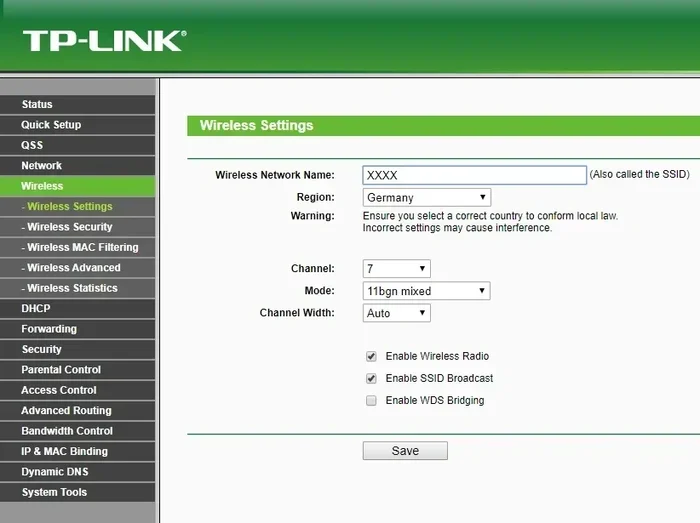
Once you log in, you’ll see the router admin panel. The layout depends on your router brand, but most panels follow a similar structure. The main dashboard shows your connection status, connected devices, and basic settings.
Key Settings You Can Adjust
Here are the most important sections you’ll find in your Wi Fi access page:
- Wireless Settings: Change your network name (SSID) and password here. This is the first place to check if you want to update your login details.
- Security Settings: Choose your encryption type. WPA3 is the newest and most secure option. If your devices support it, switch to WPA3 for better protection.
- Connected Devices: See all devices currently using your network. You can block unknown devices from here.
- Parental Controls: Set time limits and content filters for specific devices.
- Advanced Settings: Adjust DNS, port forwarding, and QoS (Quality of Service) for better performance.
Take some time to explore these sections. You don’t need to change everything at once. Start with the basics and work your way up as you get comfortable.
Quick Tips for Managing Your Router Settings
Managing your router doesn’t have to be complicated. Here are a few quick tips to keep your network running smoothly:
- Change your default password immediately after first login. This prevents unauthorized access to your admin panel.
- Update your firmware regularly. Router manufacturers release updates that fix bugs and improve security.
- Restart your router once a month. This clears the cache and can improve speed.
- Keep a record of your settings. Write down any changes you make so you can undo them if needed.
- Use a strong, unique Wi Fi password. Combine letters, numbers, and symbols for the best protection.
These small habits make a big difference. They keep your network fast, secure, and reliable.
Troubleshooting Common Access Issues
Sometimes you can’t reach your Wi Fi access page. Don’t worry. Most problems have simple solutions. Here are the most common issues and how to fix them.
Page Won’t Load
If the login page won’t open, double-check your router IP address. A single wrong digit will prevent the page from loading. Also, make sure you’re connected to the router’s network. You can’t access the admin page through a different network.
Try using a different browser if the page still won’t load. Some browsers have extensions that block admin pages. Switching to a private or incognito window can also help.
Login Page Shows an Error
An error on the login page usually means wrong credentials. Try the default username and password for your router brand. If you changed them and forgot, a factory reset is your best option.
Sometimes the error happens because your browser is caching old data. Clear your browser cache and try again. This simple step fixes many access problems.
Can’t Connect to the Router at All
If nothing works, check your physical connections. Make sure the Ethernet cable is firmly plugged in. If you’re using Wi Fi to access the router settings, try switching to a wired connection. Wired connections are more stable for admin tasks.
You should also restart your router and modem. Unplug both devices, wait 30 seconds, and plug them back in. Wait for the lights to stabilize before trying again. This often resolves temporary connection glitches.
If you’re still having trouble, your router might need a firmware update. Check the manufacturer’s website for the latest version. Updating firmware can fix bugs that prevent access to the admin panel.
Securing Your Wi Fi Access Page
Security is one of the most important reasons to access your router settings. An unprotected admin panel is an open door for hackers. Taking a few minutes to secure your access page can save you from serious problems later.
Steps to Lock Down Your Router
Start by changing your admin login credentials. Don’t keep the default username and password. Choose a strong combination that you can remember but others can’t guess. Write it down and store it somewhere safe.
Next, make sure your wireless network uses WPA3 or WPA2 encryption. Avoid WEP, as it’s outdated and easy to crack. Also, disable WPS (Wi Fi Protected Setup) if your router has it. WPS has known vulnerabilities that hackers can exploit.
Consider hiding your SSID if you want an extra layer of privacy. This makes your network invisible to people scanning for available connections. Just know that you’ll need to manually enter the network name when connecting new devices.
Finally, keep your router firmware up to date. Manufacturers release security patches regularly. An outdated router is an easy target for cyber threats. If your router supports automatic updates, turn that feature on.
For more tips on managing your network, check out our guide on how to find your Wi Fi password in settings. It covers essential password management tips for home networks.
When to Consider Upgrading Your Router
Sometimes the best way to improve your network is to get a new router. Older models may not support the latest Wi Fi standards or security protocols. If you’re struggling to access certain features, your router might be too old.
Modern routers offer better range, faster speeds, and improved security. Many also come with user-friendly apps that make managing your network a breeze. If you’ve been using the same router for five years or more, it might be time for an upgrade.
Before buying a new router, consider your needs. How many devices do you have? Do you need coverage for a large home? Do you want advanced features like mesh networking? Answering these questions helps you choose the right model.
If you’re thinking about purchasing your own router instead of renting one from your provider, check out our article on can I buy my own router for internet. It covers the pros and cons of owning versus renting.
You should also look into whether your current router can be updated. Some older models support third-party firmware like DD-WRT or OpenWrt. These can breathe new life into an aging router and add features you never had before.
For tips on improving your network coverage around the house, read our guide on how to boost your Wi Fi signal outside. Better coverage means a better experience in every corner of your home.
Key Takeaways
- Know Your Router IP: Finding your default gateway is the first step to accessing your Wi Fi access page.
- Login Credentials Matter: Default usernames and passwords are printed on your router or in the manual.
- Troubleshooting Is Simple: Most access issues can be fixed with a quick reset or browser change.
- Security Starts With You: Changing default settings protects your network from unauthorized access.
- You Can Manage From Any Device: Phones, tablets, and laptops all work for router admin access.
- Resetting Is a Last Resort: A factory reset wipes everything, so try other fixes first.
Conclusion
Accessing your Wi Fi access page is a simple skill that gives you real control over your home network. You don’t need to be a tech expert. With just a few steps, you can log in, adjust settings, and keep your connection running at its best.
Start by finding your router IP address. Then use the default login credentials to enter the admin panel. From there, you can change passwords, update security settings, and troubleshoot connection issues. It’s all within reach.
Remember to secure your access page by changing default passwords and keeping firmware updated. These small steps protect your network and give you peace of mind. If you ever get stuck, a quick reset or firmware update usually solves the problem.
Now that you know how easy it is to manage your router, there’s no reason not to take control. Try accessing your Wi Fi access page today and see what you can do. Your network will thank you.
Frequently Asked Questions
What is the default IP address for most routers?
The most common default IP addresses are 192.168.1.1 and 192.168.0.1. However, some routers use different addresses. Check the sticker on the back of your router or the manual to find the correct one for your model.
Can I access my Wi Fi access page from my phone?
Yes, you can. Make sure your phone is connected to the router’s Wi Fi network. Open any browser and type the router IP address into the address bar. You’ll see the login page just like you would on a computer.
What should I do if I forgot my router admin password?
The easiest solution is to press the reset button on the back of your router with a paperclip. Hold it for about 10 seconds. This restores all settings to factory defaults, including the default login credentials printed on your router.
Is it safe to change router settings?
Yes, it’s completely safe as long as you know what you’re changing. Stick to settings you understand, like your Wi Fi password and network name. If you’re unsure about an advanced setting, look it up or leave it at the default value.
How often should I update my router firmware?
Check for firmware updates at least once a month. Most modern routers have an automatic update option. Enabling this ensures you always have the latest security patches and performance improvements without any effort.
Can I access my router settings without being connected to Wi Fi?
Yes, you can access router settings through an Ethernet cable connection. Plug one end into your computer and the other into any LAN port on the router. This wired connection lets you reach the admin page even if Wi Fi is disabled or not working.