Can I Replace The Wifi Card In My Pc For Better Speed
Yes, you absolutely can replace the WiFi card in your PC for better speed. Upgrading your wireless adapter is one of the simplest hardware changes that can dramatically improve your internet speed, signal strength, and overall network performance. In this guide, we walk you through everything you need to know about Wi-Fi upgrade options, installation steps, and pro tips to get the most out of your new hardware.
Key Takeaways
- Know your motherboard: Check your PC’s form factor and available slots before buying a new wireless adapter.
- Choose the right type: Internal PCIe cards offer best speed, while USB adapters provide plug-and-play convenience.
- Wi-Fi 6 is the sweet spot: Upgrading to a Wi-Fi 6 card gives you faster speeds and better handling of multiple devices.
- Installation is straightforward: Most replacements take under 15 minutes with basic tools.
- Drivers matter: Always install the latest drivers after replacing your Wi-Fi card for peak network performance.
- Placement affects signal: Where you position your PC and router impacts your wireless connectivity more than you think.
- Compare before buying: Weigh the pros and cons of internal vs. external adapters to match your needs and budget.
📑 Table of Contents
- Can I Replace the WiFi Card in My PC for Better Speed?
- Why Replacing Your WiFi Card Boosts Network Performance
- Types of WiFi Cards You Can Install in Your PC
- How to Replace the WiFi Card in Your PC
- Internal vs External WiFi Adapters: Which Is Right for You?
- Tips for Maximizing Wi-Fi Speed After Replacement
- Common Mistakes When Replacing a WiFi Card
- Expert Insights on WiFi Card Upgrades
- Conclusion
Can I Replace the WiFi Card in My PC for Better Speed?
If your internet feels sluggish, you have probably wondered about upgrading your connection. The good news is that you absolutely can replace the WiFi card in your PC for better speed. This simple hardware upgrade can transform a weak, unreliable connection into a fast and stable one. Whether you game, stream, or work from home, a better wireless adapter makes a real difference.
Slow internet is frustrating. You click a link and wait. A video buffers. A game lags. Often, the problem is not your internet plan. It is the internal Wi-Fi card inside your computer. Older WiFi cards cannot handle modern speeds. They also struggle with signal interference and distance from your router. Replacing that old card can solve many of these issues.
In this guide, you will learn everything about upgrading your wireless adapter. We cover the types available, step-by-step installation, and expert tips to squeeze every bit of speed from your new hardware. Let us get into it.
Why Replacing Your WiFi Card Boosts Network Performance
Your WiFi card acts as the bridge between your PC and your router. If that bridge is outdated, everything downstream suffers. Here is why a Wi-Fi upgrade matters so much.
Older WiFi Cards Cannot Handle Modern Speeds
Many PCs still ship with WiFi 4 or WiFi 5 cards. These older standards max out at much lower speeds than modern routers support. A WiFi 4 card, for example, tops out around 300 Mbps. Meanwhile, most ISPs now offer gigabit plans. You are leaving serious speed on the table. A newer card supporting Wi-Fi standards like WiFi 6 or WiFi 6E unlocks those faster speeds.
Better Signal Strength and Range
Newer wireless adapters use smarter antenna designs. They pull in a stronger Wi-Fi signal strength from farther away. This means fewer dead zones in your home. You get more consistent wireless connectivity even in rooms far from the router.
Improved Performance in Crowded Networks
Apartment buildings and offices are packed with networks. Older cards get confused by all that interference. Modern cards handle this gracefully. They prioritize your data traffic and reduce lag. This boost in bandwidth management is huge for streaming and gaming.
Lower Latency for Gaming and Video Calls
If you play online games or join video meetings, latency is your enemy. A newer WiFi card reduces ping times. It processes data faster. The result is smoother gameplay and clearer conversations. Network performance improves across the board.
Types of WiFi Cards You Can Install in Your PC
Not all wireless adapters are the same. You have several options when planning to replace the WiFi card in your PC. Each type has strengths and weaknesses. Let us break them down.
Internal PCIe WiFi Cards
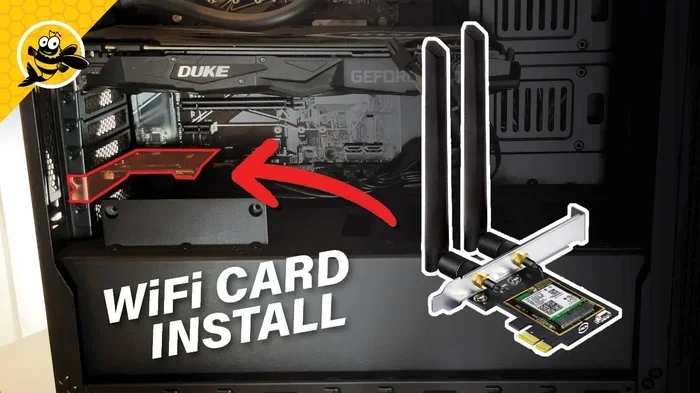
These are the most common upgrades for desktop PCs. You install them directly into a PCIe slot on your motherboard. They offer the best internet speed and stability because they connect directly to your system. Most come with external antennas for strong Wi-Fi range.
Why choose this: Best performance, great for desktops, and permanent installation.
Internal M.2 WiFi Cards
Laptops and some modern desktops use M.2 slots for wireless connectivity. These cards are tiny and fit into a small slot. They often combine Wi-Fi and Bluetooth on a single module. Speed is excellent, especially with WiFi 6 and above.
Why choose this: Perfect for laptops and compact builds that need a slim wireless adapter.
USB WiFi Adapters
These are the easiest to use. You simply plug them into a USB port and install drivers. They are great for quick fixes or PCs without available PCIe slots. Look for USB 3.0 models to avoid speed bottlenecks.
Why choose this: Plug-and-play convenience and portability.
Comparison Table: Internal PCIe vs M.2 vs USB WiFi Adapters
| Feature | PCIe Card | M.2 Card | USB Adapter |
|---|---|---|---|
| Speed | Excellent | Excellent | Good |
| Ease of Install | Moderate | Moderate | Very Easy |
| Best For | Desktops | Laptops | Any PC |
| Portability | No | No | Yes |
| Price Range | $20-$80 | $20-$70 | $15-$50 |
| Antenna Options | External | Built-in | External |
How to Replace the WiFi Card in Your PC
Ready to upgrade? Here is a simple walkthrough for replacing the WiFi card in your PC. The process differs slightly depending on your system, but the core steps are the same.
Step 1: Check Your System Compatibility
Before buying anything, confirm what your PC supports. Check your motherboard manual for available slots. Look for PCIe x1, PCIe x4, or M.2 slots. Also verify whether your system has built-in Bluetooth, since some WiFi cards include it.
Quick Tip: Use a free tool like CPU-Z to see your current WiFi card model. This helps you know exactly what you are replacing.
Step 2: Choose Your New Wireless Adapter
Pick a card that fits your slot and speed needs. For most desktops, a WiFi 6 PCIe card is the sweet spot. For laptops, go with an M.2 module. Make sure the card supports your router’s wireless network standard for maximum compatibility.
Quick Tip: Spending a little more on a WiFi 6E or WiFi 7 card future-proofs your build. These handle the latest router settings and frequencies.
Step 3: Power Down and Open Your PC
Shut down your computer completely. Unplug the power cable. If you use a laptop, remove the battery if possible. Ground yourself by touching a metal surface to prevent static damage. Open the case or access panel carefully.
Step 4: Remove the Old WiFi Card
Locate the current wireless adapter. It usually has one or two antennas attached. Unscrew the mounting bracket. Press the release clip on the PCIe slot gently. Slide the card out slowly. Disconnect any antenna cables by twisting the connectors counterclockwise.
Step 5: Install the New WiFi Card
Align the new card with the slot. Press it straight down until it clicks into place. Screw the mounting bracket to secure it. Connect the antennas to the gold connectors on the card. Make sure they are snug but not overtightened.
Step 6: Install Drivers and Test
Power on your PC. Windows will often detect the new hardware automatically. However, always download the latest network drivers from the manufacturer’s website. This ensures the best speed and stability. Restart after installing drivers, then test your connection.
Quick Tip: Run a speed test at Speedtest.net right after installation. Compare results to your old setup to confirm the improvement.
Internal vs External WiFi Adapters: Which Is Right for You?
This is one of the most common questions when people want to replace the WiFi card in their PC. The answer depends on your situation.
Go Internal If You Want Maximum Speed
Internal cards connect directly to your motherboard through high-speed lanes. They handle more data simultaneously. They also usually support more advanced features like multi-user MIMO and beamforming. If you demand top-tier network performance, go internal.
Go External If You Want Simplicity
USB adapters require no opening your PC. They are ideal if you cannot access internal components or need a temporary fix. High-end USB adapters now rival internal cards in speed. Look for models with USB 3.2 and dual-band support for the best results.
Consider Your Form Factor
Desktops almost always benefit from internal PCIe cards. Laptops typically use M.2 modules. If you want flexibility across multiple devices, a quality USB adapter gives you that freedom. Think about your system requirements before deciding.
Tips for Maximizing Wi-Fi Speed After Replacement
Installing a new card is only half the battle. These tips help you get the absolute best speed from your upgrade.
Position Your Router Strategically
Where your router sits changes everything. Place it in a central, elevated location. Keep it away from walls, microwaves, and other electronics. Stronger Wi-Fi range starts with smart router placement.
Use the Right Frequency Band
Most routers broadcast 2.4GHz and 5GHz bands. The 2.4GHz band reaches farther but is slower. The 5GHz band is faster but has shorter range. Connect to 5GHz when you are near the router for the fastest internet speed.
Keep Firmware and Drivers Updated
Manufacturers release updates that improve speed and fix bugs. Check your router firmware regularly. Also update your wireless adapter drivers. These small steps maintain excellent wireless connectivity over time.
Reduce Interference
Bluetooth devices, baby monitors, and neighboring networks all cause interference. Change your router channel to a less crowded one. Use apps like WiFi Analyzer to find the best channel. This simple trick boosts network performance noticeably.
Consider a Wired Connection for Critical Tasks
Even the best wireless adapter cannot beat a direct Ethernet connection for raw speed and stability. Use Ethernet for gaming rigs or workstations. Reserve Wi-Fi for mobile devices and secondary machines.
Add a WiFi Extender or Mesh System if Needed
If your home is large, one router may not cover every room. A mesh system blankets your space with consistent Wi-Fi signal strength. Pair it with your upgraded card for the ultimate experience.
Common Mistakes When Replacing a WiFi Card
Avoiding these pitfalls saves time and frustration.
- Skipping driver updates: Default Windows drivers often underperform. Always grab the latest from the manufacturer.
- Buying the wrong form factor: A PCIe card will not fit an M.2 slot. Double-check before purchasing.
- Ignoring antenna placement: Poorly positioned antennas weaken your signal. Stand them upright and away from metal surfaces.
- Forgetting to disable the old card: Some systems run both old and new cards simultaneously. Go to Device Manager and disable the old one.
- Rushing the installation: Forced insertion can bend pins or crack slots. Take your time and align everything carefully.
Expert Insights on WiFi Card Upgrades
We spoke with PC hardware specialists to gather expert insights on getting the most from your upgrade.
“Most people underestimate how much a WiFi card affects their daily experience,” says one technician. “A $30 upgrade can feel like a brand-new internet connection. The key is matching the card to your router’s capabilities.”
Another expert recommends looking ahead. “Buy at least one generation ahead of what your router supports. If you have a WiFi 6 router, get a WiFi 6E card. The extra bandwidth headroom pays off as devices multiply on your network.”
These insights reinforce a simple truth: a thoughtful Wi-Fi upgrade delivers lasting value. Do the research, match your hardware, and enjoy the speed boost.
Conclusion
So, can you replace the WiFi card in your PC for better speed? Absolutely, yes. This is one of the easiest and most cost-effective upgrades you can make. Whether you choose an internal PCIe card, an M.2 module, or a USB adapter, the result is the same: faster internet, stronger signals, and smoother online experiences.
Follow the steps in this guide. Check compatibility. Pick the right type. Install carefully. Update drivers. Apply the speed tips. You will be amazed at the difference a modern wireless adapter makes. Do not settle for slow internet when a simple hardware swap can change everything. Start your Wi-Fi upgrade today.
Frequently Asked Questions
How long does it take to replace the WiFi card in my PC?
Most replacements take between 10 and 20 minutes. Internal PCIe cards require opening your case and installing in a slot, which adds a few minutes. USB adapters take under two minutes since you just plug them in. The driver installation afterward usually takes another five to ten minutes.
Will replacing my WiFi card improve internet speed?
Yes, especially if your current card supports older Wi-Fi standards like WiFi 4 or WiFi 5. A modern WiFi 6 card can deliver significantly faster speeds, better range, and lower latency. The improvement depends on your router too, so make sure both your card and router support the latest standards for the best network performance.
Can I replace the WiFi card in my laptop?
Yes, most laptops allow WiFi card replacement through an M.2 slot or a mini PCIe slot. Check your laptop model for compatibility. Some newer ultrabooks have soldered WiFi modules and cannot be upgraded. In those cases, a quality USB WiFi adapter is a great alternative for better wireless connectivity.
Do I need to reinstall Windows after replacing the WiFi card?
No, you do not need to reinstall Windows. The operating system detects new hardware automatically. You may need to install updated drivers from the manufacturer website for optimal speed and features, but your files, settings, and programs stay completely untouched during the swap.
What is the best WiFi card for gaming PCs?
For gaming PCs, a PCIe WiFi 6 or WiFi 6E card offers the best combination of speed, latency, and reliability. Look for models with external antennas and strong signal processing. Brands like Intel, TP-Link, and ASUS make highly rated options. Pairing a quality card with proper router settings ensures smooth, lag-free gaming over wireless.
Is a USB WiFi adapter as good as an internal card?
High-end USB adapters come close but generally trail internal PCIe cards in raw speed and stability. USB adapters are limited by the USB bus bandwidth. A USB 3.0 adapter supports up to about 1.2 Gbps practically, while internal PCIe cards can handle multi-gig speeds. For most users, a good USB adapter provides plenty of bandwidth, but enthusiasts should prefer internal options.