How Do I Access My Linksys Smart Wifi Step by Step
Accessing your Linksys Smart WiFi is simple once you know the right steps. You can log in through your browser using the router’s IP address or use the Linksys app for quick access. This guide walks you through every step, from initial setup to fixing common problems and securing your network.
Setting up and managing your home network should not feel like a chore. Yet many people struggle when they need to access their Linksys Smart WiFi for the first time. Whether you want to change your WiFi password, update firmware, or set up parental controls, the process starts with logging into your router.
This guide gives you a clear, step-by-step path to reach your Linksys Smart WiFi dashboard. You will learn how to log in through a browser, use the mobile app, fix common problems, and secure your network. By the end, you will feel confident managing your home WiFi like a pro.
Let us walk through it together. No technical degree needed, just a few minutes and a willingness to follow along.
Key Takeaways
- Easy Login Methods: You can access your Linksys Smart WiFi through a web browser or the mobile app, both offering full control over your network.
- Step-by-Step Process: Connecting to your network, entering the router IP, and logging in are the core steps that take just a few minutes.
- App Access Is Convenient: The Linksys Smart WiFi app lets you manage your network from anywhere using your phone or tablet.
- Troubleshooting Is Straightforward: Most access issues like forgotten passwords or unresponsive pages have simple fixes you can do yourself.
- Security Matters: Changing default settings, updating firmware, and enabling WPA3 encryption keep your home network safe from threats.
- Advanced Features Are Accessible: Once logged in, you can set up parental controls, guest networks, and device prioritization with ease.
📑 Table of Contents
Understanding Your Linksys Smart WiFi System
Before you dive into the login process, it helps to understand what you are working with. Linksys Smart WiFi is a cloud-based system that lets you manage your router and network from any device. It replaces the need for complex setup screens with a clean, user-friendly interface.
What Is Linksys Smart WiFi?
Linksys Smart WiFi is a management platform built into modern Linksys routers. It lets you control your wireless network settings through a web portal or a mobile app. Think of it as the command center for your home internet. You can view connected devices, set up guest access, and adjust bandwidth priorities all from one place.
The system works with most Linksys routers released in recent years. It uses a cloud connection so you can manage your network even when you are away from home. This is especially useful if you need to boost my Wi Fi signal outside or adjust settings while traveling.
Why Access Your Router Settings?
There are many reasons you might need to log into your Linksys router. Maybe your internet is running slow and you want to check which devices are using the most bandwidth. Perhaps you need to add an external antenna to my router for better coverage in your backyard or garage.
Other common reasons include:
- Changing your WiFi password or network name
- Setting up a guest network for visitors
- Enabling parental controls for kids’ devices
- Updating your router firmware for security patches
- Troubleshooting connection drops or slow speeds
- Configuring port forwarding for gaming or streaming
No matter the reason, accessing your Linksys Smart WiFi gives you full control. It puts the power back in your hands instead of relying on guesswork or default settings.
How Do I Access My Linksys Smart Wifi Step by Step
Now let us get into the heart of the matter. Here is a detailed walkthrough of how to access your Linksys Smart WiFi. Follow each step in order, and you will be logged in within minutes.
Step 1: Connect to Your Linksys Network
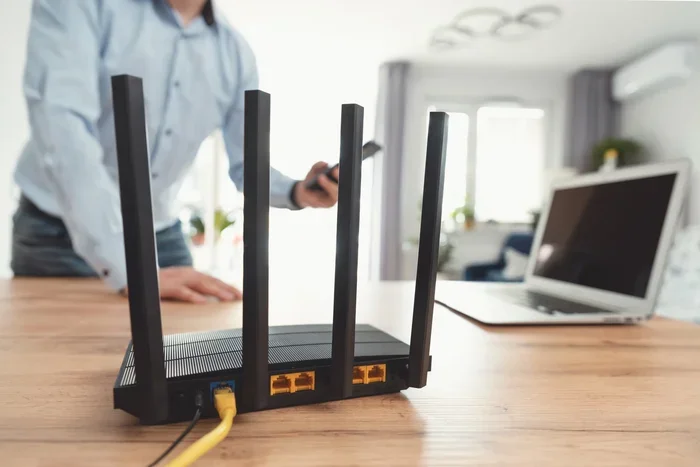
First, make sure your device is connected to your Linksys router. You can use WiFi or an Ethernet cable. For the best experience, connect via WiFi using the default network name printed on the bottom of your router.
If you have not changed your WiFi name yet, look for a label that starts with “Linksys” followed by a few letters and numbers. The default password is also on that label. Once connected, open your web browser and move to the next step.
Step 2: Open Your Web Browser
You can use any modern browser for this. Chrome, Firefox, Safari, and Edge all work well. Just make sure you are not using a browser extension that might block the router login page.
Some people run into issues when using private or incognito mode. If the login page does not load, try switching to a standard browsing window. This small trick solves the problem more often than you might think.
Step 3: Enter the Router IP Address
Type your router’s IP address into the browser bar. Most Linksys routers use 192.168.1.1 as the default address. Press Enter, and the Linksys Smart WiFi login page should appear.
If that address does not work, you can find the correct one by checking your network settings. On Windows, open Command Prompt and type ipconfig. Look for the Default Gateway number. On Mac, go to System Settings, then Network, and look for the router listed next to your connection.
Once you find the right IP address, enter it into your browser. This is the gateway to your router’s management panel.
Step 4: Log In to Your Account
You will now see the Linksys Smart WiFi login screen. Enter your username and password. By default, the username is usually admin, and the password is also admin or printed on the router label.
If you have already changed your login credentials but forgot them, do not panic. You can reset your router by pressing the small reset button on the back with a paperclip. This restores all settings to factory defaults, including your login info. Just keep in mind that this will erase any custom configurations you have set up.
After entering your credentials, click the login button. You should now see the Linksys Smart WiFi dashboard.
Step 5: Navigate the Dashboard
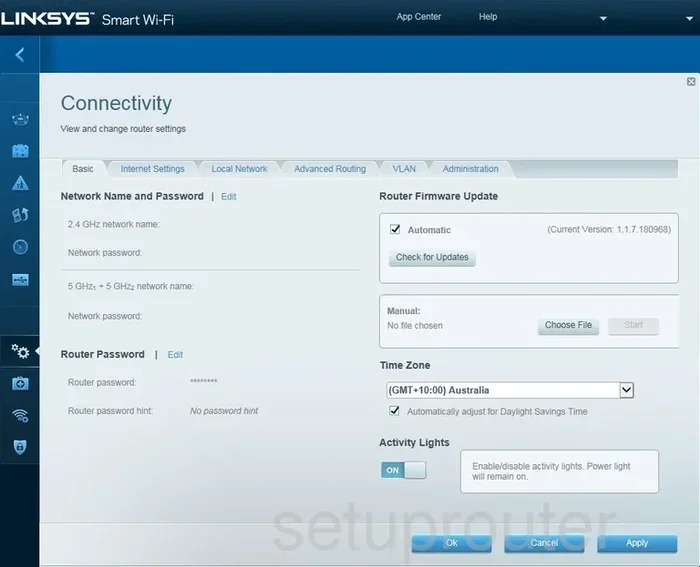
The dashboard gives you a bird’s-eye view of your network. You will see sections for WiFi settings, connected devices, and account options. Take a moment to explore the menu on the left side of the screen.
Here is what you can typically do from the dashboard:
- Change your WiFi name and password
- View all devices connected to your network
- Set up guest access with a separate password
- Adjust parental controls and screen time limits
- Run a speed test or check signal strength
- Update your router firmware
- Prioritize devices for better performance
Each setting is clearly labeled and easy to adjust. You do not need to be a networking expert to make changes. The interface is designed for everyday users who just want their network to work better.
Using the Linksys Smart WiFi App
Not everyone wants to log in through a browser. The Linksys Smart WiFi app offers a more convenient way to manage your network from your phone or tablet. It is available for both iOS and Android devices.
Downloading the App
Go to the App Store or Google Play Store and search for “Linksys Smart WiFi.” Download the app and open it. The app will guide you through the setup process step by step. It is free to download and use with any compatible Linksys router.
Setting Up the App
When you first open the app, you will be asked to create a Linksys account or sign in to an existing one. Use the same email and password you use for your router’s web portal. Once signed in, the app will automatically detect your Linksys router if it is on the same network.
From the app home screen, you can see your network status at a glance. Tap on any section to dive deeper. You can change WiFi settings, check connected devices, run speed tests, and even set up parental controls right from your couch. It is one of the easiest ways to manage your home network on the go.
If you ever switch devices or get a new phone, simply log back into the app with your Linksys account. All your settings sync automatically, so you do not have to start over.
Troubleshooting Common Access Issues
Even with clear instructions, things do not always go smoothly. Here are the most common problems people face when trying to access their Linksys Smart WiFi, along with simple fixes.
Forgot Your Login Password
If you cannot remember your router login password, the easiest fix is to perform a factory reset. Locate the reset button on the back of your router. Use a paperclip or pen to press and hold it for about 10 seconds. The router lights will flash, and it will restart with default settings.
After the reset, use the default credentials printed on the router label. Then go ahead and set a new, strong password right away. You should also find my Wi Fi password in settings through the dashboard so you do not lose it again.
Cannot Reach the Login Page
If typing 192.168.1.1 does not bring up the login page, try these steps:
- Double-check that your device is connected to the Linksys network
- Make sure you typed the IP address correctly, with no extra spaces
- Try a different browser or clear your browser cache
- Restart your router by unplugging it for 30 seconds
- Check if your router uses a different IP address, such as 192.168.0.1
Sometimes the issue is as simple as a cached page. Clearing your browser data often fixes the problem instantly.
Dashboard Is Slow or Unresponsive
A slow dashboard can be frustrating. This usually happens when too many devices are connected or when the router needs a firmware update. Try rebooting your router first. Unplug it, wait 30 seconds, and plug it back in.
If the problem persists, check for a firmware update in the dashboard. Linksys regularly releases updates that improve performance and fix bugs. Keeping your router updated ensures a smoother experience every time you log in.
Securing Your Linksys Smart WiFi Network
Once you can access your Linksys Smart WiFi, the next priority should be security. An unprotected network leaves your personal data vulnerable and can let strangers use your internet without permission.
Change Default Settings
The first thing you should do after logging in is change the default admin password. Anyone who knows the factory login can access your router settings. Pick a strong password that uses a mix of letters, numbers, and symbols.
Also consider changing your WiFi network name. The default name often reveals your router brand, which makes it a target for attackers. A unique name keeps your network profile low.
Update Your Firmware
Router firmware updates patch security holes and improve performance. Check for updates regularly from the dashboard. Most modern Linksys routers also support automatic updates, so turn that feature on if it is available.
Keeping your firmware current is one of the best things you can do to protect your home network from online threats. It takes just a few minutes and can save you from serious headaches down the road.
Enable Strong Encryption
Make sure your WiFi uses WPA3 encryption if your router supports it. If not, WPA2 is the next best option. Avoid using WEP, as it is outdated and easily cracked. Strong encryption ensures that only devices you approve can connect to your network.
Advanced Features You Can Access
Once you are comfortable with the basics, explore the advanced features that Linksys Smart WiFi offers. These tools can significantly improve your home network experience.
Parental controls let you block inappropriate content and set screen time limits for specific devices. Guest networks give visitors internet access without sharing your main WiFi password. Device prioritization ensures your streaming or gaming setup gets the bandwidth it needs when multiple devices are online.
You can also set up WiFi parental controls through the dashboard to monitor usage patterns and restrict access during certain hours. These features are especially helpful for families with young children or anyone who wants more control over their home network.
If you ever decide to upgrade your equipment, remember that you can change my Wi Fi router without losing your Linksys Smart WiFi account settings. The cloud-based system stores your preferences, so switching to a new router is a breeze.
Key Takeaways
- Easy Login Methods: You can access your Linksys Smart WiFi through a web browser or the mobile app, both offering full control over your network.
- Step-by-Step Process: Connecting to your network, entering the router IP, and logging in are the core steps that take just a few minutes.
- App Access Is Convenient: The Linksys Smart WiFi app lets you manage your network from anywhere using your phone or tablet.
- Troubleshooting Is Straightforward: Most access issues like forgotten passwords or unresponsive pages have simple fixes you can do yourself.
- Security Matters: Changing default settings, updating firmware, and enabling WPA3 encryption keep your home network safe from threats.
- Advanced Features Are Accessible: Once logged in, you can set up parental controls, guest networks, and device prioritization with ease.
Frequently Asked Questions
What is the default IP address for Linksys Smart WiFi routers?
The most common default IP address is 192.168.1.1. However, some Linksys models use 192.168.0.1 or a different address. You can find the exact address on the label at the bottom of your router or in your device’s network settings.
Can I access my Linksys Smart WiFi from outside my home?
Yes, you can. As long as you have an internet connection, you can log into your Linksys Smart WiFi portal from anywhere. The cloud-based system lets you manage your network remotely through the web dashboard or the mobile app. Just make sure your Linksys account credentials are secure.
What should I do if I reset my Linksys router and lost all my settings?
After a factory reset, your router will revert to its default configuration. Log in using the default username and password printed on the router label. Then go through the setup wizard in the dashboard to reconfigure your WiFi name, password, and other preferences. You may also need to connect my Wi Fi directly to my tv or other devices again after the reset.
Is the Linksys Smart WiFi app free to use?
Yes, the Linksys Smart WiFi app is completely free for both iOS and Android devices. There are no hidden fees or subscription requirements. You simply download the app, sign in with your Linksys account, and start managing your network right away.
How often should I update my Linksys router firmware?
Linksys releases firmware updates periodically to address security vulnerabilities and improve performance. It is a good habit to check for updates once a month. Many newer Linksys routers also support automatic updates, which takes the guesswork out of the process and keeps your network secure without any effort on your part.
Can I use Linksys Smart WiFi with any Linksys router?
Linksys Smart WiFi works with most Linksys routers released in the last several years. Older models or very basic routers may not support the Smart WiFi platform. Check the Linksys website or your router’s manual to confirm compatibility. If your router does not support it, you can always buy my own router for internet that does.
Conclusion
Accessing your Linksys Smart WiFi does not have to be complicated. Whether you prefer the web dashboard or the mobile app, the process is designed to be straightforward and user-friendly. You now know how to log in, navigate the settings, troubleshoot common issues, and secure your network for the long haul.
Take a few minutes today to explore your Linksys Smart WiFi dashboard. Change your default password, check for firmware updates, and set up a guest network if you have not already. These small steps make a big difference in how your home network performs and how safe it stays.
With the knowledge you have gained from this guide, you are well equipped to take full control of your home WiFi. Your Linksys router is a powerful tool, and now you know exactly how to use it. Happy networking!