Can I Replace My Laptop Screen With Touch Screen Now
Yes, you can replace your laptop screen with a touch screen in many cases, but it depends on your laptop model, hardware compatibility, and budget. This guide covers everything you need to know about laptop screen replacement, from touchscreen conversion kits to costs and DIY steps. Whether you want a touch display upgrade or a full laptop modification, we have the answers.
Key Takeaways
- Not all laptops support touch screen conversion: Your laptop’s motherboard and graphics card must support touch input for a successful touchscreen laptop upgrade.
- Costs range from $80 to $300+: The touch screen laptop upgrade cost varies based on screen size, panel type, and whether you hire a professional or do it yourself.
- DIY is possible but challenging: Replacing your laptop display panel requires technical skill, the right tools, and careful handling to avoid damage.
- Capacitive touchscreens are the better choice: They offer better responsiveness, multi-touch support, and are more similar to modern touchscreen technology.
- Alternative options exist: If replacing your laptop screen isn’t feasible, external touchscreen monitors offer a practical workaround.
- Resale value may increase: A laptop screen upgrade to touch can make older devices more useful and potentially boost resale value.
- Professional help is recommended for beginners: If you are not confident with DIY laptop repair, taking your device to an expert reduces the risk of costly mistakes.
📑 Table of Contents
- Can I Replace My Laptop Screen With Touch Screen? Everything You Need to Know
- What Does It Mean to Replace Your Laptop Screen With a Touch Screen?
- Can Every Laptop Be Converted to Touch Screen?
- How to Replace Your Laptop Screen With a Touch Screen: Step-by-Step
- How Much Does It Cost to Replace Your Laptop Screen With a Touch Screen?
- Pros and Cons of Upgrading to a Touch Screen Laptop
- Alternative Options If You Cannot Replace Your Laptop Screen
- Common Mistakes to Avoid When Replacing Your Laptop Screen
- Key Takeaways
Can I Replace My Laptop Screen With Touch Screen? Everything You Need to Know
You are sitting at your desk, using your laptop, and you notice your friend’s device responds to every tap and swipe. It makes you wonder: can I replace my laptop screen with touch screen? The short answer is yes, but the full answer is a bit more complex.
Replacing your laptop screen with a touch screen is one of the most popular laptop modifications people search for today. Whether you want better interactivity for creative work or simply love the idea of tapping your display, the appeal is clear. However, not every laptop can handle this upgrade. Compatibility, cost, and technical skill all play a role.
In this guide, we will walk you through every detail. You will learn how touchscreen conversion works, what it costs, which laptops support it, and whether it is even worth the effort. Let us dive in.
What Does It Mean to Replace Your Laptop Screen With a Touch Screen?
A laptop screen replacement for touch means swapping your current non-touch LCD display panel with a touchscreen-enabled panel. This is not just about changing the glass. A touch screen involves a digitizer layer that detects your finger or stylus input.
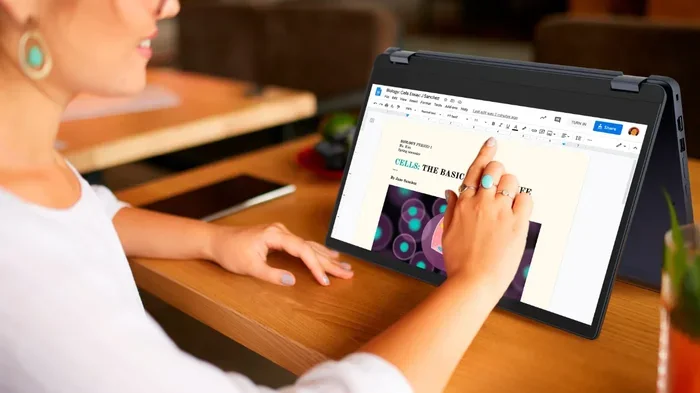
Think of it like this. Your current screen shows images. A touch screen shows images and also listens to your gestures. The digitizer acts like a transparent layer sitting on top of the display. It sends signals to your laptop’s processor every time you tap, swipe, or pinch.
How Touchscreen Technology Works in Laptops
There are two main types of touchscreen technology used in laptops:
- Capacitive touch screens: These detect the electrical charge from your finger. They support multi-touch gestures like pinch-to-zoom. Most modern phones and laptops use this type. It is the most responsive and accurate option.
- Resistive touch screens: These rely on pressure. You press the screen to make contact between two thin layers. They work with gloves or styluses but lack multi-touch support. They feel older and less smooth.
For most users, capacitive touch screens are the better choice. They feel natural and fast. If you are converting your laptop, make sure the replacement panel supports capacitive input.
Can Every Laptop Be Converted to Touch Screen?
This is the question most people ask first. Unfortunately, the answer is no. Converting a laptop to touchscreen is not a one-size-fits-all solution. Your laptop’s internal hardware must support touch input. Without that support, even a new touch panel will not work.
Hardware Requirements for Touch Screen Support
Here are the key components your laptop needs:
- Compatible motherboard: Your motherboard must have the circuitry to process touch signals. Many older boards simply do not have this capability.
- Graphics card support: Your GPU must handle touch input alongside display output. Integrated graphics from Intel and AMD often support this, but not always.
- Correct inverter and controller: The touch screen needs a controller board that communicates with your system. This is often overlooked in DIY projects.
- Operating system compatibility: Windows 10 and 11 have built-in touch drivers. Linux support varies. macOS touch support is very limited on non-Apple hardware.
Laptop Brands and Touch Screen Compatibility
Some laptop brands make touch screen upgrades easier than others:
- Lenovo ThinkPad: Many ThinkPad models have touch-compatible configurations. Replacement touch panels are widely available.
- Dell Latitude and XPS: Dell offers touch screen variants. Their parts ecosystem is strong for upgrades.
- HP EliteBook and Spectre: These models often support touch. HP provides good documentation for screen swaps.
- Acer Aspire and ASUS ZenBook: Some models support touch, but compatibility varies widely. Always check your specific model number.
The best way to check is to look up your laptop model number. Visit the manufacturer’s website and see if a touch screen variant exists for your exact model. If it does, a laptop screen upgrade to touch is very likely possible.
How to Replace Your Laptop Screen With a Touch Screen: Step-by-Step
If you have confirmed your laptop supports touch input, you can move forward with the laptop screen replacement. Here is a simplified walkthrough. Remember, this is a delicate process and requires patience.
What You Will Need
- Replacement touch screen panel (match size and connector type)
- Plastic spudger or pry tool
- Small Phillips and flathead screwdrivers
- Anti-static wrist strap (recommended)
- Soft microfiber cloth
- Thermal paste (sometimes needed for reassembly)
Step-by-Step Process
- Back up your data: Before opening anything, back up all files. Accidents happen, and you do not want to lose your data during a DIY laptop repair project.
- Remove the battery: Turn off the laptop. Disconnect the power adapter. Remove the battery if possible. This prevents electrical shorts.
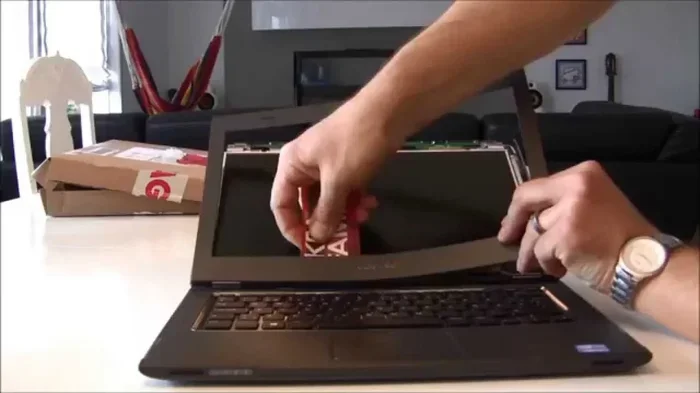
- Remove the bezel: Use the plastic spudger to gently pry off the plastic frame around the screen. Go slowly. Many bezels are held by small clips.
- Disconnect the old screen: Unscrew the display hinges. Carefully disconnect the video cable and any touch controller cables. Note where everything is connected.
- Install the new touch panel: Connect the new touch display panel in the same position. Attach the video cable and the touch controller cable. Screw the hinges back in place.
- Reassemble the bezel: Snap the bezel back on. Reinstall the battery. Power on the laptop.
- Test the touch function: Open your laptop and test the screen. Tap, swipe, and pinch to make sure the touch input works correctly.
Quick Tips for a Smooth Upgrade
- Always match the screen size and connector type exactly. A 14-inch panel will not fit a 15.6-inch frame.
- Take photos during disassembly so you remember where each cable goes.
- Never use metal tools near internal components. One slip can short-circuit your laptop.
- If the touch function does not work after installation, check the digitizer driver in your device manager.
How Much Does It Cost to Replace Your Laptop Screen With a Touch Screen?
Touch screen laptop upgrade cost is one of the biggest factors in deciding whether to proceed. The price varies a lot based on several things.
Breakdown of Typical Costs
| Cost Factor | Price Range |
|---|---|
| Touch screen replacement panel | $60 to $200 |
| Touch controller board (if needed) | $20 to $50 |
| Professional labor fee | $50 to $150 |
| Tools and supplies | $15 to $30 |
| Total estimated cost | $80 to $300+ |
As you can see, the total depends on whether you do it yourself or hire someone. DIY laptop repair saves on labor but requires skill. Hiring a professional adds cost but reduces risk.
Factors That Affect the Price
- Screen size: Larger panels cost more. A 17-inch touch screen is pricier than a 13-inch one.
- Resolution: Higher resolution touch panels (like 4K) cost significantly more.
- Brand quality: Name-brand panels from LG, Samsung, or AUO cost more than generic ones. But they often have better color accuracy and durability.
- Touch technology: Capacitive panels are usually more expensive than resistive ones.
- Availability: Rare or older model panels can be hard to find and may carry a premium.
Pros and Cons of Upgrading to a Touch Screen Laptop
Before you commit to a laptop screen upgrade, let us look at the advantages and disadvantages. This helps you make an informed choice.
The Pros
- More intuitive interaction: Tapping and swiping feel natural. It is great for browsing, drawing, and note-taking.
- Better for creative work: Artists and designers benefit from stylus support on touch displays. Pressure-sensitive pens work well on capacitive screens.
- Improved accessibility: Touch screens help people with mobility challenges navigate devices more easily.
- Enhanced media consumption: Flipping through photos and scrolling through videos feels smoother with touch.
- Potential resale boost: Touchscreen laptops sell for more. If you upgrade and later sell, you may recover some of the cost.
The Cons
- Not all laptops are compatible: As discussed, many older laptops simply cannot support touch input. You may end up with a useless panel.
- Added cost: Between the panel, controller, and labor, you could spend $200 or more. That money might be better spent on a new touch-enabled laptop.
- Risk of damage: Opening your laptop risks breaking clips, cables, or the display housing. One wrong move and you create a bigger problem.
- Battery drain: Touch displays use more power. Your battery life may decrease after a display panel replacement.
- Driver issues: Even with the right hardware, you might face driver conflicts or unresponsive touch after installation.
Expert Insight: Is It Worth It?
Tech experts often say this: if your laptop is less than five years old and supports touch, the upgrade can be worthwhile. But if your device is older, investing in a new touch-capable laptop may be the smarter financial move. A touchscreen laptop upgrade works best when the rest of the hardware is still strong.
Alternative Options If You Cannot Replace Your Laptop Screen
What if your laptop does not support touch, or the cost is too high? You still have options. You do not have to give up on touch functionality entirely.
Use an External Touchscreen Monitor
A touchscreen monitor is a plug-and-play alternative. You connect it to your laptop via HDMI or USB-C. Most external touch monitors work with Windows 10 and 11 out of the box. They come in sizes from 15 inches to 27 inches or more.
This option avoids all the compatibility headaches. You get full touch support without opening your laptop. Popular brands include Dell, Lenovo, and Wacom for creative professionals.
Use a Touchscreen Tablet Alongside Your Laptop
If you already own a tablet like an iPad or a Windows Surface, you can use it as a secondary touch device. Sync your files and use it alongside your laptop. This gives you the best of both worlds without any laptop modification.
Use a Touch-Enabled Accessory
Some accessories bring touch-like functionality to non-touch displays:
- Touch-enabled stylus pens: These work on certain screen types and add precision to your input.
- Interactive touch pens: Some smart pens work with specific apps to simulate touch-based input.
- Gesture control software: Programs like AirBar (now discontinued but similar tools exist) added touch sensing to some non-touch displays using a light-based sensor.
Quick Tip
Before spending money on a touch screen laptop upgrade, explore these alternatives first. An external touch screen monitor often delivers the same experience at a lower risk and sometimes a lower cost.
Common Mistakes to Avoid When Replacing Your Laptop Screen
Even experienced DIYers make mistakes. Here are the most common ones to watch out for:
- Buying the wrong panel: Always double-check model numbers, connector types, and screen sizes. One wrong digit and the panel will not fit.
- Skipping the battery disconnect: Working with a connected battery risks electrical damage. Always disconnect it first.
- Forcing the bezel off: Bezels are held by clips, not screws in most cases. Use a plastic tool and go slow. Forcing it breaks the clips.
- Ignoring driver installation: After installing the new panel, install the correct touch drivers. Do not assume they will load automatically.
- Rushing the process: Take your time. A laptop screen replacement that takes two hours is better than one that takes twenty minutes and ends in disaster.
Key Takeaways
So, can you really replace your laptop screen with a touch screen? Yes, you can, but with important caveats. Your laptop must have the internal hardware to support touch input. The cost ranges from $80 to $300 or more. DIY is possible but requires care and patience. And if none of this works for you, external touchscreen monitors are a great fallback.
Here is a final summary of what to remember:
- Check compatibility first: Confirm your laptop model supports touch screen input before purchasing any parts.
- Budget accordingly: Plan for the panel, controller, tools, and possibly professional labor.
- Go capacitive: Choose a capacitive touch panel for the best user experience and multi-touch support.
- Consider alternatives: External touch monitors and tablets can give you touch functionality without the risk.
- Know your limits: If you are not comfortable with hardware work, take your laptop to a professional. There is no shame in asking for help.
Whether you are a student, creative professional, or casual user, upgrading to a touch screen laptop can transform how you interact with your device. Just make sure the upgrade makes sense for your specific situation. Do your research, plan your budget, and follow the steps carefully. Your new touch-enabled display is waiting for you.
Frequently Asked Questions
Can any laptop be converted to a touch screen?
No, not every laptop can be converted. Your laptop needs a compatible motherboard, graphics card, and touch controller to support a touch screen. Always check your specific laptop model before attempting a touch screen laptop upgrade.
How much does it cost to replace a laptop screen with a touch screen?
The total cost typically ranges from $80 to $300 or more. This includes the touch panel, possible controller board, tools, and professional labor if you do not DIY. The touch screen laptop upgrade cost depends on screen size, resolution, and brand quality.
Is it hard to replace a laptop screen yourself?
It requires some technical skill and patience. You need to remove the bezel, disconnect cables, and install the new panel carefully. If you are not confident with DIY laptop repair, it is best to seek professional help to avoid damaging your device.
What is the difference between capacitive and resistive touch screens?
Capacitive touch screens detect your finger’s electrical charge and support multi-touch gestures like pinch-to-zoom. Resistive screens rely on pressure and work with styluses or gloves but lack multi-touch. Capacitive touch screens are the better choice for most users.
Will a touch screen reduce my laptop battery life?
Yes, touch displays generally consume more power than non-touch panels. You may see a noticeable decrease in battery life after a laptop screen upgrade to touch. Using power-saving settings can help offset this.
Can I use an external touchscreen monitor instead of replacing my laptop screen?
Yes, an external touchscreen monitor is a great alternative. It plugs into your laptop via HDMI or USB-C and works with Windows 10 and 11. This avoids compatibility issues and eliminates the risk of opening your laptop.
=== CONCLUSION ===
So, can I replace my laptop screen with touch screen? The answer is a confident yes, but with conditions. Your laptop must support touch hardware, you must choose the right panel, and you must be ready for the cost and effort involved. A touch display conversion can breathe new life into an aging device and make daily tasks more intuitive.
We have covered compatibility, step-by-step instructions, costs, pros and cons, and alternative options. Whether you go the DIY route or choose an external touch screen monitor, the goal is the same: adding touch functionality to improve your workflow. Take your time, do your research, and make the choice that fits your needs and budget best. Your upgraded, touch-friendly laptop experience is closer than you think.