How Can I Make My Ps4 Wifi Faster And Get Better Speed
Making your PS4 WiFi faster is easier than you think. You can boost your speed by adjusting router settings, changing DNS servers, and reducing network interference. These simple steps can cut lag and improve your online gaming experience without spending a dime.
If your PS4 WiFi is slow, you are not alone. Many gamers deal with lag, disconnects, and frustratingly slow download speeds. The good news is that fixing this problem is usually simple. You do not need to be a tech expert to get better speed on your console.
In this guide, we will walk you through every step to make your PS4 WiFi faster. From basic router tweaks to advanced settings, you will find practical tips that really work. Let us get your gaming experience back on track.
Key Takeaways
- Change your DNS settings to speed up how your PS4 finds game servers and loads content.
- Optimize your router placement and settings to reduce interference and boost signal strength.
- Update your router firmware and switch to the 5GHz band for faster wireless speeds.
- Use QoS settings to prioritize your PS4 traffic over other devices on your network.
- Consider hardware upgrades like external antennas or mesh systems for a stronger connection.
- A wired Ethernet connection is still the fastest and most stable option for PS4 gaming.
📑 Table of Contents
Understand Why Your PS4 WiFi Is Slow
Before you fix the problem, it helps to know what is causing it. Several things can slow down your PS4 wireless connection. Understanding these causes will help you pick the right solution.
Distance From Your Router
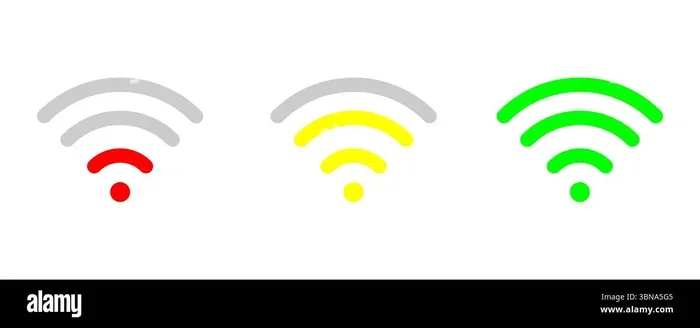
The farther your PS4 is from the router, the weaker the signal becomes. Walls, floors, and furniture all block WiFi signals. If your console is in another room or on a different floor, you may lose significant speed.
Network Interference
Other electronic devices can interfere with your WiFi signal. Microwaves, baby monitors, and even Bluetooth devices can cause problems. This is called network interference, and it can really slow down your connection.
Too Many Devices On Your Network
Every device connected to your WiFi shares the available bandwidth. If someone in your house is streaming Netflix while you are gaming, your PS4 may not get enough speed. This is a common cause of lag and slow downloads.
Outdated Router Firmware
Routers need software updates just like phones and computers do. Old firmware can cause slow speeds and connection problems. Many people forget to update their router, but this simple step can make a big difference.
Optimize Your Router Settings For PS4
The easiest way to improve your PS4 WiFi speed is by changing a few router settings. These adjustments take just a few minutes and can give you a noticeable boost right away.
Switch To The 5GHz Band
Most modern routers broadcast on two bands: 2.4GHz and 5GHz. The 2.4GHz band travels farther but is slower and more crowded. The 5GHz band is faster and less congested, which is perfect for gaming. Go to your PS4 network settings and select the 5GHz network if it is available.
If your router does not show a 5GHz option, you may need to check if your router supports it. Some older models only use the 2.4GHz band. In that case, try moving your router closer to the console.
Change Your WiFi Channel
Your WiFi signal travels on a channel, just like a radio station. If your neighbors are using the same channel, there can be congestion and slowdowns. You can change your WiFi channel in your router settings to find a less crowded one.
Most routers have an auto-select feature for channels. Turn this on and let the router pick the best one. You can also use a free WiFi analyzer app on your phone to see which channels are least used in your area.
Enable QoS Settings
QoS stands for Quality of Service. This setting lets you prioritize certain devices or activities on your network. By enabling QoS and giving your PS4 top priority, you ensure your gaming traffic gets the bandwidth it needs.
Here is how to set it up:
- Log in to your router’s admin panel.
- Find the QoS or traffic management section.
- Add your PS4 by its MAC address or IP address.
- Set the priority to high or gaming.
- Save your settings and restart the router.
This simple change can reduce lag spikes and make your online gaming much smoother.
Boost Your WiFi Signal Strength
If your router signal is weak in the room where your PS4 sits, you need to boost the signal. One great option is to boost your Wi-Fi signal using a few different methods. You can move your router to a more central location, raise it higher off the floor, or remove objects that block the signal path.
Another effective solution is to connect Deco mesh WiFi to your existing router. Mesh systems use multiple units placed around your home to create a strong, consistent WiFi signal everywhere. This is especially helpful for larger homes or houses with thick walls that block signals.
Change Your DNS Settings For Faster Gaming
DNS stands for Domain Name System. It is like a phonebook for the internet. When you type a website address or connect to a game server, your console uses DNS to find the right server. By default, your ISP assigns a DNS server, but it is often slow and overloaded.
Changing your DNS settings can significantly speed up how your PS4 connects to game servers and downloads content. This is one of the easiest and most effective tweaks you can make.
How To Change DNS On Your PS4
Here is a simple step-by-step guide to changing your DNS settings:
- Go to Settings on your PS4.
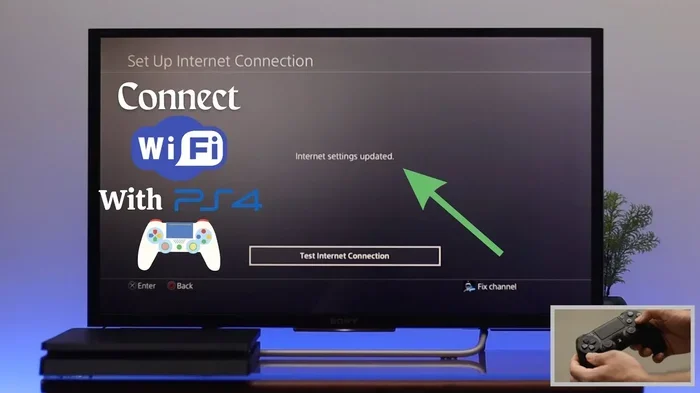
- Select Network and then Set Up Internet Connection.
- Choose your WiFi network and select Custom.
- For IP Address, select Automatic.
- For DHCP Host Name, select Do Not Specify.
- For DNS Settings, select Manual.
- Enter the Primary DNS: 8.8.8.8 (Google) or 1.1.1.1 (Cloudflare).
- Enter the Secondary DNS: 8.8.4.4 (Google) or 1.0.0.1 (Cloudflare).
- For MTU Settings, select Automatic.
- For Proxy Server, select Do Not Use.
- Test your connection and save the settings.
Google DNS and Cloudflare DNS are both free and much faster than most ISP defaults. Many gamers notice faster load times and fewer connection errors after making this change.
Which DNS Should You Use?
Here is a quick comparison of popular DNS options:
- Google DNS (8.8.8.8 / 8.8.4.4): Fast, reliable, and widely used. Great for most users.
- Cloudflare DNS (1.1.1.1 / 1.0.0.1): Known for privacy and speed. Excellent for gaming.
- OpenDNS (208.67.222.222 / 208.67.220.220): Offers extra security features and good performance.
Try each one and see which gives you the best speed for your PS4. You can run an internet speed test on your console to compare results.
Upgrade Your Hardware For Better WiFi
Sometimes software tweaks are not enough. If your router is old or low-end, it may not be able to deliver fast WiFi speeds to your PS4. In these cases, a hardware upgrade can make a huge difference.
Add An External Antenna To Your Router
Many routers have weak built-in antennas that cannot send a strong signal through walls and across rooms. You can add an external antenna to your router to dramatically improve signal strength and range. Look for a high-gain antenna that is compatible with your router model.
This upgrade is affordable and easy to install. It can turn a weak, spotty connection into a strong and stable one. For PS4 gamers who live in larger homes, this is one of the best investments you can make.
Upgrade To A WiFi 6 Router
WiFi 6 is the latest WiFi standard, and it offers much faster speeds and better performance with multiple devices. If your router is several years old, it probably uses WiFi 4 or WiFi 5 technology. Upgrading to a WiFi 6 router can give your PS4 a major speed boost.
If you already have a WiFi 5 router, you might consider connecting WiFi 6 mesh to WiFi 5 router to get the best of both worlds. This setup lets you use the new WiFi 6 mesh units in key areas while keeping your existing router as the main hub.
Consider A WiFi Card Or USB Adapter
If your router is fine but your PS4’s internal WiFi card is old, you might benefit from a USB WiFi adapter. These plug into your PS4’s USB port and provide a stronger wireless connection. Look for adapters that support 5GHz and AC or WiFi 6 standards.
Buy A Better Router For Gaming
If none of the above fixes work, it may be time to buy a new router. A gaming-focused router is designed to handle the demands of online gaming. These routers often include features like lower latency, better QoS controls, and stronger signal processing.
You can also change your Wi-Fi router to a newer model without paying for a new internet plan. Just make sure the router is compatible with your internet service provider and modem.
Advanced Tips To Reduce Lag On PS4
Once you have optimized your basic setup, there are a few more advanced tips that can help you squeeze out every last bit of speed from your connection.
Reduce NAT Type To Open
NAT type affects how your PS4 communicates with other players online. A strict NAT type can cause lag, matchmaking issues, and connection problems. You want your NAT type to be Open or Type 1 for the best gaming experience.
To improve your NAT type:
- Enable UPnP in your router settings.
- Set up port forwarding for your PS4.
- Place your PS4 in the DMZ zone (use this only if you understand the security risks).
These steps can open up your connection and reduce lag significantly during online matches.
Limit Background Downloads And Updates
Other devices or even your PS4 itself may be downloading updates in the background. This uses up bandwidth and can slow down your gaming connection. Make sure to pause any downloads or updates while you are playing.
You can also go to your PS4 settings and set automatic downloads to happen during off-peak hours. This way, your gaming speed stays fast when you need it most.
Keep Your PS4 Close To The Router During Gaming
Even small changes in position can affect your WiFi signal. If you are experiencing lag during a game, try moving your PS4 closer to the router temporarily. This can help you determine if distance is the real problem.
When To Consider A Wired Connection Instead
While WiFi is convenient, a wired connection is always faster and more stable for gaming. If you have tried all the tips above and still experience lag, it may be time to use an Ethernet cable.
A wired connection eliminates WiFi interference completely. You get the full speed of your internet plan with zero lag spikes. For competitive gamers, this is the gold standard.
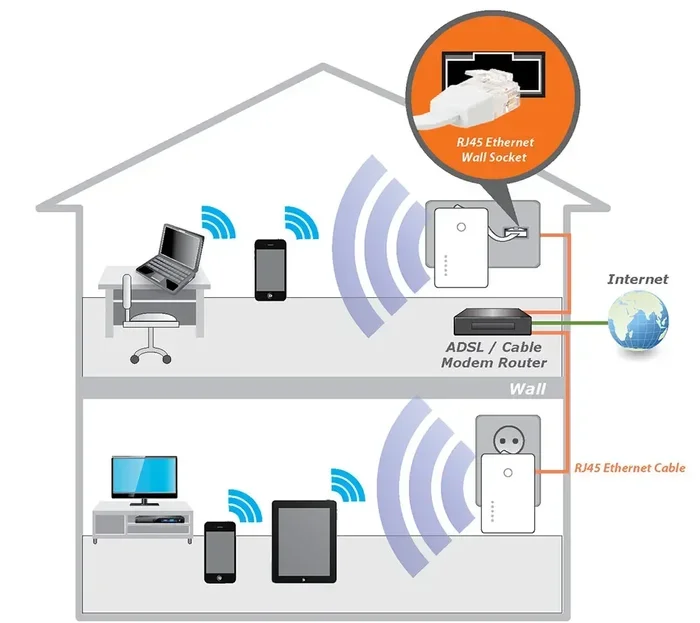
If running a cable is not practical, you can also use a powerline adapter. This device sends internet through your home’s electrical wiring. It is not as fast as Ethernet, but it is much more stable than WiFi in most cases.
Quick Tips For The Best PS4 WiFi Speed
- Restart your router once a week to clear temporary issues.
- Keep your PS4 firmware updated for the best performance.
- Turn off WiFi on devices you are not using to free up bandwidth.
- Place your router in an open area, not inside a cabinet or closet.
- Avoid placing your router near microwaves or other electronic devices.
- Run a speed test regularly to track your connection quality.
These quick habits keep your connection running smoothly and help you avoid common problems before they start.
Final Thoughts
Making your PS4 WiFi faster does not have to be complicated. Start with the simple fixes like switching to the 5GHz band, changing your DNS settings, and optimizing your router placement. These steps alone can make a huge difference in your gaming experience.
If you still need more speed, consider hardware upgrades like external antennas, mesh systems, or a new router. And remember, nothing beats a wired Ethernet connection for the fastest and most stable gaming experience.
The key is to test your connection after each change. This way, you can see what works best for your specific setup. With the right adjustments, you will be back to smooth, lag-free gaming in no time.
Frequently Asked Questions
Why Is My PS4 WiFi So Slow All Of A Sudden?
Sudden slowdowns are usually caused by network interference, too many connected devices, or an outdated router firmware. Try restarting your router first, then check if other devices are using bandwidth. If the problem persists, switch to the 5GHz band or change your WiFi channel for a cleaner connection.
Is WiFi Or Ethernet Better For PS4 Gaming?
Ethernet is always better for PS4 gaming. It provides a direct, stable connection with no interference. WiFi is convenient but can suffer from lag spikes and speed drops. If you can run a cable from your router to your PS4, you will notice a big improvement in stability and speed.
Can A VPN Slow Down My PS4 WiFi?
Yes, a VPN can slow down your connection because it routes your traffic through extra servers. If you are using a VPN on your PS4 or router, try turning it off to see if your speed improves. For gaming, a direct connection without a VPN is always faster.
How Can I Check My PS4 Internet Speed?
You can check your PS4 internet speed by going to Settings, then Network, and selecting Test Internet Connection. This will show you your download speed, upload speed, and ping. For smooth online gaming, aim for a download speed of at least 10 Mbps and a ping under 50 milliseconds.
Does Moving My Router Help PS4 WiFi Speed?
Yes, moving your router can make a big difference. Place it in a central, open area away from walls and electronic devices. The closer the router is to your PS4, the stronger the signal will be. Even moving it a few feet can improve your connection quality significantly.
What Is The Best DNS For PS4 Gaming?
Google DNS (8.8.8.8) and Cloudflare DNS (1.1.1.1) are both excellent choices for PS4 gaming. They are fast, reliable, and free to use. Switching from your default ISP DNS to one of these can reduce connection times and improve overall speed for downloading games and connecting to online servers.
=== CONCLUSION ===
Now you know exactly how to make your PS4 WiFi faster and get better speed for online gaming. Start with the easy fixes like switching bands, changing DNS, and optimizing your router. Then move on to hardware upgrades if needed. Each step brings you closer to a smooth, lag-free gaming experience. Try these tips today and feel the difference in your next online match.