Can I Project Netflix From My Laptop To A Projector
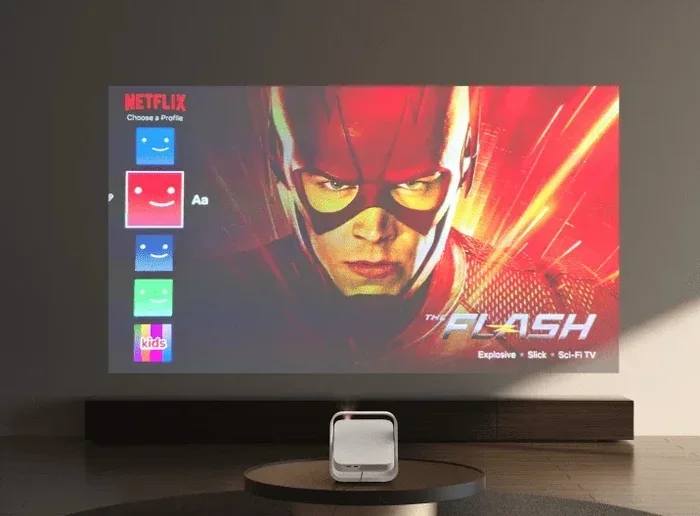
Yes, you can absolutely project Netflix from your laptop to a projector. Whether you use a simple HDMI cable or a wireless connection, streaming Netflix on a big screen is easier than most people think. This guide covers every method, common problems, and expert tips to help you set up your home theater in minutes.
Key Takeaways
- Multiple connection methods work: You can use HDMI, wireless screen mirroring, or streaming devices to project Netflix from your laptop.
- HDCP compliance matters: Both your laptop and projector must support HDCP to play Netflix content without errors.
- Wireless options are convenient: Devices like Chromecast, Miracast, and wireless display adapters let you cast Netflix without messy cables.
- Troubleshooting is straightforward: Most issues with audio sync, resolution, or connection can be fixed with simple adjustments.
- Projector brightness affects your experience: A brighter projector delivers a better Netflix viewing experience in any room.
- Audio setup is just as important: Connecting external speakers or using your projector’s built-in audio improves sound quality significantly.
📑 Table of Contents
- Why Project Netflix From Your Laptop to a Projector?
- What You Need to Connect Your Laptop to a Projector
- Step-by-Step Guide to Projecting Netflix
- Wireless vs Wired Connection: Which Works Better?
- Common Mistakes and How to Avoid Them
- Tips for the Best Netflix Projector Experience
- Can You Use Other Streaming Services the Same Way?
- Frequently Asked Questions
- Final Thoughts
Why Project Netflix From Your Laptop to a Projector?
Watching Netflix on a tiny laptop screen just does not feel the same. You miss the cinematic experience. A projector turns any room into a personal theater. The images are larger, the colors are bolder, and the whole vibe feels completely different.
But can you really project Netflix from your laptop to a projector? The short answer is yes. The longer answer is that there are several ways to do it, and each method has its own benefits. Some setups are super simple. Others give you more flexibility. This guide walks you through every option so you can pick what works best for you.
People project Netflix for many reasons. Movie nights with friends are more fun on a big screen. Presenting content at work or school becomes more engaging. And let us be honest, there is something magical about watching your favorite show on a 100-inch display. Whatever your reason, you are in the right place.
The process is not as complicated as it might seem. With the right cables, the right settings, and a little patience, you will be streaming in no time. Let us dive into everything you need to know.
What You Need to Connect Your Laptop to a Projector
Before you start projecting Netflix, you need the right equipment. The good news is that most people already have what they need. Here is a breakdown of the essentials.
HDMI Cable
An HDMI cable is the most common way to connect a laptop to a projector. It carries both video and audio through a single cable. Most modern laptops and projectors come with HDMI ports. If your laptop has an HDMI output and your projector has an HDMI input, you are golden.
HDMI cables are affordable and widely available. You can grab one for under ten dollars at almost any electronics store. Make sure you get a high-speed HDMI cable to support HD and 4K content.
Wireless Display Adapter
If you do not want to deal with cables, a wireless display adapter is a great option. These small devices plug into your projector and create a wireless connection with your laptop. Popular options include Miracast adapters and wireless HDMI transmitters.
Wireless adapters give you more freedom with placement. You can move around the room without worrying about tripping over cables. The tradeoff is that wireless connections can sometimes experience slight delays or lower image quality compared to a wired HDMI connection.
Streaming Devices
Another approach is to use a streaming device like a Chromecast, Roku, or Amazon Fire Stick. These devices connect to your projector and allow you to cast Netflix directly from your laptop or phone. This method is especially useful if your projector does not have smart features built in.
VGA Cable (For Older Projectors)
Some older projectors only have VGA ports. VGA cables carry video only, so you will need a separate audio connection. You can use a 3.5mm audio cable or connect external speakers to your laptop. VGA connections are older and may not support HD resolution, but they still work for basic Netflix streaming.
Step-by-Step Guide to Projecting Netflix
Now that you know what you need, let us walk through the setup process. Follow these steps and you will be watching Netflix on the big screen in minutes.
Step One: Connect the Cable or Adapter
Start by connecting your laptop to the projector. If you are using an HDMI cable, plug one end into your laptop and the other into the projector. Make sure both devices are powered on.
If you are using a wireless adapter, plug it into the projector first and follow the manufacturer instructions to pair it with your laptop. For streaming devices like Chromecast, set them up on your projector and connect them to the same Wi-Fi network as your laptop.
Step Two: Adjust Display Settings
Once the physical connection is in place, you need to adjust your laptop display settings. On Windows, press the Windows key plus P to open the projection menu. Choose “Duplicate” to show the same image on both screens or “Extend” if you want to use the projector as a second screen.
On a Mac, go to System Settings and look for Displays. Click “Detect Displays” if your projector does not show up automatically. Then choose whether you want to mirror or extend your screen.
Step Three: Check HDCP Compliance
Here is something many people overlook. Netflix uses a technology called HDCP, which stands for High-bandwidth Digital Content Protection. Both your laptop and projector must support HDCP to play Netflix content. If either device does not support it, you will get a black screen or an error message.
Most modern devices support HDCP. But if you are using older equipment or certain adapters, compatibility issues can pop up. Check the specifications of both your laptop and projector to make sure HDCP is supported.
Step Four: Open Netflix and Start Streaming
Open your web browser or the Netflix app on your laptop. Start playing any movie or show. The content should now appear on the projector screen. If the image looks small or stretched, go back to your display settings and adjust the resolution.
For the best experience, set your laptop resolution to match your projector’s native resolution. Most projectors are 1080p, so setting your laptop to 1920 by 1080 pixels will give you the sharpest image.
Step Five: Set Up Audio
Sound is just as important as picture. If you are using an HDMI cable, audio should travel through the cable automatically. But if you are using a VGA connection, you will need to set up audio separately.
Go to your laptop sound settings and make sure the output is set to the projector or external speakers. Some projectors have built-in speakers that work fine for casual viewing. For a better experience, connect a Bluetooth speaker or a small soundbar to your projector or laptop.
Wireless vs Wired Connection: Which Works Better?
Choosing between a wireless and wired connection depends on your setup and preferences. Both methods have pros and cons. Let us break it down.
| Feature | Wired (HDMI) | Wireless (Miracast/Adapter) |
|---|---|---|
| Image Quality | Excellent, no compression | Good, slight quality loss possible |
| Ease of Setup | Very easy, plug and play | Moderate, requires pairing |
| Cable Management | Requires cable routing | No cables needed |
| Latency | None | Slight delay possible |
| Audio Quality | Excellent via HDMI | Depends on adapter |
| Cost | Low, just a cable | Moderate, adapter needed |
| Reliability | Very reliable | Can be affected by Wi-Fi |
For most people, a wired HDMI connection is the best choice. It is reliable, simple, and delivers the best picture and sound quality. But if you need flexibility and hate dealing with cables, a wireless setup is a solid alternative.
Quick Tip: If you go wireless, make sure your Wi-Fi signal is strong in the projector area. A weak signal can cause buffering or lag during playback.
Common Mistakes and How to Avoid Them
Even with a straightforward setup, things can go wrong. Here are the most common mistakes people make when projecting Netflix from their laptop to a projector, and how to fix them.
Using a Non-HDCP Cable or Adapter
This is the number one reason people get a black screen when trying to stream Netflix. Some cheap HDMI cables or adapters do not support HDCP. Always use certified cables and adapters from reputable brands. If you get a black screen, try a different cable first.
Forgetting to Switch Projector Input
It sounds simple, but many people forget to change the input source on the projector. Use the projector remote to select the correct HDMI port or input source. Without this step, you will see a blank screen even though everything is connected properly.
Wrong Display Mode on Laptop
If your laptop is set to “Extend” mode, Netflix might only play on the laptop screen and not the projector. Make sure you select “Duplicate” mode if you want the same image on both screens. You can switch this quickly using the Windows key plus P shortcut.
Ignoring Audio Settings
Sometimes the video plays on the projector but there is no sound. This usually happens because the audio output is still set to the laptop speakers. Check your sound settings and change the output device to the projector or external speakers.
Using an Outdated Browser
Netflix works best on up-to-date browsers. If you are using an old version of Chrome, Firefox, or Edge, you might experience playback issues. Keep your browser updated and clear your cache regularly for the smoothest streaming experience.
Tips for the Best Netflix Projector Experience
You have Netflix playing on your projector. Now let us make sure the experience is as good as it can be. These tips will help you get the most out of your setup.
Control Room Lighting
Projectors work best in darker environments. Dim the lights or close the curtains before you start watching. Too much ambient light washes out the image and makes colors look dull. A darker room gives you richer blacks and more vibrant colors.
Adjust Projector Focus and Keystone
Make sure the image on the screen is sharp and properly aligned. Use the focus ring on the projector to get a crisp image. If the image looks tilted or trapezoidal, use the keystone correction feature to straighten it out.
Use a Quality Source for Netflix
For the best picture quality, use the Netflix app or a modern web browser. Avoid casting through low-quality third-party apps. The Netflix app on your laptop delivers the highest quality stream and handles the projection process more smoothly.
Upgrade Your Projector Lamp if Needed
If your projector is older, the lamp might be dim. A worn-out lamp makes the image look faded and washed out. Replacing the projector lamp can make a huge difference in image brightness and clarity.
Consider a Soundbar or External Speakers
Most projectors have small built-in speakers that sound okay but not great. A simple Bluetooth speaker or a budget soundbar transforms the audio experience. Good sound makes Netflix feel much more immersive.
Keep Your Laptop Charged or Plugged In
Streaming Netflix on a projector uses more processing power than normal. Your laptop battery will drain faster than usual. Keep your laptop plugged in during movie sessions to avoid interruptions or performance drops.
Expert Insight: According to home theater experts, the ideal setup involves an HDMI connection, a 1080p or 4K projector, and a dedicated audio system. This combination delivers the closest experience to a real cinema right in your living room.
Can You Use Other Streaming Services the Same Way?
Absolutely. The same methods that work for Netflix also work for other streaming services. You can project Disney Plus, Amazon Prime Video, Hulu, and HBO Max from your laptop to a projector using the same steps. The only requirement is that both your laptop and projector support HDCP.
Some people prefer to use a smart projector that has built-in streaming apps. These projectors let you access Netflix directly without needing a laptop. But projecting from a laptop gives you more flexibility. You can switch between services easily, use your own user profiles, and even cast content from your phone if needed.
The laptop to projector connection is a versatile setup that works with virtually any streaming service. Once you have it set up, you can enjoy all your favorite content on the big screen.
Frequently Asked Questions
Can I project Netflix from my laptop to a projector without HDMI?
Yes, you can use a wireless display adapter or a streaming device like Chromecast to project Netflix without an HDMI cable. You can also use a VGA cable with a separate audio connection, though this gives lower video quality. Wireless options are convenient but may have slight delays compared to a wired HDMI connection.
Why is my projector showing a black screen when I play Netflix?
A black screen usually means one of two things. First, your cable or adapter might not support HDCP, which Netflix requires for content protection. Second, you may not have selected the correct input source on your projector. Try a different HDMI cable and make sure the projector input matches the port you are using.
Do I need a smart projector to stream Netflix?
No, you do not need a smart projector. You can use any projector with an HDMI input and connect it to your laptop. Your laptop handles the streaming, and the projector just displays the image. Smart projectors are convenient, but a basic projector works just as well for Netflix.
Can I use Bluetooth to connect my laptop to a projector for Netflix?
Bluetooth is not typically used for video transmission to projectors. Bluetooth is mainly for audio. To send video, you need HDMI, a wireless display adapter, or a streaming device. Some newer projectors support Bluetooth audio output, which is great for connecting wireless speakers.
What resolution should I set my laptop to for the best projector picture?
Set your laptop resolution to match your projector’s native resolution. Most projectors are 1080p, so set your laptop to 1920 by 1080 pixels. This ensures the image looks sharp and clear without stretching or compression artifacts.
Is it safe to leave my laptop connected to a projector for long periods?
Yes, it is safe. Just make sure your laptop has adequate ventilation and is not overheating. If you are using a closed laptop with an external display, consider using a laptop cooling pad. Keeping your laptop well-ventilated prevents performance issues during long movie sessions.
Final Thoughts
So, can you project Netflix from your laptop to a projector? Without a doubt, yes. Whether you choose a simple HDMI cable or a wireless adapter, the process is straightforward and rewarding. You get to enjoy all your favorite Netflix content on a big, bright screen right from the comfort of your home.
The key is to make sure your equipment is compatible. Check for HDCP support, use the right cables, and adjust your display settings properly. Avoid the common mistakes we covered, and follow the tips for the best viewing experience. With the right setup, your projector becomes the centerpiece of your home entertainment system.
Now that you know how to project Netflix from your laptop to a projector, it is time to try it yourself. Grab some popcorn, dim the lights, and enjoy your favorite shows and movies the way they were meant to be seen. Your big-screen movie nights are just a few steps away.