Here Is How You Can Force Wi Fi Calling On Any Device
Wi-Fi calling lets you make calls over a wireless network instead of using your cellular signal. You can force Wi-Fi calling on iPhones, Androids, and even some tablets with a few simple taps in your settings. This guide walks you through every step so you never miss a call again.
This is a comprehensive guide about How Can I Force Wi Fi Calling.
Key Takeaways
- Force Wi-Fi calling on any device: Follow our device-specific steps for iPhone, Android, and more.
- Improve call quality: Wi-Fi calling uses your home network for clearer voice calls.
- No extra cost: Most carriers include Wi-Fi calling at no additional charge.
- Troubleshoot common issues: We cover the most frequent problems and quick fixes.
- Check carrier support: Not all providers support every feature, so verify yours first.
- Boost your signal: Pair Wi-Fi calling with a strong Wi-Fi signal for the best results.
[FEATURED_IMAGE_PLACEHOLDER]
Here Is How You Can Force Wi-Fi Calling On Any Device
Have you ever been in a dead zone and missed an important call? That frustrating experience happens to all of us. The good news is that Wi-Fi calling can save you from those awful dropped calls. It lets you make phone calls using your wireless internet instead of relying only on your cellular tower. When you force Wi-Fi calling, your phone always tries to use the internet first for voice calls. This means better coverage inside buildings, basements, and remote areas. Whether you use an iPhone or an Android phone, forcing this feature is easier than you think. In this guide, we will walk you through every step. You will learn how to turn it on, fix common problems, and get the best call quality possible.
Wi-Fi calling has become a must-have feature for millions of people. It works by connecting your phone calls to your home network instead of the traditional cellular network. Think of it as using your internet connection like a phone line. The best part? Most carriers offer this feature for free. You do not need any special equipment or extra monthly charges. All you need is a working Wi-Fi network and a compatible device. This guide covers everything you need to know about forcing Wi-Fi calling on any device. We will break it down by device type, operating system, and common troubleshooting steps. By the end, you will have full control over your calling setup.
Many people do not even realize their phone supports Wi-Fi calling. It is often hidden deep in the settings menu. Some devices turn it on by default, while others require manual setup. Carriers also play a big role in whether this feature works for you. We will help you figure out if your provider supports it and how to get it running. Let us dive into the world of wireless calling and make sure you never miss a call again.
What Is Wi-Fi Calling and Why Should You Force It?
Wi-Fi calling is a feature that routes your phone calls through a wireless internet connection instead of a cell tower. When you enable it, your phone treats your Wi-Fi network like a mini cell tower. Your voice data travels over the internet to reach the recipient. This works just like a regular phone call, but the signal path is different.
How Does Wi-Fi Calling Work?
When you make a call with Wi-Fi calling turned on, your phone sends voice data packets over your wireless network. These packets travel to your carrier’s servers and then connect to the other person’s phone. The entire process happens in seconds. To the person on the other end, it looks like a normal call. Your phone number still shows up on their caller ID. You do not need any special apps or third-party software. It is built right into your device’s operating system.
Benefits of Forcing Wi-Fi Calling
There are many reasons to force Wi-Fi calling on your device. Here are the top benefits:
- Better coverage indoors: Cell signals often struggle to penetrate thick walls. Your Wi-Fi network reaches everywhere in your home.
- Improved call quality: Wi-Fi calls use digital data, which means clearer audio and fewer drops.
- No extra charges: Most carriers do not charge extra for this feature. It counts as a regular call on your plan.
- Works internationally: You can make calls abroad using Wi-Fi without paying roaming fees.
- Saves battery: Your phone uses less power connecting to Wi-Fi than searching for weak cell towers.
Forcing Wi-Fi calling means your phone always prioritizes the internet for calls. Even if you have a strong cell signal, your phone will use Wi-Fi first. This ensures the most reliable connection every time you call someone.
How to Force Wi-Fi Calling on iPhone
Apple makes it fairly easy to set up and force Wi-Fi calling on iPhones. The process takes just a few minutes. Here is how to do it step by step.
Step-by-Step Setup for iPhone
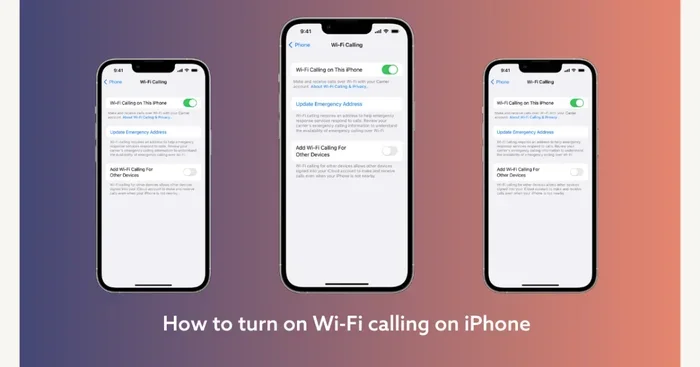
First, make sure your iPhone is connected to your Wi-Fi network. You can check this by going to Settings and tapping on Wi-Fi. If you have trouble finding your network name or password, you can refer to our guide on how to find your Wi-Fi password in settings. Once connected, follow these steps:
- Open the Settings app on your iPhone.
- Tap on the Phone option.
- Select Wi-Fi Calling from the list.
- Toggle on Wi-Fi Calling on This iPhone.
- Follow the on-screen prompts to register your address for emergency services.
After completing these steps, your iPhone will automatically use Wi-Fi for calls whenever it is connected to a wireless network. To force it to always use Wi-Fi calling, go back to the Wi-Fi Calling menu and make sure the toggle is fully enabled. Your phone will now prefer Wi-Fi over cellular for all voice calls.
Troubleshooting iPhone Wi-Fi Calling Issues
If Wi-Fi calling does not work after you set it up, try these fixes:
- Restart your iPhone and your Wi-Fi router.
- Make sure your carrier supports Wi-Fi calling on iPhone.
- Update your iPhone to the latest iOS version.
- Toggle Wi-Fi calling off and back on again.
- Forget your Wi-Fi network and reconnect.
Sometimes a simple restart solves the problem. If not, checking with your carrier is the next best step. Most major carriers like AT&T, Verizon, and T-Mobile support Wi-Fi calling on all modern iPhones.
How to Force Wi-Fi Calling on Android Devices
Android phones come from many different manufacturers, but the process for forcing Wi-Fi calling is similar across most devices. Samsung, Google Pixel, OnePlus, and other brands all support this feature. The exact menu names may vary slightly, but the steps are nearly identical.
Step-by-Step Setup for Android
Start by connecting your Android phone to your Wi-Fi network. Then follow these steps:
- Open the Settings app on your Android phone.
- Look for the Network Internet or Connections option.
- Tap on Wi-Fi Calling or Calls and Wi-Fi.
- Toggle Wi-Fi Calling to On.
- Accept any terms or conditions that appear.
On Samsung phones, you may find the option under Settings, then Connections, and then Wi-Fi Calling. On Google Pixel devices, go to Settings, then Network and Internet, and then Wi-Fi Calling. Once enabled, your Android phone will use your wireless connection for all voice calls whenever it is available.
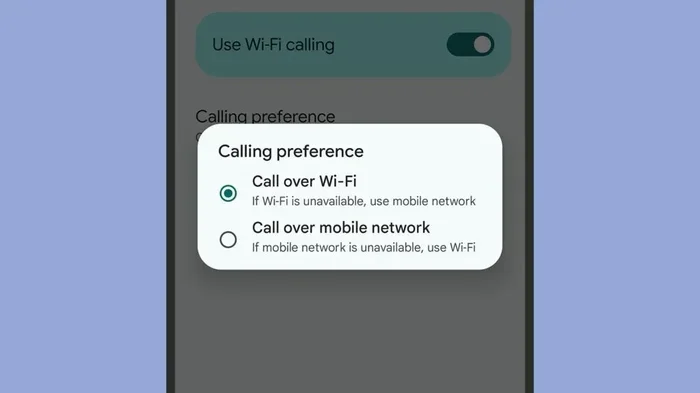
Force Wi-Fi Calling to Always Be the Default
On some Android phones, you can set Wi-Fi calling as the default calling method. This forces every call to go through Wi-Fi when a connection is available. Look for a setting called Preferred Calling Method or Default Call Type in your Wi-Fi calling menu. Change it to Wi-Fi only or Wi-Fi preferred. This ensures your phone never falls back to the cellular network when a Wi-Fi signal is present.
Common Android Wi-Fi Calling Problems
Android users sometimes run into specific issues with Wi-Fi calling. Here are the most common ones and how to fix them:
- Wi-Fi calling option is greyed out: This usually means your carrier does not support the feature on your plan. Contact your provider to confirm.
- Calls still use cellular: Make sure your Wi-Fi calling is set as the default method. Check your calling preferences in the phone app settings.
- No voice quality improvement: Try changing your Wi-Fi frequency band from 5GHz to 2.4GHz for better range through walls.
If you are having trouble with your network setup, you might want to check if you can connect straight to your modem to improve your connection stability.
Can You Force Wi-Fi Calling on Other Devices?
Wi-Fi calling is not limited to just smartphones. Many other devices support this feature too. Let us look at some of the most common ones.
Tablets and iPads
iPads with cellular capability can use Wi-Fi calling. The setup is almost identical to the iPhone process. Go to Settings, tap on Cellular, and then tap Wi-Fi Calling. Toggle it on, and your iPad will use Wi-Fi for voice calls over the cellular network. Wi-Fi-only iPads cannot make traditional phone calls, but they can use apps like FaceTime and WhatsApp for voice and video calls over Wi-Fi.
Smart Home Devices
Some smart home devices and smart displays support calling over Wi-Fi. Google Nest Hub and Amazon Echo Show both allow you to make calls using your wireless network. These devices do not have cellular connections, so Wi-Fi calling is their only option. You can set these up through the companion apps on your phone.
Laptops and Computers
While laptops do not have traditional calling features built in, you can use apps like Skype, Google Voice, and Microsoft Teams to make calls over Wi-Fi. These apps use your internet connection to place calls to phone numbers or other app users. They are a great alternative to cellular calling, especially when you are working from home.
How to Improve Your Wi-Fi Calling Experience
Forcing Wi-Fi calling is only half the battle. To get the best results, you need a strong and stable wireless connection. Here are some tips to improve your overall experience.
Optimize Your Home Network
Your Wi-Fi router plays a huge role in call quality. If your router is old or placed in a bad location, your calls may suffer. Try these tips:
- Place your router in a central location in your home.
- Keep your router away from thick walls and metal objects.
- Use the 2.4GHz band for better range through walls.
- Update your router firmware regularly.
- Consider upgrading to a newer router if yours is more than five years old.
If you want to extend your wireless coverage to another part of your home, you might want to look into options like changing your Wi-Fi router to a newer model that supports the latest standards.
Check Your Internet Speed
Wi-Fi calling does not need a lot of bandwidth. A speed of at least 1 Mbps for both upload and download is usually enough. You can test your internet speed using free tools like Speedtest.net. If your speed is too low, try these fixes:
- Move closer to your router during calls.
- Reduce the number of devices using your network.
- Restart your modem and router.
- Contact your internet provider if speeds are consistently slow.
Use a Wi-Fi Extender if Needed
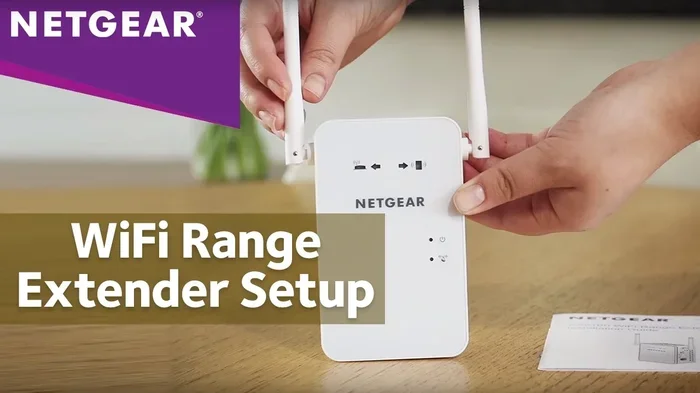
If your Wi-Fi signal is weak in certain parts of your home, a Wi-Fi extender can help. These devices boost your wireless signal to areas where it normally does not reach. This is especially useful for Wi-Fi calling in rooms far from your router. A stronger signal means better call quality and fewer dropped calls.
Common Mistakes When Setting Up Wi-Fi Calling
Many people run into problems because of simple mistakes. Here are the most common ones to avoid.
Not Checking Carrier Compatibility
Not all carriers support Wi-Fi calling, and not all plans include it. Before you try to force the feature, check with your provider. Some smaller or regional carriers may not offer it at all. Even if your carrier supports it, your specific plan might need to be eligible. Call your carrier or check their website to confirm support before spending time on setup.
Forgetting to Update Your Device
Older operating systems may not support Wi-Fi calling or may have bugs that prevent it from working. Always make sure your phone is running the latest version of its operating system. On iPhone, go to Settings, then General, then Software Update. On Android, go to Settings, then System, then Software Update.
Ignoring Emergency Address Registration
When you first enable Wi-Fi calling, your phone will ask you to register an address for emergency services. This is required by law in many countries. Do not skip this step. If you skip it, your Wi-Fi calling may not work at all. The address you register helps emergency responders locate you when you call 911 over Wi-Fi.
Leaving Wi-Fi Calling On When Not Needed
While Wi-Fi calling is helpful, there are times when you might want to turn it off. If you are traveling internationally and do not want to use data, or if your Wi-Fi connection is very slow, turning off Wi-Fi calling can prevent call quality issues. Know when to use it and when to disable it for the best experience.
Frequently Asked Questions
Does forcing Wi-Fi calling use my data plan?
No, Wi-Fi calling uses your wireless internet connection, not your cellular data plan. It does not count against your data usage. However, it does use bandwidth from your home internet service. As long as you have a solid internet connection, your calls will work without touching your mobile data allowance.
Will my phone still work if I turn off cellular service?
Yes, if you have Wi-Fi calling enabled and you are connected to a Wi-Fi network, you can still make and receive calls even without an active cellular signal. This is one of the biggest advantages of forcing Wi-Fi calling. Your phone becomes a Wi-Fi phone in areas with no cell coverage.
Can I use Wi-Fi calling outside my home?
Yes, you can use Wi-Fi calling anywhere you have a Wi-Fi connection. This includes offices, coffee shops, airports, and hotels. The feature works the same way regardless of your location. Just make sure the Wi-Fi network you connect to is secure and reliable for the best call quality.
Is Wi-Fi calling free to use?
Most carriers do not charge extra for Wi-Fi calling. It is included as a standard feature on most modern plans. However, it is always a good idea to check with your specific carrier. Some plans or older devices may have limitations. The calls themselves are free, but they do use your internet data in place of cellular minutes.
What is the difference between Wi-Fi calling and VoIP apps?
Wi-Fi calling is built into your phone and works like a regular phone call. VoIP apps like Skype and WhatsApp require you to install a separate app and use it to make calls. Wi-Fi calling uses your phone number and works with your regular dialer. VoIP apps use data and require the other person to have the same app installed.
Can I force Wi-Fi calling on a prepaid plan?
It depends on your carrier. Many major carriers support Wi-Fi calling on prepaid plans, but some do not. Check with your provider to see if your specific prepaid plan includes this feature. Some may require you to upgrade to a certain plan tier to access Wi-Fi calling.
Final Thoughts
Forcing Wi-Fi calling on your device is one of the simplest ways to improve your calling experience. It gives you better coverage, clearer sound, and peace of mind when you are in areas with weak cell signals. Whether you use an iPhone or an Android phone, the setup process is quick and straightforward. Most carriers support this feature for free, so there is really no reason not to turn it on. We covered everything from the basic setup steps to advanced troubleshooting tips. Now you know how to get Wi-Fi calling running on any device in your home.
Take a few minutes today to check your settings and force Wi-Fi calling. You will wonder how you ever managed without it. Stay connected, stay clear, and never miss an important call again. With a strong Wi-Fi connection and Wi-Fi calling turned on, you have everything you need for reliable voice communication wherever you go.
Frequently Asked Questions
What is How Can I Force Wi Fi Calling?
How Can I Force Wi Fi Calling is an important topic with many practical applications.