Can I Play Blu Ray On My Laptop Everything You Should Know
Yes, you can play Blu ray on your laptop, but it depends on your hardware and software setup. Most older laptops lack a built-in Blu-ray drive, so you may need an external player or disc ripping software. This guide covers everything you need to know about laptop Blu-ray playback, from choosing the right drive to troubleshooting common issues.
You sit down with your favorite snack, ready to watch a Blu-ray movie on your laptop. You pop the disc in, but nothing happens. Sound familiar? Many laptop users run into this exact problem. The question can I play Blu ray on my laptop comes up more often than you might think.
The answer is not a simple yes or no. It depends on several factors. Does your laptop have a Blu-ray drive? Do you have the right software? Is the disc region-coded for your area? Let us walk through all of this together. By the end of this guide, you will know exactly what you need to watch Blu-ray movies on your laptop.
Blu-ray discs offer stunning picture quality. They hold much more data than regular DVDs. But your laptop needs the right components to unlock that quality. Whether you own a Windows laptop or a MacBook, this guide has you covered. We will explore drives, software, workarounds, and everything in between.
Key Takeaways
- Check Your Drive: Not all laptops come with a Blu-ray drive. You may need an external USB Blu-ray player.
- Software Matters: Even with a drive, you need compatible Blu-ray playback software like PowerDVD or VLC.
- Region Codes Exist: Blu-ray discs have region locks that can affect playback on your laptop.
- External Drives Are Affordable: A USB Blu-ray drive costs between $50 and $150 and works with most laptops.
- Streaming Is an Alternative: Many Blu-ray movies are available on Netflix, Amazon, or Apple TV in high quality.
- Laptop Screen Limits: Your laptop screen may not display true 1080p or 4K Blu-ray quality.
- Ripping Is an Option: You can rip Blu-ray discs to digital files for easy laptop playback anytime.
📑 Table of Contents
- Can I Play Blu Ray On My Laptop Without Any Extra Gear?
- External Blu-ray Drives: Your Best Friend for Laptop Playback
- Software You Need to Play Blu-ray on Your Laptop
- Blu-ray Region Codes and Why They Matter
- Common Problems When Playing Blu-ray on a Laptop
- Alternatives to Playing Physical Blu-ray Discs on Your Laptop
- Expert Tips for the Best Blu-ray Experience on Your Laptop
- Conclusion
Can I Play Blu Ray On My Laptop Without Any Extra Gear?
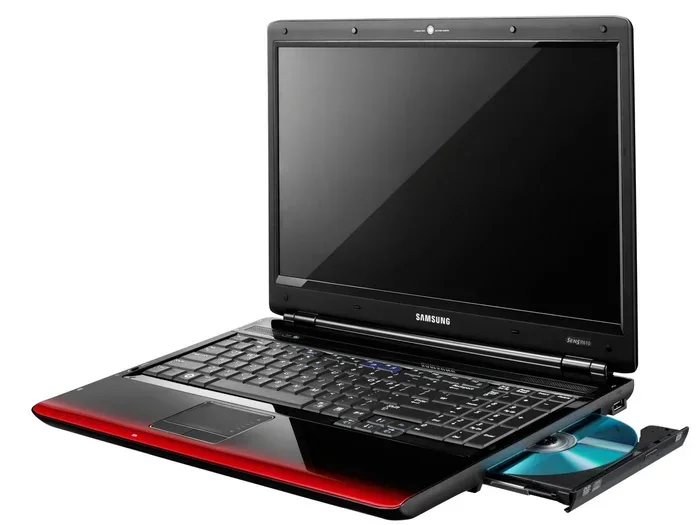
Here is the honest truth. Most modern laptops do not come with a built-in Blu-ray drive. Manufacturers removed these drives years ago. They made laptops thinner and lighter, but sacrificed disc playback in the process. So if you are wondering can I play Blu ray on my laptop right out of the box, the answer is probably no.
Why Laptops Dropped Built-In Blu-ray Drives
Laptop makers focused on slim designs. A Blu-ray drive adds thickness and weight. It also drives up the cost. Most users now stream movies and TV shows online. So the demand for built-in disc drives dropped sharply. Today, only a few premium or gaming laptops still include them.
If you have an older laptop, you might be in luck. Some models from 2012 to 2018 still had optical drives. Check the side of your laptop for a small circular slot. If you see one, it might be a DVD drive. But not all DVD drives can read Blu-ray discs. You need a Blu-ray compatible optical drive specifically.
You can check your laptop specs online. Look up your model number on the manufacturer’s website. The specifications will list the drive type. If it says “Blu-ray,” you are good to go. If it says “DVD-ROM” or “CD-ROM,” you will need an upgrade.
How to Check if Your Laptop Has a Blu-ray Drive
Checking your drive is quick and easy. On Windows, open File Explorer. Look for your DVD drive in the sidebar. Right-click it and select Properties. The drive details will tell you what disc types it supports.
On macOS, click the Apple menu. Choose About This Mac. Then click System Report. Scroll down to the Disc Burning section. It will list your optical drive capabilities.
If your laptop does not have a Blu-ray drive, do not worry. You still have options. An external drive can solve this problem easily.
External Blu-ray Drives: Your Best Friend for Laptop Playback
An external Blu-ray drive is the most common solution. These drives connect through USB. They work with almost any laptop. You plug them in, insert your disc, and start watching.
Top External Blu-ray Drives to Consider
Not all external drives are created equal. Here are some popular options:
- LG BP60NB10: Compact and affordable. Plays Blu-ray and DVD discs. Great for basic playback.
- ASUS ZenDrive U9M: Sleek design with USB-C connectivity. Works well with modern laptops.
- Pioneer BDR-209DBK: A solid internal drive if you have a laptop with a drive bay.
- WD Blue BD Drive: Reliable brand with good build quality.
Most external drives cost between $50 and $150. That is much cheaper than buying a new laptop with a built-in drive. Look for USB 3.0 or USB-C models for faster data transfer. A slow USB 2.0 connection can cause stuttering during playback.
What to Look for When Buying an External Blu-ray Drive
Before you buy, consider a few things. First, check the connection type. USB-C is the best choice for modern laptops. USB 3.0 works too but is a bit slower. Second, make sure the drive supports Blu-ray, not just DVD. Third, check the warranty and customer reviews. A good drive should last several years.
Some drives also support 4K Blu-ray playback. These are more expensive but worth it if you own 4K discs. Standard Blu-ray drives handle regular Blu-ray and DVD discs just fine.
Software You Need to Play Blu-ray on Your Laptop
Having a Blu-ray drive is only half the battle. You also need Blu-ray playback software. The drive alone cannot decode the disc content. Software handles the decryption and video rendering. Without it, your laptop will not play the movie.
Best Blu-ray Player Software for Laptops
Several software options work well for laptop playback. Here are the top choices:
- WinDVD Pro: One of the most popular options. Supports Blu-ray, DVD, and 4K content. Works smoothly on Windows laptops.
- CyberLink PowerDVD: A premium player with excellent quality. It handles all Blu-ray formats and region codes.
- VLC Media Player: Free and open-source. It plays many disc formats but may struggle with some Blu-ray protections.
- Leawo Blu-ray Player: Free for Windows and Mac. Offers solid Blu-ray playback without high costs.
- Macgo Blu-ray Player: Designed for macOS users. Works well with Apple laptops.
Free software like VLC is a good starting point. But for the best experience, paid software like PowerDVD delivers smoother playback. It also handles tricky disc protections better. Most paid options cost between $30 and $80. That is a small price for reliable Blu-ray movie playback.
Can You Play Blu-ray on a Mac Laptop?
Mac laptops present a unique challenge. Apple removed optical drives from all MacBooks starting in 2012. You need an external drive plus Mac-compatible software. Macgo Blu-ray Player and VLC are your best bets for macOS. Some users also use Boot Camp to run Windows on their Mac. This opens up more software options.
Blu-ray Region Codes and Why They Matter
Blu-ray discs use region codes to control where they can be played. These codes affect laptop Blu-ray compatibility more than you might think. A disc bought in one country may not play on a laptop set to another region.
How Region Codes Work
Blu-ray region codes divide the world into zones. Region A covers the Americas and parts of Asia. Region B covers Europe, Africa, and Australia. Region C covers Russia, China, and South Asia. Your laptop and drive must match the disc region for playback.
Most drives allow you to change regions a limited number of times. After five changes, the drive locks to the last region set. This can be frustrating if you travel often or buy discs from different countries.
How to Bypass Region Code Restrictions
Some Blu-ray playback software includes region-free playback. PowerDVD and MakeMKV offer this feature. You can also rip the disc to a digital file using software like HandBrake. The ripped file removes region restrictions entirely. This gives you unlimited Blu-ray access on your laptop.
Be aware that bypassing region codes may violate copyright laws in some countries. Check your local regulations before proceeding. This is a gray area that varies by jurisdiction.
Common Problems When Playing Blu-ray on a Laptop
Even with the right drive and software, you might run into issues. Here are the most common problems and how to fix them.
Laptop Screen Resolution Limitations
Most laptop screens max out at 1080p. A 4K Blu-ray disc will downscale to fit your screen. You will not see the full 4K quality. If you want true 4K playback, you need a 4K laptop screen. Some gaming laptops and mobile workstations offer 4K displays.
Even with a 1080p screen, regular Blu-ray discs look fantastic on a laptop. The picture quality is still much better than streaming. You get sharper details and richer colors.
Audio and Subtitle Sync Issues
Sometimes audio and subtitles fall out of sync. This usually happens with older or scratched discs. Try updating your Blu-ray playback software. Also check that your laptop audio drivers are current. A simple driver update often fixes sync problems.
Disc Read Errors and Stuttering
If your laptop stutters or fails to read the disc, try these steps:
- Clean the Blu-ray disc with a soft cloth.
- Close all other programs running on your laptop.
- Make sure the external drive has enough power. Use a powered USB hub if needed.
- Update your Blu-ray playback software to the latest version.
- Try a different USB port for better connection stability.
Laptop Battery Drain During Blu-ray Playback
Playing a Blu-ray movie uses a lot of processing power. Your laptop battery will drain faster than usual. Plug in your laptop before starting a movie. You do not want it to shut off mid-film. If you must watch on battery, lower the screen brightness to save power.
Alternatives to Playing Physical Blu-ray Discs on Your Laptop
Not everyone wants to deal with discs. Luckily, there are great alternatives for laptop movie playback.
Digital Copies and Streaming Services
Many Blu-ray movies come with a digital copy code. You can redeem this code on platforms like iTunes or Google Play. Then watch the movie on your laptop anytime without a disc. Streaming services like Netflix, Amazon Prime, and Apple TV+ also offer movies in high quality.
Streaming uses less storage space than ripping discs. It also eliminates the need for a Blu-ray drive. However, streaming quality depends on your internet speed. A slow connection can cause buffering and lower picture quality.
Ripping Blu-ray Discs to Digital Files
Ripping converts a Blu-ray disc into a digital file on your laptop. You can watch it anytime without the disc. Software like MakeMKV and HandBrake makes this process simple. The ripped file saves to your hard drive or an external SSD.
Ripping does raise some legal questions. In many countries, ripping copyrighted discs for personal use is a gray area. Research your local laws before ripping discs. Always respect copyright and intellectual property rights.
Cloud-Based Blu-ray Streaming
Some services let you stream Blu-ray quality content from the cloud. You upload your disc content or purchase digital copies. Then access them from any device, including your laptop. This is the most convenient option for frequent travelers.
Expert Tips for the Best Blu-ray Experience on Your Laptop
Want to get the most out of your Blu-ray playback? Follow these tips.
- Use a wired internet connection: If streaming digital copies, a wired connection provides more stable playback than Wi-Fi.
- Update your graphics drivers: Updated drivers improve video rendering and reduce stuttering.
- Use a laptop cooling pad: Blu-ray playback heats your laptop. A cooling pad prevents overheating and maintains performance.
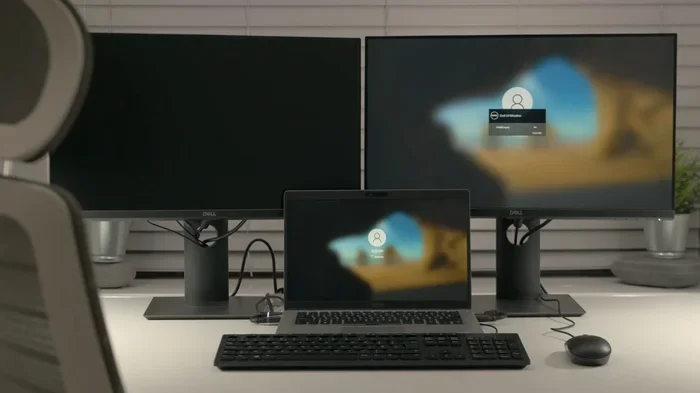
- Connect to an external monitor: An external display can show better quality than a laptop screen. Use an HDMI cable for the best results.
- Keep your software updated: Blu-ray protection changes frequently. Updated software ensures compatibility with new disc releases.
These small steps make a big difference. Your Blu-ray laptop setup will perform much better with proper maintenance and the right accessories.
Conclusion
So, can I play Blu ray on my laptop? Absolutely yes, but it takes the right setup. You need either a built-in Blu-ray drive or an external one. You need compatible playback software. And you need to understand region codes and common issues. With the right gear and knowledge, you can enjoy Blu-ray quality movies on any laptop.
An external USB drive is the easiest path for most users. Pair it with solid playback software, and you are set. If you prefer to skip discs entirely, digital copies and streaming offer great alternatives. The choice is yours.
Now that you know everything about playing Blu-ray on your laptop, you can make the right decision for your setup. Grab your favorite movie, settle into your chair, and enjoy the show.
Frequently Asked Questions
Do I need a special laptop to play Blu-ray discs?
Not necessarily. You need either a built-in Blu-ray drive or an external USB Blu-ray drive. Most modern laptops lack a built-in drive, so an external one is the easiest solution. Pair it with Blu-ray playback software, and any laptop can handle Blu-ray movies.
Can I play Blu-ray on a laptop without an internet connection?
Yes. A physical Blu-ray disc does not require internet access. You only need the drive, playback software, and the disc itself. Streaming digital copies does need internet, but disc playback works offline.
Why does my Blu-ray disc not play on my laptop?
The most common reason is a missing Blu-ray drive or incompatible software. Your laptop might have a DVD drive that cannot read Blu-ray discs. Also, region code mismatches can prevent playback. Check your drive type and software compatibility first.
Is it legal to rip Blu-ray discs for laptop playback?
The legality varies by country. In some places, ripping discs for personal backup use is permitted. In others, it is strictly prohibited. Always check your local copyright laws before ripping any disc. When in doubt, use streaming or digital copies instead.
Can I play 4K Blu-ray on any laptop?
No. You need a 4K-compatible external drive and a laptop screen that supports 4K resolution. Most standard laptop screens max out at 1080p. You can still watch 4K Blu-ray on a 1080p screen, but it will downscale. For the full experience, you need a 4K laptop display.
What is the cheapest way to play Blu-ray on a laptop?
The cheapest option is a basic external USB Blu-ray drive combined with free software like VLC Media Player. A simple drive costs around $50. VLC is free to download. Together, they offer a low-cost solution for Blu-ray playback on laptops.
=== CONCLUSION ===
Watching Blu-ray movies on your laptop is entirely possible. You just need the right combination of hardware and software. Whether you choose an external drive, digital copies, or streaming, the options are plentiful. Can I play Blu ray on my laptop? Yes, and now you know exactly how to make it happen.
Start by checking your current setup. Do you have a drive? Do you have the right software? Fill in the gaps with the solutions in this guide. You will be watching your favorite movies in no time.