Does Xfinity Restart Every Night and What to Do About It
Does Xfinity restart every night as part of its self-healing network feature and scheduled maintenance routine. This nightly reboot helps clear memory, refresh connections, and keep your internet running smoothly. However, frequent restarts can disrupt your WiFi, cause speed drops, and signal the need for a closer look at your Xfinity equipment.
If you have ever woken up to find your internet not working, you are not alone. Many Xfinity users ask the same question every morning: does Xfinity restart every night? The short answer is yes. Xfinity equipment does go through a restart cycle during the night. This happens as part of a built-in feature designed to keep your network running well.
Understanding why your Xfinity gateway reboots at night can save you a lot of frustration. It also helps you know when the restarts are normal and when they signal a deeper problem. In this article, we will walk you through everything you need to know about the Xfinity restart schedule. You will learn what causes nightly reboots, how they affect your WiFi, and what you can do to reduce unnecessary restarts.
We will also cover practical tips, common mistakes, and expert advice. By the end, you will have a clear picture of your Xfinity modem restart behavior and how to manage it like a pro. Let us dive in.
Key Takeaways
- Xfinity does restart every night: It is a built-in self-healing feature designed to clear memory and refresh your connection.
- Nightly restarts are usually normal: Most Xfinity gateways reboot between 1 AM and 4 AM as part of scheduled maintenance.
- Frequent restarts can cause issues: They may lead to speed drops, WiFi disconnects, and temporary outages across your home network.
- You can adjust settings: The Xfinity xFi app lets you monitor restart logs and customize certain network behaviors.
- Placement matters: Proper router placement and equipment upgrades can reduce unnecessary reboots significantly.
- Contact support when needed: Persistent restart loops, error lights, or constant outages warrant a call to Xfinity customer support.
📑 Table of Contents
Why Does Xfinity Restart Every Night?
It can be jarring to lose your internet in the middle of the night. But the good news is that most nightly restarts are completely normal. Xfinity uses a self-healing network system that keeps your connection fresh and responsive. Here is why your equipment reboots on a regular schedule.
The Self-Healing Network Feature
Xfinity gateways are designed to automatically restart every night. This feature is called the self-healing network. It works by clearing out temporary data, refreshing your IP address, and reconnecting to the Xfinity network. Think of it like restarting your phone. It clears the memory and helps things run smoother.
The self-healing network feature is not unique to Xfinity. Many internet service providers use similar systems. But Xfinity has built this into their Xfinity gateway devices specifically. The goal is to fix minor connection issues before they become big problems. This way, you wake up to a fresh and stable internet connection every morning.
During the restart, your Xfinity modem lights will typically blink through a sequence. You may see the online light turn off and then come back on. This process usually takes about 5 to 10 minutes. Once it is done, your internet should be back to full speed. The Xfinity router lights will follow a predictable pattern that lets you know everything is working as it should.
Scheduled Maintenance Tasks
Beyond the self-healing feature, Xfinity also runs scheduled maintenance tasks during the night. These tasks include checking for firmware updates, scanning for network issues, and optimizing signal strength. The restart cycle gives the gateway a chance to apply any pending updates without interrupting your daytime usage.
These maintenance windows are usually set between 1 AM and 4 AM. That is why you might notice your internet going down in the early morning hours. Xfinity picks this time because fewer people are actively using the network. This minimizes the impact on users and keeps the maintenance invisible to most customers.
It is also worth noting that your Xfinity xFi system plays a role here. The xFi hub coordinates with your gateway to manage the restart. It ensures that all connected devices reconnect properly after the reboot. The Xfinity xFi app can show you a log of when these restarts happen, which is helpful for tracking patterns.
How Xfinity Restart Cycles Affect Your Internet
While nightly restarts are normal, they can still cause some disruption. Understanding what happens during a restart helps you plan around it. Let us look at how the restart cycle impacts your connection in real-world ways.
Speed Drops and Connection Issues
One of the most common complaints is a speed drop after a restart. When your Xfinity gateway reboots, it has to re-establish the connection with Xfinity servers. During this time, your internet speed may be slower than usual. Some devices might even lose their WiFi connection entirely for a few minutes.
This speed drop is usually temporary. Once the restart is complete, your internet should return to normal. However, if you notice that your speed stays low even after the restart, there may be a bigger issue at play. It could be a problem with your Xfinity internet speed plan, your equipment, or your overall network setup.
Here are some common issues you might face after a nightly restart:
- Slow loading times for websites and apps
- Streaming services buffering or dropping quality
- Devices failing to reconnect to WiFi automatically
- Temporary loss of the Xfinity WiFi password on saved devices
- Smart home devices going offline briefly
- Voice assistants losing their connection to the network
What Happens During a Restart
When your Xfinity equipment restarts, several things happen behind the scenes. First, the gateway clears its temporary memory. This frees up resources and helps the device run more efficiently. Next, it reconnects to the Xfinity network and gets a new IP address.
The Xfinity router reboot process also checks for any firmware updates. If an update is available, the gateway will download and install it during the restart. This is actually a good thing. It means your equipment stays up to date with the latest security patches and performance improvements without you having to do anything.
Your connected devices also go through a reconnection process. Phones, laptops, smart TVs, and other devices will briefly lose their connection. They then reconnect automatically once the restart is complete. This is why you might see a quick flash of “No Internet” on your devices in the early morning hours. It is perfectly normal and usually resolves within minutes.
Common Signs Your Xfinity Equipment Is Restarting
Not all restart problems are obvious. Sometimes the restart happens so quickly that you do not even notice. But there are clear signs you can watch for. Knowing these signs helps you figure out if your Xfinity equipment is working normally or if something needs your attention.
LED Light Patterns to Watch For
The lights on your Xfinity gateway tell you a lot about what is happening. During a normal restart, you will see the following pattern:
- The online light turns off briefly
- The power light stays solid throughout
- The WiFi light blinks during the restart process
- The online light comes back on when the restart is complete
If you notice your lights following this pattern between 1 AM and 4 AM, that is a normal restart. But if you see the lights blinking in a different pattern, it could indicate a problem. For example, a red blinking light often signals a connection error or hardware issue that needs attention.
When Restarts Become a Problem
Occasional nightly restarts are fine. But when does a normal restart turn into a problem? Here are some warning signs to watch for:
- Your Xfinity gateway restarts multiple times in a single night
- The restart process takes longer than 15 minutes each time
- You experience frequent Xfinity internet connection issues during the day
- Your internet speed stays slow even after the restart completes
- The restart happens at random times, not just at night
- You see error messages or alerts on your Xfinity xFi app
If you notice any of these signs, your equipment might be struggling. It could be a sign of outdated firmware, overheating, or a hardware problem. The good news is that most of these issues can be fixed with the right approach.
How to Stop Xfinity from Restarting Every Night
If frequent restarts are bothering you, there are steps you can take. While you cannot completely disable the self-healing feature, you can reduce unnecessary reboots. Here is what you can try to regain control of your connection.
Adjusting Xfinity xFi Settings
The Xfinity xFi app gives you more control over your network. You can use it to check restart logs, update settings, and monitor your connection in real time. Here is how to get started:
- Open the Xfinity xFi app on your phone or tablet
- Go to the Gateway section on the home screen
- Look for the Activity Log or Restart History
- Check for any frequent restart events or unusual patterns
- Review your Xfinity router settings for any alerts or notifications
While the xFi app does not let you completely turn off nightly restarts, it does give you valuable visibility. You can see exactly when your gateway restarts and how long the process takes. This information is incredibly helpful when troubleshooting connection problems or talking to Xfinity customer support.
You can also use the app to check your Xfinity WiFi password settings, update your network name, and manage all connected devices. Keeping your connected device list lean and organized can also improve overall network stability and reduce unnecessary restart triggers.
Updating Firmware and Equipment
Outdated firmware is one of the most common causes of frequent restarts. When your Xfinity gateway runs old software, it may restart more often as it tries to fix bugs or recover from errors. Keeping your equipment updated is one of the simplest ways to reduce unnecessary reboots.
Here is what you should do to keep your firmware current:
- Check for firmware updates in the Xfinity xFi app on a weekly basis
- Restart your gateway manually once a month to apply any pending updates
- Consider upgrading to a newer Xfinity gateway model if your device is more than 3 years old
- Contact Xfinity customer support to check if your current equipment is still supported
Newer Xfinity gateway models handle restarts more efficiently. They also have better cooling systems, which reduces the chance of overheating – another common cause of frequent reboots. If you have an older Xfinity modem, it might be time for an upgrade. Xfinity often offers free equipment replacements for customers who qualify, so it is always worth asking.
Common Mistakes That Trigger Unnecessary Restarts
Sometimes the things we do accidentally cause our Xfinity equipment to restart more often than it should. Here are some common mistakes to avoid:
- Overloading the network: Too many connected devices can strain your gateway and trigger restarts
- Ignoring firmware updates: Running outdated software leads to more bugs and more restarts
- Poor cable management: Loose or damaged coaxial cables can cause intermittent connection drops
- Blocking ventilation: Placing the gateway in a closed cabinet traps heat and causes overheating
- Using incompatible third-party equipment: Non-Xfinity routers or extenders can conflict with the gateway
- Not restarting manually when needed: A quick manual restart can prevent the gateway from cycling on its own schedule
Avoiding these mistakes can make a surprising difference. Many users report fewer restarts and better performance simply by fixing these small issues.
When to Contact Xfinity Support
Most restart issues are easy to fix at home with the tips we have covered. But some situations require professional help. Knowing when to reach out to Xfinity customer support can save you a lot of time and frustration.
Red Flags That Need Professional Help
You should contact Xfinity support if you notice any of the following warning signs:
- Your gateway restarts more than three times in a single night
- The restart loop never seems to end – your equipment keeps rebooting continuously
- You see a red or orange light on your modem that does not go away
- Your internet is completely down for more than an hour after a restart
- You experience a confirmed Xfinity outage in your area
- Your Xfinity speed test shows speeds well below your plan’s advertised rate
Before calling support, gather some information to speed up the process. Note down when the restarts happen, what the lights on your gateway look like, and any error messages you see on your screen. This preparation helps the support team diagnose the issue faster and get you back online sooner.
You can reach Xfinity support through the Xfinity app, by phone, or through the Xfinity website. The app is often the fastest option because it can pull up your account details automatically. You can also chat with a support agent in real time through the app, which is great if you do not want to wait on hold.
Tips for a More Stable Xfinity Connection
Want fewer restarts and a more reliable connection? These practical tips can help. They are simple to follow and make a real difference in your day-to-day internet experience.
Router Placement and Equipment Tips
Where you place your Xfinity gateway matters more than you might think. Proper Xfinity router placement can reduce restart frequency and improve overall performance across your home. Here are some tried-and-true tips:
- Place your gateway in a central location in your home for even coverage
- Keep it away from walls, metal objects, and appliances like microwaves
- Make sure the area has good airflow to prevent overheating
- Do not stack other electronics on top of or directly next to the gateway
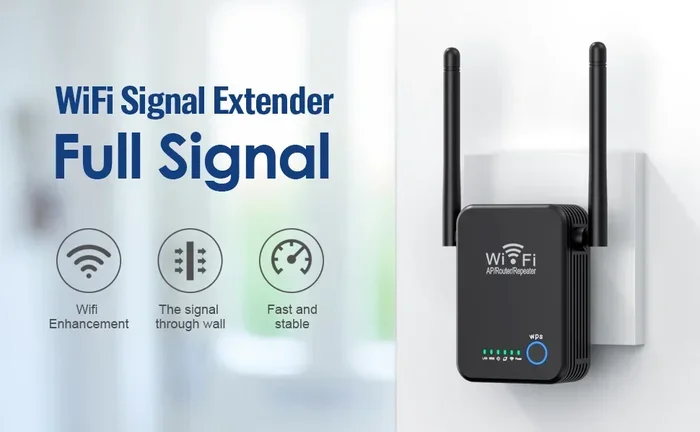
- Use an Xfinity xFi pod to extend coverage in larger homes or dead zones
Good airflow is especially important. Gateways that overheat will restart more frequently as a safety measure. If your gateway feels hot to the touch, move it to a cooler spot with better ventilation. Even a small change in placement can significantly reduce the number of unnecessary restarts you experience.
Expert Insights on Xfinity Network Stability
Networking experts agree that a stable Xfinity connection comes down to three key factors: equipment health, network management, and physical placement. Here is what they recommend:
Keep your equipment cool. Heat is the number one enemy of electronics. Make sure your gateway has plenty of space around it and is not sitting in direct sunlight or near a heat source.
Manage your connected devices. Every device on your network uses bandwidth and resources. If you have too many devices competing for the same connection, your gateway may struggle. Consider using the Xfinity xFi app to prioritize important devices like your work computer or smart TV.
Stay current with updates. Firmware updates fix bugs, patch security holes, and improve performance. Make it a habit to check for updates at least once a month. A well-maintained gateway is far less likely to restart unnecessarily.
Use wired connections where possible. For devices that need the most stable connection – like gaming consoles or desktop computers – a direct Ethernet cable is always better than WiFi. This takes the load off your wireless network and reduces the chances of connection issues that can trigger restarts.
Conclusion
So, does Xfinity restart every night? Yes, it does. And in most cases, that is a good thing. The nightly restart is part of Xfinity’s self-healing network design. It keeps your connection fresh, clears out temporary issues, and applies important updates. Most of the time, you will not even notice it happening.
But if you are dealing with frequent restarts, speed drops, or connection problems, you do not have to just accept it. Use the tips in this guide to take control of your Xfinity network. Adjust your settings through the xFi app, update your equipment, place your gateway properly, and know when to reach out for help.
A stable internet connection starts with understanding how your equipment works. Now that you know why Xfinity restarts at night and what you can do about it, you are better equipped to enjoy a reliable and fast internet experience every single day. Take action today and turn those nightly restarts from a mystery into something you can manage with confidence.
Frequently Asked Questions
Why does my Xfinity gateway restart every night at the same time?
Xfinity schedules nightly restarts between 1 AM and 4 AM as part of its self-healing network feature. During this window, the gateway clears memory, refreshes connections, and applies any pending firmware updates. This routine helps maintain a stable and fast internet connection for all users.
Can I stop Xfinity from restarting every night?
You cannot completely disable the nightly restart because it is a built-in feature of the Xfinity gateway. However, you can reduce unnecessary restarts by keeping your firmware updated, placing your gateway properly, and avoiding network overload. The Xfinity xFi app also lets you monitor restart activity and manage your network more effectively.
How long does an Xfinity modem restart take?
A typical Xfinity modem restart takes about 5 to 10 minutes. During this time, your internet will be temporarily unavailable. The modem lights will blink through a sequence that shows the restart is in progress. Once the online light comes back on solid, your connection should be restored.
Is it normal for my internet speed to drop after a nightly restart?
A slight speed drop right after a restart is normal because the gateway is re-establishing its connection. Your speed should return to normal within a few minutes. If your speed stays slow for an extended period after the restart, you may need to check your Xfinity internet speed plan or contact Xfinity customer support.
What do the Xfinity modem lights mean during a restart?
During a normal restart, the online light will turn off briefly, the power light stays solid, and the WiFi light blinks. Once the restart is complete, the online light comes back on. A red or orange blinking light, on the other hand, may indicate a connection error or hardware issue that requires attention.
Should I be worried if my Xfinity equipment restarts multiple times in one night?
Multiple restarts in one night are not normal and could signal a problem. This behavior may be caused by overheating, outdated firmware, loose cables, or a hardware malfunction. Try checking your cables, ensuring proper ventilation, and updating your firmware. If the issue continues, contact Xfinity customer support for further assistance.