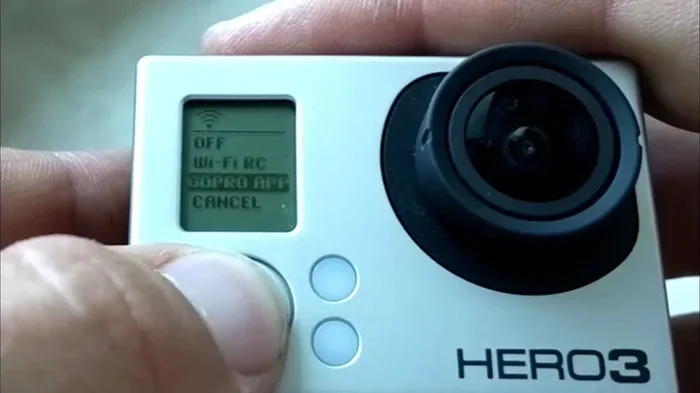
Does Gopro Hero 3 Have Wi Fi Here Is What You Need To Know
Yes, the GoPro Hero 3 does have Wi-Fi built in, but only on select editions like the Black, Silver, and White models. You can use the GoPro mobile app to remotely control your camera, view live previews, and wirelessly transfer files. However, the Wi-Fi range and speed on the Hero 3 are limited compared to newer GoPro models, so understanding its capabilities and limitations is essential before you head out to shoot.
If you own a GoPro Hero 3 or are thinking about buying one, you might be wondering whether this older camera still has Wi-Fi capabilities. The short answer is yes, but the full story is a bit more nuanced. The GoPro Hero 3 was released in 2012 and came in three different editions, each with its own set of features. Understanding how Wi-Fi works on this camera can save you a lot of frustration, especially if you are trying to connect it to your phone or transfer files wirelessly.
In this guide, we will walk you through everything you need to know about GoPro Hero 3 Wi-Fi. We will cover how to set it up, what you can do with it, what its limitations are, and how to troubleshoot common problems. Whether you are a seasoned action camera user or just getting started, this article has you covered.
Key Takeaways
- The GoPro Hero 3 has built-in Wi-Fi on all three editions (Black, Silver, and White), but the feature works differently depending on the model.
- You need the GoPro mobile app to connect your camera to a smartphone or tablet for remote control and live preview.
- Wi-Fi range on the Hero 3 is limited to about 300 feet (100 meters) in ideal conditions, which is shorter than newer GoPro models.
- Using Wi-Fi drains the battery faster, so it is best to turn it off when you do not need it.
- The Hero 3 cannot connect to 5 GHz networks and only supports 2.4 GHz Wi-Fi, which can cause interference in crowded areas.
- You can connect your GoPro to a TV wirelessly if you have the right setup, making it easy to share footage with friends.
📑 Table of Contents
- Does GoPro Hero 3 Have Wi-Fi Built In?
- How to Set Up Wi-Fi on Your GoPro Hero 3
- What Can You Do With Wi-Fi on the GoPro Hero 3?
- Wi-Fi Limitations of the GoPro Hero 3
- Troubleshooting Common Wi-Fi Issues on GoPro Hero 3
- Comparing GoPro Hero 3 Wi-Fi to Newer Models
- Expert Tips for Getting the Most Out of GoPro Hero 3 Wi-Fi
- Common Mistakes to Avoid
- Final Thoughts
Does GoPro Hero 3 Have Wi-Fi Built In?
The GoPro Hero 3 does come with built-in Wi-Fi, but not all editions are the same. The Hero 3 line includes the Black Edition, Silver Edition, and White Edition. Each one offers Wi-Fi connectivity, but the features and performance vary. Let us break this down so you know exactly what to expect.
GoPro Hero 3 Black Edition
The Black Edition is the most feature-rich model in the Hero 3 lineup. It supports Wi-Fi for remote control, live preview, and file transfer. The Wi-Fi module on the Black Edition also allows for wireless streaming of lower-resolution video, which is handy if you want to share clips quickly on social media. This model is the best choice if you want the full GoPro wireless connection experience.
GoPro Hero 3 Silver Edition
The Silver Edition also has Wi-Fi built in, but it lacks some of the advanced video settings found on the Black Edition. You can still use the GoPro mobile app to connect, control the camera remotely, and transfer files. The Wi-Fi performance is essentially the same as the Black Edition, so you will not be missing out on connectivity here.
GoPro Hero 3 White Edition
The White Edition is the budget-friendly option in the Hero 3 family. It includes Wi-Fi as well, but it does not have the same video resolution or advanced features as the Black and Silver models. If you just want basic wireless connectivity for remote control and file transfer, the White Edition will get the job done.
How to Set Up Wi-Fi on Your GoPro Hero 3
Setting up Wi-Fi on your GoPro Hero 3 is straightforward, but there are a few steps you need to follow carefully. If you skip a step, you might end up staring at a blank screen wondering why nothing is connecting.
Step 1: Download the GoPro App
First, download the GoPro mobile app on your smartphone or tablet. The app is available for both iOS and Android devices. Once installed, open the app and make sure your phone’s Bluetooth is turned on. The app uses Bluetooth to initially discover your GoPro camera, and then Wi-Fi takes over for data transfer.
Step 2: Enable Wi-Fi on the Camera
On your GoPro Hero 3, swipe down on the LCD screen or press the Wi-Fi button on the side of the camera. You will see a Wi-Fi icon appear on the display. The camera will start broadcasting its own Wi-Fi network. The network name will usually start with “GoPro” followed by a model identifier.
Step 3: Connect Your Phone
Go to your phone’s Wi-Fi settings and look for the GoPro network. Tap on it to connect. You may need to enter a default password, which is often “goprohero” or similar. Once connected, open the GoPro app, and it should recognize the camera automatically. If you have trouble finding your Wi-Fi password in the camera settings, you can check your phone’s saved networks for the GoPro connection details.
Quick Tips for Wi-Fi Setup
- Keep your camera close to your phone during the initial setup process.
- Turn off other Bluetooth devices nearby to avoid interference.
- Make sure your phone’s Wi-Fi is set to 2.4 GHz since the Hero 3 does not support 5 GHz bands.
- Restart both devices if the connection fails on the first try.
What Can You Do With Wi-Fi on the GoPro Hero 3?
Once your GoPro Hero 3 is connected to Wi-Fi, a whole range of possibilities opens up. Let us look at what you can actually do with this feature.
Remote Control
One of the best features of Wi-Fi on the Hero 3 is the ability to control your camera remotely using your phone. You can start and stop recording, change settings, and switch between photo and video modes. This is especially useful when your camera is mounted in a hard-to-reach place, like on a helmet or a drone. You do not need to physically touch the camera to get the shot you want.
Live Preview
The GoPro app provides a live preview of what your camera sees. This is incredibly helpful for framing your shots. You can see exactly what the camera captures before you hit record, which saves time and memory card space. However, keep in mind that the live preview quality is lower than the actual recording resolution because it is being streamed over a wireless connection.
Wireless File Transfer
You can transfer photos and videos from your GoPro Hero 3 to your phone over Wi-Fi. This makes it easy to share clips on social media or back them up to cloud storage. The transfer speed is not blazing fast, though. Large video files can take several minutes to transfer, especially if you are shooting in high resolution. If you need to move files quickly, using a card reader is still the faster option.
Connecting to Your TV
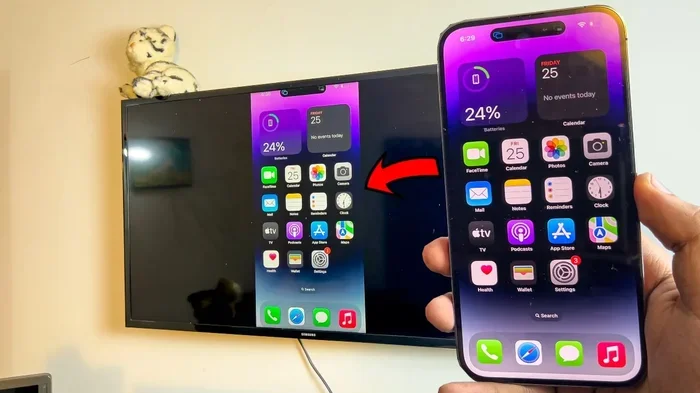
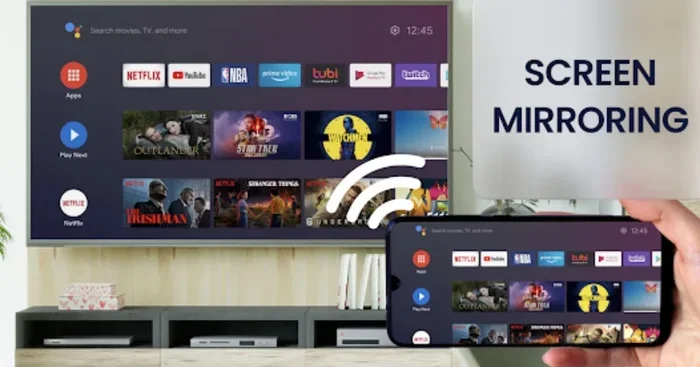
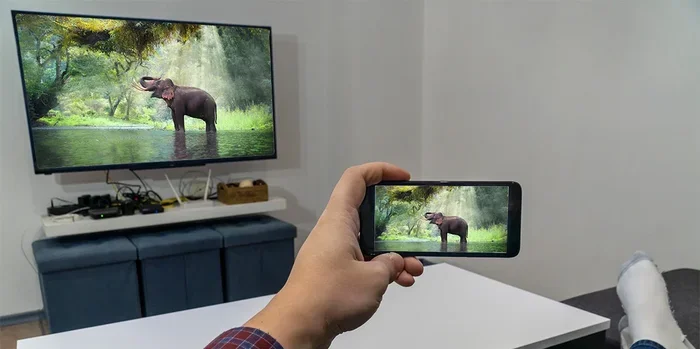
If you want to show your footage on a bigger screen, you can connect your GoPro to your TV wirelessly with the right setup. Some users use Wi-Fi-enabled streaming adapters to mirror the camera’s output to a smart TV. This is a great way to share your adventures with friends and family without passing around a small camera screen.
Wi-Fi Limitations of the GoPro Hero 3
While having Wi-Fi on the GoPro Hero 3 is convenient, it is important to understand the limitations. This is an older camera, and its wireless capabilities reflect that.
Limited Range
The Wi-Fi range on the GoPro Hero 3 is approximately 300 feet (about 100 meters) in open space. This is significantly shorter than what you get with newer GoPro models. If you are filming in a large open area or hiking through a forest, you may lose connection if your phone wanders too far from the camera. Boosting your Wi-Fi signal outside is not really an option with the Hero 3 since it does not support external antennas or signal extenders.
Battery Drain
Wi-Fi uses a lot of power, and the GoPro Hero 3 is no exception. When Wi-Fi is turned on, you will notice the battery draining much faster than usual. If you are planning a long shoot, consider turning Wi-Fi off when you are not actively using it. This simple step can extend your recording time significantly.
2.4 GHz Only
The GoPro Hero 3 only supports 2.4 GHz Wi-Fi networks. Many modern routers broadcast on both 2.4 GHz and 5 GHz bands. The 2.4 GHz band is more crowded and prone to interference from other devices like microwaves, cordless phones, and neighboring networks. If you experience frequent disconnects, try moving closer to your router or switching to a less congested channel.
No Bluetooth
Some people confuse Wi-Fi and Bluetooth, but they are different technologies. The GoPro Hero 3 uses Wi-Fi for data transfer and does not have Bluetooth for low-energy connections. Wi-Fi and Bluetooth are not the same frequency, and they serve different purposes. Wi-Fi handles larger data transfers, while Bluetooth is designed for short-range, low-power connections. The Hero 3 relies solely on Wi-Fi for all its wireless communication.
Troubleshooting Common Wi-Fi Issues on GoPro Hero 3
If you are having trouble getting your GoPro Hero 3 to connect to Wi-Fi, you are not alone. This is a common issue, especially with older camera models. Here are some of the most frequent problems and how to fix them.
Camera Not Showing Up in the App
If your GoPro does not appear in the GoPro app, the first thing to check is whether Wi-Fi is turned on. Make sure the Wi-Fi icon is visible on the camera’s display. Next, ensure that your phone’s Bluetooth is enabled. The app uses Bluetooth to discover the camera before switching to Wi-Fi for data transfer. Restarting both the camera and your phone can also resolve this issue.
Connection Keeps Dropping
A dropping connection is often caused by distance or interference. Stay within 300 feet of your camera and avoid areas with a lot of electronic devices. If you are filming outdoors, walls, trees, and other obstacles can weaken the signal. Improving your Wi-Fi signal outside is difficult with the Hero 3, so try to keep the camera and your phone in line of sight whenever possible.
Cannot Connect to Home Wi-Fi Network
The GoPro Hero 3 is designed to create its own Wi-Fi network (hotspot mode) rather than connecting to your home router. This is by design. If you want to connect the camera to a network for file transfer, you may need a third-party app or adapter. Most users find it easier to use the camera’s built-in hotspot and connect their phone directly to it.
Forgot Wi-Fi Password
If you have changed the default Wi-Fi password on your GoPro and forgotten it, you can reset the camera to factory settings. This will restore the default password. You can also check your phone’s saved Wi-Fi networks, where the GoPro connection may still be listed with its password. Alternatively, you can find the default credentials in the GoPro user manual or on the GoPro website.
Comparing GoPro Hero 3 Wi-Fi to Newer Models
If you are considering upgrading from the Hero 3, it helps to understand how its Wi-Fi compares to newer GoPro models. The gap is significant.
| Feature | GoPro Hero 3 | GoPro Hero 8 | GoPro Hero 10 |
|---|---|---|---|
| Wi-Fi Standard | 2.4 GHz only | 2.4 GHz and 5 GHz | 2.4 GHz and 5 GHz |
| Max Range | ~300 feet | ~500 feet | ~500 feet |
| Bluetooth | No | Yes (BLE) | Yes (BLE) |
| Live Preview Quality | Low resolution | HD live preview | HD live preview |
| Transfer Speed | Slow | Faster | Fastest |
| Voice Control | No | Yes | Yes |
As you can see, the Hero 3’s Wi-Fi is functional but outdated. If wireless connectivity is a priority for you, a newer GoPro model will offer a much smoother experience. However, if you already own a Hero 3, the built-in Wi-Fi is still perfectly usable for basic remote control and file transfer.
Expert Tips for Getting the Most Out of GoPro Hero 3 Wi-Fi
Here are some practical tips from experienced users to help you get the best performance from your GoPro Hero 3’s wireless features.
- Turn Wi-Fi off when not in use. This saves battery and reduces interference with other devices.
- Use the Quik app for file management. GoPro’s Quik app (formerly the GoPro app) offers better organization and editing tools for your footage.
- Keep your firmware updated. GoPro occasionally releases firmware updates that improve Wi-Fi performance and fix bugs. Check the GoPro website for the latest updates for the Hero 3.
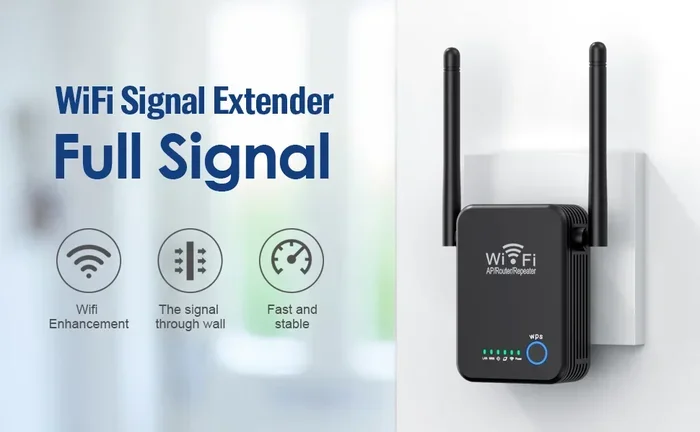
- Use a Wi-Fi range extender if needed. If you need more range, a portable Wi-Fi extender can boost the signal. This is especially helpful for outdoor shoots where distance is a factor.
- Transfer files in batches. Instead of transferring one large file at a time, batch your files together to reduce the number of connections needed and save time.
Common Mistakes to Avoid
Even experienced GoPro users make mistakes when it comes to Wi-Fi. Here are some common ones to watch out for.
- Leaving Wi-Fi on all the time. This drains your battery quickly and can cause overheating during long shoots.
- Standing too far from the camera. The Hero 3’s Wi-Fi range is limited. Stay within 300 feet for a stable connection.
- Ignoring interference. Crowded Wi-Fi environments like festivals or urban areas can cause disconnects. Switch to a less crowded channel if possible.
- Not deleting unwanted networks. If your GoPro has saved networks it cannot connect to anymore, deleting them from the list can prevent connection errors and speed up the Wi-Fi scanning process.
Final Thoughts
So, does GoPro Hero 3 have Wi-Fi? Yes, it absolutely does. The camera offers built-in wireless connectivity across all three editions, allowing you to remotely control the camera, view live previews, and transfer files to your phone. While the Wi-Fi capabilities are not as advanced as what you find on newer GoPro models, they are still functional and useful for everyday shooting.
The key is to understand the limitations. The range is limited, the battery drain is real, and the connection can be finicky in crowded areas. But with the tips and troubleshooting steps outlined in this guide, you can make the most of your GoPro Hero 3’s wireless features. Whether you are capturing adventures in the great outdoors or recording family moments at home, knowing how to use Wi-Fi effectively on your Hero 3 makes a big difference.
If you ever decide to upgrade, newer GoPro models offer significantly better wireless performance. But for now, your Hero 3 still has plenty of life left in it, and its Wi-Fi is a handy tool that adds real value to your shooting experience.
Frequently Asked Questions
Can I connect my GoPro Hero 3 to my TV wirelessly?
Yes, you can connect your GoPro Hero 3 to a TV wirelessly using a Wi-Fi streaming adapter or by using the GoPro app on a smart TV that supports screen mirroring. This lets you view your footage on a bigger screen without cables.
Why does my GoPro Hero 3 Wi-Fi keep disconnecting?
Your GoPro Hero 3 Wi-Fi may keep disconnecting due to distance, interference from other devices, or a crowded 2.4 GHz network. Try moving closer to the camera, turning off nearby Bluetooth devices, and switching to a less congested Wi-Fi channel.
Can I use my GoPro Hero 3 Wi-Fi without the GoPro app?
No, the GoPro app is required to manage Wi-Fi connections on the Hero 3. The app handles remote control, live preview, and file transfer over the wireless connection. Without the app, you cannot access the Wi-Fi features.
Does the GoPro Hero 3 support 5 GHz Wi-Fi?
No, the GoPro Hero 3 only supports 2.4 GHz Wi-Fi networks. It cannot connect to 5 GHz bands, which means it may experience more interference in areas with many wireless devices.
How do I delete unwanted Wi-Fi networks from my GoPro Hero 3?
You can delete unwanted networks from your GoPro Hero 3 by going to the Wi-Fi settings in the camera menu. Look for the list of saved networks and remove any that you no longer need. This helps keep the connection process smooth and error-free.
Can I boost my GoPro Hero 3 Wi-Fi signal for outdoor use?
The GoPro Hero 3 has a fixed Wi-Fi antenna, so you cannot boost its signal directly. However, you can improve performance by staying within range, keeping the camera in open areas away from obstructions, or using a portable Wi-Fi range extender designed for action cameras.