Does Every PC Need A WiFi Adapter Or Is It Unnecessary
Not every PC needs a separate WiFi adapter. Many modern computers come with built-in wireless capability already installed. However, older desktops, custom-built PCs, and certain laptops may still require an external or internal WiFi adapter to connect to a wireless network. This guide breaks down when you need one, what type to choose, and how to check if your PC already has WiFi built in.
Does every PC need a WiFi adapter? The short answer is no. Many computers today come with wireless capability already built right in. But the full answer depends on your PC model, age, and how you use the internet. If you have an older desktop or a custom-built machine, you might be missing the wireless hardware entirely. In that case, a WiFi adapter becomes essential.
In this guide, we will walk through everything you need to know about WiFi adapters. We will cover how to check if your PC already has one, the different types available, and when you actually need to buy one. Whether you are setting up a new desktop or trying to fix a connection issue, this article has you covered.
Key Takeaways
- Built-in WiFi is common: Most modern PCs and laptops include wireless adapters right out of the box.
- Older desktops often lack WiFi: If your PC was built before 2015, it likely needs a WiFi adapter.
- USB WiFi adapters are the easiest fix: They plug in and work instantly without opening your PC case.
- Internal WiFi cards offer better performance: They provide faster speeds and stronger signals than USB options.
- Check your PC first: Before buying anything, verify whether your computer already has wireless capability.
- WiFi 6 adapters are the future: If you are buying new, go with WiFi 6 for better speed and range.
- Ethernet can replace WiFi: A wired connection may be all you need if you are near your router.
📑 Table of Contents
What Is A WiFi Adapter And What Does It Do?
A WiFi adapter is a small hardware component that lets your PC connect to a wireless network. Think of it as the bridge between your computer and your wireless router. Without one, your PC cannot pick up WiFi signals from your router.
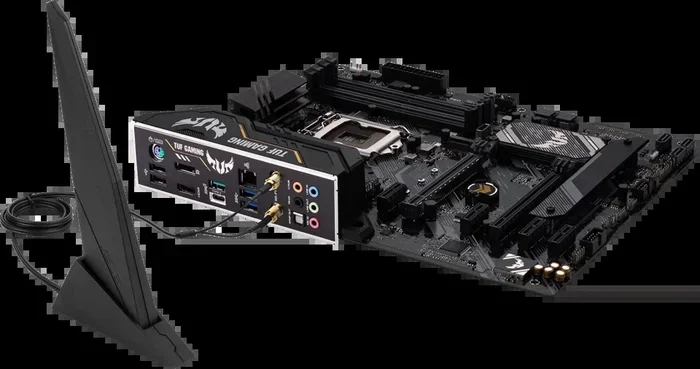
WiFi adapters come in different shapes and sizes. Some are built directly into the motherboard. Others are small USB dongles you plug into an open port. Internal cards slide into PCIe slots on your computer’s motherboard. Each type serves the same basic purpose but offers different levels of performance and convenience.
Most people never think about their WiFi adapter until something goes wrong. You might notice slow internet speeds, dropped connections, or a complete inability to find any wireless networks. That is usually the first sign that your adapter is either missing, outdated, or malfunctioning.
If you want to learn more about how WiFi adapters compare to other connectivity options, check out our article on Can I Get Internet In My Home Without A Phone Line for more context on wireless vs. wired connections.
How To Check If Your PC Already Has WiFi
Before you rush out to buy a WiFi adapter, check if your PC already has one. This is a quick process that saves you time and money. Here is how to do it on different operating systems.
Checking On Windows
On Windows, click the Start menu and type “Device Manager.” Open it and look for a section called “Network adapters.” Expand that section. You should see a list of all your network hardware. Look for any entry that mentions “Wireless,” “Wi-Fi,” or “WLAN.”
If you see something like “Intel Wireless-AC” or “Realtek RTL8822CE,” your PC already has a WiFi adapter installed. You are good to go. If you only see “Ethernet” or “Realtek PCIe GBE” entries, your PC likely does not have wireless capability.
Another quick way is to look at your system tray. Click the network icon in the bottom-right corner of your screen. If you see a list of available WiFi networks, your PC has a built-in adapter. If you only see “Ethernet” or “Dial-up” options, you need a WiFi adapter.
Checking On macOS
On a Mac, click the Apple menu and select “About This Mac.” Then click “System Report.” Scroll down to the “Network” section. Look for “Wi-Fi” in the list. If it is there, your Mac already supports wireless connections.
MacBooks have had built-in WiFi for many years now. Desktop Macs like the iMac also include WiFi. However, older Mac models or Mac Minis from several years ago might need an external adapter.
Checking On Linux
On Linux, open your terminal and type “iwconfig” or “lspci | grep -i wireless.” If the command returns a wireless interface, your PC has WiFi hardware. If not, you will need to add an adapter.
For more details on WiFi cards and how they work, our article on Can I Get A Wi Fi Card For My Computer offers a deeper dive into WiFi card options.
Types Of WiFi Adapters For PCs
If your PC does not have built-in WiFi, you have several options to add it. Each type has its own advantages and trade-offs. Let us break them down so you can choose the right one for your needs.
USB WiFi Adapters
USB WiFi adapters are the most popular choice for most users. They are small, plug-and-play devices that you insert into any available USB port. No installation of internal hardware is required. Most USB adapters work instantly on Windows, macOS, and Linux without needing extra setup.
USB adapters range from basic models that handle everyday browsing to high-performance units that support WiFi 6 speeds. They are affordable, usually costing between $10 and $50. For most people, a USB WiFi adapter is the simplest and most cost-effective solution.
One thing to keep in mind: USB adapters share bandwidth with other USB devices. If you plug a USB adapter into a hub that also runs a mouse and keyboard, you might notice slight performance dips. For best results, plug your adapter directly into a USB port on the back of your PC.
Internal PCIe WiFi Cards
Internal WiFi cards offer better performance than USB adapters. They connect directly to your motherboard through a PCIe slot. This means they get a more direct and stable connection to your system, which translates to faster speeds and lower latency.
These cards also have better antennas, which means stronger WiFi signals and wider coverage. If you are a gamer, a video streamer, or someone who needs the fastest possible wireless speeds, an internal PCIe card is the way to go.
The downside is that you need to open your PC case and install the card. You also need a free PCIe slot on your motherboard. If you are not comfortable with hardware installation, a USB adapter might be a better fit.
PCIe WiFi Cards With Bluetooth
Some internal WiFi cards also include Bluetooth support. This is a great two-in-one solution if your PC lacks both WiFi and Bluetooth. Instead of buying two separate adapters, you get both wireless networking and Bluetooth connectivity from a single card.
These combo cards are especially useful for desktop PCs that do not have Bluetooth built in. They are slightly more expensive than WiFi-only cards but save you the hassle of managing multiple adapters.
For more on connectivity options, you might also want to read about Can A Usb Be A Hard Drive to understand the versatility of USB connections in general.
When Do You Actually Need A WiFi Adapter?
Now that you know the types, let us talk about when you actually need one. Not every situation calls for a WiFi adapter. Here are the most common scenarios where adding one makes sense.
You Have an Older Desktop PC
If your desktop PC was built before 2015, there is a good chance it does not have WiFi built in. Many older desktops were designed with wired Ethernet connections in mind. The motherboard simply does not include wireless hardware.
In this case, a WiFi adapter is not just helpful — it is necessary. Without one, you cannot connect to your wireless router and access the internet over WiFi. A USB adapter is the easiest fix for older desktops.
Your Built-In WiFi Is Not Working
Sometimes your PC has WiFi hardware, but it stops working. This can happen after a Windows update, a driver issue, or physical damage. If your WiFi adapter suddenly disappears from Device Manager or you cannot find any wireless networks, the adapter might be faulty.
Before replacing the adapter, try updating your WiFi drivers. Go to the manufacturer’s website and download the latest driver for your specific model. Sometimes a simple driver update fixes the problem. If not, a USB WiFi adapter can serve as a reliable backup.
You Want Better WiFi Speeds
Even if your PC has built-in WiFi, it might not be the fastest option. Older laptops often come with WiFi 4 or WiFi 5 adapters. If your router supports WiFi 6, you are leaving speed on the table by using an older adapter.
Upgrading to a WiFi 6 adapter can significantly improve your wireless speeds. You will notice faster downloads, smoother streaming, and lower latency during online gaming. This is especially true if you are far from your router and need a strong signal to maintain a stable connection.
If you are dealing with WiFi range issues around your home, check out our guide on Can I Extend My Wifi To My Shed for tips on boosting your wireless coverage.
You Use a Desktop Without Ethernet Access
Some desktop setups do not have an Ethernet port nearby. Maybe your router is in another room, or your desk is too far from a wall jack. In these situations, a WiFi adapter becomes your only practical option for getting online.
Running a long Ethernet cable across your house is not always feasible. A USB WiFi adapter solves this problem quickly and cleanly. You get wireless internet without running cables through walls or across floors.
Do You Need WiFi If You Have Ethernet?
This is a great question, and the answer depends on your needs. Ethernet connections are faster, more stable, and more secure than WiFi. If your PC is sitting right next to your router, a wired connection might be all you need.
However, WiFi offers freedom and convenience. You are not tied to a cable. You can move around your home with a laptop or reposition your desktop without worrying about cable length. Many people prefer WiFi even when Ethernet is available simply for the flexibility.
If you are setting up a home network with multiple devices, you might also want to consider a mesh WiFi system. For more on that topic, check out Can I Connect Wi Fi 6 Mesh To Wifi 5 Router for helpful advice on upgrading your wireless setup.
How To Choose The Right WiFi Adapter
Not all WiFi adapters are created equal. Here are the key factors to consider before making a purchase.
WiFi Standard
Look for adapters that support the latest WiFi standard your router uses. If you have a WiFi 6 router, get a WiFi 6 adapter. If your router is older, WiFi 5 or WiFi 4 will still work fine. Matching the WiFi standard ensures you get the best possible speeds.
USB Port Version
If you are going with a USB adapter, make sure it matches your USB port version. A USB 3.0 adapter will perform much better on a USB 3.0 port than on a USB 2.0 port. Check your PC’s ports before buying to avoid bottlenecks.
Antenna Design
Adapters with external antennas generally offer better range and signal strength than those with internal antennas. If your PC is far from your router, look for an adapter with two or more external antennas.
Brand And Reviews
Stick with well-known brands like TP-Link, ASUS, Netgear, and Intel. Read user reviews before buying. Look for feedback on real-world speeds, driver support, and ease of setup. A cheap adapter that has poor driver support can cause more problems than it solves.
Common WiFi Adapter Problems And How To Fix Them
Even after installing a WiFi adapter, you might run into issues. Here are the most common problems and their solutions.
Problem 1: Adapter Not Recognized. This usually means missing or outdated drivers. Visit the manufacturer’s website and download the latest driver package. Install it and restart your PC.
Problem 2: Slow WiFi Speeds. Move closer to your router and test again. If speeds improve, the issue is signal strength. Consider upgrading to an adapter with better antennas or switching to a 5GHz frequency band.
Problem 3: Intermittent Disconnections. This can be caused by interference from other devices. Keep your adapter away from microwaves, cordless phones, and baby monitors. Updating your WiFi adapter drivers can also fix this issue.
Problem 4: Adapter Keeps Disappearing From Device Manager. This is often a driver conflict. Uninstall the adapter from Device Manager, restart your PC, and let Windows reinstall the driver automatically.
Final Thoughts
So, does every PC need a WiFi adapter? The answer is clear: not every PC needs one, but many PCs benefit from having one. Modern laptops and newer desktops often include built-in WiFi, making an extra adapter unnecessary. However, older desktops, custom-built PCs, and machines with broken wireless hardware will need a WiFi adapter to connect to the internet wirelessly.
The good news is that WiFi adapters are affordable and easy to install. A USB adapter takes seconds to set up. An internal PCIe card offers better performance for those who need it. Before buying anything, check your PC first to see if it already has wireless capability. You might be surprised how many modern computers already include it.
Whether you are browsing the web, streaming movies, or gaming online, having a reliable WiFi connection matters. Choose the right adapter for your needs, and you will enjoy fast, stable wireless internet for years to come.
Frequently Asked Questions
Can I Use My PC Without A WiFi Adapter If I Have Ethernet?
Yes, you can absolutely use your PC without WiFi if you connect it to your router using an Ethernet cable. A wired connection provides faster speeds and more stability than WiFi. This is a great option if your PC is close to your router and you do not need wireless freedom.
How Much Does A WiFi Adapter Cost?
USB WiFi adapters range from around $10 for basic models to $80 for high-end WiFi 6 options. Internal PCIe cards typically cost between $20 and $100 depending on the WiFi standard and features. For most users, a $20 to $30 USB adapter is more than enough for everyday use.
Can I Use A WiFi Adapter On Both Windows And Mac?
Many WiFi adapters work on both Windows and macOS, but you should always check the manufacturer’s compatibility list before buying. Some adapters are designed specifically for Windows and may not have drivers available for Mac. Look for adapters that explicitly support your operating system.
Is A USB WiFi Adapter As Good As A Built-In WiFi Card?
USB WiFi adapters are very convenient but may not match the performance of a built-in WiFi card or a PCIe internal adapter. Built-in cards have a direct connection to the motherboard and better antenna placement. However, a good USB WiFi 6 adapter can come very close in real-world performance.
Do I Need To Install Drivers For A WiFi Adapter?
Most modern WiFi adapters work plug-and-play on Windows 10 and Windows 11. The operating system installs the necessary drivers automatically. However, for the best performance and stability, it is a good idea to download the latest drivers from the manufacturer’s website. On macOS and Linux, you may need to install drivers manually.
Can A WiFi Adapter Improve My Internet Speed?
A WiFi adapter can improve your speed if your current adapter is outdated or does not support the latest WiFi standards. For example, upgrading from a WiFi 4 adapter to a WiFi 6 adapter can significantly boost your wireless speeds. However, the adapter alone cannot make your internet plan faster — your internet speed is ultimately limited by your service provider.