Do Wifi Extenders Need To Be Plugged Into Your Router
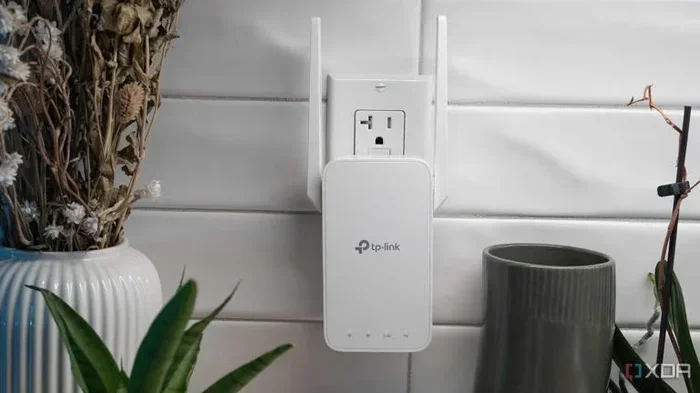
A WiFi extender does not always need to be plugged directly into your router. Most WiFi extenders plug into a wall outlet somewhere between your router and the area with weak signal. The device receives your existing WiFi signal and rebroadcasts it to extend coverage. Understanding how to set up your WiFi extender correctly can make a huge difference in your wireless coverage and network performance.
This is a comprehensive guide about Do Wifi Extenders Need To Be Plugged Into Router.
Key Takeaways
- WiFi extenders do not need a direct router connection: Most plug into any standard wall outlet within range of your existing WiFi signal.
- Placement matters more than wiring: The best spot is halfway between your router and the dead zone.
- Ethernet backhaul offers better performance: Connecting your extender to the router via a cable gives the strongest, most stable connection.
- Mesh systems work differently: Some mesh nodes plug directly into the router, but most still work wirelessly.
- Power outlet choice affects speed: A poorly chosen outlet can slow down your wireless signal and reduce bandwidth.
- Dual-band extenders handle traffic better: They use two frequency bands to reduce WiFi speed loss.
[FEATURED_IMAGE_PLACEHOLDER]
Do WiFi Extenders Need To Be Plugged Into Your Router?
Let us answer the big question right away. No, a WiFi extender does not need to be plugged directly into your router. Most WiFi extenders are standalone devices that you plug into any wall outlet within range of your existing wireless signal. They pick up that signal and send it out further to cover areas your router cannot reach well.
Think of a WiFi extender like a messenger. Your router sends a message (the WiFi signal). The extender receives it and passes it along to rooms that were too far away. It does this all without needing a cable that runs straight back to the router.
That said, there are different ways to connect an extender to your network. Some setups work better than others depending on your home size, wall materials, and the devices you use. Let us walk through everything you need to know about setting up your wireless range extender the right way.
Whether you have a small apartment or a large house with WiFi dead zones, understanding how your extender connects makes a big difference. You will learn about plug-in extenders, wired setups, and mesh systems. By the end, you will know exactly what works best for your home.
How WiFi Extenders Actually Work
A WiFi extender is a signal booster that sits between your router and the areas of your home with weak signal. It connects to your router’s wireless network and then creates a new broadcast of that same signal. This new broadcast reaches farther than your router alone can manage.
Here is a simple way to think about it. Imagine you are standing in a room shouting to someone across the yard. Now imagine a friend stands in the middle and repeats what you said. The person at the end of the yard hears the message twice as clearly. That is basically what a WiFi repeater does.
Wireless Connection (Most Common)
Most WiFi extenders connect to your router wirelessly. You plug the extender into a wall outlet in a room that still gets a decent signal from the router. The extender then repeats that signal out to the areas that need it most.
This is the easiest setup because you do not need any cables. You just plug it in, follow the setup steps, and you are done. The downside is that wireless extenders can lose some bandwidth because they receive and retransmit on the same channel. This can slow things down a little.
Wired Connection (Ethernet Backhaul)
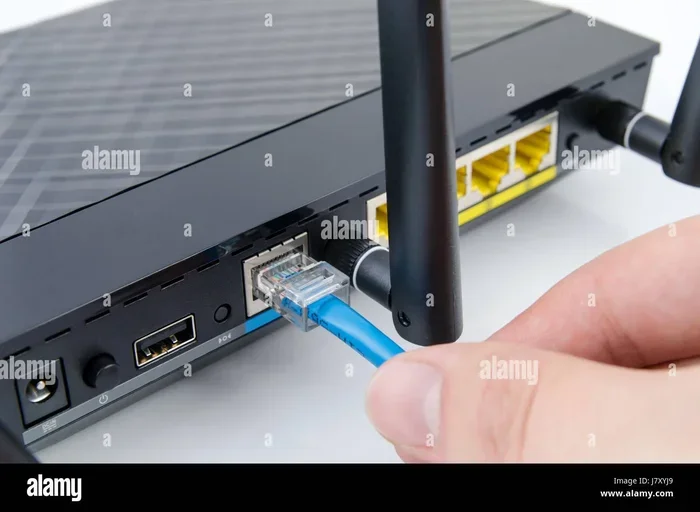
Some extenders and mesh systems let you connect the extender to the router using an Ethernet cable. This is called wired backhaul. It gives you a much stronger and faster connection between the router and the extender.
With wired backhaul, the extender does not lose any speed because it is not sharing the wireless channel. This is the best option if you can run a cable from your router to the extender location. Many people extend their WiFi to a shed or garage using this method because it provides the most reliable connection.
Powerline Adapters as an Alternative
Another option is a powerline adapter. This device uses your home’s electrical wiring to carry the network signal. You plug one adapter near your router and another in the room where you need better coverage. It works like a wire hidden inside your walls.
Powerline adapters are great when wireless signals struggle to pass through thick walls or floors. They are not true WiFi extenders, but they solve the same problem. You get a strong, stable connection in rooms where your wireless signal normally drops off.
Where to Plug In Your WiFi Extender
Placement is one of the most important parts of using a WiFi extender. If you plug it in the wrong spot, you will not get the results you want. The golden rule is to place your extender halfway between your router and the area with weak signal.
The Halfway Rule
Your extender needs to receive a strong signal from the router. If you place it too far away, it will repeat a weak signal, and your WiFi speed will suffer. Think of it like a game of telephone. If the first person whispers too softly, the message gets garbled by the time it reaches the last person.
A good test is to walk around your home with your phone. Find the spot where your signal starts getting weak. That is where you want your extender to be. Plug it in about halfway between your router and that weak spot.
Common Plug-In Mistakes
Many people make mistakes when choosing where to plug in their extender. Here are some common ones to avoid:
- Plugging it too close to the router: The extender will not extend anything because it is already in the strong signal zone.
- Plugging it too far from the router: It will pick up a weak signal and broadcast an even weaker one.
- Hiding it behind furniture: Walls and metal objects block wireless signals and reduce performance.
- Placing it near microwaves or cordless phones: These devices interfere with the 2.4GHz frequency band and cause slowdowns.
- Using a power strip: Plugging directly into the wall gives the best signal strength. Power strips can dampen the connection.
Best Rooms for Extender Placement
The ideal room for your extender depends on your home layout. Here are some common scenarios:
- Hallway between floors: Great for multi-story homes because the signal can spread both up and down.
- Living room near a hallway: Works well for open floor plans where the signal needs to reach bedrooms.
- Home office or den: Good if your router is in the basement and you need coverage on the main level.
- Near a large window facing the weak zone: Helps push the signal outward toward the area that needs it.
Do You Need a Direct Router Connection?
Now let us get to the heart of the question. Does your WiFi extender need a direct plug-in connection to the router? The short answer is no. But the longer answer depends on what kind of extender you have and what kind of performance you want.
Plug-In WiFi Extenders (No Direct Connection)
Most plug-in WiFi extenders work entirely wirelessly. You plug them into any wall outlet that gets a good signal from your router. They connect to the router over the air and then broadcast an extended signal. You do not need to run any cables to the router at all.
These are the most popular type of extender because they are simple to set up and very flexible. You can move them from room to room whenever you need to. They work well for most homes and are a great first step to improving your wireless coverage.
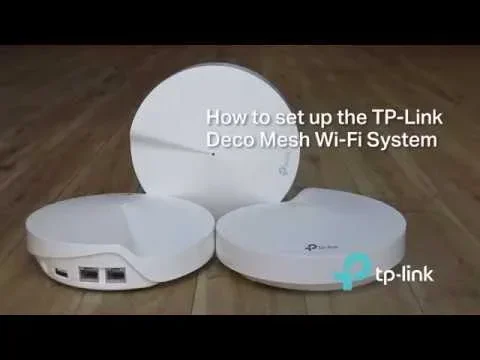
Some people wonder if a Deco mesh system can work as a WiFi extender. The answer is yes, many mesh systems can function as extenders, and they follow the same basic principles of placement and connection.
Mesh WiFi Systems (Semi-Direct Connection)
Mesh WiFi systems are a step up from traditional extenders. They include a main hub that connects directly to your modem or router. Additional nodes (satellites) spread the signal throughout your home.
Some mesh nodes plug directly into the main router hub using a cable. Others connect wirelessly. The main hub does need to be connected to your router, but the satellite nodes do not. They form a single, seamless network that covers your entire home.
Mesh systems are more expensive than basic extenders, but they offer much better performance. They handle dual-band connections intelligently and switch your devices to the fastest band automatically. If you have a large home or many devices, a mesh system is worth the investment.
When a Direct Ethernet Connection Is Worth It
There are times when plugging your extender directly into the router with an Ethernet cable makes sense. If you want the fastest possible WiFi speed and the most stable connection, wired backhaul is the way to go.
This is especially true for activities like online gaming, video streaming, and video calls. These tasks need a strong, consistent connection. A wireless extender can introduce lag or drops, but a wired connection eliminates that problem.
You can also use an Ethernet cable to connect your extender to the router even if they are on different floors. Just run the cable along a wall or through a doorway. It is not as pretty as a wireless setup, but the performance difference is huge.
Types of WiFi Extenders Compared
Not all WiFi extenders are the same. Different types serve different needs and budgets. Here is a look at the most common options.
| Type | Connection to Router | Pros | Cons |
|---|---|---|---|
| Plug-In WiFi Extender | Wireless (most models) | Easy setup, affordable, flexible placement | Some speed loss, depends on signal strength at extender location |
| Desktop WiFi Extender | Wireless or Ethernet | Better antennas, more stable connection | Takes up desk space, less portable |
| Mesh WiFi System | Wired or wireless (nodes) | Seamless coverage, no dead zones, fast | More expensive, requires main hub |
| Powerline Adapter | Uses electrical wiring | Works through thick walls, stable | Speed depends on wiring quality |
| USB WiFi Adapter | Wireless (connects to device) | Portable, good for laptops | Only extends for one device, not whole home |
Each type has its place. A plug-in extender is perfect for most homes. A mesh system is best for large homes with many devices. A powerline adapter shines when walls block wireless signals. Choose the one that fits your situation best.
Tips for Getting the Best Performance
Once you have your extender set up, a few simple tips can help you get the most out of it. These small changes can make a big difference in your WiFi signal strength and overall network performance.
Update Your Extender Firmware
Manufacturers release firmware updates that improve performance and fix bugs. Check your extender’s app or admin page regularly for updates. Keeping your device current ensures it runs at its best.
Change the WiFi Channel
If your neighbors have WiFi networks that overlap with yours, interference can slow things down. Use your router’s settings or a WiFi analyzer app to find the least crowded channel. Switch your extender to that channel for a cleaner, faster connection.
Restart Your Extender Periodically
Just like your router, your extender can benefit from a fresh restart. Unplug it for 30 seconds and plug it back in. This clears its memory and can fix minor connection issues. A quick restart once a week keeps things running smoothly.
Use the Right Frequency Band
Most modern extenders support both 2.4GHz and 5GHz bands. The 2.4GHz band travels farther but is slower. The 5GHz band is faster but has a shorter range. Many extenders let you choose which band to use, or they switch automatically based on your device’s needs.
For rooms close to the extender, use the 5GHz band for faster speeds. For rooms farther away, the 2.4GHz band will reach better. Some extenders let you set a custom name for each band so you can choose manually.
Limit the Number of Extenders
It might be tempting to add multiple extenders everywhere, but too many can actually hurt your network. Each extender cuts your available bandwidth in half because it uses the same radio to receive and send data. Stick to one or two extenders and place them strategically.
Common Problems and How to Fix Them
Even with the best setup, you might run into issues with your WiFi extender. Here are the most common problems and simple fixes.
Slow Speeds After Setup
If your speeds drop after adding an extender, the placement is likely the culprit. Move the extender closer to the router and test again. Also make sure your extender supports the same WiFi standard as your router (like WiFi 5 or WiFi 6). An older extender on a new router will bottleneck your speeds.
Extender Keeps Disconnecting
A loose connection or electrical interference can cause frequent disconnects. Plug the extender directly into the wall outlet, not a power strip. Also keep it away from microwaves, baby monitors, and other electronics that cause interference.
Devices Do Not Connect to the Extender
Some older devices cannot connect to dual-band or mesh extenders. Check if your device supports the same frequency band as your extender. You may need to set up a separate network name for older devices on the 2.4GHz band only.
Extender Shows Connected But No Internet
This usually means the extender is connected to the router’s signal but cannot pass internet through. Restart both the router and the extender. If that does not work, check your router’s settings to make sure it is not blocking the extender’s MAC address.
Final Thoughts
So, do WiFi extenders need to be plugged into your router? Not directly. Most plug-in extenders work wirelessly and only need a wall outlet. They pick up your router’s signal and rebroadcast it to cover more of your home. The key is placing the extender in the right spot where it can still get a strong signal from the router.
If you want the best performance, consider using an Ethernet cable to connect your extender to the router. This gives you the fastest, most reliable connection. For larger homes, a mesh WiFi system offers the most seamless experience with multiple nodes working together.
Your home WiFi setup should work for you, not against you. A well-placed WiFi extender can eliminate dead zones, boost your signal strength, and give every room in your home the connection it needs. Start with the basics, test different placements, and adjust until you find what works best.
Take some time today to check your current setup. Move your extender to a better spot if needed, update the firmware, and test your speeds. A small change can make a big difference. You deserve strong, reliable WiFi everywhere in your home.
FAQs
Can I plug my WiFi extender into any wall outlet?
Yes, you can plug your WiFi extender into any standard wall outlet. However, the outlet should be in a location that still receives a decent WiFi signal from your router. If the outlet is too far from the router, the extender will not work well. The best spot is halfway between your router and the area with weak coverage.
Does plugging an extender into the router give better performance?
Plugging an extender directly into the router with an Ethernet cable gives the best performance. This is called wired backhaul and it eliminates speed loss. Most people do not need a direct connection because wireless plug-in extenders are convenient and work well for most homes.
Can I use a WiFi extender with any router?
Yes, WiFi extenders work with almost any router. They are designed to be compatible with standard WiFi networks. Just make sure your extender supports the same WiFi standard as your router, such as WiFi 5 or WiFi 6, for the best results.
How many WiFi extenders do I need for my home?
Most homes need only one or two extenders. One extender can cover a medium-sized home. For larger homes or homes with thick walls, two extenders placed strategically should be enough. Adding more than two can actually slow down your network because each extender cuts your available bandwidth.
Is a WiFi extender the same as a WiFi booster?
Yes, WiFi extenders and WiFi boosters are essentially the same thing. Both terms refer to devices that receive your existing WiFi signal and rebroadcast it to extend coverage. Some manufacturers use one term over the other, but the function is identical.
Will a WiFi extender slow down my internet speed?
A WiFi extender can reduce your speed slightly because it receives and retransmits the signal on the same channel. This speed loss is usually small and much better than having no signal at all. Using an extender with wired backhaul or a dual-band model can minimize any speed loss.
Frequently Asked Questions
What is Do Wifi Extenders Need To Be Plugged Into Router?
Do Wifi Extenders Need To Be Plugged Into Router is an important topic with many practical applications.