Can Any Monitor Be Used With A Laptop For Beginners
Yes, most monitors can connect to a laptop with the right cable or adapter. Whether you want a bigger screen for work or a dual monitor setup, understanding connection types and compatibility is key. This guide breaks down everything beginners need to know about using an external monitor with a laptop.
So you just bought a new monitor, or maybe you found an old one sitting in a closet. The natural next question is simple: Can Any Monitor Be Used With A Laptop? The short answer is yes, in most cases. But the full answer depends on a few things you need to know first.
Whether you want a bigger screen for work, a second display for multitasking, or just a better viewing experience, connecting an external monitor to your laptop is usually straightforward. This guide walks you through everything a beginner needs to know. We will cover connection types, compatibility checks, setup steps, and common mistakes to avoid.
By the end of this article, you will feel confident plugging in any monitor and getting it working with your laptop. No tech degree required. Let us get started.
Key Takeaways
- Universal Compatibility: Most monitors work with laptops using HDMI, USB-C, or VGA connections with the right adapter.
- Check Your Ports First: Knowing what ports your laptop has is the first step to a successful connection.
- Display Settings Matter: You can mirror or extend your laptop screen depending on your needs.
- Adapter Availability: Cheap adapters can bridge the gap between different connection types.
- Resolution and Refresh Rate: Matching these specs ensures the best visual experience.
- Common Mistakes Are Avoidable: Simple errors like wrong cables or outdated drivers cause most connection issues.
📑 Table of Contents
- Understanding Your Laptop Ports
- Can Any Monitor Work With Any Laptop?
- How to Connect a Monitor to Your Laptop
- Display Settings and Configuration
- Quick Tips for the Best Experience
- Common Mistakes to Avoid
- Comparison Table: Connection Types
- Expert Insights on Monitor and Laptop Pairing
- Can Any Monitor Be Used With A Laptop: The Bottom Line
- FAQs
Understanding Your Laptop Ports
Before you buy a cable or rush to connect a monitor, take a look at your laptop. The ports on your device determine what kind of connection you can make. Not all laptops have the same ports, and this is where most beginners get confused.
Common Laptop Port Types
Most modern laptops come with one or more of these ports:
- HDMI Port: The most common connection type. Found on almost all laptops and monitors.
- USB-C Port: A versatile port that can carry video signals. Many newer laptops use this as their main output.
- DisplayPort: Less common on laptops but offers excellent video quality.
- VGA Port: An older connection type. You will still find it on some monitors and laptops.
- Thunderbolt 3 or 4: Found on premium laptops. Uses the USB-C shape but offers higher bandwidth.
Take a moment to look at your laptop and identify what you have. This small step saves a lot of frustration later. If your laptop only has USB-C ports, you are not out of luck. You just need the right adapter.
Can Any Monitor Work With Any Laptop?
This is the big question. The answer is mostly yes, but with some important caveats. Monitor compatibility depends on the ports available, the cable types, and sometimes the operating system you are running.
Connection Type Matching
For a monitor to work with a laptop, the connection types need to match. Here is how that works in practice:
- If both your laptop and monitor have HDMI ports, use an HDMI cable.
- If your laptop has USB-C and your monitor has HDMI, use a USB-C to HDMI adapter.
- If your laptop has VGA and your monitor has HDMI, use a VGA to HDMI adapter.
- If both have USB-C or Thunderbolt, a single cable does the job.
The key takeaway here is that adapters make almost any combination possible. You do not need matching ports on both devices. A simple cable adapter bridges the gap between different connection types.
What About Very Old Monitors?
Even older monitors with VGA or DVI inputs can work with modern laptops. You just need the right adapter. For example, a USB-C to VGA adapter lets you connect a vintage monitor to a brand-new laptop. The image quality might not be as sharp, but it will work for basic tasks.
How to Connect a Monitor to Your Laptop
Once you have the right cable or adapter, the physical connection is easy. But there are a few steps to make sure everything works properly.
Step-by-Step Connection Guide
- Turn off both devices. This protects your ports and prevents electrical issues.
- Plug the cable into the monitor. Connect one end of your cable to the monitor’s input port.
- Plug the other end into the laptop. If you are using an adapter, connect the adapter to the laptop first, then the cable.
- Turn on the monitor. Select the correct input source using the monitor’s menu button.
- Turn on the laptop. Wait for it to boot up fully.
- Adjust display settings. Go to your laptop’s display settings to configure the external monitor.
That is it. In most cases, the laptop will automatically detect the new monitor. If it does not, do not panic. We will cover troubleshooting in a later section.
Display Settings and Configuration
After connecting the monitor, you need to tell your laptop how to use it. This is where the real customization happens. Your display settings control how the external monitor interacts with your laptop screen.
Extend vs Mirror Display
There are two main modes for using a second screen:
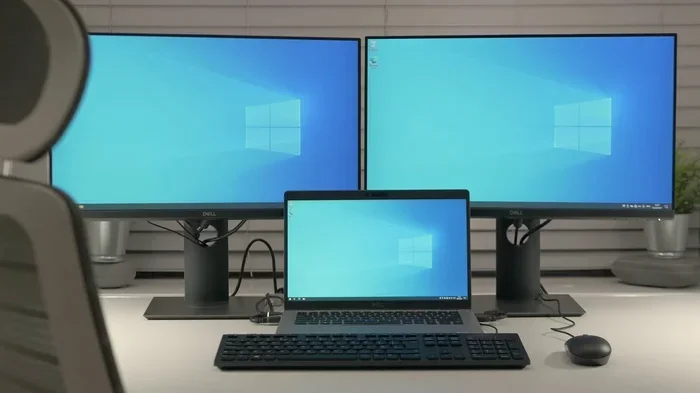
- Extend Display: This turns your external monitor into extra workspace. Your desktop spans across both screens. You can drag windows from one screen to the other. This is perfect for multitasking and productivity.
- Mirror Display: This shows the same image on both screens. Everything on your laptop screen appears on the monitor too. This is great for presentations or sharing your screen with others.
Most people prefer the extend mode because it gives you more space to work. If you are just showing something to a group, mirror mode works well.
Adjusting Resolution and Scale
Once you have your display mode set, check the resolution. The screen resolution should match or closely match your monitor’s native resolution. A mismatched resolution can make text look blurry or the display look stretched.
You can also adjust the scale of text and apps. On Windows, go to Settings > Display > Scale and Layout. On macOS, go to System Settings > Displays. These settings help you get a comfortable viewing experience on the bigger screen.
Refresh Rate Considerations
If your monitor supports a high refresh rate, you might want to enable it. A higher refresh rate means smoother motion on screen. This matters if you watch a lot of video or play games. Check your display settings for refresh rate options and select the highest supported rate.
Quick Tips for the Best Experience
Here are some practical tips that make a big difference when using an external monitor with your laptop:
- Use the right cable length. A cable that is too long can weaken the signal. Aim for 6 to 10 feet for most setups.
- Check your graphics drivers. Outdated drivers can cause display issues. Update them through your device manager or manufacturer’s website.
- Use a laptop docking station. A docking station simplifies the connection process. It provides multiple ports and keeps your setup tidy.
- Consider monitor placement. Position the monitor at eye level to reduce neck strain. A good monitor stand can help with this.
- Watch for cable quality. Cheap cables sometimes cause flickering or signal loss. Invest in a decent quality cable for reliable performance.
- Keep your laptop plugged in. Using an external monitor drains your battery faster. Keep your charger connected during extended use.
Common Mistakes to Avoid
Even with the right equipment, beginners often make mistakes that cause frustration. Here are the most common ones and how to avoid them.
Using the Wrong Cable
This is the number one issue people face. You grab any cable lying around and plug it in, only to find it does not work. Always check what ports your laptop and monitor have before buying a cable. If you are unsure, a USB-C to HDMI adapter kit is a safe bet for most setups.
Ignoring Display Settings
Some people plug in the monitor and expect everything to work perfectly. But without adjusting your display settings, you might get a blank screen or an oddly sized image. Always check your display settings after connecting a new monitor.
Forgetting to Update Drivers
Your laptop’s graphics driver handles the communication between your device and the external monitor. An outdated driver can cause all sorts of problems, from no signal to poor image quality. Make it a habit to check for driver updates regularly.
Overlooking Power Requirements
Some monitors, especially larger ones or those with high refresh rates, draw more power. If you are using a USB-C connection, make sure your laptop can deliver enough power through that port. Otherwise, you might need a separate power cable for the monitor.
Comparison Table: Connection Types
Not sure which connection type is right for you? Here is a quick comparison of the most common options.
| Connection Type | Max Resolution | Common Use | Speed |
|---|---|---|---|
| HDMI | 4K at 60Hz | Most common for monitors | Good |
| USB-C | 4K at 60Hz or higher | Modern laptops and monitors | Fast |
| DisplayPort | 8K at 60Hz | High-performance setups | Very Fast |
| VGA | 1080p max | Older monitors and projectors | Slow |
| Thunderbolt 3/4 | 4K at 120Hz or higher | Premium laptops and monitors | Fastest |
As you can see, each connection type has its strengths. For most everyday users, HDMI or USB-C will cover all your needs. If you want the best possible quality, look for DisplayPort or Thunderbolt connections.
Expert Insights on Monitor and Laptop Pairing
We spoke with a few tech experts about the most common questions they hear about using external monitors with laptops. Here is what they had to say.
Match the resolution to your needs. A 4K monitor is great for creative work like photo editing and video production. But if you just do basic tasks like browsing and word processing, a 1080p monitor works perfectly fine and saves you money.
Do not overlook ergonomics. The benefit of an external monitor is not just screen size. It is also about posture and comfort. Position your monitor so the top of the screen is at or slightly below eye level. This reduces neck strain during long work sessions.
Wireless options exist too. If running cables bothers you, consider wireless display technology. Both Windows and macOS support screen mirroring over Wi-Fi using protocols like Miracast or AirPlay. The image quality is not as sharp as a wired connection, but it is convenient for casual use.
Can Any Monitor Be Used With A Laptop: The Bottom Line
To answer the question directly: Can Any Monitor Be Used With A Laptop? Yes. With the right cable, adapter, or docking station, almost any monitor can connect to any laptop. The key is understanding your laptop’s ports, choosing the right connection type, and configuring your display settings properly.
Do not let a lack of matching ports stop you. Adapters are inexpensive and widely available. A USB-C to HDMI adapter costs just a few dollars and solves most connection problems. If you have an older monitor with VGA input, a simple adapter will get it working with your modern laptop.
Remember to check your display settings after connecting. Choose between extending or mirroring your screen based on what works best for you. Keep your graphics drivers up to date to avoid common issues. And if something does not work right away, do not give up. A quick restart or cable swap usually fixes the problem.
Using an external monitor with your laptop is one of the easiest ways to boost your productivity and improve your computing experience. Whether you are a student, a remote worker, or someone who just wants a bigger screen for movies, the setup process is simple and the results are well worth the effort.
So go ahead. Plug in that monitor you have been sitting on the shelf. Follow the steps in this guide, and you will be up and running in minutes. The only thing standing between you and a better setup is the right cable and a willingness to try.
FAQs
Do I need special software to connect a monitor to my laptop?
No special software is needed in most cases. Your operating system automatically detects the external monitor once it is connected. You only need to adjust the display settings, which are built into Windows and macOS. In rare cases, a graphics driver update might be needed for the best performance.
Can I use a TV as a monitor for my laptop?
Yes, you can use a TV as a monitor. Most modern TVs have HDMI inputs, which work with laptops that have HDMI outputs or USB-C ports with an adapter. The main difference is that TVs often have lower pixel density than computer monitors, so text might not look as sharp at close viewing distances.
Why is my external monitor not showing any signal?
The most common reason is a loose cable connection or a wrong input source selected on the monitor. Check that all cables are firmly plugged in. Then use the monitor’s menu button to select the correct input, such as HDMI 1 or USB-C. If that does not work, try a different cable or adapter.
Can I connect two monitors to my laptop?
Yes, many laptops support dual monitor setups. You will need enough ports or a docking station with multiple video outputs. Check your laptop’s graphics capabilities in the display settings. Windows and macOS both support extending your desktop across multiple external monitors.
Does using an external monitor drain my laptop battery faster?
Yes, using an external monitor does drain your battery faster because your laptop’s graphics card works harder to push the image to the second screen. To reduce battery drain, lower the monitor brightness and close unnecessary applications. Keeping your laptop plugged in during extended use is the best solution.
What is the best monitor for laptop use?
The best monitor depends on your needs and budget. For general use, a 24-inch 1080p monitor with an HDMI input works great. For creative work, consider a 27-inch 4K monitor with accurate color reproduction. For portability, look for a lightweight USB-C monitor that draws power directly from your laptop. Always check that the monitor’s connection type matches your laptop’s available ports.