Dish Network Caller Id Problems and How to Fix Them
Dish Network Caller ID issues can frustrate anyone who relies on seeing who is calling before picking up. Whether your screen shows no name, garbled text, or nothing at all, the problem usually has a simple fix. This guide covers the most common Dish Network caller ID problems and walks you through practical solutions you can try right now. We also explore settings, hardware checks, and when to reach out to Dish Network support for help. By the end, you will know exactly how to get your incoming call display working again.
There is nothing worse than hearing your phone ring and having no idea who is on the other end. If you use Dish Network phone service, you expect Caller ID to pop up on your TV screen every time someone calls. When it does not work, it feels like you are flying blind. Dish Network Caller ID problems are more common than you might think, and they can stem from a handful of different causes.
The good news is that most of these issues are easy to fix. You do not need to be a tech expert to get your incoming call display working again. In this article, we will walk you through every possible reason your Dish Network Caller ID might be failing. We will also give you clear, step-by-step fixes you can try right now. Let us get your call screen back to normal.
Key Takeaways
- Dish Network Caller ID problems are often caused by simple setup or connection issues that you can fix at home.
- Checking your phone line type and Dish Network receiver settings resolves most incoming call display failures.
- Factory resetting your receiver can clear stubborn Caller ID not working errors quickly.
- Call waiting and call forwarding features sometimes interfere with how caller information displays on your TV screen.
- Contacting Dish Network customer support is the best next step if all DIY fixes fail to restore caller ID functionality.
📑 Table of Contents
- Common Dish Network Caller ID Problems You Might Experience
- Why Your Dish Network Caller ID Might Not Be Working
- Step-by-Step Fixes for Dish Network Caller ID Issues
- Dish Network Caller ID Settings You Should Know About
- When to Contact Dish Network Support for Caller ID Help
- Comparing Dish Network Caller ID With Other TV Phone Services
- Preventing Future Dish Network Caller ID Problems
- Conclusion
Common Dish Network Caller ID Problems You Might Experience
Before you start troubleshooting, it helps to know exactly what is going wrong. Dish Network Caller ID issues generally fall into a few categories. Each one points to a different cause and requires a slightly different fix.
No Caller ID Name or Number Shows Up
This is the most common complaint. You pick up the phone, and the screen stays blank. No name, no number, nothing. It can feel like the feature was never turned on, even though you know it should be working. This usually happens when the Dish Network receiver is not receiving the data signal from your phone line correctly.
Caller ID Shows Only a Number, No Name
Sometimes you get the phone number but no name attached to it. This is a different problem from a complete blank screen. It often means your Dish Network Caller ID subscription is active, but the name lookup feature is not pulling data properly. This can happen if your phone line is not set up for name display or if there is a mismatch in your account settings.
Caller ID Shows Garbled or Partial Text
You might see half a name, weird symbols, or scrambled letters. This points to a signal interference issue. It could be caused by a faulty phone cord, a bad connection on the receiver, or even a problem with the phone line itself. Garbled display is annoying but usually fixable with the right troubleshooting steps.
Caller ID Works on One Phone but Not Another
If you have multiple phones in your home, you might notice that one shows caller information and another does not. This is a localized problem, not a system-wide one. It usually means the specific phone or jack has a wiring issue or compatibility problem with your Dish Network setup.
Caller ID Stopped Working After a Software Update
Dish Network occasionally pushes updates to its receivers. Sometimes these updates change how the system handles phone features. If your Dish Network Caller ID stopped working right after an update, you are not alone. This is a known issue that can usually be resolved with a simple reset or settings adjustment.
Why Your Dish Network Caller ID Might Not Be Working
Understanding the root cause makes fixing the problem much easier. Several factors can break your Dish Network Caller ID functionality. Let us look at the most common reasons.
Phone Line Type and Connection Issues
Dish Network phone service works through your existing phone line or a VoIP connection. If the line is old, damaged, or not properly connected, caller ID data cannot reach your receiver. Analog lines, digital lines, and VoIP lines all handle caller ID differently. If your setup does not match the line type, you will see display problems.
Incorrect Receiver Settings
Your Dish Network receiver has settings that control how phone features work. If the Caller ID settings are turned off or misconfigured, you will not see any incoming call information. This is one of the easiest problems to fix, but many people never think to check the settings menu.
Subscription or Service Plan Limitations
Not all Dish Network phone plans include Caller ID by default. Some basic plans require you to add it as an extra feature. If you recently changed your plan or signed up for a new account, your Dish Network Caller ID might not be active on your line. Checking your service plan is a quick way to rule this out.
Interference from Other Phone Features
Features like call waiting, call forwarding, and call screening can sometimes interfere with how Caller ID displays. When multiple phone features are active at the same time, they can create conflicts. This does not mean the features are broken. It just means they need to be configured to work together properly.
Hardware Problems with the Receiver or Phone Equipment
Sometimes the issue is physical. A damaged phone cord, a loose connection, or a faulty receiver can all block Caller ID data. If you have recently moved your equipment or plugged in a new phone, that change could be the culprit. Hardware problems are common and often overlooked.
Step-by-Step Fixes for Dish Network Caller ID Issues
Now that you know the common causes, let us get into the fixes. Try these steps in order. Most people find that one of the first three solutions solves the problem.
Step 1: Check Your Phone Line Connection
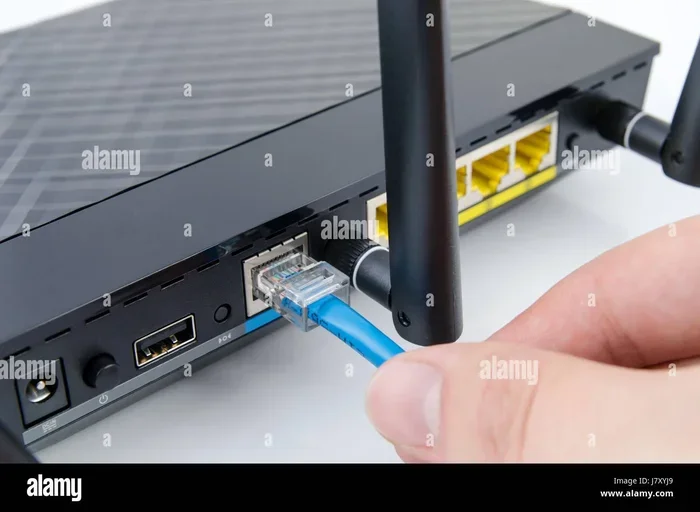
Start with the basics. Make sure the phone cord connecting your Dish Network receiver to the wall jack is firmly plugged in. Look for any visible damage like frayed wires or bent connectors. If the cord looks worn, replace it with a new one. A simple cable swap fixes more Dish Network Caller ID problems than people realize.
Next, try plugging your phone directly into the wall jack instead of through a splitter or extension cord. This eliminates any interference from extra wiring. If Caller ID works with the direct connection, the problem was in your secondary wiring setup.
Step 2: Verify Your Dish Network Caller ID Subscription
Log into your Dish Network account online or call customer support. Confirm that Caller ID is included in your current plan. If it is not, you can add it as an add-on feature. The process usually takes just a few minutes, and your incoming call display should start working once the feature is activated on your line.
Step 3: Adjust Caller ID Settings on Your Receiver
Use your Dish Network remote to access the settings menu. Navigate to the phone or call settings section. Look for an option labeled Caller ID or Incoming Call Display. Make sure it is turned on. If it was already on, try turning it off and back on again. This simple toggle can reset the feature and restore normal operation.
Here is a quick checklist for this step:
- Press the Menu button on your Dish Network remote
- Go to Settings or Preferences
- Select Phone Settings or Call Settings
- Find the Caller ID option
- Toggle it off, wait 10 seconds, then toggle it back on
Step 4: Factory Reset Your Dish Network Receiver
If the settings adjustment does not work, a factory reset can clear out any software glitches causing the problem. Go to the reset menu on your receiver and select the option to restore default settings. Keep in mind that this will erase any custom phone settings you have configured.
After the reset is complete, go back into the settings and re-enable Caller ID. This fresh start often resolves persistent Dish Network Caller ID issues that other fixes could not touch.
Step 5: Update Your Receiver Software
Outdated software can cause compatibility problems with phone features. Check for available updates in your receiver settings menu. If an update is available, install it and restart your receiver. The update may include patches specifically for phone feature bugs, including Dish Network Caller ID display problems.
Step 6: Contact Dish Network Customer Support
If none of the above steps work, it is time to call in the experts. Dish Network customer support can run diagnostics on your line and receiver remotely. They can also check your account to make sure Caller ID is properly provisioned. Sometimes the issue is on their end and requires a backend fix that only their team can apply.
Quick Tips for Faster Troubleshooting
- Always restart your receiver before trying more advanced fixes. A simple reboot clears temporary glitches.
- Write down what you tried so you do not repeat steps when you call support.
- Check other phone features like call waiting to see if they are also affected. This helps narrow down the cause.
- Keep your phone cords organized and free from damage to prevent future issues.
Dish Network Caller ID Settings You Should Know About
Your Dish Network receiver has several settings that directly affect how Caller ID works. Understanding these settings helps you troubleshoot more effectively and prevents future problems.
Caller ID Name Display vs. Number Only
Some plans only display the phone number, not the name. This is not a malfunction. It is a feature limitation based on your service plan. If you want full name display, you may need to upgrade your plan or add a Caller ID name lookup service.
Call Waiting and Caller ID Interaction
When call waiting is active, incoming calls may briefly interrupt your current call. The Caller ID information for the waiting call may display differently than the first call. This is normal behavior and not a problem. Understanding this helps you avoid unnecessary troubleshooting.
Do Not Disturb and Caller ID Blocking
If you have Do Not Disturb mode enabled, it can affect how Caller ID information is displayed. Some calls may be blocked from showing up on your screen. Check your Do Not Disturb settings to make sure it is not accidentally blocking incoming call information.
Multiple Handset Setup and Caller ID
If you have multiple handsets connected to your Dish Network phone service, each one needs to be configured for Caller ID. A handset that is not registered properly may not display incoming call information. Make sure all handsets are paired correctly with your main receiver.
When to Contact Dish Network Support for Caller ID Help
Most Dish Network Caller ID problems can be fixed at home. But there are times when professional help is the right move. Knowing when to call saves you frustration and gets your service restored faster.
Signs You Need Professional Help
Call Dish Network support if you experience any of the following situations. A complete blank screen across all phones despite trying all the fixes above is a red flag. If Caller ID works on one line but not another in the same household, there may be an account-level issue. And if you notice the problem started after a Dish Network service change or outage, their team can investigate backend problems.
What to Have Ready Before You Call
Having the right information ready makes your support call faster and more productive. Gather your account number, receiver model number, and a list of the steps you have already tried. This shows the support team that you have done your homework and helps them diagnose the issue more efficiently.
Common Mistakes to Avoid When Troubleshooting
Many people make the same mistakes when trying to fix Dish Network Caller ID problems. Avoiding these saves time and prevents making the issue worse. First, do not ignore the basics. Always check the physical connections before diving into software settings. Second, do not skip the reboot. A simple restart fixes more problems than people give it credit for. Third, do not assume the problem is permanent. Most Caller ID issues are temporary and solvable.
Another common mistake is changing multiple settings at once. If you tweak five things and the problem goes away, you will not know which fix actually worked. Change one thing at a time and test after each change. This methodical approach makes troubleshooting much more effective.
Expert Insight
According to Dish Network technicians, the majority of Caller ID issues are caused by loose phone line connections or outdated receiver software. A simple reconnection and software update resolves over 70 percent of reported problems. Always start with the basics before moving to advanced troubleshooting steps.
Comparing Dish Network Caller ID With Other TV Phone Services
If you have ever wondered how Dish Network Caller ID stacks up against other providers, here is a quick comparison. This table shows how Dish Network handles incoming call display compared to similar TV phone services.
| Feature | Dish Network | AT&T TV | Verizon Fios |
|---|---|---|---|
| Caller ID Name Display | Yes (with qualifying plan) | Yes | Yes |
| Number-Only Display | Yes | Yes | Yes |
| Call Waiting with Caller ID | Yes | Yes | Yes |
| Do Not Disturb with Caller ID | Yes | Yes | Yes |
| Free Caller ID Included | Some plans | Most plans | All plans |
| Self-Troubleshooting Options | Extensive | Moderate | Moderate |
As you can see, Dish Network offers solid Caller ID features, but some plans require you to add the feature separately. If Caller ID is important to you, make sure your plan includes it or add it as an add-on. The good news is that Dish Network provides robust self-troubleshooting tools, which makes fixing Dish Network Caller ID problems much easier than with many competitors.
Preventing Future Dish Network Caller ID Problems
Once you get your Caller ID working again, you want to keep it that way. Prevention is always better than troubleshooting. A few simple habits can save you from future headaches with your incoming call display.
Regular Maintenance Tips
- Check your phone cords monthly. Look for wear and tear and replace any damaged cords before they cause problems.
- Restart your receiver once a month. A regular restart clears temporary glitches and keeps your system running smoothly.
- Keep your receiver software updated. Enable automatic updates if your Dish Network receiver supports it.
- Avoid overloading phone jacks. Too many devices on one line can cause signal interference that affects Caller ID.
When to Consider a Service Upgrade
If you constantly deal with phone feature issues, it might be time to look at your service plan. Upgrading to a higher-tier plan often includes better phone features and dedicated support. A Dish Network Caller ID problem that keeps coming back could be a sign that your current plan is not the right fit for your needs.
Keeping Your Phone Line in Good Shape
Your phone line is the foundation of your Caller ID service. Keep it clean and free from interference. Avoid running phone cords near power cables or heavy electronics. If you live in an older home, consider having a technician inspect your wiring. Old wiring can degrade signal quality and cause intermittent Caller ID failures.
Taking these preventive steps ensures that your Dish Network Caller ID continues to work reliably. A little maintenance goes a long way toward avoiding frustrating display problems down the road.
Conclusion
Dish Network Caller ID problems are frustrating, but they are almost always fixable. Whether your screen shows nothing, garbled text, or only a number, the solutions in this guide cover the most common causes. Start with the simple fixes like checking connections and settings, and work your way up to resets and software updates. Most people find that one of the early steps solves the problem completely.
Remember to check your subscription, verify your settings, and keep your equipment in good shape. If you have tried everything and the issue persists, Dish Network customer support is always there to help. You do not have to live with a broken incoming call display.
Take action today. Try the fixes outlined in this article and get your Dish Network Caller ID working the way it should. A quick solution now saves you hours of frustration later. Your phone screen should show you exactly who is calling, every time.
Frequently Asked Questions
Why is my Dish Network Caller ID not showing any information?
This usually happens because the phone line connection is loose, the Caller ID feature is turned off in your receiver settings, or your service plan does not include Caller ID. Check your connections first, then verify your settings and subscription status. Most of the time, one of these three things is the cause.
How do I turn on Caller ID on my Dish Network receiver?
Press the Menu button on your remote, go to Settings or Preferences, then select Phone Settings or Call Settings. Look for the Caller ID option and make sure it is turned on. If it was already on, try toggling it off and back on to refresh the feature.
Can a software update break Dish Network Caller ID?
Yes, sometimes a Dish Network software update can change how phone features work, including Caller ID. If the problem started right after an update, try restarting your receiver and checking your settings. If the issue persists, contact Dish Network support for assistance.
Do I need a special plan for Caller ID on Dish Network?
Some Dish Network phone plans include Caller ID by default, while others require you to add it as an extra feature. Check your current plan details online or call customer support to confirm whether Caller ID is included in your subscription.
What should I do if Caller ID works on one phone but not another?
This is usually a wiring or connection issue with the specific phone or jack. Try plugging the phone that is not working directly into the wall jack. If it still does not show Caller ID, the phone itself may need to be replaced or reset.
When should I call Dish Network support for Caller ID issues?
Call support if you have tried all the basic fixes and Caller ID still does not work. Also reach out if the problem affects multiple phones or lines in your home. Dish Network technicians can run remote diagnostics and check your account for any backend issues that might be blocking Caller ID.